
Are you looking to customize your WordPress site without the fear of losing your changes during updates? Creating a child theme is the perfect solution.
It’s a savvy way to tweak your site’s appearance and functionality while keeping the original theme intact. Imagine having the freedom to experiment and personalize your website, all without the risk of breaking it with the next update. In this guide, we’ll walk you through the simple steps to create a child theme in WordPress for 2022.
You’ll gain the confidence to make your site truly yours, and who knows, maybe even spark your creativity for more ambitious projects. Ready to take control of your website’s design? Let’s dive in!

Credit: www.hostinger.com
What Is A Child Theme?
A child theme is like a small version of a big theme. It uses the main theme’s features but lets you change some parts. This way, your changes are safe when the main theme updates. Think of it as a custom outfit for your website. It fits perfectly and looks unique.
Creating a child theme is easy. Start with a new folder in your theme directory. Add two files: style.css and functions.php. The style.css file tells WordPress about your new theme. The functions.php file adds extra functions from the main theme.
This method helps you keep your design changes safe. You get the best of both worlds: updates and custom looks.
Benefits Of Using A Child Theme
Child themes help keep the original design safe. Updates won’t remove your changes. Use a child theme to add new features easily. Customize your site without fear. Original theme stays untouched. Mistakes are less risky with child themes. Developers often use child themes to test new ideas.
Safety is key with a child theme. Your site gets new looks without big risks. Experiment with styles and functions freely. The main theme stays intact. Future updates are simple with child themes. Avoid starting from scratch after updates. Keep your site fresh and modern with ease.
Prerequisites For Creating A Child Theme
Creating a child theme in WordPress requires basic knowledge of HTML, CSS, and PHP. Ensure you have access to the WordPress dashboard and a code editor. Understanding the parent theme’s structure is essential for effective customization.
Tools And Software
A good text editor is important. Notepad++ and Sublime Text are popular. These tools help you edit code easily. You also need an FTP client. FileZilla is a common choice. With FTP, you can upload files to your server. A solid web browser like Chrome or Firefox is necessary. They let you view changes quickly.
It is best to have basic WordPress knowledge. Understanding themes and plugins is helpful. You should know some CSS and HTML. This helps you customize the child theme. Knowing how to use CPanel is a plus. It lets you manage your website easily.
Credit: happyaddons.com
Setting Up Your Workspace
Creating a child theme starts with the right file structure. You need a new directory for your theme. This directory will hold all the child theme files. It is important to follow the correct structure. This makes sure WordPress can find your theme.
First, go to the WordPress themes folder. You will find it in wp-content/themes. Create a new folder here. Name it after your child theme. Make sure the name is simple and clear. Inside this folder, you will add two files: style.css and functions.php. These files are essential for your child theme to work. Keep the folder neat and organized.
Creating The Child Theme Files
The style.css file is very important. It tells your child theme about itself. Write a special comment at the top. Include the Theme Name, Template, and Version. The template is the parent theme’s name. This file can change the looks of your site. Add custom styles here. Remember, it should be in the child theme’s folder. It’s like a magic wand for your site’s design.
The functions.php file adds extra features to your site. This file goes in the child theme folder. It works with the parent theme. It doesn’t replace the parent functions. Instead, it adds new ones. You can add code here. The code can change how your site works. Keep it simple and clean. This file is like a toolbox. It helps make your site better.
Enqueueing Parent Theme Styles
To keep your child theme synced, you need to enqueue styles. This method is better than using @import. It is faster and more efficient. First, find your parent theme’s style file. The file is usually named style.css. You need to add code in your child theme’s functions.php file.
Use the function wp_enqueue_style(). It helps to load the parent theme’s styles. Here’s a sample code:
function my_theme_enqueue_styles() {
    wp_enqueue_style( 'parent-style', get_template_directory_uri() . '/style.css' );
}
add_action( 'wp_enqueue_scripts', 'my_theme_enqueue_styles' );
This code links the parent and child themes. Your child theme will now inherit the parent theme’s design. Always remember to test the site. Check if the styles load properly.
Activating The Child Theme
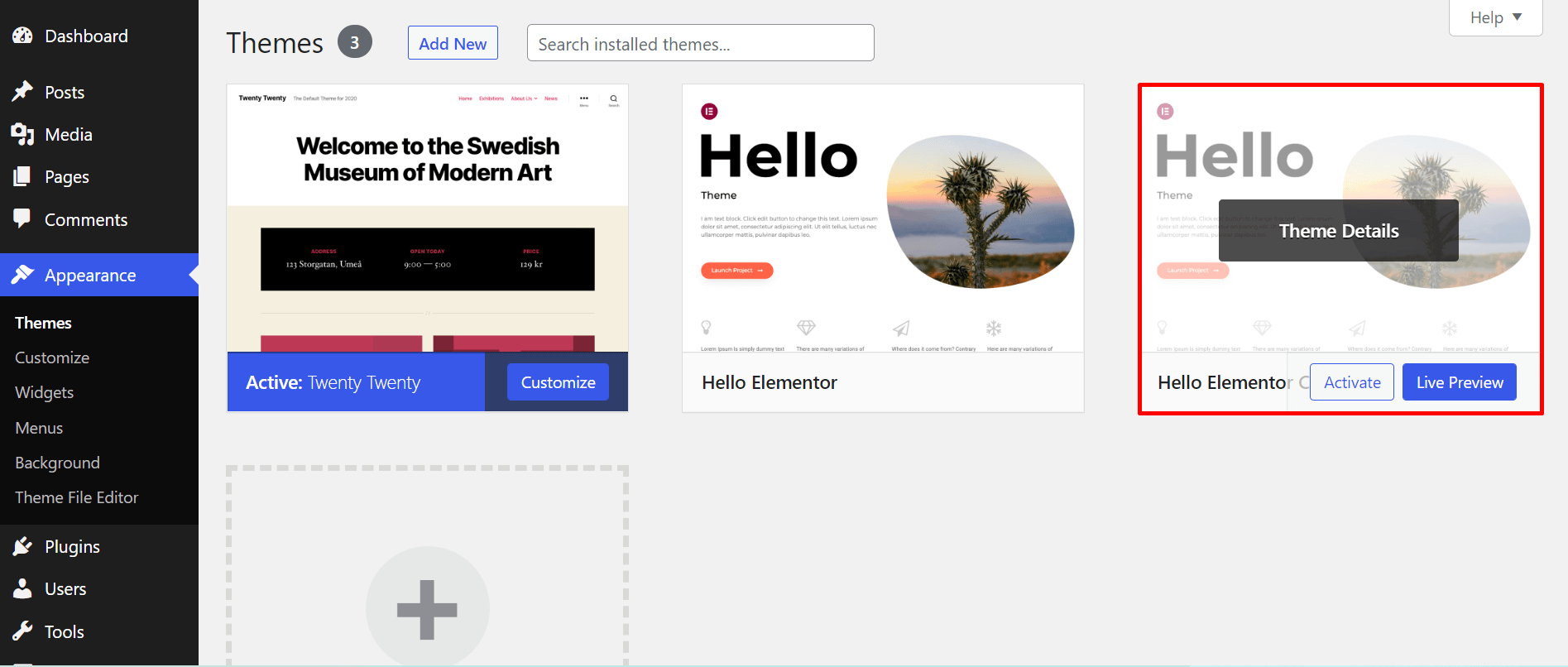
First, make a zip file of your child theme. Go to your WordPress dashboard. Click on Appearance and then Themes. Choose Add New at the top. Click Upload Theme. Select your zip file. Click Install Now. Wait for the upload to finish. Click Activate to use your child theme.
Find your child theme under Appearance. Click on Themes. Your child theme will be listed here. Click Activate to switch to it. Your site will now use the child theme. If you want to switch back, just activate another theme. It’s that simple!

Credit: developer.wordpress.org
Customizing The Child Theme
Creating a child theme in WordPress 2022 involves copying and customizing the parent theme’s files. This method allows for safe updates without losing changes. Customizing styles and functions gives your site a unique look and feel.
Adding Custom Styles
Child themes allow you to add unique styles without changing the main theme. Open the style.css file in your child theme folder. Add your custom CSS code here. This will make your site look different. It keeps the original theme safe. You can change colors, fonts, and other design elements easily. Make sure to save your changes. Refresh your site to see new styles. Custom styles help make your site special.
Modifying Templates
Changing templates in a child theme is easy. Copy the template file from the main theme. Place it in the child theme folder. Edit the copied file to suit your needs. This could be a page, header, or footer template. Use simple HTML and PHP to tweak. Ensure your changes are correct. Test them on your site. Templates help control how your site looks and works. Always backup before changing files.
Testing The Child Theme
Testing is important. It helps check if everything is working. Themes can sometimes break things. Look for missing styles. Some features might not show up. Activate your child theme in the WordPress dashboard. Click on “Appearance” and then “Themes”. Make sure your site looks good. Check each page. Ensure all plugins work as expected. If something’s wrong, it’s time to troubleshoot.
Troubleshooting Common Issues
Many face issues with styles not showing. Double-check your style.css file. Ensure it has the right code. Another issue is broken layouts. This can happen if parent theme changes. Use the WordPress customizer to fix small issues. Always keep your themes and plugins updated. It helps avoid many problems. If all fails, seek help on WordPress forums. Many users face the same issues.
Ensuring Compatibility
Check if your child theme works with all plugins. Some plugins might not be compatible. Use tools to check compatibility. Keep your child theme updated. It helps in fixing bugs. Regularly test your site. This ensures that updates don’t break it. Always back up your site before making changes. This saves time if something breaks.
Maintaining Your Child Theme
Crafting a child theme in WordPress 2022 involves duplicating the parent theme’s files. It ensures customization while preserving original settings during updates. Regular maintenance keeps the child theme compatible and functional.
Updating Safely
Always back up your site before updates. This helps in case of errors. Use FTP or a plugin for backups. Check the WordPress version notes. See if new updates affect your theme. Test updates on a staging site first. This keeps your main site safe. Review your code after updating. Look for changes or errors. Fix issues immediately. Update plugins regularly. They help your child theme function well. Keep WordPress updated too. This secures your site and theme.
Best Practices For Future Changes
Keep your code clean and simple. Use comments to explain tricky code. This helps others understand your work. Organize files in logical folders. Use clear names for files and functions. Check your theme with different browsers. Ensure it looks good everywhere. Test on mobile devices too. Make sure it works well. Use child theme templates wisely. They help you change parts of the theme. Follow WordPress coding standards. They keep your theme professional.
Frequently Asked Questions
What Is A Child Theme In WordPress?
A child theme in WordPress is a sub-theme that inherits functionalities from a parent theme. It allows you to customize your site without altering the parent theme’s code. Using a child theme ensures updates don’t overwrite your customizations, maintaining the integrity and look of your site.
Why Use A Child Theme In WordPress?
Using a child theme is crucial for preserving customizations when updating your parent theme. It allows you to safely modify styles, functions, and templates without losing changes. Child themes enhance flexibility and ensure your site stays updated and secure with minimal disruptions.
How Do I Create A Child Theme?
To create a child theme, first, create a new directory in your themes folder. Add a style. css file with a template header pointing to the parent theme. Include a functions. php file to enqueue the parent theme’s styles. Finally, activate your child theme in WordPress.
What Files Are Needed For A Child Theme?
A child theme requires at least two files: style. css and functions. php. The style. css file contains the theme header and custom styles. The functions. php file is used to enqueue parent theme styles and add custom functions. These files allow customization without modifying the parent theme directly.
Conclusion
Creating a child theme in WordPress is straightforward. It enhances your site’s customization. Your original theme remains intact. Experiment with design changes safely. Practice makes perfect in theme development. Start with small tweaks. Gradually build your skills. Resources online offer great help.
Tutorials and forums provide guidance. Keep learning, keep improving. Your WordPress site will flourish with your efforts. Embrace the process. Enjoy the creativity it brings. Now, apply these tips. Craft a unique theme for your site today. Your child theme adventure starts now!


