
Imagine visiting a website and instantly feeling captivated by its design and the message it conveys. That’s the power of a compelling website title.
If you’re looking to make your WordPress site stand out, knowing how to change the title of your WordPress theme is crucial. This seemingly small tweak can make a world of difference in how visitors perceive your site. It’s your first opportunity to grab attention, convey your brand’s essence, and make a memorable impression.
But how do you ensure your title is as effective as possible? In this guide, you’ll discover the step-by-step process to change your WordPress theme’s title with ease. Plus, you’ll learn tips to optimize it for search engines, so you can attract more visitors and keep them engaged. Ready to transform your website’s first impression? Let’s dive in and unlock the secrets to a perfect WordPress title change.
Credit: mekshq.com
Accessing Your WordPress Dashboard
First, log in to your WordPress account. Use your username and password. Then, find the dashboard link. It is usually on the left side. Click it to open. Once inside, you can see many options.
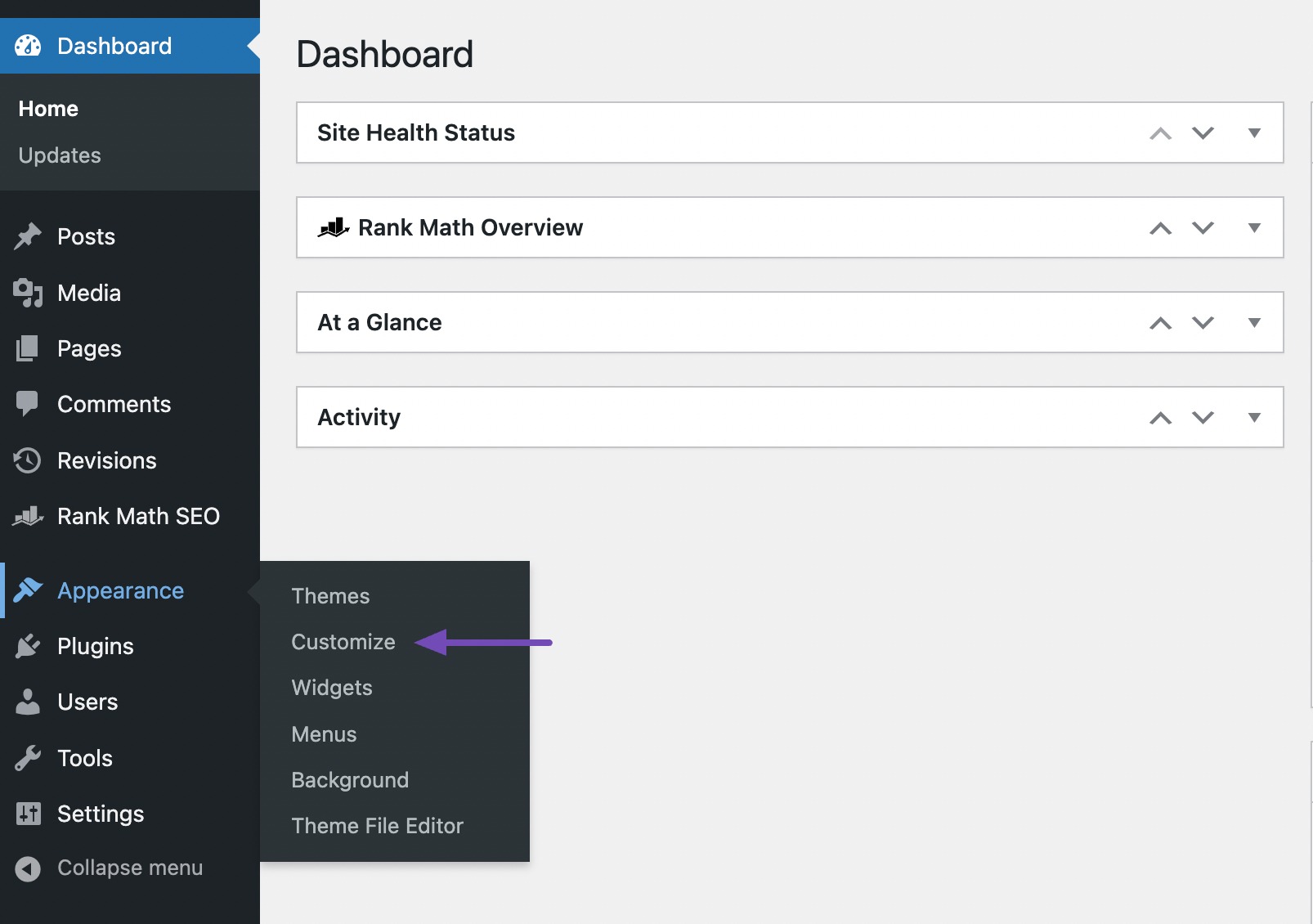
Look for the Appearance tab. It helps you change how your site looks. Under Appearance, find the Themes option. This is where you manage your themes. Click it to explore.
Changing a title needs some steps. But first, you must access your theme. This is the first step. Now, you know where to start!
Navigating To Theme Settings
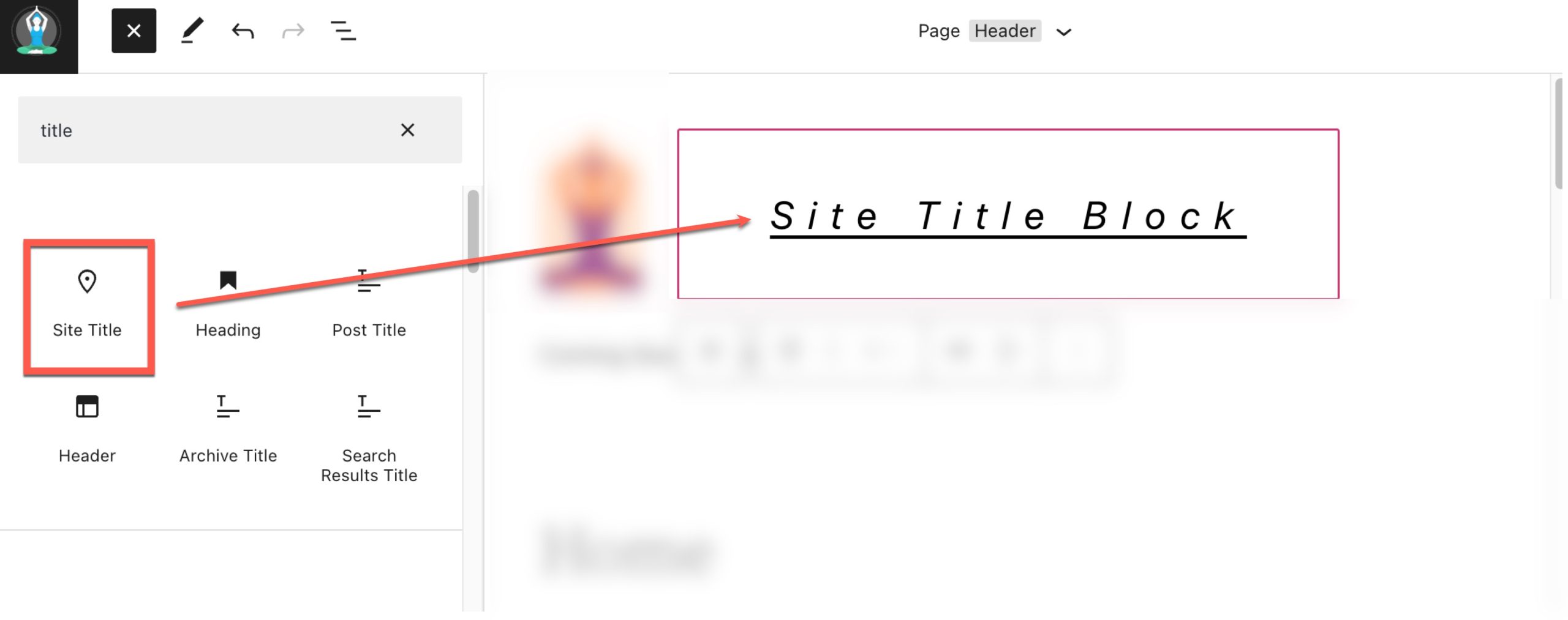
First, log into your WordPress account. Find the dashboard on the left. Click on Appearance. This opens a list. Choose Theme Options. Some themes have Customize instead. Select it if you see it.
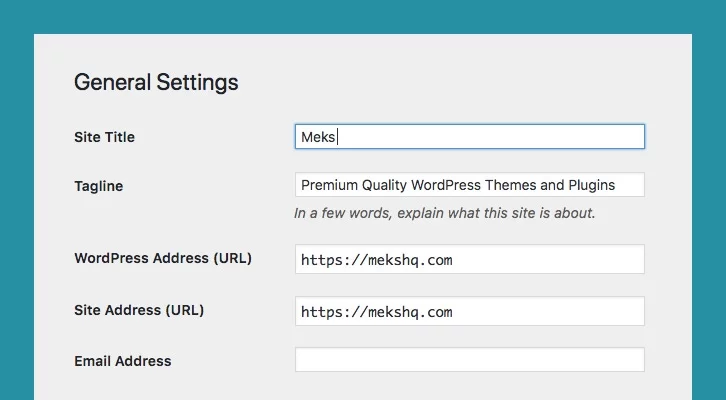
Now, look for Site Title. This might be under General Settings or Header. Click to edit. Type your new title. Make it short and clear. Save changes before you leave. Check your website. The new title should show up.
Locating The Title Option
The Customizer tool in WordPress is very useful. It helps you change your site’s title. First, go to your WordPress dashboard. Find the Appearance section. Click on Customizer. A new screen will open. Look for the Site Identity option. Click on it. You will see a box for the site title. Change the title to what you want. Then, click the Publish button to save. Now, your site has a new title!
Some themes have their own options panel. Check if your theme does. Go to the Appearance section. Click on Theme Options. Look for a title or branding section. Here, you can change the title. Remember to save your changes. Not all themes have this option. If not, use the Customizer instead. This way, you can easily update your site title. Explore and find the best way for your theme.
Editing The Theme Title
Open the WordPress dashboard. Click on Appearance and then Customize. Look for the option labeled Site Identity. Here, you can change the Site Title. Type your new title in the box. Click Publish to save changes.
Some themes have their own settings. Go to Appearance and then Theme Options. Find the section for the Site Title. Enter your desired title. Press Save to update it. Not all themes have this option, so check yours first.
Saving And Publishing Changes
After editing the theme title, click on the save button. This step is crucial. It ensures your changes are not lost. Look for the publish option. It might be at the top or bottom of the page. Click on it once you are satisfied with your edits. This makes your new title visible to everyone. Check your website to see the new title live.
Sometimes, changes might take a while to appear. Refresh the page if needed. Remember, saving and publishing are two different steps. Don’t forget either of them. If you skip one, your changes might not show. Always double-check your work before closing the page.
Verifying The New Title
Checking on the Frontend is important after changing the title. Refresh your website page. See if the title appears correctly. Look at the top of the browser. Is the title new? Check the homepage. Then check other pages too.
Testing on Different Devices ensures the title displays well everywhere. Use a computer first. Then use a tablet. Finally, use a phone. Each device can show websites differently. The title should be clear on all screens. Make sure it doesn’t cut off.
Troubleshooting Common Issues
Changing a WordPress theme title involves accessing the theme editor. Navigate to Appearance, select Editor, and modify the header. php file. Ensure to save changes to see the updated title.
Title Not Updating
Sometimes, the title might not change as expected. This can be frustrating. First, check your browser cache. Clear it to see recent changes. Some settings might not save due to plugin conflicts. Disable plugins one by one. See if any plugin stops the update. Also, ensure you click “Save” after editing the title. This step is often missed.
Theme Compatibility Problems
Not all themes handle title changes well. Some themes have special settings. Check the theme options panel. Make sure it allows title changes. If the title still does not update, it might be a theme issue. Consider contacting the theme developer. Ask if there are known issues. They might have a quick solution. Always keep your theme updated. New versions often fix bugs.
Credit: www.elegantthemes.com
Utilizing Plugins For Title Change
Easily change a WordPress theme title using plugins. These tools simplify adjustments without needing coding skills. Enhance your website’s identity quickly and efficiently with user-friendly options.
Recommended Plugins
Changing the title of a WordPress theme can be easy with plugins. All in One SEO is a good choice. It helps change titles quickly. Yoast SEO is another good plugin. Many people use it for SEO tasks. SEO Framework is simple and effective. It offers title changing options too. Rank Math is powerful and user-friendly. It makes title changes simple and fast.
Plugin Installation Steps
First, go to your WordPress dashboard. Click on Plugins. Choose Add New. Type the plugin name in the search box. Click Install Now. Wait for the installation to finish. Click Activate. Your plugin is now ready to use. Change your theme title with ease.
Best Practices For Theme Titles
Titles affect your site’s search ranking. Choose words that fit your content. Use keywords smartly. Short titles work best. Keep them under 60 characters. Long titles might not show fully. Make sure the title matches your content. This helps search engines find your site.
Brand Consistency matters. Use the same style across your site. This creates a strong brand image. People remember your site better. Consistent titles build trust. Use a style guide if needed. It helps keep everything in line. Your brand’s voice is important. Stay true to it.
Credit: rankmath.com
Frequently Asked Questions
How Can I Change A WordPress Theme Title?
To change a WordPress theme title, access your WordPress dashboard. Navigate to Appearance > Customize. Click on “Site Identity” to update the Site Title field. Save your changes. This updates the title displayed on your website’s header and browser tab.
Why Update My WordPress Theme Title?
Updating your WordPress theme title improves branding and SEO. A relevant title enhances user experience and search engine visibility. It helps visitors quickly understand your website’s purpose. Ensure your title reflects your content, attracting your target audience effectively.
Can I Use Plugins To Change The Title?
Yes, plugins can simplify changing your WordPress theme title. Install a plugin like “Yoast SEO” or “All in One SEO Pack. ” These tools offer easy options to update your site title and meta tags. They enhance SEO effectiveness and site management.
Will Changing The Title Affect Seo?
Changing your WordPress theme title can affect SEO positively. A well-optimized title improves search engine rankings and click-through rates. Ensure your new title includes relevant keywords. Avoid frequent changes to maintain consistent branding and SEO benefits.
Conclusion
Changing your WordPress theme title can be simple. Follow the steps above carefully. Ensure your modifications match your site’s style. Always back up your site before making changes. Experiment with different titles for a fresh look. It helps in making your site unique.
Remember, the title is the first impression. Make it catchy and relevant. A good title enhances user experience. Regularly update your theme for the best results. Enjoy customizing your WordPress site with confidence. Happy blogging!


