
Are you looking to give your WordPress site a fresh new look by changing the Houzez theme header? You’re in the right place.
The header is the first thing visitors see, and making a great first impression is crucial. But, the process might seem daunting if you’re not familiar with WordPress customization. Don’t worry; it’s simpler than you think. In this guide, you’ll discover step-by-step instructions to transform your header effortlessly.
Imagine your website standing out with a unique header that captures attention and keeps visitors engaged. Ready to make your site shine? Let’s dive in and unlock the potential of your Houzez theme header.
Houzez Theme Overview
Houzez is a popular WordPress theme for real estate. It helps create beautiful websites. Many people use it for its customizable features. The theme supports different header styles. Users can choose the best one for their site. The theme is responsive and looks good on phones. This makes it a great choice for many users. The theme has lots of options. This includes color schemes and layout designs. Users can easily change settings to match their brand. Houzez also offers strong support. If users face issues, they can get help. The theme is constantly updated. This ensures it stays secure and reliable.
Accessing WordPress Dashboard
Start by logging into your WordPress account. You need to enter your username and password. Once logged in, you will see the dashboard. The dashboard is the main control center. Here, you can make changes to your site. Look for the Appearance option on the left menu. Click on it to see more choices. You will find the Customize button there. Click it to open the customization panel. This panel lets you change many parts of your theme. You can adjust colors, fonts, and more. To change the header, look for the Header section. Click on it and start editing. Make sure to save your changes once done. Saving keeps your new header settings.
Navigating To Theme Settings
First, go to your WordPress dashboard. On the left side, find the “Appearance” tab. Click it. Then, select “Customize”. This will open the customization screen. Look for “Header” settings. Click on it. Here, you can see options to change the header. You can change the logo, menu, and colors. Make sure to save your changes. Click the “Publish” button at the top. This updates your header.
It’s easy to make your site look new. Explore all the settings. Try different styles. Remember, you can always go back. If you make a mistake, just reset. Enjoy making your site look great!
Credit: houzez.co
Exploring Header Options
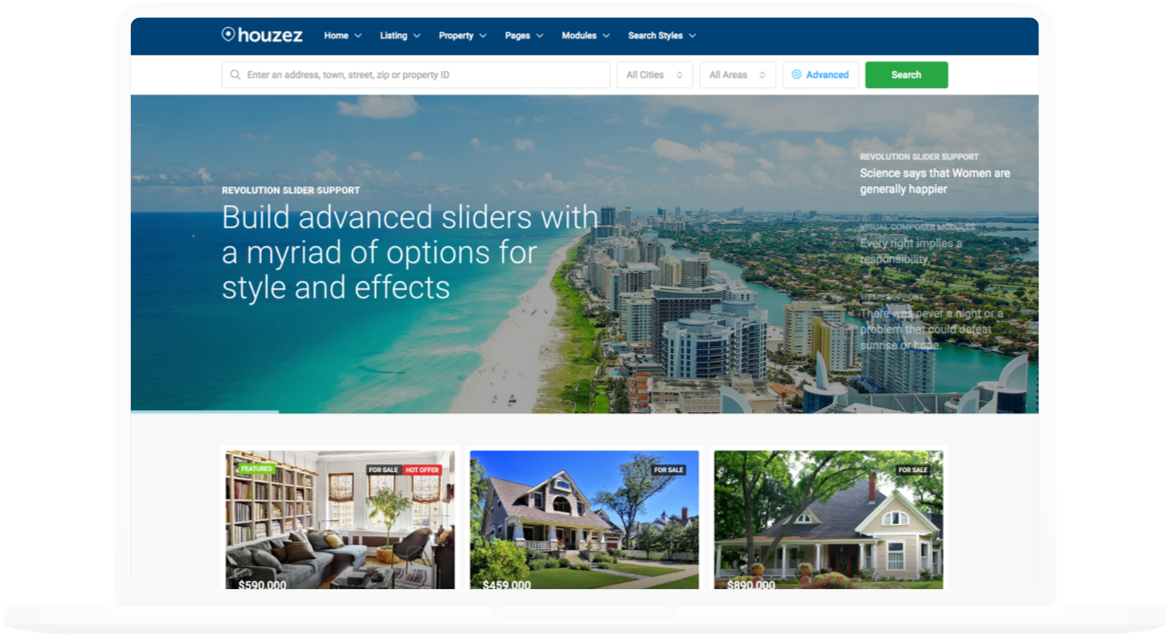
The default header layout in Houzez is simple and clean. It includes a logo, menu, and contact details. This layout is perfect for most websites. You can easily change colors and fonts. This makes your site unique. Check the settings in the WordPress dashboard. You will find many options there. Adjust them to suit your needs. Remember, a good header helps users navigate your site.
A sticky header stays on top when you scroll. This means users always see the header. It helps them move around your site easily. To activate, go to the Houzez options. Turn on the sticky header feature. Customize it with your preferred colors. A sticky header keeps important links visible. This makes your site user-friendly.
A transparent header shows the background image. It gives a modern look to your site. To use this, select the transparent option in settings. Make sure your background image is clear. This ensures the text is readable. Transparent headers work best with beautiful images. They add style and elegance to your website.
Customizing Header Elements
Changing the logo in Houzez is easy. Visit the theme customizer. Find the header settings. Upload your new logo. Make sure the logo is clear. It should represent your brand. Adjust the size if needed. Your logo should fit well. Check how it looks on mobile. A strong logo helps with branding.
The navigation menu guides visitors. Add important links here. Arrange them in order. Remove any links not needed. Use simple names for each link. Keep the menu clean. Easy menus make browsing fun. Test the menu to ensure it works. Menus help users find things fast.
Showing contact information in the header is smart. Visitors should find it quickly. Add phone numbers or emails. Make it visible. Choose a simple font. Ensure the size is readable. You can add social media links too. Contact info builds trust. It helps people reach you easily.
Adjusting Header Style
Choose a color that fits your site. Bright colors can make your header pop. Soft colors feel calm and soothing. It’s key to keep the colors consistent with your brand. This helps in making the website look professional.
Fonts should be easy to read. Use simple and clear fonts. Big fonts help people see your header better. Try changing the font size and style. This can make your header more attractive.
Space between elements is important. Don’t make items too close or too far. Proper spacing makes the header look tidy. Align your text to the center or left. It keeps things neat and organized.
Using Custom Css For Header
Changing the Houzez Theme Header in WordPress can be easy. Use custom CSS to make changes. First, find the header ID or class. Look in the theme files or use browser tools. Open the WordPress dashboard. Go to “Appearance” and click “Customize”. Find the “Additional CSS” tab. This is where you add your code.
Write your CSS code carefully. Change colors, fonts, or sizes. Make the header bigger or smaller. Change the background color or add images. Save your changes and check your website. Changes should appear right away.
Sometimes, new CSS might not work. Check for mistakes in your code. Make sure there are no typos. Refresh your website to see changes. If still not working, clear your browser cache.
Credit: favethemes.zendesk.com
Previewing And Saving Changes
Always remember to preview your changes before saving them. This step helps in catching errors early. Go to the WordPress customizer. Look for the preview button at the bottom. Click on it. This shows how your header looks now. Make sure everything is perfect.
If you like what you see, save your changes. Find the save button in the customizer. Click on it to keep your work safe. Now your header changes are live. Check your site to see if it looks good. If not, you can always go back and fix it.
Troubleshooting Common Issues
Easily change the Houzez theme header in WordPress by accessing the theme options panel. Adjust settings under ‘Header’ to customize design and layout. Save changes to see the new header on your site.
Header Not Displaying
Sometimes, the header might not show up. This can be frustrating. First, check the theme settings. Make sure the header is enabled. Also, clear the cache. This can help refresh the page. If it still doesn’t show, inspect the header code. Look for any errors. A small mistake can hide the header.
Responsive Design Problems
Headers should look good on all devices. If the design is off, resize the browser window. This helps to see if the header adjusts well. Use WordPress plugins that improve responsive design. Plugins can help fix display issues. Also, test your site on different devices. This ensures the header appears right everywhere.
Additional Resources
Explore more tools for your WordPress journey. The official WordPress website offers guides. Houzez theme has a support page. It provides tutorials and tips. YouTube can be a great help too. Many videos show step-by-step instructions.
Join forums like WordPress.org. Ask questions and get answers. Read blogs dedicated to WordPress themes. They often share insights and updates. Check out online courses. They offer in-depth learning.
Credit: houzez.co
Frequently Asked Questions
How Do I Customize Houzez Header?
To customize the Houzez header, access the WordPress dashboard and navigate to ‘Appearance’ > ‘Customize’. Here, you’ll find options to modify header layouts, colors, and elements. Save changes after customizing to update your site instantly. Ensure compatibility with your site’s overall design for a cohesive look.
Can Houzez Header Be Changed Easily?
Yes, Houzez header can be changed easily via the WordPress Customizer. Navigate to ‘Appearance’ > ‘Customize’, and select header settings. Modify the layout, colors, and elements as desired. Save your changes to apply them instantly. This user-friendly interface simplifies customization for all skill levels.
Which Tools Help Edit Houzez Header?
WordPress Customizer is the primary tool for editing the Houzez header. Navigate to ‘Appearance’ > ‘Customize’ for options to change layouts, colors, and elements. Plugins like Elementor can offer advanced customization features. Ensure your changes align with your site’s branding for consistent appearance.
Are Header Changes On Houzez Theme Free?
Header changes on Houzez theme are free within the WordPress Customizer. Navigate to ‘Appearance’ > ‘Customize’ to access free customization options. Some advanced features may require premium plugins. Ensure your modifications match your site’s branding to maintain a professional look without additional costs.
Conclusion
Changing the Houzez theme header in WordPress is simple. Follow the steps carefully. Make sure to save your changes. This task enhances your site’s look. It improves user experience too. Practice will make you comfortable with edits. Don’t rush. Take your time to learn each step.
Explore different header styles. Experiment with color and layout. Personalize your site to match your brand. You have the tools to make these changes. Keep your site fresh and engaging. Regular updates keep visitors interested. Enjoy the process of customizing your WordPress theme.


