
Ever found the perfect WordPress theme, only to realize it’s missing that special touch to make it truly yours? You’re not alone.
Customizing your WordPress theme can transform your site from generic to one-of-a-kind, capturing the essence of your brand or personal style. Imagine having a website that not only looks stunning but also functions exactly the way you envision. This guide will show you how to completely customize your WordPress theme, ensuring every detail aligns perfectly with your vision.
Whether you’re a beginner or a seasoned developer, you’ll discover the secrets to unlocking endless possibilities. Ready to take your site from ordinary to extraordinary? Let’s dive in and explore how you can achieve a unique digital masterpiece that stands out in the crowded online world.
Credit: wpmarmite.com
Choosing The Right Theme
Think about what your website needs. Is it a blog or a store? Choose a theme that fits your goals. A simple look might work for personal blogs. Stores need themes with good shopping tools. Make a list of must-have features. This will help you choose better.
Explore different themes in the WordPress library. There are thousands to choose from. Free themes are good for simple sites. Premium themes often offer more features. Check reviews and ratings. This helps find popular and reliable themes. Try a few to see what you like.
Ensure the theme works with your plugins. Some themes might not support every plugin. Compatibility is key for smooth site performance. Check if the theme updates often. This ensures it works with the latest WordPress version. Make sure it looks good on phones and tablets.
Credit: kinsta.com
Setting Up A Child Theme
Child themes are very important. They protect your changes. You don’t lose changes with updates. Updates can change your theme. A child theme keeps your customizations safe. It is like a safety net. Every WordPress user should use them. It helps in maintaining your website. Your efforts remain intact. No need to worry about updates.
First, make a new folder. This folder is for the child theme. Give it a name. Use a simple name. Next, make a style.css file. This file is in the new folder. Add theme information to this file. Link it to the parent theme. Now, create a functions.php file. Use this file to enqueue styles. Your child theme is ready.
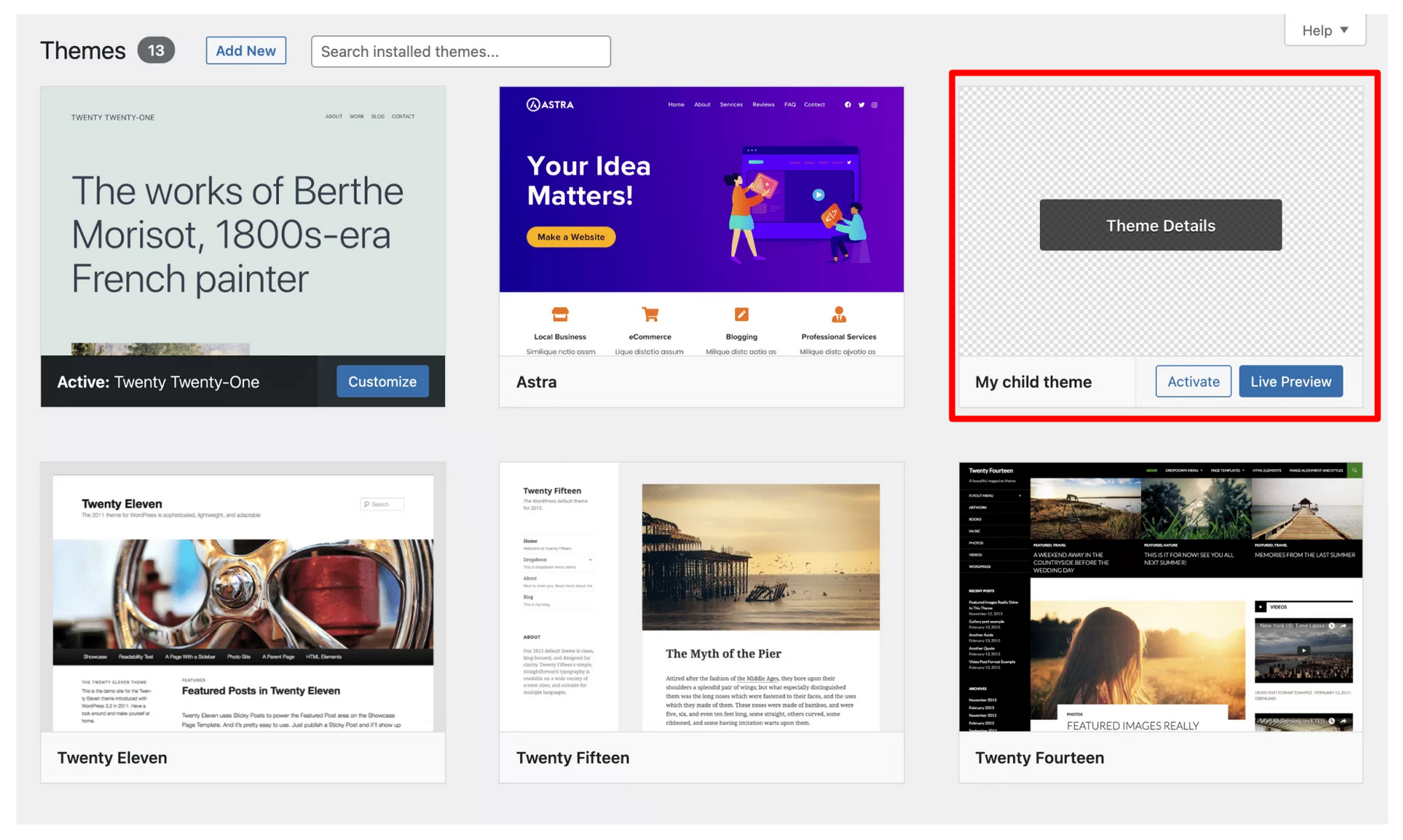
Go to your WordPress dashboard. Click on “Appearance”. Then click “Themes”. Find your child theme. Click “Activate”. Your child theme is now active. Check your site. Everything should look the same. If not, check your files. Fix any errors. Your site is ready to customize. Enjoy your new theme setup.
Customizing Theme Design
Changing layouts is fun and easy. Start by picking a simple layout. Many themes offer pre-built layouts. These layouts help to structure the site. You can move sections around. Add or remove widgets. The goal is to fit your style. Always save your changes. Preview the site to see the new look.
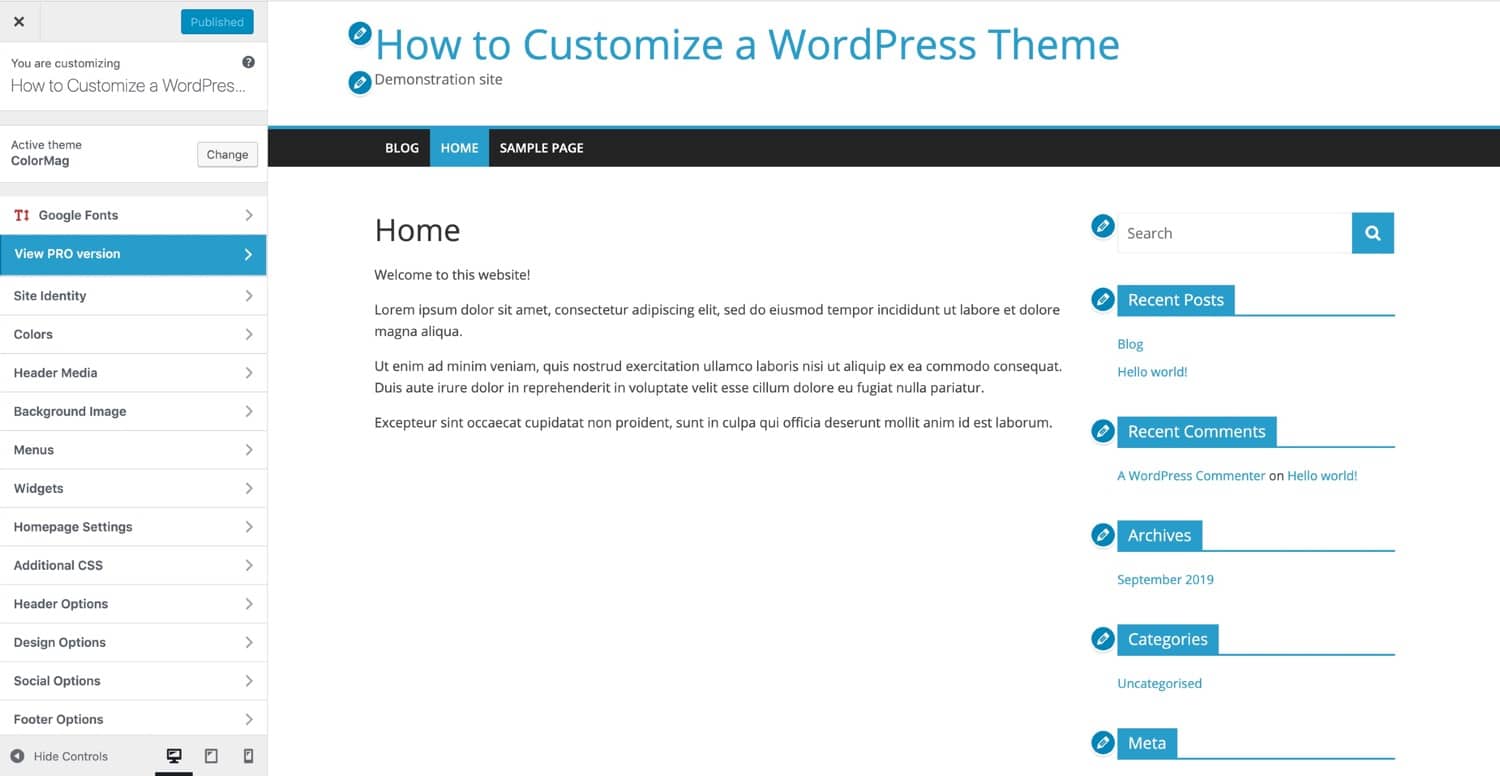
Colors and fonts set the mood. Use the theme customizer tool. Select colors from a palette. Stick to two or three colors. For fonts, choose readable options. Big and clear fonts are best. Always test how they look on mobile. A good mix makes the site unique.
Custom CSS allows deeper changes. It can change any part of the theme. Find the CSS editor in the customizer. Add your codes carefully. Mistakes can break the site. Always back up before making big changes. CSS gives freedom to style beyond normal settings.
Enhancing Functionality
Plugins add new features to your site. They make it more powerful. Install plugins from the WordPress Plugin Directory. Choose ones that fit your needs. Some plugins help with SEO. Others make your site faster. Use them wisely.
Widgets are small blocks. They add content and features. They can be placed in sidebars. Many themes support custom widgets. You can create your own. Add a text widget for your contact info. Or a gallery widget to show photos.
Menus help visitors find pages. They improve site navigation. Use the WordPress menu editor to create them. Drag and drop pages into place. You can add categories too. Make sure your menu is clear. Visitors should find what they need easily.
Optimizing Performance
Transform your WordPress theme with easy customization techniques. Enhance site speed by optimizing images and reducing plugins. Tailor design elements to improve user experience while keeping your brand identity intact.
Improving Load Times
Fast websites make users happy. Reduce image sizes for quicker load times. Compress files to save bandwidth. Use a Content Delivery Network (CDN) to speed up access. Minimize plugins that slow down sites. Test speed often and make adjustments.
Ensuring Mobile Responsiveness
Everyone uses phones to browse. Choose a responsive theme for easy viewing. Check how the site looks on different devices. Ensure buttons and links are big enough. Avoid small text that’s hard to read. Keep the design simple and clean.
Utilizing Caching Techniques
Caching saves time. It stores data for faster access. Install a caching plugin to help. Caching reduces server load. It makes pages load faster. Clear the cache after updates. This ensures visitors see new content.
Credit: colorlib.com
Testing And Troubleshooting
Exploring how to fully customize a WordPress theme involves testing and troubleshooting steps. Identify errors by reviewing changes regularly. Adjust styles and layouts to fit your needs. Continuously test to ensure everything works smoothly.
Identifying Common Issues
Themes can have bugs or errors. Check for missing images or broken links. Ensure your theme is not too slow. Use tools to find slow-loading pages. Look for text that is not readable. Make sure all buttons work well. Always update your theme to fix old problems.
Testing Across Devices
Test your theme on different devices. Try phones, tablets, and computers. Check if the theme looks good everywhere. Make sure text and images fit well. Use responsive design testing tools. See if everything is clear and easy to use. Don’t forget to test different browsers too.
Seeking Help From The Community
WordPress has a big community. Many people can help you. Ask questions in forums. Share your problems. Get advice from other users. Search for tutorials or guides. Use community knowledge to solve issues. Often, others have faced similar problems. They can offer solutions.
Maintaining Your Theme
Keep your theme updated. This helps fix bugs. It also adds new features. Updates make your site run smoothly. Always check for updates. Use the latest version. This keeps your site safe. It also improves performance.
Backups are very important. They save your work. Use tools like UpdraftPlus. This tool makes backups easy. Set up regular backups. Store them in a safe place. Cloud storage is a good option. Backups help if something goes wrong.
Security is key for your site. Use plugins like Wordfence. These keep your site safe. They stop hackers. Regular scans are important. They find threats early. Protect your data. Keep your site secure.
Frequently Asked Questions
How Can I Customize A WordPress Theme?
You can customize a WordPress theme using the built-in Customizer. Access it via the WordPress dashboard. Modify headers, colors, fonts, and layouts. For advanced changes, use child themes and custom CSS. Plugins can enhance functionality. Ensure backups before significant modifications.
What Is A Child Theme In WordPress?
A child theme in WordPress allows safe customization without altering the parent theme’s core files. Create a child theme to add custom styles and functions. It inherits features from the parent theme, ensuring updates won’t affect your customizations. It’s essential for advanced theme modifications.
Can I Change WordPress Theme Fonts Easily?
Yes, changing fonts in WordPress is simple. Use the Customizer for built-in options. Alternatively, install typography plugins for more control. Google Fonts integration offers diverse choices. Ensure readability and brand consistency when selecting fonts. Some themes provide extensive font customization options.
How Do I Backup My WordPress Theme?
Backup your WordPress theme using plugins like UpdraftPlus or BackupBuddy. Regular backups protect against data loss. Export theme settings from the Customizer for added security. Store backups off-site for safety. Hosting providers often offer automated backup solutions. Always verify backups after creation.
Conclusion
Customizing your WordPress theme can be simple. Follow the steps discussed here. Tweak colors, fonts, and layouts to match your style. Use plugins to enhance functionality. Explore the theme editor for advanced changes. Test your site on different devices. Ensure compatibility and responsiveness.
Regular updates keep your theme fresh. Remember, small changes can create big impacts. Make your website unique. Stand out in the digital crowd. Keep learning and experimenting. Your site reflects your brand. Personalize it to engage visitors. Enjoy the process and express your creativity.
Happy customizing!


