
Are you looking to give your WordPress site a fresh, new look? Changing the images on your WordPress theme can dramatically enhance the visual appeal of your website.
Whether you’re aiming for a complete redesign or just want to update a few elements, knowing how to change images effectively can make all the difference. Maybe you’re tired of the same old header image or want to add more vibrancy with engaging visuals.
Whatever your goal, mastering this skill will empower you to capture your visitors’ attention and convey your brand’s message more powerfully. In this guide, you’ll discover simple, step-by-step methods to seamlessly update images on your WordPress theme. Stick around, and you’ll soon realize how easy it is to transform your website into a captivating digital space.
Choosing The Right Image
Pick images that look clear and sharp. Blurry images can make your site look bad. Choose photos that tell your story. This makes your site more interesting. Avoid using images with watermarks or logos. They can distract visitors.
Use images that match your site’s theme. This keeps everything looking nice. Try to select photos with good lighting. Bright pictures attract more attention.
Ensure your image fits well on your site. Too big images can slow your site. This is not good for users. Measure the space where the image will go. Use images that fit this space. This keeps your site looking neat.
Use tools to crop your images. This helps them fit better. A good fit makes your site look clean. Be sure to keep the important parts of the picture.

Credit: jetpack.com
Accessing The WordPress Dashboard
Access the WordPress Dashboard to change images on your theme. Navigate to the “Appearance” section. Select “Customize” and then “Header Media” or “Background Image” to upload a new image. Save your changes. Your theme will now display the updated image.
Logging Into WordPress
First, open your web browser. Type your WordPress site URL. Add “/wp-admin” at the end. Press enter. You will see the login page. Enter your username and password. Click the “Log In” button. Now, you are in the WordPress dashboard.
Navigating To The Dashboard
Find the left sidebar menu. Look for the “Dashboard” option. Click it to access. Here, you can see many tools. You can manage your site. Change settings, add content, and more. Always keep your login details safe. Log out when not using the site.
Identifying The Theme Customization Area
Open your WordPress dashboard. Find the Appearance tab. Click on Customizer. This tool helps you change things. It is simple and easy. See the options on the left. Choose the one you need.
Look for the Image options. They are usually under Header or Background. Click to change images. Upload a new one or pick from the library. Save changes to see the update.
Locate the Header section first. It is often listed in the Customizer. Click to explore options. You can upload new images here. Ensure the image fits well.
For background images, find the Background section. Use this to add or change background images. Choose carefully. A good background makes your site look nice. Save your changes to see the effect.

Credit: www.templatemonster.com
Uploading A New Image
First, go to your WordPress dashboard. Click on Media in the menu. Then select Library. You will see all your images here. To add a new one, click on Add New. Now, choose the image you want to upload. Make sure it is the right size. After uploading, click on the image. Then, copy the URL link. Use this link in your theme settings.
Open your dashboard and find the Media section. Click on Add New. A window will open. Click on Select Files. Choose an image from your computer. Make sure it is a JPG or PNG file. The upload will start automatically. Once done, click on the image to get the link. Use this link in your theme.
Replacing The Existing Image
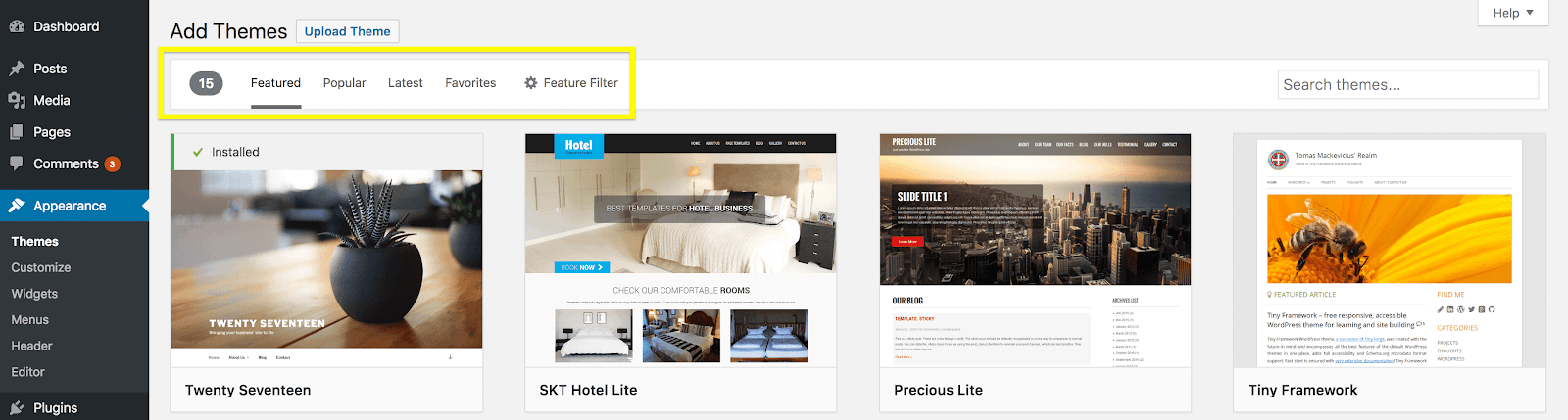
To change an image on your WordPress theme, first go to your dashboard. Find the Appearance tab and click on Customize. This opens the theme customizer. Look for the Header or Background image option. It depends on where the image is used. Click on the image you want to replace. You will see an option to Remove or Change the image. Choose the Change option to replace it.
Select your new image from the media library. You can also upload a new one. Click the Select button once you choose the image. This sets the new image in place. Always check the image fits well and looks good. You can preview changes before saving. Use high-quality images. They make your site look professional.
Sometimes, you need to adjust image settings. Look for size options. Make sure the image is not too big. Resize if needed. Check alignment settings. Images should be centered or aligned properly. Ensure they do not look off. Save changes once done. Preview your site to see the changes. Adjust again if necessary. Proper settings help your site look neat.
Credit: wpengine.com
Saving Changes
After changing an image, always preview your changes. This helps ensure everything looks right. Click the “Preview” button at the top. The site will open in a new tab. Check the image position and size. Make sure the image is clear. If it looks fine, you can go ahead and save. If not, adjust the settings.
Once happy with the preview, it’s time to publish. Click the “Publish” or “Update” button. This makes the new image live on your site. Always double-check the live site. Make sure the image updates correctly. Visitors will now see the new image. Remember, you can always make changes later.
Troubleshooting Common Issues
Changing an image on a WordPress theme often involves selecting the correct image from the media library. Navigate to Appearance, choose Customize, and locate the header or background image section. Upload your new image and save changes to reflect updates instantly.
Image Not Displaying
Images might not show up due to incorrect URL paths. Ensure the image URL is correct. Check if the image file exists in the media library. Sometimes, it could be due to plugin conflicts. Disable plugins one by one to find the problem. Also, check your theme settings. Some themes require specific image sizes. Make sure your image meets the required size.
Image Not Fitting Correctly
Images can look weird if not sized right. Check if your theme has a recommended image size. Resize your image to match this size. Use an image editor to adjust the dimensions. Some themes have settings for image alignment. Make sure the image is set to fit properly. You can use the WordPress Customizer to make adjustments. Preview the changes before saving them. This will help ensure everything looks good.
Optimizing Images For Web
Large images take longer to load. Slow websites frustrate users. Always reduce image size before uploading. Use tools to compress images. Smaller files save bandwidth. Optimize without losing quality. Faster websites improve user experience. Google loves quick-loading pages. Better SEO leads to more visitors.
Choosing the right file format is important. JPEGs are good for photos. They offer a balance of quality and size. PNGs work well for graphics. They support transparency. GIFs are best for simple animations. Each format serves a different purpose. Select wisely to keep site efficient. Correct formats enhance appearance and performance.
Frequently Asked Questions
How Can I Change Theme Images In WordPress?
To change theme images in WordPress, access the WordPress dashboard. Navigate to Appearance > Customize. Look for the header or background image options and upload your new image. Save changes to apply the new image to your theme.
What Are WordPress Theme Image Options?
WordPress themes offer several image options, including headers, backgrounds, and feature images. You can customize these through the WordPress dashboard. Each theme may have unique options, so explore your theme’s customization settings for more details.
Why Won’t My WordPress Image Change?
If your WordPress image won’t change, it might be due to caching issues. Clear your browser cache or use a plugin to clear WordPress cache. Additionally, ensure the image is correctly uploaded and saved in the customization settings.
Can I Use Custom Images In WordPress Themes?
Yes, you can use custom images in WordPress themes. Upload your image via the WordPress media library, then insert it into the theme’s customization settings. Make sure the image fits the theme’s dimensions for optimal display.
Conclusion
Changing images on a WordPress theme is easier than it seems. Follow the steps provided, and you’ll have a fresh look in no time. Practice makes perfect. After a few tries, you’ll feel more confident. Remember to save your work regularly.
This prevents losing your changes. Explore different images for a better design. A well-chosen image can enhance your site’s appeal. Keep experimenting with styles and layouts. This keeps your site dynamic and engaging. Your WordPress site reflects your creativity. Make it unique with every image change.
Stay patient and keep learning. Your website will soon shine with new visuals.


