
Are you feeling like your WordPress site needs a fresh look? Changing your theme can completely transform your website’s appearance and functionality, making it more appealing to your visitors.
But if the thought of switching themes feels daunting, don’t worry—you’re not alone. Many WordPress users hesitate, fearing the process might be too complicated or risk losing precious content. The good news? It’s easier than you think! In this guide, we’ll walk you through the steps to change your WordPress theme effortlessly.
You’ll discover simple tips and tricks that can make the transition smooth and stress-free. So, ready to give your site the makeover it deserves? Let’s dive in and unlock the secrets to an easy theme change that could boost your site’s appeal and user engagement.
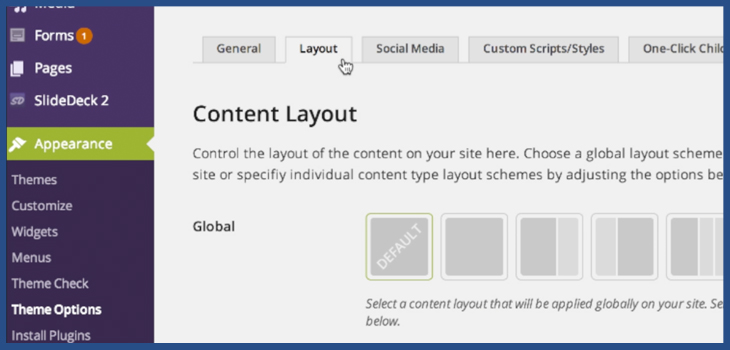
Credit: slocumthemes.com
Choosing A New Theme
Think about what your website needs. A business site needs a clean look. A blog needs easy-to-read fonts. E-commerce sites need good product pages. Match the theme to your site’s purpose. Make a list of the features you need. This helps in choosing the best theme.
Visit the WordPress theme directory. Look through the many options. Think about design, colors, and layout. Make sure the theme is responsive. This means it looks good on any device. Check reviews and ratings. This tells you if others like the theme.
Free themes cost nothing. They are a good start for many. But they may lack some features. Premium themes cost money. They offer more features and support. Choose based on your budget and needs. Remember, a good theme makes your site better.
Preparing Your Website
Backing up your site is very important. It keeps your data safe. Use plugins to do this. They work fast and save all your files. Choose a plugin that is easy to use. Always check if the backup was successful. You don’t want to lose your website data. Backups are like safety nets. They catch you if things go wrong.
A child theme lets you change your site without losing settings. First, make a new folder. Give it a special name. Then, add a style sheet. It should link to the main theme. This keeps your changes safe. Now, you can tweak the design. But your original theme stays untouched. A child theme is like a helper. It keeps things neat and tidy.
Check if the new theme works with your plugins. Some themes don’t fit well. They might break your site. Test on a demo site first. This avoids problems on the real site. Ensure the theme looks good on phones and computers. Compatibility is key for a smooth experience. If things work well, your site will be happy.
Installing The New Theme
First, log into your WordPress Dashboard. Find the “Appearance” tab. Click it, then select “Themes.” Now, click the “Add New” button at the top. Browse the themes or use the search bar. Once you find a theme, click “Install.” Wait for it to load. It’s easy and quick.
Download the theme file to your computer. It should be a .zip file. Go to the WordPress Dashboard. Click “Appearance” and then “Themes.” Now, choose “Add New” and then “Upload Theme.” Click “Choose File” and find your .zip file. Click “Install Now.” Wait for the upload to finish.
After installation, you will see an “Activate” button. Click it to make your new theme live. Check your site to see changes. It should look different now. If not, refresh the page. Activation is the final step. Enjoy your new look!
Customizing The Theme
Changing your WordPress theme is simple and quick. Access your dashboard and find the “Appearance” section. Pick “Themes,” browse options, and activate your choice. Your site will look fresh with just a few clicks.
Using The Customizer
The Customizer helps you change your theme. You can find it in the dashboard. Click on “Appearance” and then “Customize”. Make small changes first. Try changing the colors or fonts. Watch your changes in real-time. Save your work often. This keeps your site safe.
Setting Up Menus
Go to the Menus tab in the Customizer. You can add pages to your menu. Just drag and drop them. Arrange them in order. Add links to other sites if needed. Always save your menu changes. This helps visitors find what they need.
Configuring Widgets
Widgets are fun to use. Find them under the Widgets tab. Add a calendar or search box. You can also add recent posts. Drag and drop widgets to the right spot. Preview your changes before saving. This helps your site look neat.
Testing The New Design
Switching your WordPress theme is straightforward. Navigate to your dashboard, click ‘Appearance,’ then ‘Themes. ‘ Select and activate your desired design. Ensure compatibility with your plugins and check the site’s responsiveness for a seamless transition.
Checking Responsiveness
Every website must work well on all devices. Mobile phones, tablets, and computers need to show the site properly. Use tools to see how the site looks on different screens. Adjust settings if something looks wrong or doesn’t fit. This ensures users enjoy a smooth experience everywhere. Responsiveness helps attract more visitors and keeps them happy.
Ensuring Browser Compatibility
Every browser shows websites differently. Chrome, Firefox, and Safari might behave in unique ways. Check your site on popular browsers. Make sure everything looks and works the same. Fix any issues you find. This helps reach a wider audience. People use different browsers, so compatibility is key.
Verifying Functionality
Every button and link must work. Test forms, menus, and interactive elements. Ensure they perform tasks correctly. If something breaks, users get frustrated. Fix any broken parts quickly. Functionality ensures users can use the site easily. Happy users come back and tell others about your site.
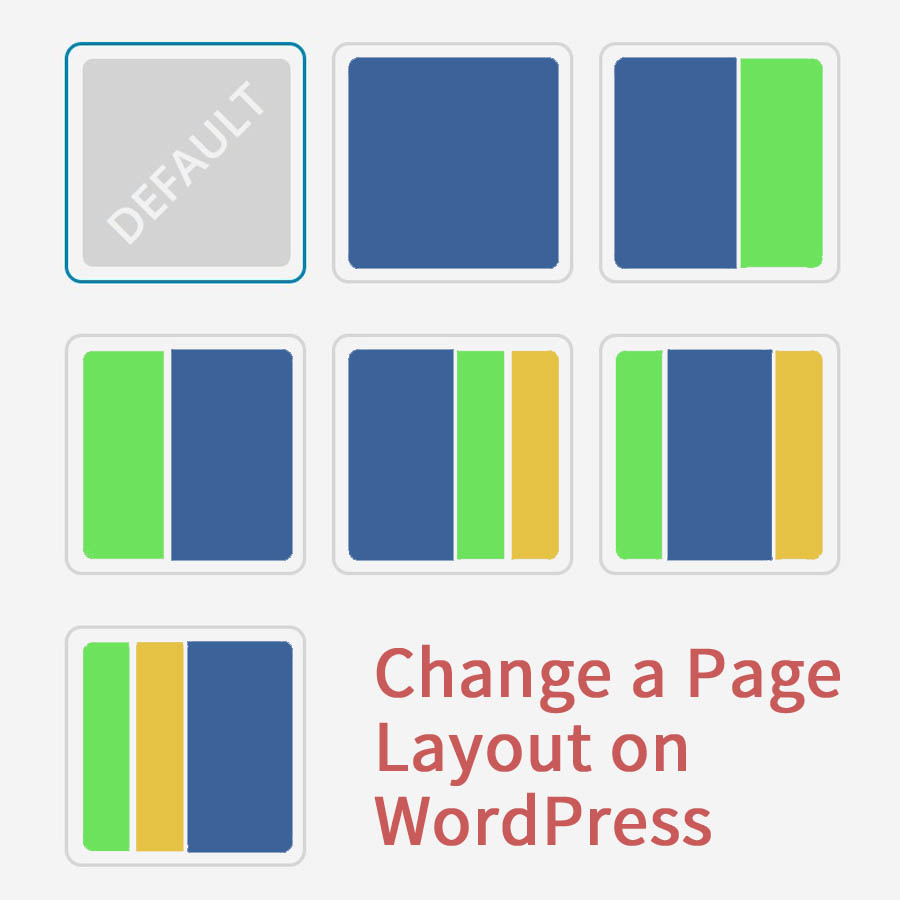
Credit: slocumthemes.com
Maintaining Your Website
Regular updates are crucial for your WordPress site. They keep it safe. Updates fix bugs and add new features. Always update themes, plugins, and WordPress itself.
Monitoring performance helps your site run well. Use tools like Google Analytics. Check site speed and uptime. Fast sites make visitors happy. Slow sites lose visitors.
Handling issues quickly is important. Back up your site often. This helps if something breaks. Use support forums if you need help. Fix issues to keep your site strong.

Credit: www.greengeeks.com
Frequently Asked Questions
How Do I Switch My WordPress Theme?
Changing your WordPress theme is straightforward. Log in to your dashboard, go to Appearance > Themes. Browse, select, and activate your new theme. Ensure to preview before activating to check compatibility with your current setup. Always back up your site to prevent data loss during the switch.
Can I Change My Theme Without Losing Content?
Yes, you can change themes without losing content. WordPress stores content separately from themes. Switching themes may alter the appearance but not the actual content. However, some theme-specific settings may need reconfiguration. Always back up your data before making any changes for safety.
What Should I Check Before Changing Themes?
Before changing themes, check compatibility with plugins, responsiveness, and SEO settings. Ensure the new theme supports your site’s features and design. Preview the theme to see its effect on your layout. Back up your site to prevent potential issues during the transition.
Will Changing Themes Affect My Site’s Seo?
Changing themes can affect SEO if the new theme alters your site’s structure. Ensure the theme is SEO-friendly with proper HTML tags and fast loading speeds. Check if your new theme supports SEO plugins. Always preview and test the theme to maintain your site’s SEO performance.
Conclusion
Changing your WordPress theme is simple and straightforward. Start by choosing a new theme that suits your style. Make sure to preview it for a better understanding. Backup your website to avoid data loss. Install the theme from your WordPress dashboard.
Activate it with just one click. Customize your new theme to match your brand. Adjust settings to improve user experience. Test your website’s functionality thoroughly. Enjoy the fresh look and improved features. Remember, a good theme enhances your site’s appeal.
Keep exploring and updating regularly for best results.


