
Imagine landing on a website and instantly feeling captivated by its appearance. That first impression is crucial, and the background of your WordPress site plays a significant role in setting the mood and style.
Whether you’re aiming for a sleek professional look or a vibrant artistic vibe, changing your theme’s background can make a huge difference. But how do you do it effectively? You’re in the right place. This guide is crafted specifically for you.
We’ll walk you through the simple steps to customize your WordPress theme’s background, ensuring your site reflects your unique personality and vision. You don’t need to be a tech guru to follow along—just a few clicks, and you’ll be on your way to creating a stunning backdrop that grabs attention and keeps visitors engaged. Ready to transform your website’s look and feel? Let’s dive in!
Choosing The Right Theme
Picking a theme is fun. But it needs care. Look at different themes. See how they fit your site. Some themes are simple. Others have more features. Choose a theme that looks good. Make sure it matches your site’s purpose.
Not all themes let you change backgrounds. Some themes have limited options. Others are more flexible. Check the theme settings. Look for options to change colors. See if you can upload your own images. This is important for making your site unique.
Accessing The WordPress Dashboard
First, open your web browser. Type in your website’s URL. Add “/wp-admin” at the end. This takes you to the login page. Enter your username and password. Click the login button. Now you’re inside your WordPress site.
After logging in, the Dashboard appears. It’s the main page. Look on the left side. You will see a menu. Click on Appearance. This is where you change the background. The Customize option lets you edit your theme. Easy steps for everyone!
Navigating To Theme Customization
To change your WordPress background, start by logging into your dashboard. Find the Appearance menu on the left side. It’s usually below the Plugins section. Click on it to open more options. This is where you can tweak how your site looks. It’s super handy for quick changes.
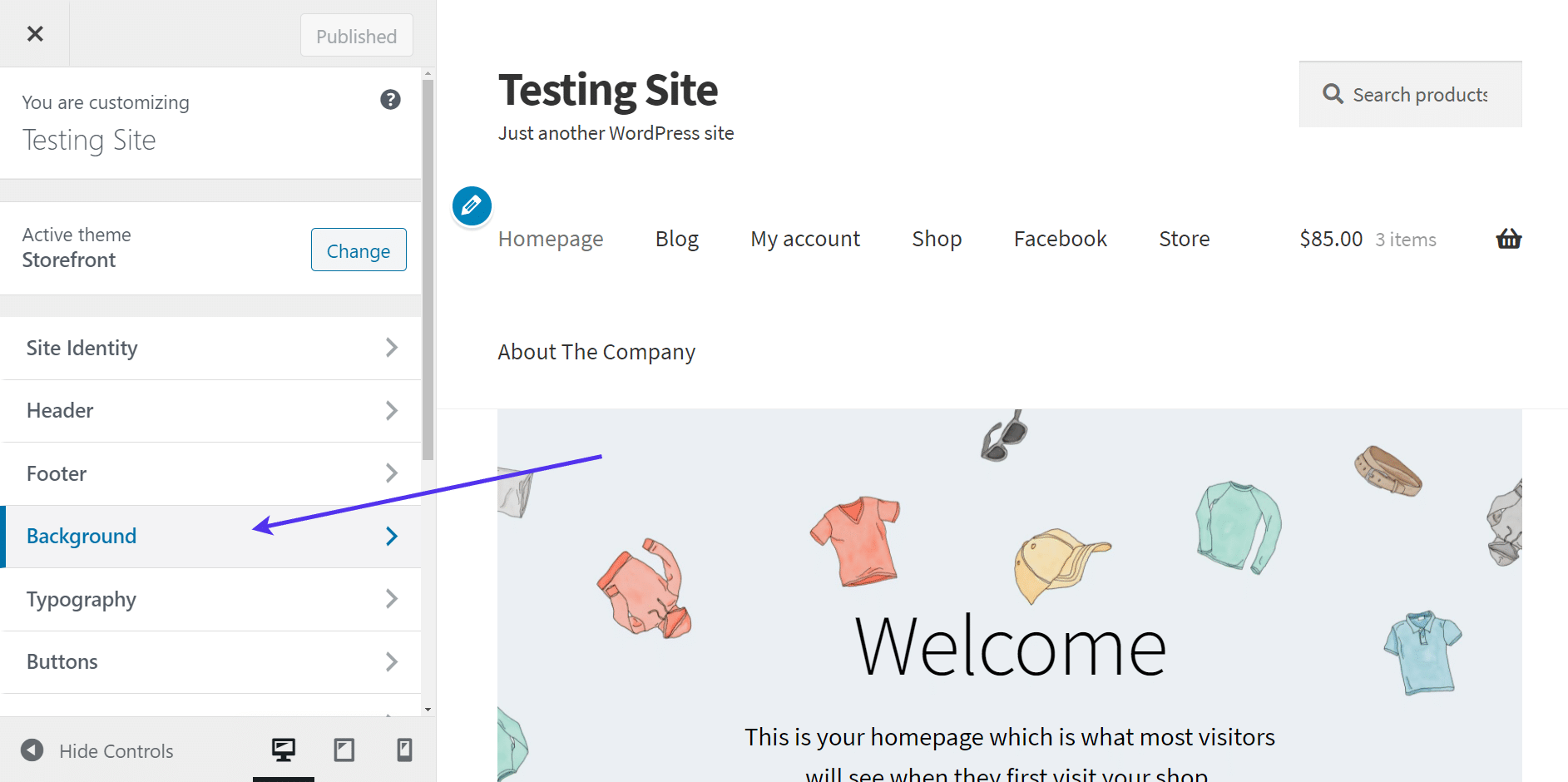
After clicking on Appearance, look for the Customize option. This will take you to the Theme Customizer. Here, you can see a preview of your site on the right. On the left, there are many tools. One of them is for changing the background. You can also change colors and fonts here. It’s like a playground for your site’s look.

Credit: colibriwp.com
Changing The Background Image
Go to the WordPress dashboard. Find the Appearance tab. Click on it. Then, select the Background option. This will open the background settings. You can see different options here. Choose the one you like.
Click on Add New Image. This will let you upload a new image. Choose an image from your computer. Upload it to WordPress. Make sure the image is clear and of good quality.
Once the image is uploaded, you can change its settings. Adjust the position of the image. You can also change its size. Make it fit your website. Ensure the image looks good on your site.
Modifying Background Colors
Picking the right color scheme is important. Colors can change the mood of a site. Bright colors make the site feel happy. Dark colors can give a serious look. Choose colors that fit your theme. Stick to three main colors. This keeps the site neat and tidy. Try complementary colors for balance.
The color picker tool helps in choosing the exact shade. It is easy to use. Drag the cursor to find different colors. The tool shows color codes. Copy these codes for later use. This ensures colors match perfectly. Use preview mode to see changes. Adjust until you find the right shade.
Credit: kinsta.com
Incorporating Custom Css
Accessing the Additional CSS section is easy. First, go to your WordPress dashboard. Click on “Appearance”, then select “Customize”. Here, you’ll find many settings. Look for the “Additional CSS” option. Click on it to open a text area. This is where you will add your custom CSS code.
Writing CSS can change your site’s look. Start by typing your CSS code in the box. For example, to change the background color, type “body { background-color: #f0f0f0; }”. This will make the background light grey. Always use a valid color code. After typing, click “Publish” to save changes. Your site will now have a new background. Experiment with different styles for unique designs.
Previewing And Saving Changes
Preview changes before saving to ensure the new background looks right. Use the WordPress customizer to see instant updates. After confirming, save changes to make the new background live on your site.
Previewing Your Adjustments
Click on the customize button in your WordPress dashboard. Navigate to the background settings section. Select the image or color you want. Use the preview feature to see the changes. Check if the background looks good on all devices. Ensure text readability against the new background. Adjust if necessary for better contrast.
Saving And Publishing The New Background
Once satisfied with your preview, click the save button. Confirm that your changes are applied. Check your website to see the new background live. Review it on mobile and desktop. Make sure all elements are visible. If something looks off, you can always adjust again. Enjoy your fresh website look!

Credit: www.greengeeks.com
Troubleshooting Common Issues
Changing the background on a WordPress theme can be tricky. Start by accessing the WordPress dashboard. Navigate to “Appearance,” then “Customize. ” Select “Background Image” or “Colors” to make changes. Save your changes and refresh your site to see the new look.
Resolving Image Upload Problems
Uploading images can sometimes fail. Check the file size and type first. Large files might not upload. Use JPEG or PNG formats for best results. Verify that your media settings allow uploads. Adjust settings if needed. Ensure your internet connection is stable. A slow connection can cause issues. Clear your browser cache. This can fix upload errors.
Fixing Css Conflicts
CSS conflicts can mess with your theme. Check for conflicting styles. Inspect your code using browser tools. Look for duplicate CSS rules. Remove or fix them. Try using a child theme. This helps avoid conflicts. Update all plugins and themes. Old versions can cause problems. Test changes on a staging site first. This prevents errors on the live site.
Frequently Asked Questions
How Do I Change The Background In WordPress?
To change the background in WordPress, go to your admin dashboard. Navigate to Appearance > Customize. Select “Background” to upload your desired image or color. Save changes to apply. This process varies slightly depending on your theme.
Can I Use A Custom Background Image?
Yes, you can use a custom image as a background. Go to Appearance > Customize, then select “Background” and upload your image. Ensure it’s optimized for web use to maintain site speed.
Does Changing The Background Affect Site Speed?
Changing the background can affect site speed if the image is large. Use compressed, optimized images to ensure fast loading. Avoid high-resolution images that might slow down your site.
Is It Possible To Change Background Using Css?
Yes, you can change the background using CSS. Go to Appearance > Customize > Additional CSS. Input your CSS code to modify the background. This method requires basic CSS knowledge.
Conclusion
Changing your WordPress theme background is simple and rewarding. Follow the steps outlined to customize your site effectively. Remember to save changes after each tweak. This keeps your design consistent and attractive. Explore different colors and images to find the perfect fit.
Don’t rush the process. Take your time and enjoy the creative journey. A personalized background enhances your website’s appeal. It reflects your unique style and vision. Keep experimenting until you achieve the desired look. Your WordPress theme can truly shine with the right background.
Happy customizing!


