
Are you struggling to understand your WordPress theme because it’s in a language you don’t speak? You’re not alone.
Many WordPress users face this challenge, but the good news is that changing the language of your WordPress theme is easier than you might think. Imagine being able to navigate your site effortlessly, understanding every menu and option in your preferred language.
This small tweak can enhance your website experience significantly, making it more personal and user-friendly. In this guide, we’ll walk you through the simple steps to switch your WordPress theme language, empowering you to take full control of your website. Let’s make your WordPress journey smoother and more enjoyable!
Credit: blog.templatetoaster.com
Accessing WordPress Dashboard
First, log into your WordPress account. Use your username and password. Once logged in, you see the dashboard. The dashboard is your main control center.
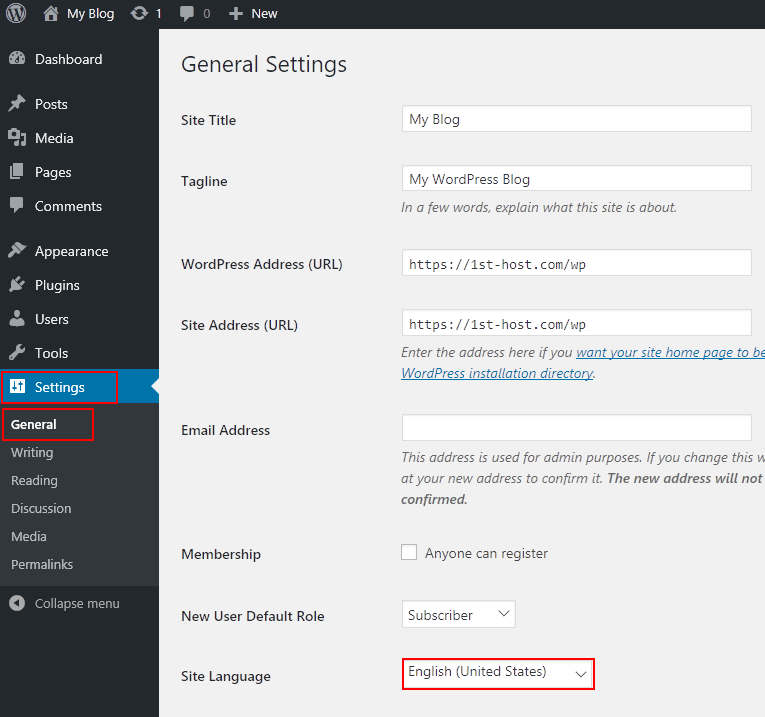
Look for the left menu. It has many options. Find the Settings tab. Click on it. This opens more choices. Select the General option.
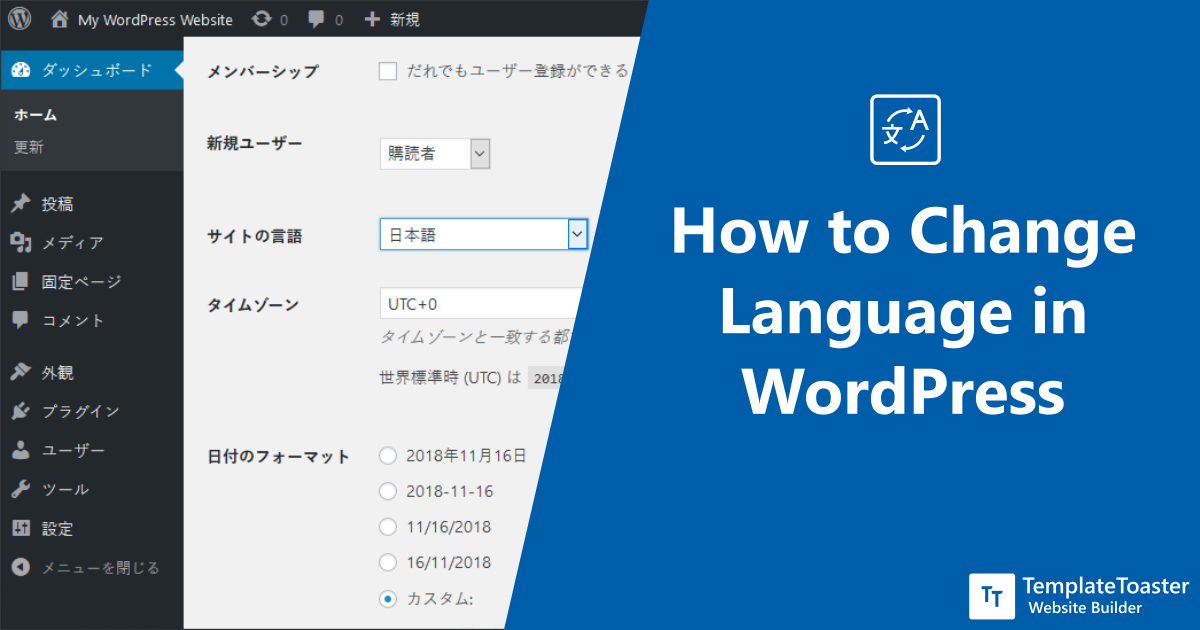
Here, you can change the site language. Choose your preferred language from the list. Click save to update changes. Your WordPress site now displays in the new language.
Credit: www.hostpapa.com
Locating Theme Settings
Every WordPress theme has settings. These settings help change the language. First, go to your WordPress dashboard. Look for Appearance. Click on it. Under Appearance, find Customize. This is where theme settings are located.
Inside Customize, look for Site Identity. Sometimes language settings are here. If not, look for General Settings. Themes might have different names for these settings.
Another place to check is Theme Options. Some themes have this section. Explore all options here. Language settings might be hidden in Advanced Settings. Take your time to explore.
Remember, each theme is unique. Settings might be in different places. Always check for updates. Updates can change where settings are found.
Installing Language Files
First, visit the official WordPress website. Search for the language packs you need. They have many options. Click on your desired language. Download the file to your computer. It will be in a .zip format. Keep it in a safe place. You will need it soon.
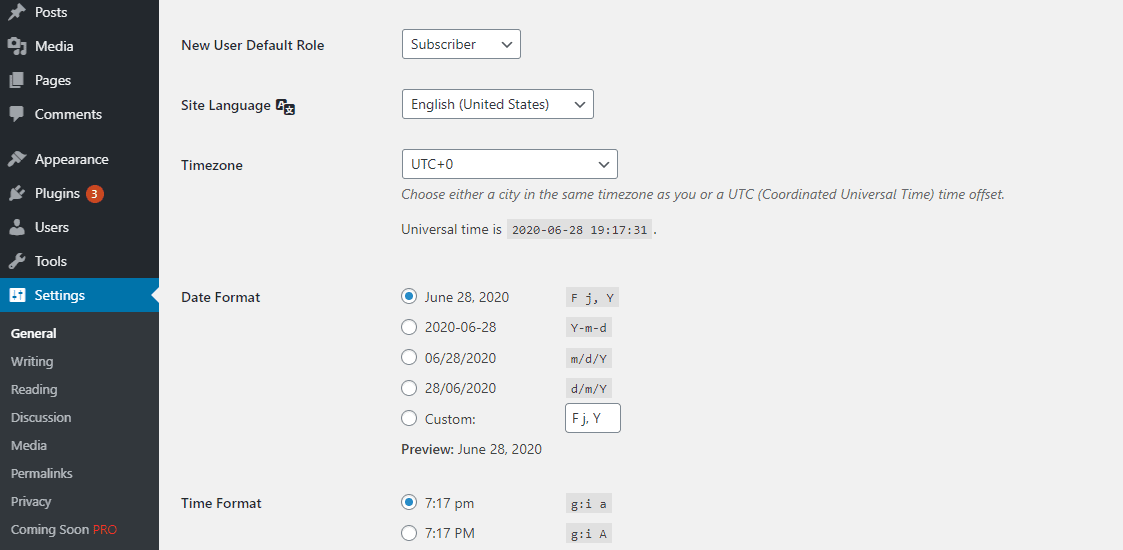
Log in to your WordPress dashboard. Go to Settings and click on General. Scroll down to the language section. Click on the dropdown menu. Select your preferred language. Next, upload the downloaded file. Use the File Manager in your hosting panel. Navigate to the wp-content/languages folder. Upload the .zip file here. Once uploaded, extract the file. Your WordPress theme will now use the new language.
Credit: www.navthemes.com
Changing Site Language
Begin by logging into your WordPress dashboard. Find the left menu. Look for Settings. Click on it. A drop-down will appear. Choose General. This opens the General Settings page. Here, you can change many things. But first, find the language option.
Scroll down to find the Site Language option. There is a drop-down menu. Click it to see all languages. Select your desired language from the list. After choosing, scroll down. Press the Save Changes button. Your site will now use the new language. It’s that simple.
Using Translation Plugins
WPML is a favorite for many users. It allows easy language change. Polylang is another great option. It offers simple language settings. TranslatePress is user-friendly and flexible. Each plugin works differently. Choose one that suits your needs.
First, install your chosen plugin. Next, go to its settings page. You will see many options. Select your desired language. Save the changes. Some plugins need extra configuration. Follow the steps carefully. You can find guides online. Always make sure to backup your site. Changes can sometimes cause issues. Test everything before going live. This keeps your website safe.
Translating Theme Strings
Poedit is a tool for theme translation. First, open Poedit on your computer. Then, go to File and select “New from POT/PO file”. Choose your theme’s language file. Translate each text string one by one. Save your work. This creates a new .mo file. Upload this file to your WordPress theme folder.
Loco Translate is a WordPress plugin. Install it from the plugin menu. After activating, go to Loco Translate in your WordPress dashboard. Select your theme from the list. Click on “New Language” and choose your desired language. Translate each text string. Click “Save” when done. Your theme now displays in the new language.
Updating Theme Language Files
First, locate the language files in your WordPress theme. These files often have a .po or .mo extension. They help your theme display in different languages. You can find them in the theme’s languages folder.
Next, use a tool like Poedit to open these files. This tool lets you edit the text inside. Change the words to your new language. Save the file after making changes.
Finally, upload the edited files back to the same folder. Your theme will now display in the new language. Always check for updates from the theme developer. Updated files might be needed after an update.
Troubleshooting Language Changes
Changing the language of a WordPress theme can be tricky. Sometimes, themes don’t support all languages. Missing translations are common. Some themes might not change all parts. This can cause mixed languages. Check your theme settings first. Sometimes, plugins can help. Try using translation plugins. Clear your cache after making changes. This helps see updates.
If problems persist, contact support. Theme developers can help. They know their theme well. Explain your issue clearly. Include steps you tried. This helps them understand. Support forums are useful too. Many users share tips. Sometimes, issues are common. Someone might have a solution. Always check theme documentation. It might have answers.
Frequently Asked Questions
How Do I Change WordPress Theme Language?
To change your WordPress theme language, go to Settings > General. Select your desired language from the Site Language dropdown. Themes that support translations will automatically switch to the selected language. Ensure your theme is translation-ready for best results.
Can I Use Plugins To Change Theme Language?
Yes, you can use plugins like Polylang or WPML. These plugins help you translate your theme and manage multilingual content easily. They offer user-friendly interfaces and comprehensive language support. Ensure your theme is compatible with the plugin for seamless integration.
Does Changing Language Affect Seo?
Changing your theme language can impact SEO positively. It helps target audiences speaking different languages. Ensure proper hreflang tags are used. This improves search engine visibility and user experience for international visitors. Consistent content quality across languages is crucial for SEO success.
Is Translation-ready Theme Necessary?
A translation-ready theme is recommended for seamless language changes. It allows easier integration with translation plugins. These themes are designed to support multiple languages effectively. Ensure your theme uses gettext functions for easy localization.
Conclusion
Changing your WordPress theme language can seem challenging. But it’s doable. Follow the steps outlined in this guide. You’ll soon see your site in the desired language. This process enhances user experience. It makes your website more accessible to a broader audience.
Remember, language plays a crucial role in communication. A well-translated site can attract more visitors. Keep your site updated. Ensure all translations are accurate and relevant. This small change can have a big impact. Happy translating!


