
Are you ready to elevate your web design skills? Building a WordPress theme with Bootstrap 4 might sound intimidating, but it’s a rewarding endeavor that can greatly enhance your website’s performance and aesthetics.
Whether you’re a budding developer or a seasoned pro looking to expand your toolkit, this guide is crafted just for you. Imagine having the power to customize every detail of your site, making it uniquely yours while ensuring it’s responsive and user-friendly.
We’ll break down the process into simple steps, ensuring you can follow along with ease. You’ll discover how Bootstrap 4’s grid system and components can streamline your design process, making your site look sleek and professional. Plus, we’ll sprinkle in some neuromarketing insights to keep your creative juices flowing and motivation high. By the end, you’ll not only have a functional WordPress theme but also a deeper understanding of web development principles. So, are you ready to take control of your web presence? Let’s dive in and unlock the potential of WordPress and Bootstrap 4 together.
Getting Started
First, install a code editor. Many use Visual Studio Code. It’s free and easy. Next, download Node.js. It helps with tools you will need. After that, install Git. It’s good for tracking changes. You may need it later. Then, install a tool called Composer. It helps manage PHP packages. Finally, set up a local server. XAMPP is a good choice for this. It helps run WordPress on your computer.
Download WordPress from its official site. Extract the files to your server’s htdocs folder. Open your browser and go to localhost/wordpress. Follow the steps to set up. You will create a new database. Use phpMyAdmin for this. Name it something simple, like wordpress_db. Finish the setup by entering your database info. Now, WordPress is ready on your computer.
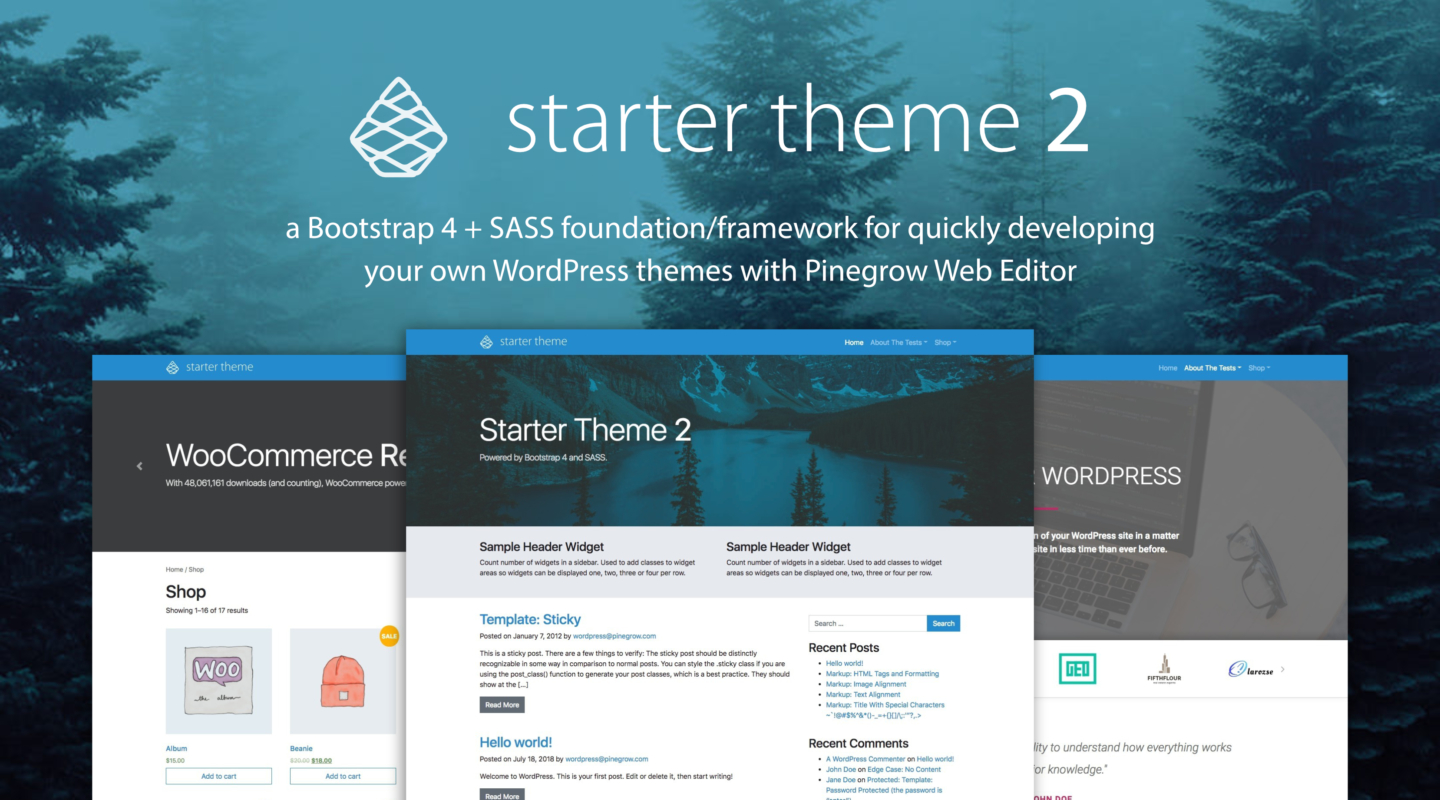
Credit: pinegrow.com
Introduction To Bootstrap 4
Bootstrap 4 is a popular framework. It helps in designing websites easily. One of its main features is the grid system. This system makes layout simple. Another important feature is responsive design. It allows sites to look good on all devices. There are also many ready-made components. These include buttons, forms, and navbars. Customizable options let you change the look to match your style. Bootstrap 4 is mobile-first. This means it starts with designs for phones. Then it adds features for bigger screens.
WordPress is a popular choice for websites. Bootstrap 4 makes it easy to create themes. It saves time and effort. Easy integration with WordPress is possible. This means you can use Bootstrap with WordPress easily. The responsive design feature is great for WordPress sites. It ensures your site looks good everywhere. Using Bootstrap gives your site a modern look. It is also well-documented. This means you can find help online. Many developers use it. So, you can find many examples and solutions.
Creating A New Theme
The theme folder is important. It holds your theme files. Inside, make folders for CSS, JS, and images. Keep your files organized. This helps find them easily. Each folder has a role. CSS styles your pages. JS adds interactive features. Images make your site look good. Name your folders clearly. This avoids confusion later. A clean structure is best. It makes working easier. Bootstrap files go in these folders too. This is how you start your theme.
Themes need certain files. index.php is the main file. It shows your content. style.css handles design. It gives your site a look. functions.php adds features. It makes your theme work. header.php and footer.php are also key. They show the top and bottom parts. Each file has a job. Together, they create your theme. Without these, your theme won’t work well. Always include them.
Integrating Bootstrap 4
Building a WordPress theme with Bootstrap 4 enhances design flexibility and responsiveness. Bootstrap’s pre-made components simplify theme creation, ensuring a consistent look across devices. Integrating Bootstrap into WordPress streamlines development, making it easier to craft modern, mobile-friendly themes.
Adding Bootstrap To Your Theme
Bootstrap 4 helps make websites look nice. First, download the Bootstrap files. Next, add them to your WordPress theme folder. Open your theme’s header.php file. Include the Bootstrap CSS link in it. This makes your theme use Bootstrap styles. Make sure the link is above other styles. This way, Bootstrap styles load first. Now, your theme is ready to look good.
Customizing Bootstrap Styles
Sometimes, you want a unique look. Change Bootstrap styles to make your theme special. Create a new CSS file in your theme folder. Add your custom styles here. Use !important if needed, to make sure your styles apply. Open functions.php in your theme. Enqueue your custom CSS file. This helps load your styles after Bootstrap. Now, your theme looks different and unique.
Developing Core Templates
Start with the header and footer. These are vital parts of a theme. Use Bootstrap’s grid system. It helps in arranging elements neatly. Include a navigation bar in the header. Ensure links are easy to click. Add a logo for branding. The footer can hold contact info. Also include social media links. Keep the design simple. Avoid clutter. Make it responsive. It should look good on all devices.
The homepage is the first thing visitors see. Use Bootstrap’s containers for layout. Divide the page into sections. Start with a hero section. Add a catchy image or message. Highlight key services or products. Use cards to display information. Keep the text concise. Include a call-to-action button. This encourages visitor interaction. Make sure the layout is visually appealing. Use colors wisely. Ensure text is easy to read.
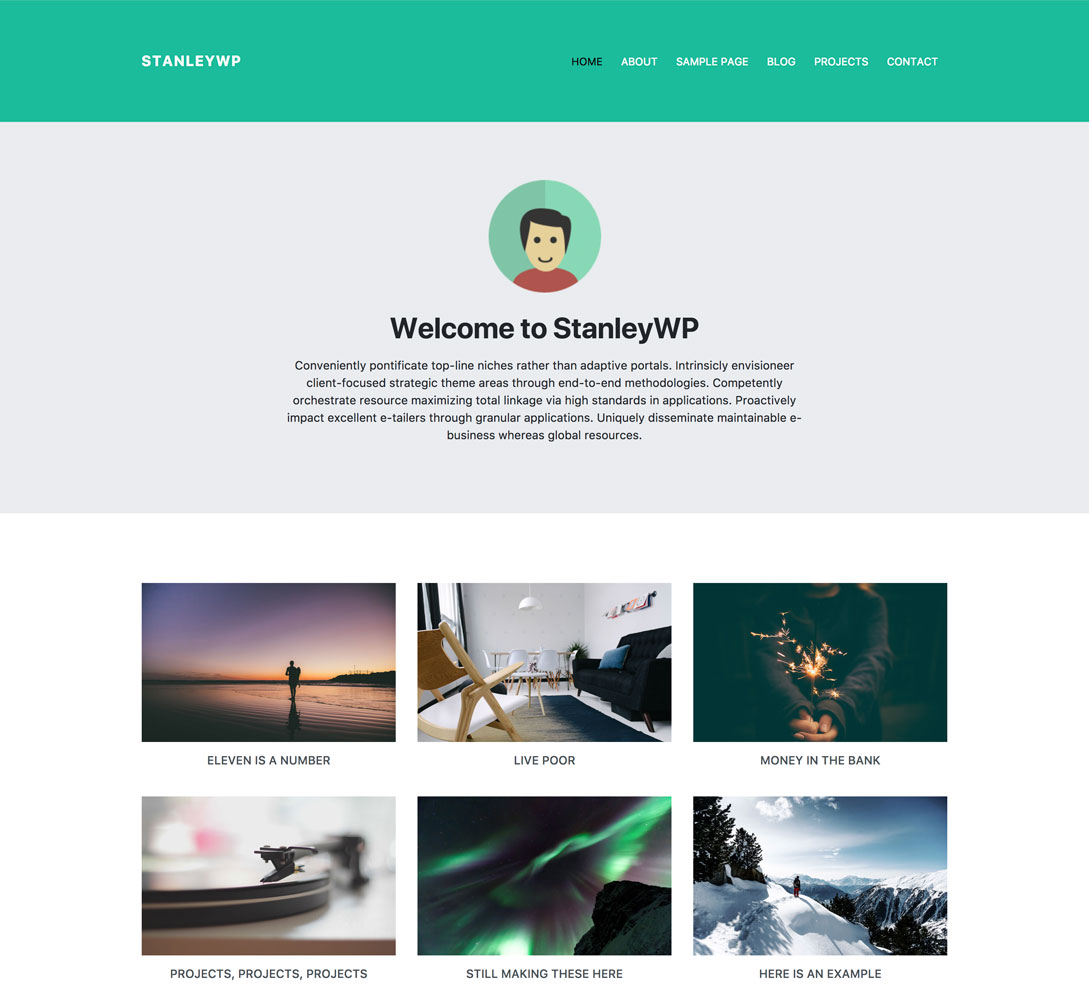
Credit: braginteractive.com
Creating Custom Page Templates
Crafting custom page templates with Bootstrap 4 enhances your WordPress theme’s functionality. Bootstrap’s responsive framework ensures your design looks great on all devices. Create unique layouts effortlessly by integrating Bootstrap’s flexible grid system and components.
Developing A Blog Page
A custom blog page is important. It helps in organizing posts. First, create a new file. Name it blog-template.php. Use the Bootstrap 4 grid system to design the layout. Add a loop to display posts. Use simple and clean styles. Keep it easy to read. This helps visitors enjoy your content. Make sure to test it on different devices. This ensures it looks good everywhere.
Building A Contact Page
A contact page is crucial for communication. Create a new file called contact-template.php. Use Bootstrap 4 forms for user inputs. Add fields like name, email, and message. Ensure the form is easy to fill. Add a submit button. Style it with Bootstrap buttons. Test the form to ensure it works. Make sure to check the email delivery.
Adding Dynamic Features
Building a WordPress theme with Bootstrap 4? Add dynamic features. Enhance your site’s functionality and design. Engage users with interactive elements, making content more appealing and accessible. Boost site performance efficiently.
Using WordPress Widgets
Widgets help add cool features to your theme. They can show recent posts or a search bar. Drag and drop them into your sidebar. WordPress makes this process easy. You can find widgets under the appearance menu. Customize them to fit your theme’s style. They make your site look dynamic and interactive. Widgets are simple but add a lot of value. They enhance user experience on your site.
Implementing Navigation Menus
Navigation menus guide visitors. They are important for user experience. Bootstrap 4 makes them look great. Dropdowns are easy to set up. Organize your pages neatly. Use WordPress menu editor. Find it under the appearance menu. Add links to pages or posts. Navigation menus help users find content quickly. They keep visitors happy. Make sure menus work on all devices. Responsive design is key. Bootstrap helps with this.

Credit: m.youtube.com
Testing And Debugging
Testing ensures the theme works correctly with Bootstrap 4. Debugging fixes any errors found during testing. Check theme functions and styling across devices for a smooth user experience.
Cross-browser Compatibility
All browsers do not show websites the same way. This can cause problems. Check your WordPress theme on Chrome, Firefox, and Safari. Also, use Internet Explorer or Edge. Each browser might show your theme differently. Look for errors in the layout. Fix any issues you find. Testing ensures your theme works everywhere. Users will have a better experience. Happy users are important.
Responsive Design Testing
Websites need to look good on all devices. Test your theme on phones and tablets. Also, check on computers and laptops. Make sure text is easy to read. Ensure buttons are easy to click. Test in both portrait and landscape mode. Adjust the layout if needed. Good design keeps users happy. It also helps them stay on your site longer. Happy users visit again and again.
Finalizing And Launching
Finalize your WordPress theme with Bootstrap 4 by testing for responsiveness. Launch confidently, ensuring all features work smoothly.
Optimizing For Performance
Speed is key. A fast site keeps users happy. Minimize CSS and JavaScript files. Use tools like Minify. They help reduce file sizes. Optimize images too. Smaller images load faster. Use formats like JPEG or PNG. Enable browser caching. It saves parts of your site. Next time, it loads faster. Choose a good hosting service. A strong server means a faster site.
Deploying The Theme
First, test your theme. Check it on different devices. It should look good everywhere. Upload your theme to the WordPress dashboard. Go to “Appearance” and then “Themes”. Click “Add New”. After that, click “Upload Theme”. Choose your theme file. Then, click “Install Now”. Finally, activate the theme. Your site now shows your design. Always back up your site. This keeps your data safe.
Frequently Asked Questions
What Is Bootstrap 4 In WordPress Theme Development?
Bootstrap 4 is a popular CSS framework that simplifies responsive design. It’s used in WordPress themes to create mobile-friendly layouts. With pre-designed components, developers can efficiently build visually appealing websites. Integrating Bootstrap 4 ensures consistent styling and functionality across various devices, enhancing the overall user experience.
How Do I Start Building A Theme?
To start building a theme, set up a local environment with WordPress installed. Create a new theme folder in wp-content/themes. Use a starter template like Underscores. Integrate Bootstrap 4 by including its CSS and JS files. Customize and develop your theme using HTML, PHP, and CSS.
Can I Customize Bootstrap Components?
Yes, you can customize Bootstrap components in your WordPress theme. Modify the Bootstrap CSS to match your site’s design. Use Sass or Less for easier customization. Override default styles in your theme’s stylesheet. This flexibility allows you to tailor components to your specific design requirements.
Is Bootstrap 4 Suitable For Beginners?
Bootstrap 4 is suitable for beginners due to its user-friendly documentation and pre-designed components. It simplifies responsive design, making it easier to create mobile-friendly websites. With a basic understanding of HTML, CSS, and JavaScript, beginners can effectively use Bootstrap 4 in WordPress theme development.
Conclusion
Creating a WordPress theme with Bootstrap 4 is rewarding. You gain control over design and functionality. The process is straightforward with practice. Start by setting up Bootstrap files. Customize styles to match your vision. Integrate WordPress features carefully. Test your theme on different devices.
Focus on responsive design. Keep code clean and organized. Update regularly for security. Your theme can reflect your unique brand. Share it with others for feedback. Enjoy the journey of theme development. It’s a creative and technical adventure. Empower your WordPress site with Bootstrap flexibility.


