
Are you ready to give your WordPress site a fresh, new look? Changing themes in WordPress is a simple way to breathe new life into your website and keep your visitors engaged.
Whether you want to enhance your site’s functionality or just update its style, switching themes can make a world of difference. But you might be wondering, how do you change a WordPress theme without losing your content or messing up your layout?
Don’t worry, you’re not alone. Many WordPress users face this challenge. Imagine the satisfaction of seeing your site transformed with just a few clicks, and knowing you did it all by yourself. In this guide, you’ll learn exactly how to change WordPress themes safely and effectively, so you can achieve that perfect look you’ve always envisioned for your website. Let’s dive in and unlock the potential of your WordPress site!
Choosing The Right Theme
Think about what your site needs. Is it a blog, shop, or portfolio? This helps in picking the right theme. Consider how many pages you want. Do you need special features? List these needs before starting.
Visit the WordPress theme directory. There are many free and paid themes. Read reviews and see ratings. Check if the theme is updated often. Try a live demo to see it in action. This helps in making a good choice.
Some themes let you change colors and fonts. This makes your site unique. Check if the theme supports plugins. Plugins add more features. Make sure the theme is easy to edit. This saves time and effort.

Credit: jetpack.com
Preparing For The Change
Backing up your site is very important. It keeps your data safe. Use a plugin for easy backup. Backup before making any changes. Store your backup files safely. You can use cloud storage. Check the backup is complete and correct.
Testing on a staging site helps avoid problems. A staging site is a copy of your site. It lets you try new themes safely. Changes on the staging site do not affect the real site. Test all features of the new theme. Make sure everything works well. It helps you find any errors before going live.
Installing A New Theme
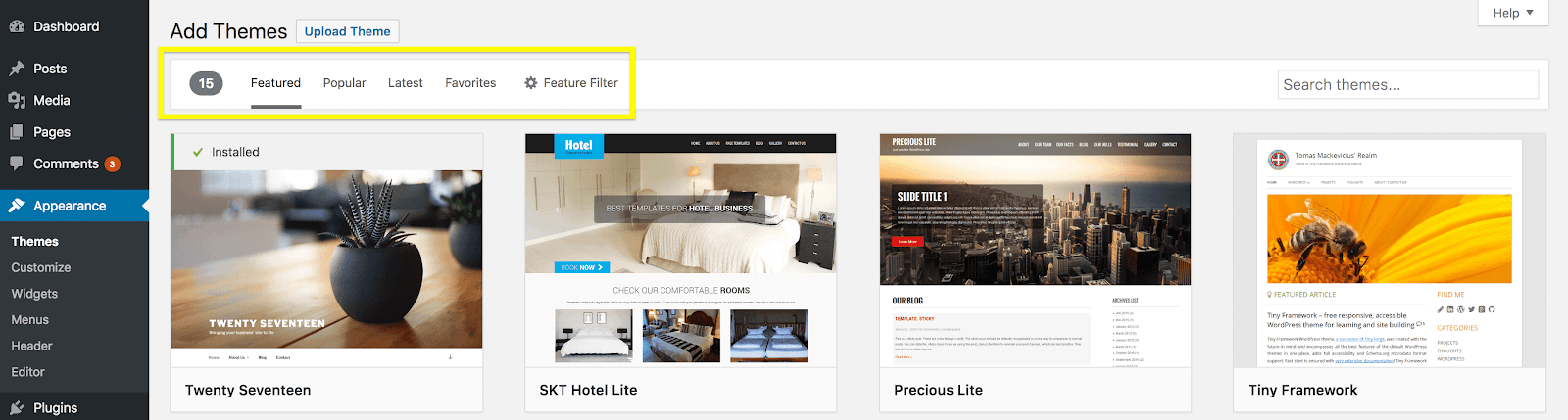
Visit the WordPress dashboard and click on “Appearance”. Select “Themes”, then tap on “Add New”. A list of themes will appear. Browse through the free themes available. You can also use the search bar to find specific themes. Once you find the one you like, click “Install”. After installation, press “Activate” to apply the theme to your website. Now, your site has a new look with just a few clicks.
First, download the theme file from the provider. Go to the WordPress dashboard and click “Appearance”. Select “Themes” and press “Add New”. Next, click “Upload Theme”. Choose the zip file from your computer. Click “Install Now” to start uploading. Once done, press “Activate” to use the new theme. Enjoy the new design on your website.
Activating The Theme
Before you change a theme, it’s good to preview it. This helps you see how it will look on your site. Go to the WordPress dashboard. Click on “Appearance” and then “Themes”. Hover over the theme you like. Click on “Live Preview”. This shows you the look of your site with the new theme. You can see colors and layouts. Make sure everything looks good.
Happy with the preview? It’s time to set it as active. Hover over the theme again. Click on the “Activate” button. This makes the theme live on your site. Your site will now show the new theme. Check your site after activation. Ensure everything is working fine. If you see any issues, you can switch back easily.
Customizing The Theme
Changing WordPress themes is simple. Navigate to the “Appearance” tab in your dashboard. Select “Themes” and choose your desired design. Click “Activate” to apply the new theme instantly. Customize further to match your style.
Using The WordPress Customizer
The WordPress Customizer helps change how your site looks. You can find it in the admin panel. Click ‘Customize’ under ‘Appearance’. Here, you can see real-time changes. Adjust colors, fonts, and layouts easily. Make your site look unique.
Adjusting Theme Settings
Theme settings let you tweak your site. Each theme has different options. Some themes offer more choices. Check out the ‘Theme Options’ panel. You can change the header, footer, and sidebar. Adjust menu locations and widgets. Save changes often.
Testing The New Theme
Changing a WordPress theme is simple and straightforward. Navigate to the dashboard, select “Appearance,” then “Themes. ” Activate the new theme after previewing it to ensure it fits your site’s design.
Checking For Compatibility
Ensure the new theme works with your plugins. Some themes may clash with plugins. This could break your site. Check if the new theme supports your site’s features. Look for any error messages. If you see errors, fix them first. Your site should work smoothly. Always keep a backup. This helps in case something breaks.
Ensuring Responsiveness
Your theme must look good on all devices. Test it on phones and tablets. Check if the layout adjusts well. Text should be easy to read. Images should fit the screen. Tap on buttons and links. They should work properly. A responsive theme keeps visitors happy. This can improve their experience.
Troubleshooting Common Issues
Changing WordPress themes can lead to common issues like broken layouts or missing widgets. Resolve these by reinstalling the theme or checking plugin compatibility. Always backup your site before making changes to ensure a smooth transition.
Resolving Display Problems
Sometimes, a new theme may look strange on your site. This could be due to cache issues. Clearing the browser cache often helps. Another tip is to update all plugins. Outdated plugins can cause display issues. Also, check if your theme has any settings that need adjusting. Sometimes, themes have built-in options for layout. Use them to fix any issues.
Handling Plugin Conflicts
Themes can sometimes not work well with plugins. First, deactivate all plugins. Then, activate them one by one. This helps find the problem plugin. If a plugin causes problems, check for updates. Updated plugins may work better with your theme. If problems continue, look for a different plugin. Some plugins do the same thing but work differently.
Credit: wpengine.com
Maintaining Your Theme
Always keep your WordPress theme updated. Updates fix bugs and add new features. Check for updates in the WordPress dashboard. Click on the “Updates” section. Look for your theme’s name. If there’s an update, click to install it. This keeps your website secure and running smoothly.
Watch for any bugs or problems in your theme. Sometimes updates can cause issues. Visit your site often. Look for anything strange or broken. Use online forums for help. Many people share solutions there. A well-maintained theme is important for a good website experience.

Credit: www.templatemonster.com
Frequently Asked Questions
How To Safely Change WordPress Themes?
To safely change themes, back up your site first. Use a staging environment to test the new theme. Ensure compatibility with plugins and widgets. Check for theme updates and support. After switching, verify all site functionalities and design elements are intact.
Will Changing Themes Affect My Seo?
Changing themes can impact SEO if not done carefully. Ensure your new theme is SEO optimized. Maintain key SEO elements like meta tags, headings, and alt texts. Check for broken links and speed issues. Monitor your site’s performance post-switch to address any SEO concerns.
Can I Preview A WordPress Theme Before Activating?
Yes, you can preview a WordPress theme before activating it. Use the Live Preview option in your WordPress dashboard. This allows you to see how the theme looks without affecting your live site. Make adjustments as needed before finalizing the change.
What Happens To My Content After Changing Themes?
Your content remains intact after changing themes. However, some design elements may need adjustments. Widgets, menus, and custom post types might require reconfiguration. Always review your site post-switch to ensure everything displays correctly.
Conclusion
Switching WordPress themes isn’t difficult. Follow simple steps for a smooth transition. Back up your site first. Choose a theme that fits your needs. Preview before activating. Check your site’s functionality after changing. Update your widgets and menus if needed.
Ensure your site looks great on mobile. Review your content layout. Test your site’s speed and performance. Changing themes can refresh your site’s look. Keep it user-friendly and accessible. Enjoy your new design and improved features. You’re ready to make your site shine!


