
Are you tired of seeing the same old font on your WordPress site? Do you feel that a new font could breathe life into your content and captivate your audience?
Changing the font of your WordPress theme can seem daunting, especially if you’re not a tech wizard. But fear not! This guide is here to show you just how simple it can be to give your website a fresh look that aligns perfectly with your brand’s voice.
Imagine your text standing out, making your readers pause, engage, and remember your site. Intrigued? Let’s dive into the step-by-step process of transforming your WordPress font and creating a more visually appealing site that draws visitors in and keeps them coming back for more.
Choosing The Right Font
Fonts can change how your site looks. Make sure the font is easy to read. A simple font works best. Always check if the font matches your website style. Some fonts are for fun sites. Others are for serious sites.
Always consider font size. It should not be too big or small. The right size helps people read better. Font color is important too. It should not be the same as the background. This makes text stand out.
Check if the font works on all devices. People use phones and computers. A good font looks nice everywhere. Try out different fonts. See which one you like best. Testing helps in making the right choice.
Credit: www.inmotionhosting.com
Using WordPress Customizer
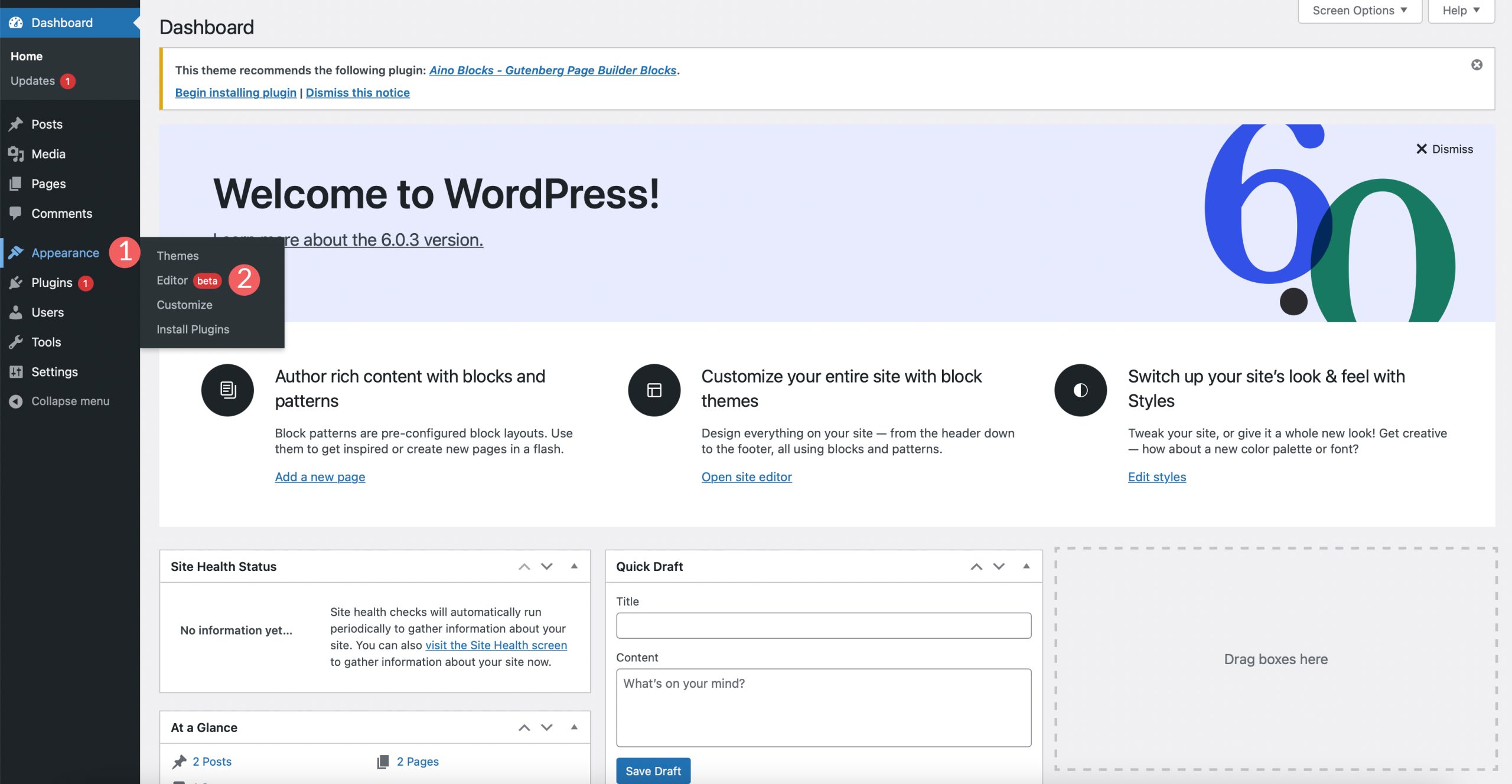
First, log into the WordPress dashboard. Find the Appearance tab on the left side. Click on it. You will see the Customizer option. Click on Customizer. This takes you to the theme settings.
Inside Customizer, look for Typography settings. This might be under the Fonts or Style section. Click on it. You will see different font options. Choose the one you like.
Select the font you want. Preview it live on your site. Happy with the change? Click Save or Publish. Your new font is now active. Enjoy your fresh look!
Editing Css For Font Changes
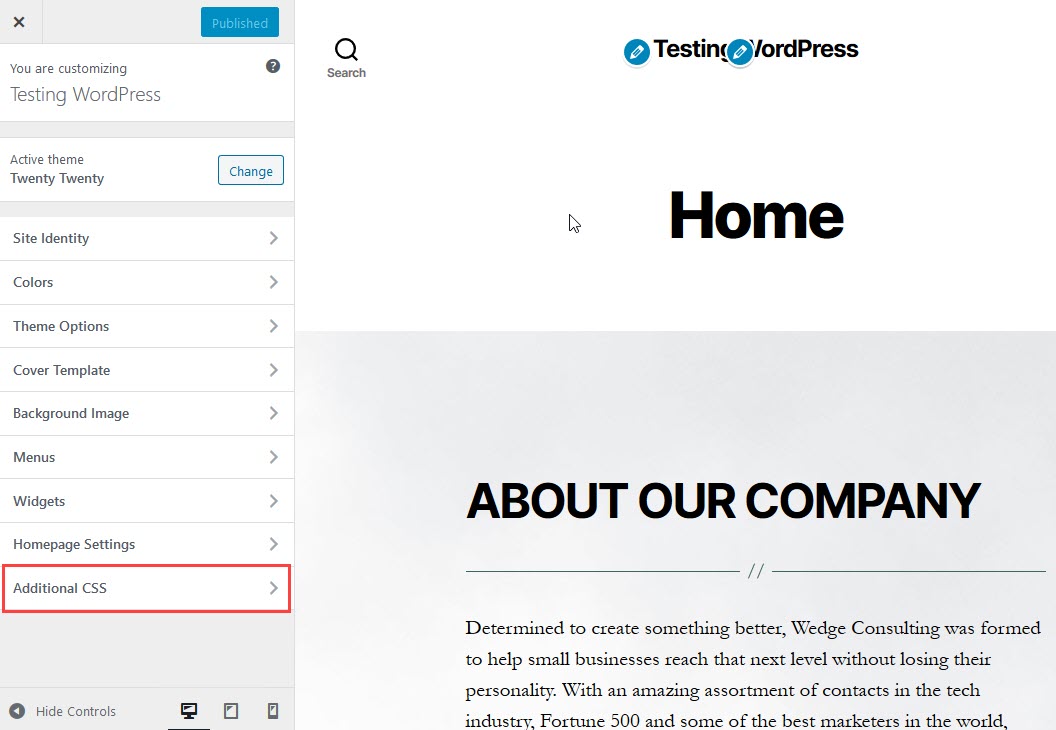
Start by opening your WordPress dashboard. Find the Appearance menu and click on Customize. Look for the Additional CSS option in the menu. This is where you can add your custom CSS. The changes you make here can update your site’s font style. It’s easy and safe to use.
In the Additional CSS section, you can write your own CSS. Use the font-family property to change fonts. For example, you can type body { font-family: 'Arial', sans-serif; }. This changes the main font to Arial. You can try other fonts too. Make sure to check how it looks.
After adding your CSS, preview the changes. Look for the Preview button at the top. Check how your site looks with the new font. If you are happy, click Publish to save. Your site will now use the new font style. It’s simple and takes just a few clicks.
Credit: themeisle.com
Installing Font Plugins
There are many font plugins for WordPress. Some of the best are Google Fonts, Easy Google Fonts, and Fontsy. These plugins help you change fonts easily. Google Fonts offers a wide range of fonts. Easy Google Fonts lets you customize without coding. Fontsy provides unique and stylish fonts. Each plugin has its strengths.
First, go to your WordPress dashboard. Click on Plugins and then Add New. Use the search bar to find your desired plugin. Click Install Now next to the plugin’s name. Wait for it to install. Once done, click Activate. Your plugin is now ready for use. This process is simple and quick.
After activation, visit the plugin settings. Navigate to Appearance and then Customize. Find the section related to fonts. You can choose your favorite fonts here. Adjust size and style as needed. Save changes once you are satisfied. Your site will display new fonts. It’s easy and fun to try different looks.
Google Fonts Integration
Google Fonts offer many choices. Pick a font you like. Browse the collection on Google Fonts website. Choose a font that matches your style. Make sure it is easy to read. Check if the font has different weights. This helps in making text bold or thin.
After selecting a font, it needs to be embedded. Copy the provided code snippet from Google Fonts. Go to your WordPress dashboard. Navigate to Appearance and Theme Editor. Locate your theme’s header file. Paste the code in the header. Save the changes to embed the font.
Customization is fun. You can change the font size. Adjust the line height for better readability. Use CSS to style the text. Apply different font weights. Experiment with italics or bold. Keep it simple and clean. The right font makes your site look good.
Credit: www.elegantthemes.com
Using Child Themes For Fonts
Begin by making a child theme folder. Name it like your main theme with “-child” at the end. Inside, create a style.css file. Add this code to start:
        /
        Theme Name: Your Theme Child
        Template: your-theme
        /
Don’t forget to replace “your-theme” with your theme’s name. This helps keep your original theme safe.
Open your child theme folder. Find or create a functions.php file. Add this code to load new fonts:
        function my_theme_enqueue_styles() {
            wp_enqueue_style('parent-style', get_template_directory_uri() . '/style.css');
            wp_enqueue_style('custom-font', 'https://fonts.googleapis.com/css?family=YourFont');
        }
        add_action('wp_enqueue_scripts', 'my_theme_enqueue_styles');
Replace “YourFont” with your chosen font name.
Use the style.css in the child theme to change font styles. Add rules like:
        body {
            font-family: 'YourFont', sans-serif;
        }
This sets your chosen font for the whole website. You can target other elements too. Examples include headers or paragraphs. Customize them as you wish.
Troubleshooting Font Issues
Changing the font in a WordPress theme often resolves display issues. Start by accessing the theme customization options in your dashboard. Navigate to the typography section, select your preferred font, and click save to update your site’s appearance.
Common Font Problems
Fonts can sometimes look wrong on your website. They may appear too big or too small. Colors might not match what you chose. Different browsers can show fonts differently. This can make your site look bad. Font settings might change without notice. This can confuse visitors. Wrong font files can cause errors. This might slow down your website.
Checking Browser Compatibility
Browsers can handle fonts in varied ways. Chrome, Firefox, and Safari may show fonts differently. It’s crucial to test fonts on all main browsers. Some browsers might not support certain font styles. Font rendering can vary, affecting how text appears. Regular checks can prevent font problems. Make sure fonts look good across devices.
Clearing Cache
Old cached data can affect font display. It may cause fonts to not update properly. Clearing cache helps refresh site content. This ensures visitors see the correct fonts. Cached files may hold outdated font settings. Removing these files can solve display issues. Regular cache clearing keeps your site fresh.
Frequently Asked Questions
How To Change WordPress Theme Font Easily?
To change the font of your WordPress theme, navigate to Appearance > Customize. Then, look for the Typography or Fonts section. Here, you can select different font styles and sizes. Remember to save your changes after customizing the fonts to see them live on your site.
Can I Use Google Fonts In WordPress?
Yes, you can use Google Fonts in WordPress. Install a plugin like Easy Google Fonts or access the theme customizer. These tools allow you to integrate Google Fonts easily, giving your site a modern and stylish look. Always preview your changes before publishing.
Are There Plugins To Change WordPress Fonts?
Yes, several plugins can help change WordPress fonts. Popular options include Easy Google Fonts and Use Any Font. These plugins make it simple to customize typography without touching code. Install the plugin, choose your desired fonts, and apply them across your site effortlessly.
Is Css Needed For Font Changes?
You don’t always need CSS for font changes in WordPress. Many themes offer built-in customization options. However, for advanced tweaks, CSS can be useful. To edit CSS, go to Appearance > Customize > Additional CSS. Ensure you have a backup before making direct changes.
Conclusion
Changing your WordPress theme font is straightforward. It enhances your site’s appearance. Experiment with different fonts to find your style. Remember, readability is key for your audience. Use tools to preview changes before finalizing. This saves time and ensures satisfaction.
Fonts reflect your brand’s personality. So, choose wisely and make your site memorable. Regularly update your theme to keep it fresh. This keeps visitors engaged. With these steps, your WordPress site will look great and be easy to read. Enjoy customizing your site with unique fonts.
Happy blogging!


