
Are you feeling like your blog’s current theme just isn’t doing it justice anymore? Maybe it’s time for a fresh look that truly reflects your style and message.
Changing your WordPress blog theme is not just about aesthetics; it’s about enhancing user experience and potentially boosting your blog’s performance. But where do you start, and how can you ensure a smooth transition without losing your content or custom settings?
In this guide, you’ll discover simple steps to change your WordPress theme effortlessly. We’ll walk you through the process, offering tips to make sure your new theme aligns with your vision and engages your audience effectively. By the end of this article, you’ll be equipped with the knowledge to revamp your blog’s appearance and captivate your readers like never before. Ready to give your blog the makeover it deserves? Let’s dive in!
Choosing The Right Theme
Every blog has a reason for being. Some share stories, others teach. Know what your blog is about. This helps pick the best theme. A theme should match your blog’s goal. A cooking blog needs tasty pictures. A tech blog needs clean lines. Purpose guides your choice.
User experience is key. Visitors should feel happy on your blog. Easy to read, easy to find things. No one likes a messy page. A good theme helps users. Think about what they see and feel. Make sure they stay longer and enjoy.
Not all themes work with every blog. Some themes need special plugins. Others may not fit your setup. Check if the theme works on all devices. Compatibility ensures smooth running. Your blog should look good on phones and computers.

Credit: cyberchimps.com
Finding Themes In WordPress
Easily change your WordPress blog theme by navigating to the Appearance section in your dashboard. Browse available themes, preview your favorite, and activate it with a single click. Transform your blog’s look effortlessly and keep content fresh.
Accessing The Theme Directory
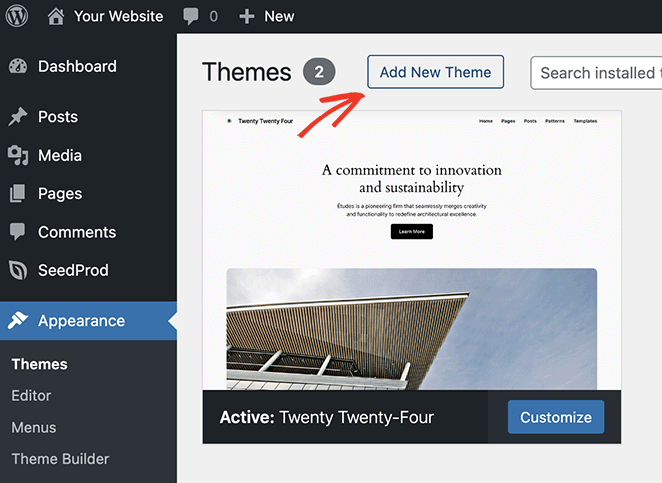
WordPress has a directory for themes. Open your WordPress dashboard. Click on Appearance. Then select Themes. Here, you can see many themes. Use the search bar to find specific themes. You can also filter themes by features. Try different categories and styles. Make sure to choose a theme that suits your blog. You can preview themes before installing them.
Exploring Free Vs. Premium Options
WordPress offers both free and premium themes. Free themes are easy to access and use. They often have basic features. Premium themes usually cost money. They offer more features and customization. Think about your blog needs. Sometimes a free theme is enough. Other times, a premium theme is worth the cost. Always check the theme reviews. Good reviews mean the theme is reliable. Bad reviews can be a warning.
Installing A New Theme
The WordPress dashboard is easy to use. Go to Appearance and click on Themes. Here, find the Add New button. It is at the top. Click it to see many themes. Choose a theme you like. Click Install and then Activate. Your new theme is ready.
Download the theme file on your computer. It should be a .zip file. Go to the dashboard. Click on Appearance and then Themes. Click the Add New button. Then click Upload Theme. Select the .zip file from your computer. Click Install Now and then Activate. Your theme is now live.
Activating The Selected Theme
Easily change your WordPress blog theme by activating the selected option in your dashboard. Go to “Appearance,” click “Themes,” and choose your favorite design. Save changes to see your new look instantly.
Previewing The Theme
Click on the Appearance tab in the WordPress dashboard. There, choose Themes. You will see many themes. Hover over the one you like. A Preview button will show up. Click on it. Now, you can see how your site will look. It is important to check each part. Make sure everything looks good. Does the text appear clear? Are the images in place? If all looks well, you can activate the theme.
Activating From The Dashboard
Once you like the theme, find the Activate button. It is next to the Preview button. Click on Activate. Your new theme is now live. Check your website again. Ensure everything works fine. If something looks wrong, you can change back. It is easy to switch themes. Just repeat these steps. Your blog will have a fresh look.
Customizing Your Theme
The WordPress Customizer helps you make changes to your blog theme. Begin by going to your dashboard. Click on “Appearance” and then “Customizer”. You will see many options. You can change colors and fonts. You can also adjust the layout. Preview your changes live. This helps you see how your blog will look. Save your changes to keep them.
Widgets add extra features to your blog. Go to “Appearance” and select “Widgets”. Drag widgets to your sidebar or footer. You can add menus too. Menus help users find pages easily. Go to “Appearance” and click “Menus”. Create a new menu or edit an old one. Add links to pages you want to show. Use the “Save” button to keep changes.
Testing Your New Theme
Checking for Responsiveness is very important. Open your blog on a phone. Does it look good? Now, try a tablet. Is everything easy to read? Use a computer next. Make sure the site changes size smoothly. A responsive theme makes your blog look nice everywhere. It keeps readers happy. Nobody likes zooming in and out.
Ensuring Compatibility with Plugins is also key. Do all your plugins work well? Some themes may break them. Check the contact forms. Look at SEO tools. Test social media buttons. Disable one plugin at a time. Then refresh your page. Check if the theme works. A theme must play nice with plugins. This keeps your blog running smoothly.
Troubleshooting Common Issues
Sometimes, blog themes may cause display errors. Images can appear out of place. Text might not align properly. Check your theme settings first. Ensure that the correct layout is chosen. Clear your browser cache regularly. This helps in refreshing the page. Try using different browsers. Some themes work better on specific browsers. Update your theme often. Updates fix many errors.
Slow loading times frustrate visitors. Optimize images for faster load. Use plugins to compress files. Choose a lightweight theme. Heavy themes slow down your site. Check hosting service speed. Slow hosts affect load times. Limit the number of plugins. Too many plugins can slow everything down. Regularly update all site elements. Updated elements perform better.
Credit: www.seedprod.com
Credit: www.seedprod.com
Frequently Asked Questions
How To Find WordPress Theme Options?
To find WordPress theme options, log into your dashboard. Navigate to “Appearance,” then click “Themes” to explore available themes. Use the search bar for specific themes or filter by features. Preview before activating to ensure compatibility and design suitability. This helps in selecting themes that align with your blog’s aesthetic.
Can I Change My WordPress Theme Anytime?
Yes, you can change your WordPress theme anytime through your dashboard. Navigate to “Appearance,” then “Themes,” and select a new theme. Ensure to preview and test compatibility before activating. Changing themes frequently can affect your site’s appearance and functionality, so choose carefully to maintain your site’s integrity.
What Should I Check Before Changing Themes?
Before changing themes, check for compatibility with plugins and current content. Ensure the new theme supports your site’s functionality and layout. Preview it to see how it affects design elements. Backup your site to prevent data loss and confirm SEO settings transfer smoothly to the new theme.
Will Changing Themes Affect My Seo?
Changing themes can affect your SEO if not handled properly. Ensure the new theme supports SEO best practices. Check for responsive design, fast loading times, and clean code. Retain meta tags and permalinks to maintain search rankings. Regularly monitor your site’s performance post-change to address any SEO issues.
Conclusion
Changing your WordPress blog theme is simple and rewarding. Fresh themes can bring new life to your blog. Follow the steps to change themes easily. Explore different designs and find the one that fits your style. A new theme may engage more visitors.
Always preview themes before switching. This ensures your blog looks great. Remember, your theme reflects your brand. Update it regularly to keep your content fresh. With the right theme, your blog can stand out. So, start exploring and give your blog a fresh look today!


