
Struggling with WordPress themes that never seem to fit your vision just right? You’re not alone.
Many WordPress users find themselves caught between the desire for a unique look and the limitations of pre-made themes. Imagine having the freedom to tweak and customize your site without risking the stability of your original theme. Sounds appealing, doesn’t it?
This is where creating and using a child theme can be a game changer for you. Not only does it allow you to personalize your website, but it also ensures your modifications are safe whenever updates roll out. Intrigued? Keep reading to discover how easily you can create and manage a child theme in WordPress, giving your site the unique flair it deserves while maintaining a solid foundation.
Benefits Of Using A Child Theme
A child theme protects your website’s design during updates. It lets you change styles without worry. Parent themes can update, and your changes stay safe. This means less stress for you. Create unique designs with ease. No need to touch the original files. This keeps your site secure and stable.
Child themes help you learn and experiment. They are a playground for beginners. Make mistakes without breaking your main theme. This helps in understanding WordPress better. You can also share your child themes with others. It’s a great way to contribute to the community.
Credit: elementor.com
Essential Tools And Requirements
Creating a child theme needs some basic tools. A text editor is important. It helps you write code. Notepad++ or Sublime Text are good choices. You need FTP access too. It lets you upload files. FileZilla is a popular choice for FTP. A solid internet connection is crucial for downloading files. You also need a web browser. This lets you check changes. Google Chrome or Firefox are recommended. A backup plugin is wise. It protects your site from errors. UpdraftPlus is a reliable option for backups.
Do not forget a WordPress environment. It is the base for your theme. You need PHP knowledge. It helps in editing files. Basic CSS skills are handy. They allow styling changes.
Setting Up Your WordPress Environment
Creating a child theme is a smart move. It keeps your custom changes safe. Start with a fresh WordPress install. Pick a theme you love. This theme becomes your parent theme. A child theme copies this parent theme. It allows changes without harm. Always back up your site first. This keeps your content safe. Download and install WordPress. Use the latest version available. A stable version helps avoid bugs. Ensure your server meets WordPress requirements. This includes PHP and MySQL versions. Check with your host if unsure. Install a code editor like Notepad++. It’s free and easy to use. A good editor helps read code better. These steps prepare your WordPress environment well.
Credit: happyaddons.com
Creating A Child Theme Folder
Start by opening the WordPress directory. Navigate to the wp-content/themes folder. This is where all the themes live. Create a new folder for your child theme. Name it something simple. Use the parent theme name and add “-child”. For example, if the parent theme is twentytwentyone, name the folder twentytwentyone-child.
Inside this new folder, add a file named style.css. This file is important. It tells WordPress about your child theme. Add another file named functions.php. This file helps add new features. Now, your child theme folder is ready.
Configuring The Style.css File
Start with a new style.css file. Add theme details at the top. Include theme name, author, and description. This helps others understand your theme. Keep information clear and simple. Avoid using complex words. Simple is best.
Importing styles is easy. Use the @import rule. Import parent theme styles first. Write: @import url("../parent-theme/style.css"); at the top. This keeps your child theme linked. Parent styles will show up. Child themes depend on parent themes. Always check paths are correct.
Configuring The Functions.php File
The functions.php file is essential for a child theme. It helps in adding custom functions. First, create a file named functions.php in your child theme folder. This file allows you to tweak your theme without touching the main theme files. It’s like a special toolbox for your theme.
Enqueuing Parent And Child Styles
Enqueuing styles is important to keep your website looking right. Use the wp_enqueue_style function. This function helps load the parent theme’s styles first. Then, the child theme’s styles follow. This keeps the original design intact. Here is the code snippet for enqueuing:
php
function my_theme_enqueue_styles() {
    $parent_style = 'parent-style';
    wp_enqueue_style($parent_style, get_template_directory_uri() . '/style.css');
    wp_enqueue_style('child-style', get_stylesheet_directory_uri() . '/style.css', array($parent_style));
}
add_action('wp_enqueue_scripts', 'my_theme_enqueue_styles');
?
Remember to replace ‘parent-style’ with your parent theme’s name. This ensures styles are loaded correctly.
Customizing The Child Theme
To change a template file, copy it from the parent theme. Place it in the child theme folder. Use the same folder structure. This way, WordPress loads your file instead of the parent’s. You can edit the copied file to fit your needs. Make sure you don’t delete important code. Always test changes on a safe site first. This keeps your live site safe from errors.
Create a functions.php file in your child theme. This file is for custom functions. You can add new functions to change how your site works. Use simple PHP code to add these functions. Remember to check your code for errors. Mistakes can break your site. Always backup your site before making changes. This way, you can restore it if something goes wrong.
Testing The Child Theme
Testing the child theme ensures it works properly. Install and activate it on your WordPress site. Make changes without affecting the main theme.
Verifying Design Changes
Open your WordPress site to see your child theme. Check if your design changes are visible. Look for updates in colors, fonts, or layouts. If something is not right, go back to your code. Double-check for any errors.
Always save your changes before refreshing the page. This helps to see the latest updates. Seeing the changes means your child theme works. This process ensures the theme behaves like you want.
Ensuring Functionality
Make sure all features of your site work well. Click on menus, buttons, and links. They should respond without errors. Test forms to ensure they send data properly.
If a feature is not working, review your child theme files. Fix any mistakes in the code. Check plugins, as they might cause problems too. Keep testing until everything is smooth.
Activating The Child Theme
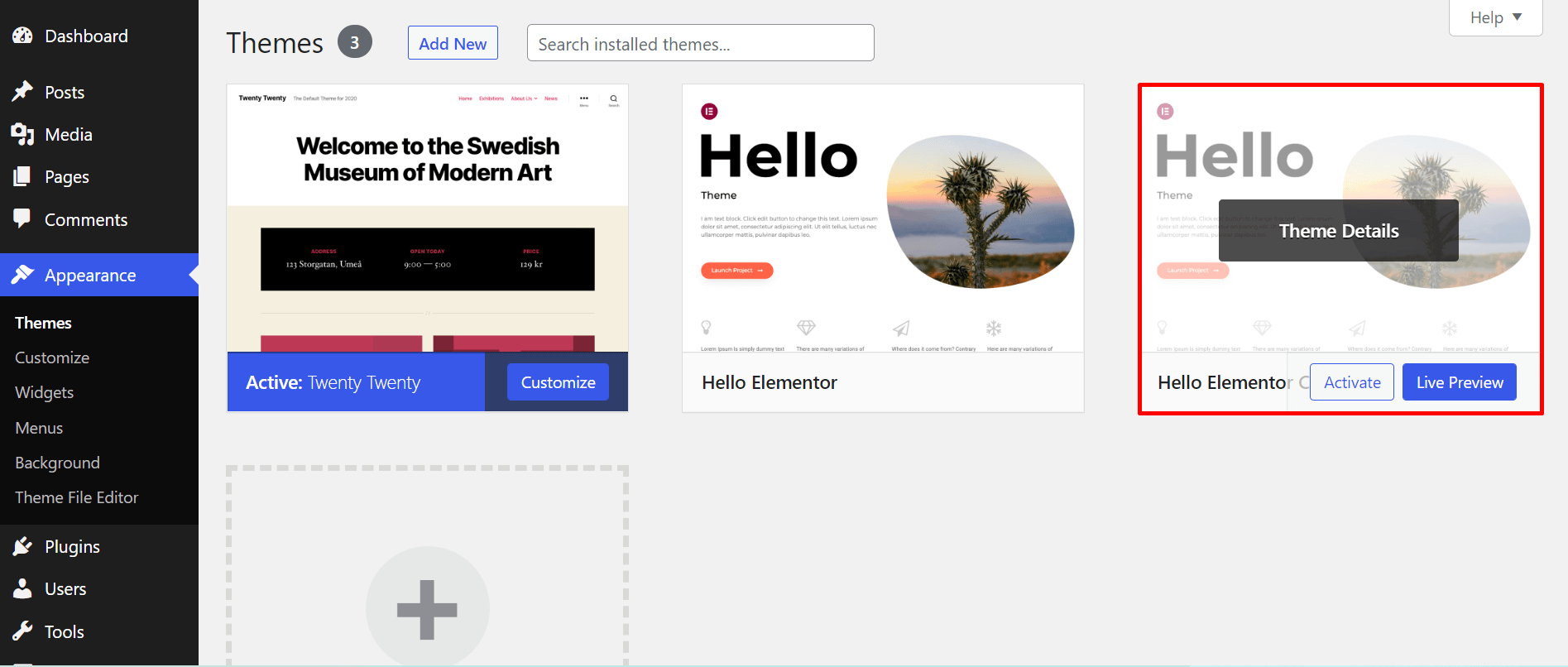
First, go to your WordPress dashboard. Look for the Appearance tab on the left. Click on it, then select Themes. You will see a list of all your themes. Find the child theme you created. It should be there. If not, check your upload again. Make sure it’s in the right place.
Once you find your child theme, hover over it. A button will appear saying Activate. Click that button. Your child theme is now active. Any changes will now use this theme. This keeps your original theme safe. You can edit without worry.
Don’t forget to clear your cache. This makes sure all changes show up. Check your site to see the new look. If something is wrong, go back to check your files. Make sure everything is correct.
Troubleshooting Common Issues
Creating and using a child theme in WordPress can prevent common issues during updates. Child themes allow for customization without affecting the original theme. This keeps your website design intact while ensuring compatibility with future updates.
Missing Styles
Missing styles can make your website look strange. Sometimes, the child theme does not get all the parent theme styles. Check if you have added the style.css file correctly. Ensure your child theme’s stylesheet is loaded after the parent theme’s stylesheet. This helps keep the styles intact. Verify the file paths in your theme setup. Double-check your style rules for any missing or incorrect codes.
Broken Layouts
Broken layoutsfunctions.php file is not set up right. Review your code for errors. Ensure your code follows the right structure. Inspect how elements are positioned in your theme. Look for any conflicts in CSS or JavaScript. Make sure your customizations do not disrupt the layout.
Best Practices For Child Themes
Creating a child theme in WordPress helps customize your website without changing the original theme. Use a child theme to safely update the parent theme while keeping custom changes intact. Follow best practices by organizing files well and testing changes regularly.
Keeping Your Child Theme Updated
Updating your child theme is important. It keeps your site safe and fast. Check for updates often. Always update the parent theme first. Then, update the child theme. This helps avoid errors. Use a staging site. Test updates there before going live. This keeps your live site safe.
Organizing Custom Code
Organize custom code in one place. Use a separate file for custom styles. Name it style-custom.css. For functions, use a file named functions-custom.php. This makes finding and fixing code easy. Group similar codes together. Use comments to explain what each part does. This helps you and others understand the code.

Credit: www.bluehost.com
Frequently Asked Questions
What Is A Child Theme In WordPress?
A child theme in WordPress is a sub-theme that inherits styles and functionalities from a parent theme. It allows you to modify your site’s design without altering the original theme files. This ensures your changes remain intact even after updates to the parent theme, offering a safe way to customize your WordPress site.
Why Use A Child Theme In WordPress?
Using a child theme is crucial for maintaining your site’s customizations. It allows you to update the parent theme without losing modifications. This approach ensures your changes are preserved and provides a structured way to implement custom designs or functionalities while keeping the original theme intact.
How Do You Create A Child Theme?
To create a child theme, start by creating a new folder in your themes directory. Add a style. css file for custom styles and a functions. php file for additional functionalities. Ensure you specify the parent theme in the style.
css file using the Template directive. This setup allows your child theme to inherit from the parent theme.
Can Child Themes Affect Site Performance?
Child themes typically do not affect site performance negatively. They inherit the functionalities and design from the parent theme, ensuring stability. However, poorly coded customizations or additional scripts can impact performance. It’s important to optimize your code and test changes to maintain site speed and efficiency.
Conclusion
Creating a child theme in WordPress is straightforward. It boosts website customization without altering the parent theme. This approach ensures easy updates and a secure environment. Start by creating a new folder for your child theme. Add a style. css and functions.
php file. Modify these files to suit your needs. Enjoy the flexibility of customizing your website. Keep your unique design intact with each update. Explore new possibilities with a child theme. Focus on creativity and functionality. Your website can grow and change, while staying stable.
Dive into WordPress with confidence.


