
Are you ready to give your WordPress site a fresh new look? Changing your WordPress theme can feel like a major undertaking, but it doesn’t have to be overwhelming.
Imagine the excitement of transforming your site’s appearance to better reflect your brand or to keep up with the latest design trends. Before you dive in, it’s crucial to know how to do it right so you don’t lose any of your hard work or data.
In this guide, you’ll discover step-by-step instructions to smoothly switch your WordPress theme without any headaches. Whether you’re looking to improve functionality, boost your site’s aesthetics, or enhance user experience, understanding the process will empower you to make the best choices for your website. Get ready to unlock the full potential of your WordPress site with a new theme!
Choosing A New Theme
Picking the right theme is important. Design should match your style. Check if the theme is responsive. It must work on phones and computers. Look for SEO-friendly options. This helps your site rank better. Loading speed is crucial. Nobody likes a slow site. Read user reviews to know more.
Some themes are very popular. Astra is fast and easy to use. OceanWP has many features. Neve is another good choice. It is simple and clean. Divi offers many design tools. Hestia is great for small businesses. All these themes have good reviews.
The theme should work with your plugins. Compatibility is key. Check the theme’s updates. It should be updated often. This keeps your site safe. Make sure the theme supports your WordPress version. Always test the theme before using it. Backup your site first. This keeps your data safe.
Backing Up Your Website
Backups keep your website safe. Files and data are secure. Mistakes happen. Hackers attack. Backups protect you. Restore your site easily. Never lose important info.
Plugins help backup your site. Simple tools for everyone. Many plugins are free. Some paid plugins offer extra features. Choose one that fits your needs.
Manual backup is another way. Download files to your computer. Use FTP to access your site. Copy important folders. Save them safely. Repeat often. This keeps your site secure.
Installing The New Theme
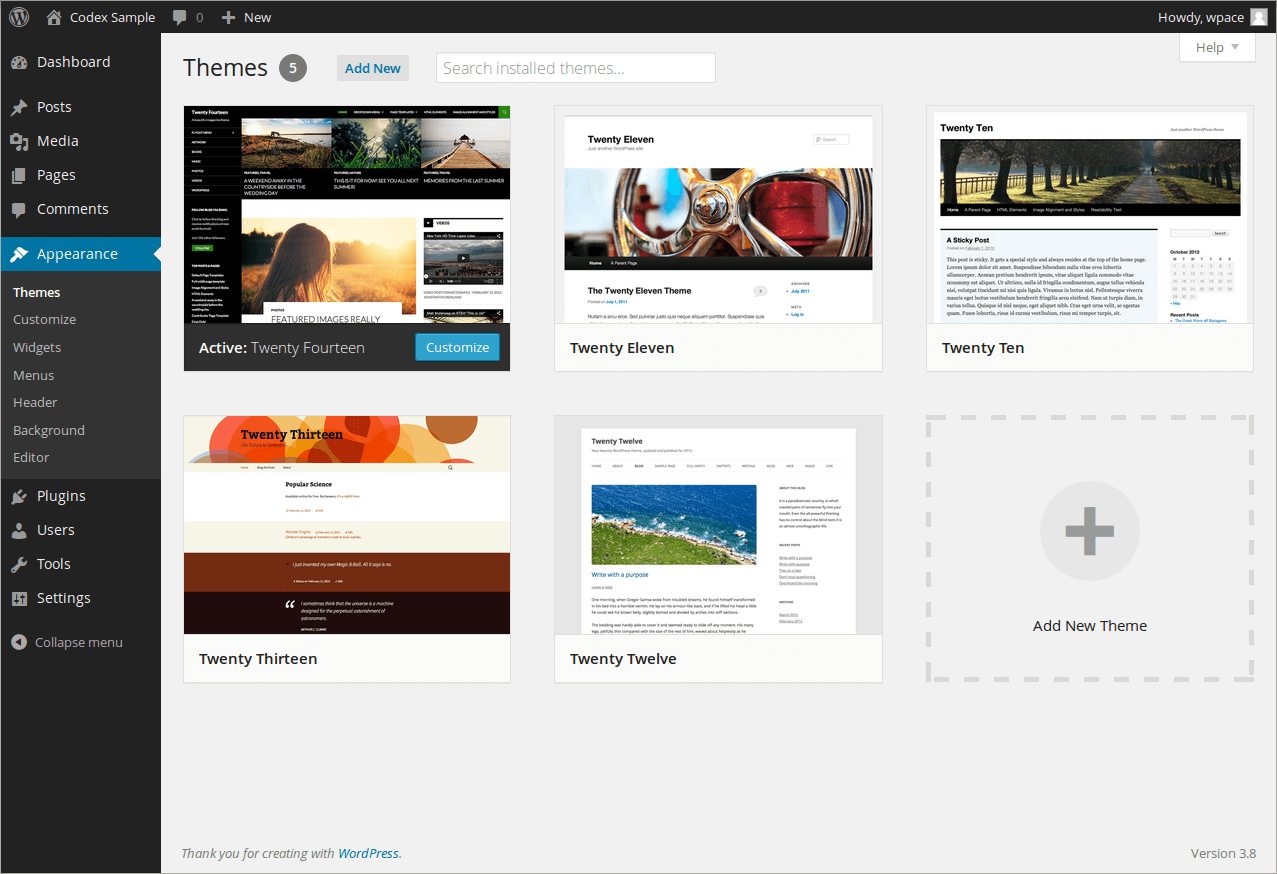
Switching your WordPress theme is simple. Access the dashboard, navigate to ‘Appearance,’ select ‘Themes,’ and activate your chosen design. Customizing options allow personalization to match your brand’s identity.
Accessing The WordPress Dashboard
Login to your WordPress site. Click on Dashboard. Find the Appearance option on the left menu. Click on Themes. You will see all available themes.
Theme Installation Methods
There are two main methods. First, click Add New in Themes. Search for a theme in the search bar. Click Install on the chosen theme. Second, upload a theme file. Click Upload Theme on the top. Select the theme file from your computer. Click Install. Wait for the upload.
Activating The Theme
After installing, you must activate it. Go to the Themes section. Find your installed theme. Click Activate. Your site will now use the new theme. Refresh the page to see changes.
Customizing The Theme
The WordPress Customizer is a powerful tool. It helps to make changes easily. You can find it in the dashboard. Click on “Appearance” and then “Customize“. This opens up many options. You can adjust colors, fonts, and more. Changes are seen in real-time. This makes it simple to get the look you want.
Theme settings let you tweak your site. Each theme has different options. You might find settings for layouts, headers, and footers. Check each option carefully. Save your changes often. This keeps your work safe and updated.
Custom code makes a site unique. Use it to add special features. Be careful with code changes. A small mistake can break your site. Always back up your data first. You can add code in the “Additional CSS” section. Check your site after adding new code. Make sure everything works well.
Testing The New Theme
Checking Site Functionality is very important. Ensure all buttons work. Test all links. Look at the site menu. Is it easy to use? Check if images load quickly. Test forms and contact pages. Make sure they work properly.
Responsive Design Testing is needed for phones and tablets. Open your site on a phone. Does it look good? Try different screen sizes. See if text is readable. Check if images fit the screen. Make sure nothing is cut off.
Cross-Browser Compatibility is crucial. Open your site in Chrome. Then try Firefox. Don’t forget Safari and Edge. Check if everything looks the same. Make sure all features work. Different browsers can show things differently.

Credit: support.vamtam.com
Addressing Common Issues
Display errors can be frustrating. Sometimes, the new theme does not look right. Check if all images and styles are loading. Clear the browser cache. Refresh the page. If the error continues, switch back to the old theme. Test for any missing files.
Broken links can make your site look unprofessional. Use a link checker tool. Identify all the broken links. Update them with the correct URLs. Sometimes, you may need to update menu links too. Ensure all links work before going live.
Plugins sometimes cause conflicts with new themes. Deactivate all plugins first. Reactivate them one by one. Find the plugin causing the issue. Sometimes, updating the plugin fixes the problem. If not, consider looking for alternative plugins.
Optimizing For Performance
Fast websites make visitors happy. Slow websites can frustrate users. This affects your site’s ranking. To improve load times, reduce the size of your images. Smaller images load faster. Use tools like TinyPNG or ImageOptim. Reduce unnecessary plugins. These can slow down your site. Keep your site simple and clean.
Images can be heavy. Heavy images slow down your site. Use image compression. This makes images smaller without losing quality. Choose the right image format. JPEGs for photos, PNGs for graphics. Use image alt text. This helps with SEO. Describe your images briefly. It helps search engines understand your content.
Caching saves data for reuse. It helps your site load faster. Use plugins like W3 Total Cache or WP Super Cache. These tools help store data. They reduce server load. This makes your site quicker for visitors. Update your cache regularly. This ensures users see the latest content. Always test after changes.

Credit: www.liquidweb.com
Ensuring Seo Best Practices
Switching themes can change SEO settings. Save current settings before any change. Backup the site’s SEO configuration. Ensure your new theme supports SEO plugins. This helps keep important settings intact.
New themes might have different metadata structures. Check page titles and descriptions. Ensure they still match your content. Review each page’s metadata after the switch. Use SEO tools to verify these changes.
Changing themes might affect URL redirects. Verify all redirects work properly. Broken links can hurt SEO. Use a redirect checker for this task. Make sure old URLs point to the right places. Keep your site’s navigation smooth.
Launching The Updated Site
Check every page for errors. Make sure links work well. Look at images. They should load fast. Check text for mistakes. Fix any issues you find. This step is very important.
Tell your visitors about the new look. You can write a short post. Share it on social media. Use emails to inform subscribers. This helps everyone know what’s new. It builds excitement.
Ask visitors what they think. Use surveys or feedback forms. Listen to their ideas. This helps improve the site. Make changes based on their suggestions. Happy users are more likely to return.
Credit: www.hostpapa.com
Frequently Asked Questions
How To Safely Change A WordPress Theme?
Changing a WordPress theme safely involves backing up your site first. Use plugins like UpdraftPlus for backups. Test the new theme on a staging site. Check for compatibility with existing plugins. After activation, review your site for any layout or functionality issues and make necessary adjustments.
Will Changing Themes Affect My Site’s Seo?
Changing themes can impact SEO if not done carefully. Ensure the new theme is SEO-optimized. Check for fast loading times and proper HTML structure. Retain alt tags and meta descriptions. Use SEO plugins like Yoast to maintain settings. Regularly monitor site performance after theme change.
Can I Preview A New Theme Before Activating?
Yes, WordPress allows you to preview a new theme. Navigate to Appearance > Themes in your dashboard. Click ‘Live Preview’ to see how your site looks with the new theme. This helps identify potential layout issues before activation. Ensure all site features function properly in preview mode.
What Should I Do After Changing A Theme?
After changing a theme, review your site’s appearance and functionality. Check menus, widgets, and custom settings. Ensure all plugins work correctly with the new theme. Update any custom CSS or design elements. Clear your site’s cache to reflect changes. Regularly monitor site performance and user experience.
Conclusion
Changing a WordPress theme is simple with these steps. First, backup your site. It’s essential. Next, explore themes in the WordPress directory. Choose one that suits your needs. Then, install and activate it. Check your site’s compatibility. Make sure all elements display correctly.
Finally, customize your new theme. Add your personal touch. This process helps refresh your website’s look. Keep your content engaging and relevant. Regular updates ensure a dynamic online presence. Happy theming!


