
Are you looking to give your WordPress website a fresh new look? Changing the theme is a great way to revamp your site’s appearance and make it more engaging for your visitors.
But if you’re managing your site through cPanel, the process might seem a bit daunting at first. Don’t worry—you’re not alone, and you’ve come to the right place. In this guide, I’ll walk you through the simple steps to change your WordPress theme using cPanel, even if you’re not a tech whiz.
You’ll learn how to make your site stand out without breaking a sweat. Imagine the excitement of seeing your website transform into something that truly represents your vision. Let’s dive in and unlock the full potential of your WordPress site!
Accessing Cpanel
Cpanel provides an easy way to change your WordPress theme. Log in, navigate to the WordPress section, and select your desired theme. Follow instructions to install and activate, giving your site a fresh look effortlessly.
Logging Into Cpanel
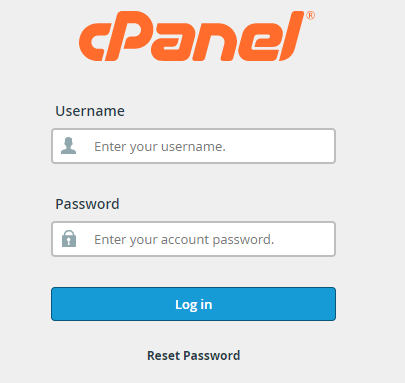
First, open your web browser. Type in your website address. Add /cpanel at the end. Hit Enter. A login page will show up. Enter your username. Enter your password. Click the Login button. Now you are in the Cpanel dashboard.
Navigating To File Manager
On the Cpanel dashboard, look for the File Manager icon. Click on it. This opens a new window. You will see folders and files. Find the public_html folder. Click to open it. This is where your website files live.
Look for the wp-content folder. Open it. Then find the themes folder. Here you can see all your WordPress themes.
Locating WordPress Files
Wordpress files live inside folders. These folders hold important parts. Each folder has a role. Root folder is the main house. Inside, you find wp-content. This folder is key. It holds themes and plugins.
wp-admin is another folder. It helps manage your site. wp-includes has code libraries. These run your site. All folders work together. They keep WordPress running smoothly.
Themes live inside wp-content. Look for themes folder. It’s easy to find. Open wp-content first. Then see the themes folder. This is where designs stay. Each theme has a folder.
Folders have theme files. These files change how your site looks. You can add new themes here. Remove old ones too. Just drop files into the right folder.
Uploading A New Theme
First, download the theme you want. Choose a theme that’s easy to use. Make sure the theme is compatible with your WordPress version.
Downloading a Theme from the internet is simple. Visit websites offering WordPress themes. Click the download button. Save the file to your computer. Check the file format. It should be in .zip format.
Uploading via File Manager involves a few steps. Log into your cPanel account. Find the File Manager option. Navigate to the WordPress folder. Open the “wp-content” directory. Select the “themes” folder. Click “Upload” to add your theme. Choose the .zip file you downloaded. Wait for the upload to finish. Extract the files after uploading.
Once done, log into your WordPress dashboard. Go to “Appearance” and then “Themes”. Activate your new theme. You are ready to customize!
Activating The Theme In WordPress
Accessing cPanel allows easy theme changes for WordPress. First, log into cPanel, locate the File Manager, and navigate to the WordPress themes directory. Upload your chosen theme, then activate it from your WordPress dashboard. This simple process offers a fresh website look effortlessly.
Accessing The WordPress Dashboard
First, log into your WordPress dashboard. Use your username and password. The dashboard is the control center. Here, you manage your site.
Navigating To Appearance
Look on the left side. Click on “Appearance”. This is where you see all themes. The page shows installed themes. You can explore other options too.
Activating The New Theme
Find the theme you want. Hover over it. Click “Activate”. The theme is now live. See how your site looks. Make sure it works well. Always check your pages. Ensure everything is in place.
Customizing The Theme
Changing your WordPress theme using cPanel is straightforward. First, log into cPanel and access the file manager. Locate the themes folder, upload your new theme, and activate it in WordPress. Enjoy a fresh look for your site!
Using The Customizer Tool
The Customizer Tool makes changing your theme fun. Access it through the WordPress dashboard. It lets you preview changes live. Adjust colors, fonts, and layout easily. The tool is user-friendly. Experiment with settings without fear. Mistakes can be undone. Be creative. Make your site unique. Play with different options. Save changes once satisfied. Your site will look fresh and new.
Adjusting Theme Settings
Theme settings control your site’s look. Adjust them for style changes. Access settings via the dashboard. Tweak header and footer designs. Change background colors. Modify widget areas. Set menu positions. Make sure settings fit your brand. Test changes on different devices. Ensure everything looks good. Settings offer many choices. Explore them all. Keep settings simple for fast loading.
Credit: www.hostitsmart.com
Troubleshooting Common Issues
Changing the WordPress theme via cPanel can solve many issues. First, access the File Manager. Navigate to the “wp-content/themes” directory. Rename the active theme folder to force WordPress to use a default theme. This method helps in identifying theme-related problems quickly and efficiently.
Theme Compatibility Problems
Not all themes work well together. Sometimes, a new theme can break your site. This means your site may look strange or not work right. Check if the theme fits with your version of WordPress. Some themes need the latest WordPress version. Ensure you have the right plugins. Plugins can cause problems too. Test your site after installing a new theme. If it looks broken, try another theme. Always keep a backup of your website. This way, you can go back if things go wrong.
Dealing With Broken Themes
Broken themes make websites look bad. They can also stop them from working. If a theme breaks, switch back to the old theme. Use the WordPress dashboard to do this. If you cannot access it, use Cpanel. Go to the file manager in Cpanel. Find the theme folder and rename it. WordPress will then use a default theme. Check for theme updates. Updates can fix broken themes. Always download themes from trusted sources.
Backing Up Current Theme
Before changing your WordPress theme in cPanel, back up the current theme. This ensures you can restore it if needed. Use a file manager in cPanel to copy the theme folder to a safe location.
Creating A Backup Via Cpanel
Log into your Cpanel account. Find the “File Manager” option. Open it and navigate to the “public_html” folder. Look for the “wp-content” directory inside it. Here, you will see the “themes” folder. Right-click on the “themes” folder and select “Compress”. Save this compressed file as your backup. This way, you have a copy of your current theme.
Restoring From A Backup
To restore, log into Cpanel again. Open the “File Manager”. Go to “public_html” and find the “wp-content” folder. Delete the existing “themes” folder. Upload the backup file you saved earlier. Right-click on the file and select “Extract”. Now, your previous theme is back in place.

Credit: hostarmada.com

Credit: www.liquidweb.com
Frequently Asked Questions
How Do I Change A WordPress Theme In Cpanel?
To change a WordPress theme in cPanel, access your cPanel dashboard. Navigate to ‘File Manager’ and locate the ‘wp-content/themes’ directory. Upload the new theme folder here. Then, log into your WordPress admin panel, go to ‘Appearance > Themes’, and activate the new theme.
Can I Switch WordPress Themes Without Losing Data?
Yes, switching themes won’t delete your data. Your posts, pages, and media files remain intact. However, some theme-specific settings may change. Always backup your site before making changes to ensure nothing crucial is lost during the transition.
Is It Safe To Change WordPress Themes?
Changing WordPress themes is generally safe. It’s advisable to backup your site first to prevent data loss. Test the new theme in a staging environment to ensure compatibility. Check for plugin conflicts and review theme settings after activation for a smooth transition.
What To Do If Theme Change Breaks My Site?
If changing the theme breaks your site, switch back to the previous theme. Check for plugin conflicts and review error messages. Use backups to restore functionality. Consult your hosting support or a professional developer for assistance if needed.
Conclusion
Changing your WordPress theme in cPanel is straightforward. Follow simple steps to update your site. Choose a theme that suits your style and needs. Backup your site before making changes. This ensures data safety and peace of mind. New themes can refresh your site’s look.
They can improve user experience and engagement. Regular updates keep your site relevant. Explore different themes to find the best fit. Keep your audience in mind while choosing designs. A well-selected theme can enhance your site’s appeal. Make your site visually attractive and functional with the right theme.


