
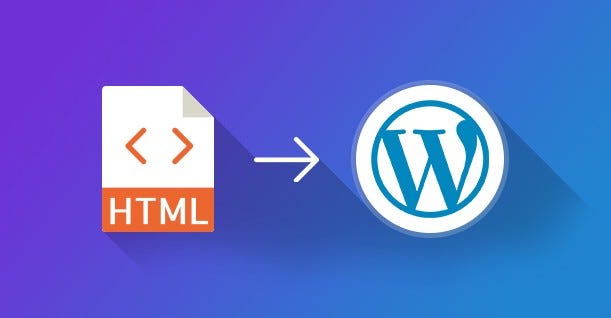
Are you ready to take your web design skills to the next level? Converting an HTML/CSS website into a WordPress theme is a powerful way to enhance your digital presence and streamline your site management.
Imagine having the flexibility to update your content effortlessly, leverage WordPress’s vast ecosystem of plugins, and provide your visitors with a more dynamic experience. This guide is crafted to help you transform your static web design into a fully functional WordPress theme.
We’ll break down the process into simple, manageable steps, ensuring you gain the confidence and knowledge needed to make your website more interactive and user-friendly. By the end of this article, you’ll be equipped with the tools to elevate your website and captivate your audience. Ready to unlock the potential of your web design? Let’s dive in!
Understanding WordPress Theme Structure
The WordPress theme structure is like a puzzle. Each piece fits perfectly. Themes have files such as index.php, style.css, and functions.php. The index.php file is the main template. It shows the page layout. The style.css file manages the theme’s look. It handles colors and fonts. The functions.php file adds special features. It can add menus or widgets.
Templates like header.php and footer.php are important too. They hold the top and bottom parts of the website. The header.php file shows the logo and menu. The footer.php file shows the contact info.
Understanding these files helps create a WordPress theme. The structure is like a map. It guides you through the building process. Each file has a unique role. They work together to make a complete website.
Setting Up Development Environment
First, install a text editor like Sublime Text or Visual Studio Code. These editors help you write and edit code easily. Next, you need a browser for testing your site. Google Chrome is a popular choice. WordPress requires a web server, so download XAMPP or WampServer. These tools create a local server on your computer. You also need MySQL for databases. It helps store your site’s data. Make sure you have PHP installed. It’s needed for WordPress themes.
To create a local server, install XAMPP or WampServer. These applications are easy to use. Open the app and start Apache and MySQL services. This sets up a server on your machine. Place your HTML and CSS files in the htdocs folder. This folder is in the XAMPP or WampServer directory. Access your files through the browser by typing “localhost/your-folder-name”. This lets you view your site locally. You can now work on your WordPress theme.
Organizing Html And Css Files
Keep your code neat and tidy. Separate your HTML from your CSS. This makes your work easier. Use different files for each. Name them clearly. Avoid mixing them up. Clear names help you find files fast.
Put all HTML in one file. This is your layout. Keep all CSS in another file. This controls style. Do not mix styles in HTML. It keeps everything tidy. Easy to read. Easy to change.
WordPress needs a special structure. Use folders wisely. First, create a theme folder. Name it clearly. Inside, make a style.css file. This file is important. It tells WordPress about your theme.
Next, add an index.php file. This file is the main template. Then, organize your CSS files. Keep them in a styles folder. This helps WordPress run smoothly. Everything in its place. Easy to manage.
Creating Essential Theme Files
Start with index.php. This file is crucial for your theme. It acts as the main file. All your site content will display here. Next, create style.css. This file tells WordPress about your theme. It should include theme name, author, and version. These files are the heart of your theme. Without them, it won’t work.
functions.php is a powerful file. It adds features to your theme. You can add menus, widgets, and more. This file works like a plugin. You can write PHP code here. It makes your theme flexible. Every theme needs a functions.php file. It helps in customizing and enhancing features.
Converting Html To Php Templates
Header and Footer templates are crucial in WordPress themes. They help in creating consistent design. Start by saving the HTML parts as header.php and footer.php. In WordPress, use PHP functions like get_header() and get_footer(). This way, the theme gets HTML from these templates. It makes the process simple and organized.
Sidebar and Content templates play a big role too. Use sidebar.php for the sidebar. It keeps the layout neat. Content goes into index.php or single.php. These templates help WordPress understand the structure. By separating HTML into these files, the theme becomes easy to manage. It keeps the site clean and efficient.
Integrating WordPress Functions
WordPress Loop is essential for displaying posts. It helps in showing content dynamically. This means the content changes without editing code. The loop checks for posts. If there are posts, it displays them. Use simple functions to get the title. Other functions fetch content and links. This keeps your site fresh with new posts.
Menus help users navigate your site. WordPress supports custom menus. This makes your site user-friendly. Widgets add extra features. You can add a search bar or recent posts. Both menus and widgets are easy to set up. They make a site interactive and engaging. Users find what they need quickly.
Testing And Debugging The Theme
Transforming HTML and CSS into a WordPress theme involves detailed testing and debugging. Ensure the theme functions smoothly across all devices and browsers. Identify and fix errors to enhance user experience and maintain website performance.
Checking For Responsiveness
Ensure your theme looks good on all devices. Use tools like Google’s Mobile-Friendly Test. Open your site on different screen sizes. Resize your browser window to see changes. Check for any layout issues on phones and tablets. Test buttons and links. They should be easy to tap on a phone. Verify images are not too large on small screens. Responsive design is important for user experience. It keeps your visitors happy.
Troubleshooting Common Issues
Sometimes, things go wrong. Broken links can appear. Check all links on your site. Fix any that lead to nowhere. Slow loading times can frustrate users. Use tools to test speed like GTmetrix. Remove extra plugins if needed. CSS errors might show as design problems. Use browser tools to spot these errors. Keep your code clean and organized. This helps in finding issues easily. Regular testing ensures a smooth site.
Credit: medium.com
Customizing And Enhancing The Theme
Theme options help users choose settings easily. Use custom theme options for colors, fonts, and layouts. This makes the theme flexible. Add a settings page in the WordPress dashboard. Use functions.php to register theme options. Create custom fields for user inputs. Save these settings in the WordPress database. This allows users to change theme styles without coding.
Plugins add features to your theme. They can make your theme more interactive. Use plugins for SEO, sliders, or social sharing. Choose plugins that fit your theme’s purpose. Install plugins from the WordPress Plugin Directory. Always check plugin compatibility with your theme. Update plugins regularly for better performance. Plugins enhance user experience and increase theme functionality.
Deploying The WordPress Theme
First, zip your theme folder. This makes uploading easier. Go to your WordPress dashboard. Click on “Appearance” and then “Themes”. Click “Add New” and then “Upload Theme”. Choose your zipped theme file. Click “Install Now”. Once installed, click “Activate”. Your theme is now live.
Check your theme on different devices. Use phones, tablets, and computers. Make sure everything looks right. Use different browsers too. Check with Chrome, Firefox, and Safari. If something looks wrong, fix it in your code. Your theme should work for everyone. This way, all users will have a good experience.

Credit: www.youtube.com
Credit: wpengine.com
Frequently Asked Questions
What Is The First Step In Conversion?
The first step in converting HTML CSS to a WordPress theme is organizing your files. Ensure you have HTML, CSS, and JavaScript files ready. Create a new folder for your theme in the WordPress themes directory.
Can I Use Existing Html Css?
Yes, you can use existing HTML CSS in your WordPress theme. Ensure your HTML is clean and well-structured. This will help in easy integration with WordPress’s dynamic PHP functionalities.
How Do I Integrate Php With Html?
Integrate PHP with HTML by creating WordPress template files. Use PHP functions to fetch dynamic content from the database. Common files include header. php, footer. php, and index. php.
Is Coding Knowledge Required?
Basic coding knowledge is required for converting HTML CSS to a WordPress theme. Understanding HTML, CSS, and PHP is essential. Familiarity with WordPress structure and functions will greatly aid the process.
Conclusion
Converting HTML and CSS into a WordPress theme isn’t hard. Start with clean code. Use a WordPress structure. Follow theme guidelines closely. Test your theme often for bugs. Customize as needed for unique looks. Add plugins for extra features. Keep learning.
Explore WordPress community forums for help. Practice makes perfect. Building themes gets easier over time. Enjoy creating your own WordPress themes. Share them with others. Gain valuable skills in the process. Happy coding!


