
Are you tired of your current WordPress theme but unsure how to tweak its appearance? You’re not alone.
Many WordPress users find themselves wanting to update their site’s look without changing the entire theme. Luckily, there’s a straightforward solution: customizing your theme’s CSS. Imagine having the power to transform the aesthetic of your website, making it more appealing and unique to your visitors, all with just a few simple adjustments.
This guide will walk you through the essential steps to change your WordPress theme’s CSS effortlessly. You’ll discover how easy it is to tailor your site to reflect your brand’s personality, ensuring that your website leaves a lasting impression. So, if you’re ready to elevate your site’s design and captivate your audience, keep reading to unlock the secrets of CSS customization!
Credit: 10web.io
Accessing Theme Files
The WordPress Admin Panel is simple to use. First, log in to your WordPress site. Look for the Appearance menu on the left. Click on Theme Editor. This takes you to the editor page. On this page, locate the style.css file on the right. Click it to open. Now, you can make your changes. Remember to save your work. Click the Update File button to save. Be careful with your changes. Errors can break the site. Always make a backup first.
FTP helps you access files directly. Use an FTP client like FileZilla. Connect to your website server. You need FTP credentials. Find these in your hosting account. Once connected, locate the wp-content folder. Inside it, find themes. Open your theme’s folder. Look for style.css. Download it to your computer. Edit using a text editor. After editing, upload back to the server. This replaces the old file. Always back up before changes. Mistakes can cause issues.
Identifying Css Files
The style.css file is the main CSS file in a WordPress theme. It holds the primary design rules. To find it, go to your WordPress dashboard. Click on Appearance and then Editor. Look for style.css on the right side. It’s usually the first file listed. This file handles many style elements, like colors and fonts. Knowing where to find it is key to changing your theme’s look.
Some themes have more CSS files. They can be in folders like assets or css. These files may control specific sections or features. To explore them, check the theme folder in the editor. Also, look for files with names like responsive.css or custom.css. They might affect mobile layouts or special designs. Understanding these files helps in fine-tuning your theme’s appearance.
Editing Css Safely
Creating a child theme helps keep your changes safe. It copies the main theme. This way, updates won’t erase your edits. First, make a new folder in your theme directory. Name it something like “theme-child”. Inside, create a file named style.css. Add a line to tell WordPress about the parent theme.
Use this line: Template: parent-theme-name. Now, your child theme is linked. Always edit style.css in the child theme. Your changes stay protected.
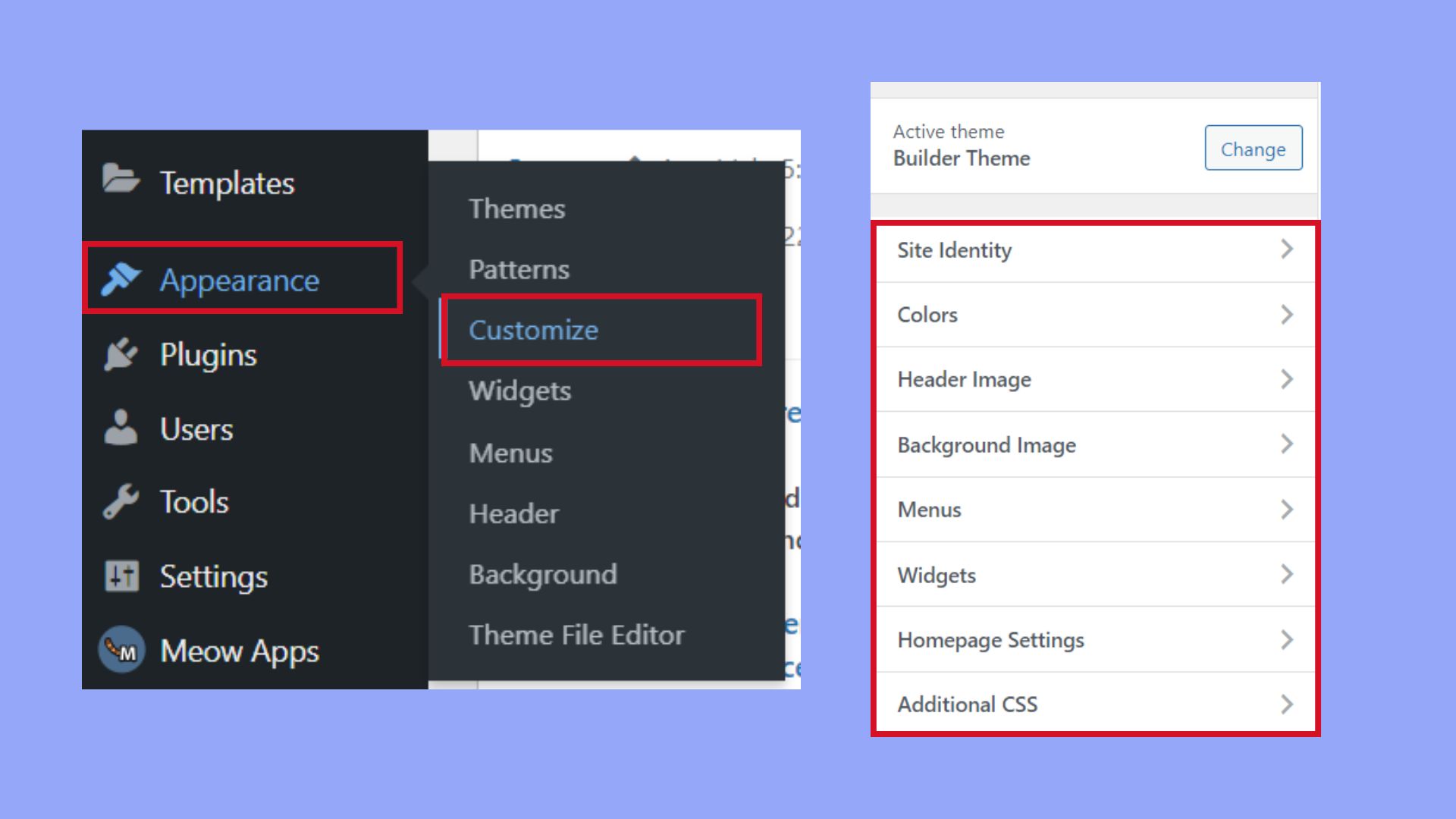
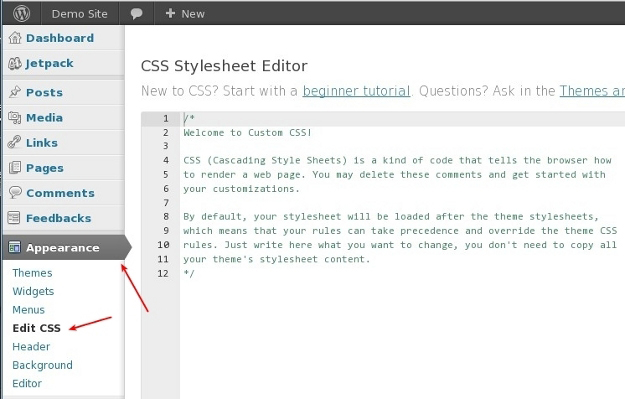
Custom CSS lets you style without touching theme files. Go to the WordPress dashboard. Find the “Customize” option. Click on it. Now look for “Additional CSS”. Here, you can write your CSS code. This is a safe way to change styles. Your main theme stays untouched.
It keeps your work neat and organized. Changes appear right away. It’s easy to test and adjust your design.
Customizing Styles
Start by opening your WordPress dashboard. Find the Appearance section and click on Customize. Here, you can adjust the colors and fonts of your site. Choose a color that matches your theme. Pick fonts that are easy to read. Save changes to see them live. Play around with different styles. Make your site unique and fun.
In the Customize section, look for Layout options. You can change how things look on your site. Adjust the spacing between elements. Try different settings to see what looks best. Small changes can make a big difference. Keep your design clean and simple. Remember, less is more. Save your changes when happy.
Testing Changes
Changing WordPress theme CSS can give your site a fresh look. Access the WordPress dashboard, go to Appearance, then Customize. Navigate to Additional CSS and enter your custom styles to tweak the design. Save changes to see the new style in action.
Previewing On Different Devices
Check your changes on a computer first. Next, look at them on a tablet. Finally, use a phone to see how it looks. Each device shows the website differently. Make sure the design works well on each one. This step helps keep visitors happy.
Ensuring Browser Compatibility
Browsers can display websites differently. Test your changes on Chrome, Firefox, and Safari. Don’t forget Internet Explorer. Each browser needs to show the website correctly. This ensures everyone can see your site properly. It also helps avoid surprises later.

Credit: www.pair.com
Troubleshooting Issues
Easily change your WordPress theme CSS by accessing the Appearance menu. Navigate to ‘Customize’ and select ‘Additional CSS’. Make your desired changes and save. This method helps modify the look and feel without altering core files, ensuring a smoother user experience.
Reverting Changes
Changes can sometimes break your site. Reverting is a way to fix this. Always save a backup before making changes. If something goes wrong, use the backup. It will restore your site to how it was. Many plugins help with backups. Use them wisely. They save time and stress.
Debugging Common Problems
Problems happen when you change CSS. Debugging helps find these issues. Check your code for mistakes. Even a small error can cause problems. Use browser tools to inspect your site. These tools show where things go wrong. Clear your browser cache to see updates. Sometimes, old data causes issues. If the problem stays, ask for help in forums.
Credit: www.8theme.com
Frequently Asked Questions
How To Access WordPress Theme Css?
To access your WordPress theme CSS, navigate to your WordPress dashboard. Go to Appearance, then click on Theme Editor. Select the style. css file from the list on the right. This file contains your theme’s CSS code. Always back up your website before making changes to avoid issues.
Can I Change Css Without Coding Skills?
Yes, you can change CSS without coding skills using plugins. Install a CSS editor plugin like Simple Custom CSS. These plugins provide a user-friendly interface. You can easily add custom CSS to modify your theme. This approach is safe and doesn’t require technical expertise.
What Tools Help Edit WordPress Css?
Several tools help edit WordPress CSS effortlessly. Use plugins like CSS Hero or SiteOrigin CSS. They offer visual editors for real-time customization. These tools are perfect for beginners and don’t require coding skills. Ensure to back up your site before using these plugins.
Is Child Theme Necessary For Css Changes?
Creating a child theme is recommended for CSS changes. It preserves your modifications during theme updates. Without a child theme, updates can overwrite your customizations. A child theme ensures a safe and organized way to manage CSS changes. It also helps maintain the website’s functionality.
Conclusion
Changing your WordPress theme CSS is simpler than you think. Start by accessing the theme editor. Make small changes to avoid errors. Test each change for a smooth look. Use a child theme for safe editing. Always back up your files.
Experiment with colors and fonts for a fresh design. Custom CSS can make your site unique. Feel free to ask for help if needed. With patience, your WordPress site will look great. Enjoy your new design and keep learning. Your website reflects your creativity, make it shine!


