
Imagine visiting your favorite website and feeling instantly captivated by its vibrant colors. These hues don’t just catch your eye; they tell a story, evoke emotions, and enhance your browsing experience.
Now, picture bringing that same magic to your own WordPress site. The theme colors of your website are more than just a design choice; they’re a powerful tool to engage your audience and communicate your brand’s essence. Are you eager to transform your site into a visually stunning masterpiece that resonates with your visitors?
Changing your WordPress theme colors is easier than you might think. And doing so can significantly boost your site’s appeal and user engagement. In this guide, we’ll walk you through the simple steps to change your theme colors on WordPress. Whether you’re a seasoned web designer or just starting out, you’ll find these tips incredibly useful. Dive in and discover how you can make your website stand out with the perfect color palette!

Credit: doc.seatheme.net
Why Change Theme Colors
Changing theme colors helps show your brand’s true colors. Colors can make people think of your brand. Consistent colors make your website look neat. People remember your brand better. They feel more connected to it. Colors tell a story about what your brand is. They make your brand stand out.
Colors affect how people feel on your site. Good colors make it easy to read. They guide users to what you want them to see. Bright colors can grab attention. Soft colors are easy on the eyes. They help users stay longer on your site. Users feel comfortable when colors are right. It makes them happy to visit again.

Credit: qodeinteractive.com
Choosing The Right Color Scheme
Colors can make us feel different things. Blue feels calm. Red feels exciting. Understanding color psychology helps pick the best colors. Think about what you want people to feel. Happy? Calm? Excited? Choose colors to match the mood you want.
Many tools can help pick colors. Adobe Color lets you play with colors. Coolors helps find matching colors. Online tools can be fun and helpful. They show colors that look good together. You can try many colors without drawing. Pick the best colors for your theme.
Accessing Theme Customizer
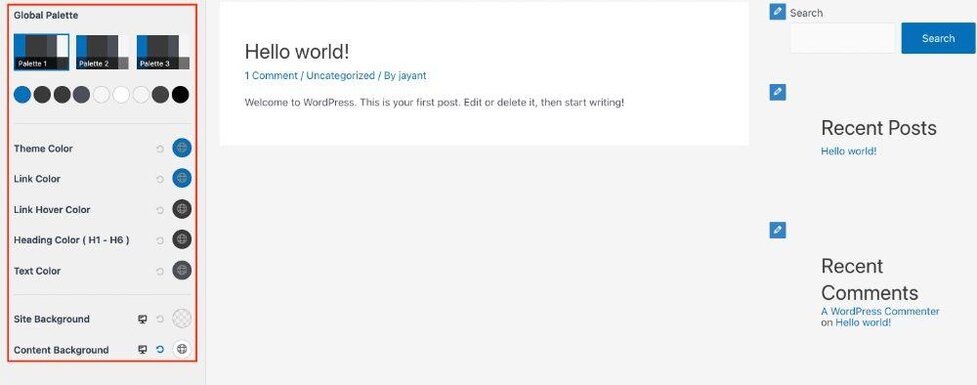
To change theme colors in WordPress, navigate to the Theme Customizer. Find the Colors section. Adjust colors to match your style and save changes.
Navigating The WordPress Dashboard
Start by logging into your WordPress account. Find the dashboard on the left-hand side. This is your main control center. Look for the Appearance tab. Click on it to see more options. It’s easy to spot. The tab has a paintbrush icon.
Locating The Customize Option
Under Appearance, find Customize. This option lets you change how your site looks. Click on Customize to access the theme editor. Here you can change colors, fonts, and more. Explore different settings to see what suits your site. Make sure to save changes.
Modifying Theme Colors
Changing theme colors in WordPress enhances your site’s appearance. Navigate to the customizer, select ‘Colors’, and adjust according to your preference. This simple process allows for a personalized and visually appealing website design.
Using The Color Picker
Select the color picker in your WordPress dashboard. It helps in choosing new colors. You can find it under Appearance and then Customize.
Choose the section you want to change. Click on the color box. This opens the color picker tool. Now, you can select any color you like.
The tool has many colors to choose from. You can see the changes instantly. This helps in deciding the best look for your site.
Previewing Changes
Always preview before saving. Click on the Preview button. This shows how your site looks with new colors. You can view changes without altering the live site.
Make sure everything looks right. If not, tweak the colors again. Once satisfied, click Save to apply the changes. This ensures your site looks great with the new theme colors.
Using Custom Css For Advanced Changes
Custom CSS lets you change your site’s look. You can change colors, fonts, and layouts. It’s easy with a few lines of code. You don’t need to be a coding expert. Just a basic understanding is enough.
Implementing CSS in WordPress is simple. Go to the WordPress dashboard. Find the Appearance section. Click on Customize. Look for the Additional CSS option. Here, you can add your CSS code. Make sure to save your changes.
CSS helps make your site unique. It allows for personal touches. You can change the theme’s default settings. This gives your site a special look.
Credit: wpastra.com
Popular Plugins For Color Customization
Some plugins make color changes easy. One top choice is Elementor. It helps with color picks. Another is ColorMag. It suits beginners well. SiteOrigin is good too. It offers many color options.
First, find the plugin in the WordPress store. Click install. Next, press activate to start using it. Go to settings. Here, you can change colors. Save changes when done. Now, check your site. The new colors should show.
Troubleshooting Common Issues
Changing theme colors in WordPress is a straightforward process. Navigate to the ‘Appearance’ tab in your dashboard. Select ‘Customize,’ then ‘Colors,’ and adjust the settings to your preference. Save changes to see the new look instantly.
Changes Not Reflecting
Sometimes, theme color changes do not show up. This can be very frustrating. Clearing your browser’s cache might solve this. Caches store old versions of websites. So, clear them to see the new colors. Also, ensure you click the “Save” button after changes.
Another reason could be a plugin conflict. Some plugins may block theme changes. Deactivate plugins one by one. Check if the changes appear after each deactivation.
Compatibility Problems
Theme colors may not work due to compatibility issues. Some themes do not support all browsers. Check if your theme is compatible with popular browsers. WordPress updates can also cause problems. Make sure both WordPress and your theme are updated. If problems persist, contact theme support.
Best Practices For Theme Color Changes
Theme colors should stay the same on each page. This makes the site look nice. Visitors like sites that feel the same everywhere. Colors help connect the pages. Pick a few colors that work well together. Use them on all pages. This way, each page feels like part of a big picture.
Too many colors can make a site look messy. It can confuse visitors. Stick to one or two main colors. Add a few accent colors if needed. Bright colors are fun, but use them wisely. They should help, not distract. Keep things simple. Simple colors are best for clear and easy reading.
Frequently Asked Questions
How To Change Theme Colors In WordPress?
To change theme colors in WordPress, go to the Customizer. Navigate to Appearance > Customize. Look for the ‘Colors’ option. Here, you can adjust primary and secondary colors. Make sure to save your changes. If your theme doesn’t support color changes, consider using a custom CSS plugin.
Can I Use Custom Css For Colors?
Yes, you can use custom CSS to change theme colors. Install a custom CSS plugin or use the WordPress Customizer’s ‘Additional CSS’ section. Identify the elements you want to change, then add your CSS code. This method offers flexibility but requires knowledge of CSS.
Do All Themes Support Color Changes?
Not all WordPress themes support color changes. Themes differ in customization options. Check the theme documentation or settings in the WordPress Customizer. If color options aren’t available, consider switching themes or using custom CSS. Premium themes often offer more customization features.
How To Preview Color Changes In WordPress?
To preview color changes, use the WordPress Customizer. Navigate to Appearance > Customize. Adjust colors and see changes in real-time on the right-hand preview panel. This allows you to visualize changes before publishing. Always save changes once you’re satisfied with the new look.
Conclusion
Changing theme colors in WordPress is easy and fun. It adds personal touch to your website. Just follow the steps mentioned earlier. Experiment with different color combinations. Find what suits your style best. Remember, a cohesive color scheme enhances user experience.
Keeps visitors engaged. Make your site visually appealing. Regular updates keep your site fresh. Enhance your site’s look regularly. Explore, and don’t hesitate to try new designs. Your website reflects your creativity. Enjoy customizing your WordPress theme colors. The process is simple yet rewarding.
Keep learning and adapting to new trends.


