
Struggling to customize the footer of your WordPress theme? You’re not alone.
The footer is often overlooked, yet it holds the key to enhancing your website’s professional look and functionality. Imagine the impact of a well-crafted footer: seamless navigation, crucial contact information, and an opportunity for branding—all at the bottom of your pages.
It’s like the cherry on top of your digital masterpiece. You might think it’s complicated, but changing your WordPress theme footer is easier than you imagine. In this guide, we’ll walk you through the process step by step. By the end, you’ll not only have a footer that matches your vision but also a newfound confidence in managing your WordPress site. Let’s dive in and unlock the potential of your website’s footer!
Accessing The WordPress Dashboard
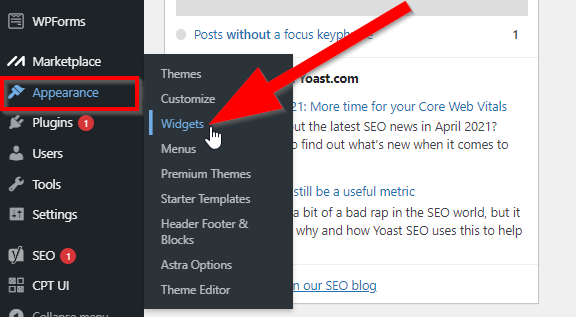
First, open your web browser. Type in your website’s URL. Add “/wp-admin” at the end. Press Enter. You will see the WordPress login page. Enter your username and password. Click the Log In button. Now, you are inside the WordPress Dashboard. This is the control center of your website. You can change many things here. The Dashboard is easy to use. Look at the left side. You will see a menu. Find the “Appearance” option. Click on it. This is where you can change your theme’s footer.
Credit: www.crazyegg.com
Locating The Footer Section
Finding the footer section in a WordPress theme is easy. First, open your WordPress dashboard. Next, look for the Appearance option on the left side. Click on it. You will see a menu with many options. Choose the Editor option from this menu. This will open the theme files.
In the editor, you will find a list of files on the right side. Look for a file named footer.php. This file contains all the code for the footer section. Click on it to open. You can now see and change the footer code. Remember to save your changes. This process will let you change the footer easily.
Using Theme Customizer
Explore the Theme Customizer to adjust your WordPress theme’s footer easily. Navigate to the ‘Footer’ section within the customizer. Make changes to text, colors, or layout as needed, then save.
Navigating To Customizer
First, go to your WordPress dashboard. Click on Appearance in the menu. Then select Customizer. This opens the theme customizer screen.
On the left side, you will see options. Find and click on Footer settings. Here, you can change text, colors, and layout. Make your changes and see the preview on the right.
Editing Footer Settings
Explore the options for editing. Change the footer text or add widgets. Adjust the background color for a fresh look. You can also change the font style. Make sure to save changes by clicking Publish when done.
Some themes may have different settings. Check for theme-specific instructions. Look for help guides if needed. Customizing is simple and fun. Enjoy creating a unique footer!

Credit: blog.hubspot.com
Editing Footer Through Widgets
WordPress makes it easy to customize your footer. Go to the Widgets section in your dashboard. Find the widget you want to add. Drag it to the Footer Area. You can add a text widget or an image widget. This allows for more personalization. You can also add a menu widget for quick links. Remember to save your changes. Check your site to see the new widget.
Some widgets may not be needed. Go to the Widgets section. Find the widget you want to remove. Drag it to the Inactive Widgets area. This will keep your footer clean and simple. Removing widgets can improve the look of your site. Always save changes before leaving. Check your site to make sure it looks good.
Customizing Footer With Code
Open your WordPress dashboard. Find Appearance on the left menu. Click on Theme Editor. This takes you to theme files. Be careful here. Mistakes can break your site.
Locate the footer.php file. Make sure to back it up first. This file controls your site’s footer. You can add or remove content. Just edit the code. Save changes when done.
CSS changes the look of your footer. Go to Appearance and click on Customize. Select Additional CSS. Add your style code here. Try changing colors or fonts. Save your changes.
Installing Footer Plugins
Choose a plugin that fits your needs. Some plugins are simple. Others offer more features. Look for plugins with good reviews. Make sure it works with your WordPress version. Popular plugins are often updated. This keeps them secure and reliable. Check if the plugin supports your theme. Some plugins are free, while others are paid. Choose based on your budget.
Open the plugin settings after installation. You will find this in your WordPress dashboard. Adjust the settings to match your needs. Some plugins let you change colors. Others let you add text or links. Read the plugin instructions. This helps you avoid mistakes. Save your changes when done. Always check your site after making changes. Ensure everything looks good.
Testing Changes
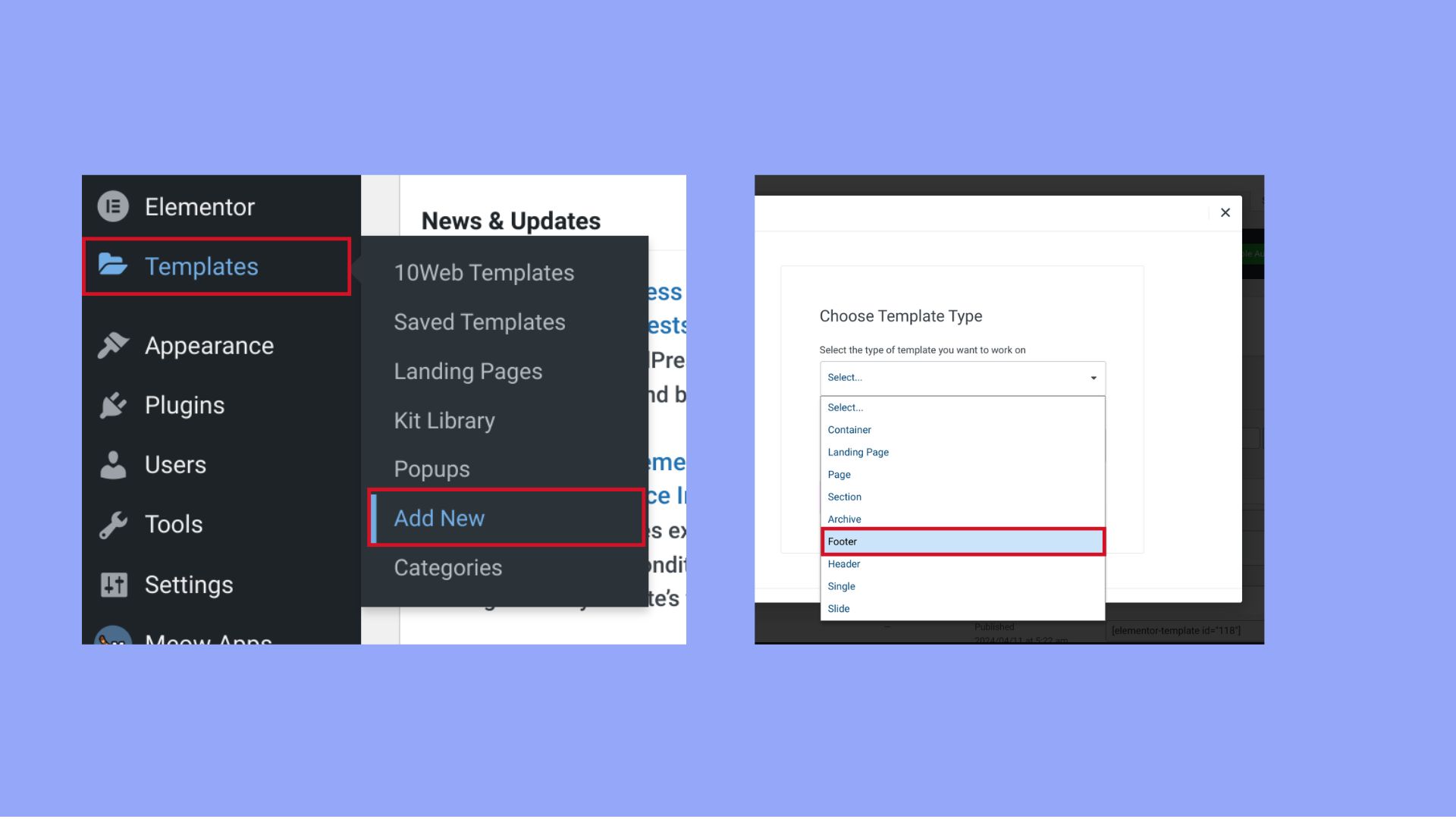
Always preview changes before making them live. Use the WordPress Customizer to see the new footer. This helps in checking the layout. Ensure everything looks correct. Make adjustments as needed.
Footers must be responsive. They should work on all devices. Test on mobile phones and tablets. Use tools to check responsiveness. Adjust settings for different screens. Make sure links and text are easy to click.
Credit: 10web.io
Restoring Default Footer
Sometimes footers have too many changes. It might look messy or broken. Reverting customizations can help. Open the WordPress dashboard. Navigate to Appearance and select Editor. Look for footer.php. Replace custom code with default code. Save changes to see results. This restores original look. Easy and quick process.
Backup is important. It protects your hard work. Many plugins help with backups. Choose one plugin and install it. Restore the footer from backup files. Follow plugin instructions. Always keep backups updated. This ensures you don’t lose anything. It’s a safe way to bring back old footers.
Frequently Asked Questions
How To Edit WordPress Footer Text?
To edit the WordPress footer text, navigate to Appearance > Customize in your dashboard. Select Widgets, then Footer. Here, you can modify the existing text. Alternatively, use a plugin like “Insert Headers and Footers” for more customization options without altering the core theme files.
Can I Change Footer Without Coding?
Yes, you can change the footer without coding. Use the WordPress Customizer under Appearance > Customize. Navigate to the Widgets section, select Footer, and edit. Many themes offer built-in options for footer customization, allowing you to change text, links, and widgets easily.
Why Is My WordPress Footer Not Updating?
If your WordPress footer isn’t updating, it could be due to caching issues. Clear your browser cache and any caching plugins. Ensure changes are saved in the Customizer. If using a child theme, verify the footer. php file isn’t overriding settings.
Plugins may also conflict, so deactivate them to test.
How To Add A Widget To The Footer?
To add a widget to the footer, go to Appearance > Widgets in your WordPress dashboard. Locate the Footer widget area. Drag and drop your desired widget into this section. Save changes to update your footer. Some themes offer multiple footer widget areas for additional customization.
Conclusion
Changing the footer of a WordPress theme is simple. Just follow the steps outlined above. Customize your footer to match your brand. It can make your site look professional. A personalized footer creates a memorable experience. Don’t hesitate to experiment with different designs.
Keep it clean and concise. Always preview changes before saving. This ensures your footer looks great. Your visitors will appreciate the effort. A well-designed footer can enhance user engagement. So take a moment and tweak your footer today. You’ll be glad you did.


