
Are you looking to spruce up your Frontech WordPress theme by changing the slider? You’ve come to the right place!
Updating your slider can breathe new life into your website, making it more visually appealing and engaging for your visitors. Whether you’re trying to showcase your latest products, highlight compelling images, or simply refresh your site’s appearance, mastering the slider settings is your first step.
Imagine captivating your audience at first glance with stunning visuals that reflect your brand’s personality. Intrigued? We’ll guide you through each step, ensuring you have a seamless experience while enhancing your site’s look. Ready to transform your website? Let’s dive in!
Accessing WordPress Dashboard
Click on the browser. Type your website’s URL. Add “/wp-admin” at the end. Press enter. A login page will appear. Enter your username and password. Click the login button. Now you are inside the dashboard. This is the control center. You can make changes here. Find the menu on the left side. Look for “Appearance” or “Theme Options”. Click on it. You will see different options. Find the slider settings. Make your changes there. Save your settings before leaving.
Navigating To Theme Options
Start by accessing your WordPress dashboard. Look for the Appearance tab. Click on it. This will open the menu. Find Theme Options. Click on it. You will see different settings. Find the slider settings. This is where you can make changes.
The slider settings will show different options. You can change images. You can change text. You can change links. Make sure to save changes. Look for a Save button. Click it after making changes. This will update your slider.
Locating Slider Settings
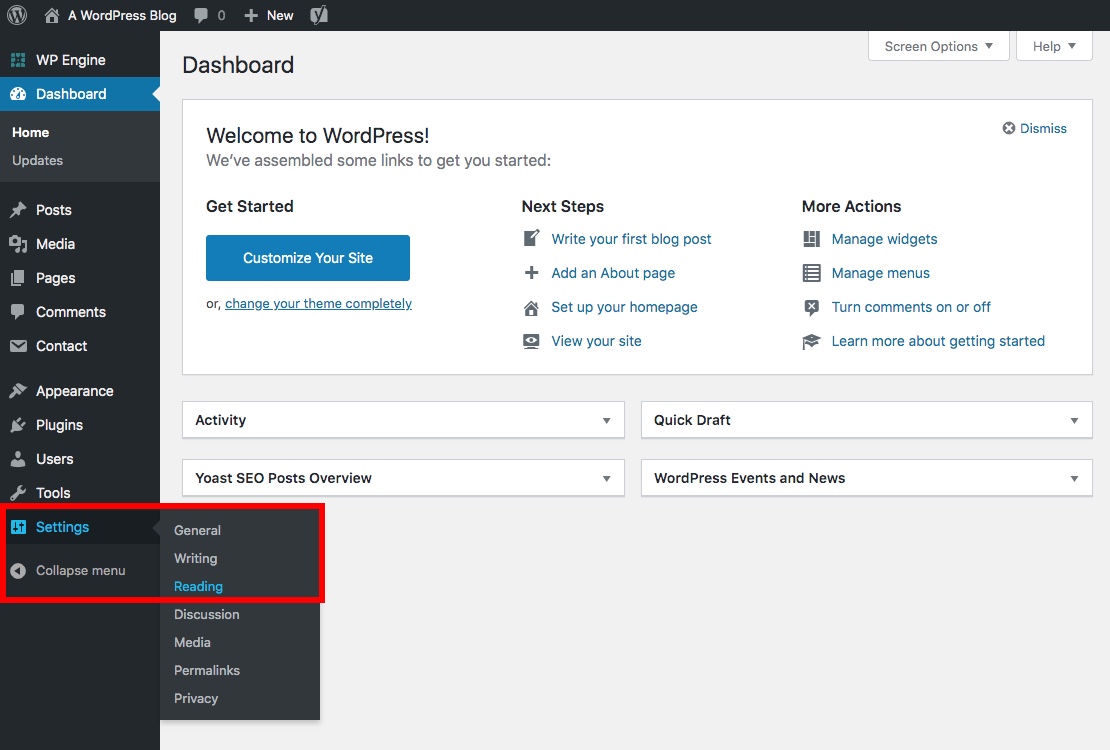
Find the slider settings in the WordPress dashboard. Click on Appearance, then Customize. Look for Slider Options in the theme panel. These settings allow changes to your slider. You can add, remove, or edit slides here. Each slide can have images, texts, and links.
Check the slider’s dimensions and timing. Adjust them to fit your site. Explore other available settings. They can change the slider’s look and behavior. Save changes by clicking the Save button. Your slider will update on the site.
If you face issues, check the theme documentation. It offers detailed guidance. Or seek help from support forums. Experts there can offer solutions.
Credit: www.wpexplorer.com
Uploading New Slider Images
Images need the right size for the slider. A good size is 1200×600 pixels. This size fits well in the slider space. It helps the site look neat and tidy. Big or small images can look odd. Use the correct size for a better view.
The best image formats are JPEG and PNG. These formats keep images clear and bright. JPEG is good for photos. PNG works well for logos and icons. Using these formats makes images load quickly. Choose the right format for the right image type.
Customizing Slider Appearance
Select the best transition effect for your slider. This gives the slider a fresh look. Options include fade, slide, or zoom. Each effect changes how slides appear. Try each one to see which fits best. Make sure the effect matches your website style. This adds harmony to your site.
Set the slider speed to control slide changes. Fast speeds make slides switch quickly. Slow speeds let users see slides longer. Choose a speed that fits your site needs. Adjust the speed in slider settings. Test different speeds for best results. A good speed keeps users interested.
Setting Up Slider Captions
Adding text overlays to your slider is simple. First, go to the slider settings in your Frontech theme. Find the option to add text. Click on it. Write your caption in the box provided. Make sure your text is clear and easy to read.
You can choose different fonts for your captions. Select a font that fits your website style. Adjust the size to make it visible. You can also change the color. Choose a color that contrasts with the background. This makes the text stand out. Bold important words to grab attention.
Saving And Previewing Changes
Save your changes often. This keeps your work safe. After saving, see how it looks. Click the Preview button. It shows your slider on the website. Make sure it looks good. Check if images are clear. Are the texts easy to read? If not, adjust them. Preview again until satisfied. The preview is important. It helps spot mistakes. Fix errors before publishing. Once happy, go ahead. Share your changes with the world. Remember, previewing helps create a better slider. It ensures you meet your design goals.

Credit: srlsys.org
Troubleshooting Common Issues
Sometimes, the slider does not show up. First, check if the slider is enabled in the theme settings. Make sure the slider plugin is activated. If it is not, go to the plugin page and activate it. Ensure there are slides added to the slider. No slides mean nothing to display. Also, check if there is a shortcode used in the page. The shortcode should match the slider ID. Wrong shortcode means no slider will appear. Try clearing the browser cache. Old data might be blocking the new slider.
Image upload problems can be annoying. Firstly, check the image size. Large images can cause errors. Resize the image and try again. Also, check the file type. The theme might not support certain file types. Use common types like JPG or PNG. Make sure the media library is not full. No space means no uploads. Check the server settings. Sometimes, server settings block uploads. Change settings if needed.

Credit: srlsys.org
Frequently Asked Questions
How Do I Access Slider Settings In Frontech?
To access slider settings, go to your WordPress dashboard. Navigate to Appearance > Customize. Then select Slider Settings under the Frontech theme options. Here, you can modify images, captions, and transitions.
Can I Add Multiple Sliders In Frontech Theme?
Yes, you can add multiple sliders. Use the Frontech Slider widget or shortcode in your desired pages. Customize each slider individually for unique content and design.
How To Change Slider Images In Frontech?
Change slider images by accessing Slider Settings in the Customizer. Upload new images or select from your media library. Make sure images are optimized for fast loading.
What Are Ideal Slider Image Dimensions?
Ideal slider image dimensions vary, but typically 1200×600 pixels work well. Ensure images are high-quality and optimized for web to improve loading speed.
Conclusion
Changing the slider in Frontech WordPress theme is simple. Follow the steps outlined above. Your website will look fresh and engaging. A new slider can grab more attention. More visitors will enjoy your updated content. Always preview changes before publishing.
Ensure the slider aligns with your design goals. Customize it for the best user experience. Explore other features for more creativity. Keep learning and improving your skills. Regular updates maintain your website’s appeal. Happy designing with Frontech theme!


