
Are you ready to take your WordPress website to the next level but dread the hassle of navigating through endless menus? Imagine being able to change your WordPress theme quickly and efficiently, all from your command line.
It’s not just a dream; it’s a powerful reality. By mastering this technique, you can save time, streamline your workflow, and ensure your website always looks its best without the usual headaches. In this guide, we will reveal the step-by-step process to switch your WordPress theme using the command line, empowering you with a skill that sets you apart from the crowd.
Stick with us, and you’ll discover how easy and liberating it can be to make this change without ever touching your mouse.
Credit: www.scalahosting.com
Prerequisites For Theme Change
Switching a WordPress theme via command line requires certain prerequisites. Ensure you have SSH access to the server and familiarity with WP-CLI commands. Backing up your site and database is crucial to prevent data loss during the theme change process.
Installing Wp-cli
First, download WP-CLI from the official site. It’s a command line tool for WordPress. It helps to change themes easily.
Next, install WP-CLI on your server. Use the command line to do it. Follow the instructions on the site.
Verifying Installation
Check if WP-CLI is installed. Open your command line. Type “wp –info” and press enter. If details show up, WP-CLI is installed. If not, try again.
Make sure your WordPress version supports WP-CLI. Check WordPress documentation if needed. Now, you’re ready to change themes using WP-CLI!
Listing Available Themes
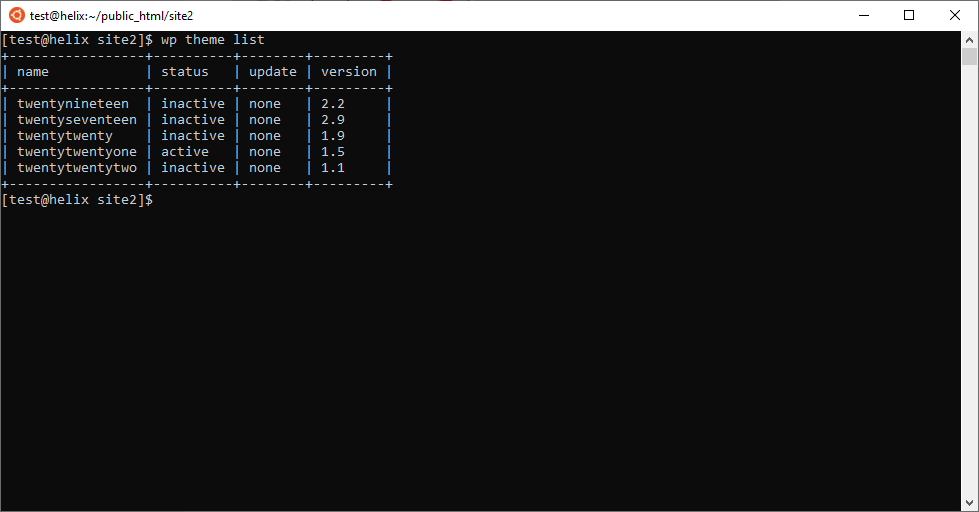
Checking installed themes is easy. Use the command line tool. Type wp theme list in terminal. It shows all themes. You see theme names and status. Active themes are marked. This helps in finding the current theme. You can switch to other themes. Make sure themes are compatible. Check theme version before switching. Updating themes is important. Always use latest versions.
Fetching themes from the repository is simple. Use wp theme install command. Type the theme name. It downloads the theme automatically. Ensure the theme is popular. Popular themes are reliable. Check user reviews. Reviews tell theme quality. Avoid themes with poor reviews. Always choose themes with good ratings. This ensures a smooth WordPress experience.
Activating A New Theme
Switching your WordPress theme is simple using command line. First, access your server through SSH. Then, execute the WP-CLI command to change the theme. Ensure the theme name is correct for a seamless transition.
Using Theme Slug
Use WP-CLI to change your WordPress theme. First, find the theme slug. The theme slug is the folder name of the theme. You can locate it in the themes directory. Then, run a simple command. Type: wp theme activate theme-slug. Replace theme-slug with your theme’s name. Your theme will now activate.
Ensuring Compatibility
Check if the new theme is compatible. Look for any issues after activation. Test the site layout and features. Make sure everything works as expected. If there are problems, try another theme. Always back up your site before changes. This keeps your data safe.
Credit: www.serveradminz.com
Troubleshooting Common Issues
Changing a WordPress theme using the command line can solve common issues quickly. Navigate to your WordPress directory and use WP-CLI commands to switch themes efficiently. This method saves time and helps manage themes without accessing the WordPress dashboard.
Theme Not Found
Sometimes the theme does not appear after changing it. This issue can be due to incorrect theme name. Double-check the theme name for typos. Ensure the theme is installed properly. Use the command line to list all installed themes. This helps confirm the theme’s presence. If missing, install the theme again.
Another common mistake is activating themes not in the WordPress directory. Make sure themes are downloaded from the official source. This ensures compatibility and reduces errors.
Dependency Conflicts
Some themes need specific plugins to work. Conflicts arise if these plugins are missing. Check the theme’s documentation. It lists all required plugins. Install these plugins to resolve the issue.
Plugin updates can also cause conflicts. Ensure all plugins and WordPress are up-to-date. Outdated software can lead to unexpected problems. Keeping everything updated helps in smooth operations.
Reverting To Previous Theme
Switching WordPress themes via command line can restore a previous theme effortlessly. Use WP-CLI for quick theme activation. This method ensures a smooth transition without navigating through WordPress admin panels.
Restoring From Backup
Backups help in restoring your old theme quickly. Always keep backup files safe. Use FTP to access these files. Locate your theme folder in the backup. Copy the files back to your WordPress themes directory. This action restores your theme to its previous state. Backups are a great way to fix errors. They save time and stress. Always make sure you have recent backups before making changes.
Command Line Reversion
Changing themes with the command line is fast. Open the terminal on your computer. Use WP-CLI for WordPress tasks. Type the command to switch themes. For example: wp theme activate theme-name. Replace “theme-name” with your desired theme. This command activates the theme instantly. Ensure your theme is installed before activation. Command line helps in efficient theme management. It is a useful tool for tech-savvy users.
Credit: docs.pantheon.io
Enhancing Theme Management
Changing WordPress themes using the command line can be easy. Automating theme updates saves time. It ensures themes are always fresh. Using commands makes the process simple. You don’t need to click many buttons. This method is great for busy people. It helps manage multiple sites quickly. Just type a few words and your theme updates. No waiting for slow webpages. No risk of clicking wrong options.
Automating Theme Updates
Automation keeps your themes current. New features get added fast. Security gets improved. Bugs get fixed. Command line lets you do this fast. You can schedule updates. Your site stays safe with less effort. You get the latest features without hassle. Users enjoy a better experience. Your site looks modern and fresh.
Scripting For Bulk Changes
Scripts make bulk changes simple. You can update many themes at once. No need to change each one by hand. Write a script to handle everything. It runs commands for you. Bulk changes save time. They are efficient. Scripts reduce human errors. Keep your site consistent and neat.
Frequently Asked Questions
How Do I Change A WordPress Theme Via Command Line?
To change a WordPress theme via command line, use WP-CLI. First, navigate to your WordPress directory. Then, execute `wp theme activate theme-name`. Replace `theme-name` with the desired theme’s name. Ensure WP-CLI is installed and your server supports it for seamless operation.
What Is Wp-cli In WordPress?
WP-CLI is a command line interface for WordPress. It allows users to manage WordPress installations via the terminal. Tasks like updating plugins, configuring settings, and activating themes can be performed efficiently. WP-CLI is ideal for developers and advanced users seeking quick management solutions.
Can I Revert Theme Changes Using Wp-cli?
Yes, you can revert theme changes using WP-CLI. Simply activate the previous theme by running `wp theme activate previous-theme-name`. Ensure you know the correct theme name to avoid errors. This allows seamless switching between themes without accessing the WordPress admin dashboard.
Is Wp-cli Safe For WordPress Theme Changes?
WP-CLI is safe for WordPress theme changes if used correctly. Ensure you have backups before making changes. It’s crucial to follow instructions accurately to avoid issues. WP-CLI is a trusted tool among developers for efficient WordPress management without GUI.
Conclusion
Changing a WordPress theme via the command line is straightforward. Follow the steps carefully. Backup your site first. Use the right commands. Ensure your server supports command line changes. Double-check theme compatibility. Test your site thoroughly afterward. Errors can occur, so review changes.
Command line saves time and offers control. Perfect for tech-savvy users. Stay updated with WordPress documentation. Practice makes perfect. With practice, command line changes become second nature. Enjoy your new theme and the fresh look it brings. Your website can now shine with a new design.


