
Imagine visiting a website and being instantly captivated by its unique logo. This small yet powerful element can make a lasting impression.
If you’re using a WordPress theme, you might be wondering how to swap out the default logo for something that truly represents your brand. Changing the logo on a WordPress theme is easier than you might think, and it’s a vital step in personalizing your website.
Whether you’re a newbie or have some experience under your belt, this guide will walk you through the process with simplicity and clarity. By the end of this article, you’ll have the confidence to give your site a fresh, professional look that aligns perfectly with your vision. Ready to transform your online presence and make your brand memorable? Let’s dive in!

Credit: cyberchimps.com
Choosing A Suitable Logo
Brand identity is very important for your logo. It tells people who you are. A logo should match the style and values of your brand. Think about your brand’s colors and shapes. These can help guide your design.
Your logo should show your brand’s mission. It needs to be clear and simple. People should remember it easily. Simple logos are often the best.
Keep your logo clean and simple. Use no more than three colors. Avoid too many details. A good logo works on all sizes. Test it on a business card and a billboard.
Preparing The Logo File
The logo file needs the right format. Use PNG for a clear background. Use JPEG for photos. SVG files keep logos sharp. File size matters a lot. Big files slow websites. Small files load fast. Aim for under 500KB if possible.
Web pages have different needs. Logos should look good on all screens. High resolution is key for quality. Keep dimensions in mind. Width around 250px and height around 100px fits well. Adjust size if needed. Test logo on mobile and desktop. Make sure logo looks clear and neat.
Optimizing for web is important. Compress files to reduce size. Use tools like TinyPNG. Keep quality high. Avoid pixelation. Always preview before upload. Make changes if necessary. A well-prepared logo enhances your site.
Accessing The WordPress Dashboard
First, open your web browser. Type your website address. Add “/wp-admin” at the end. Press “Enter”. A login page will show. Enter your username. Type in your password. Click “Log In”. Now, you are in the WordPress dashboard. This is your control center. From here, you can make changes.
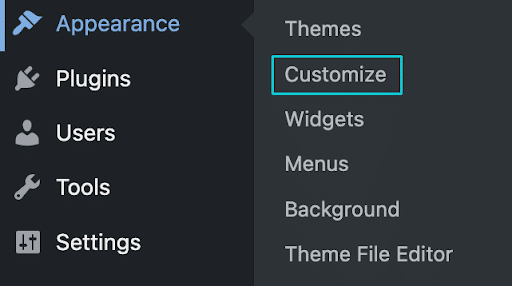
Look on the left side. Find “Appearance”. Click on it. A menu will pop up. Choose “Customize”. This opens the theme options. Here, you can change many things. Find the “Site Identity” option. This is where you can change the logo. Click on it. Follow the steps to upload your new logo. Remember to save your changes.
Locating Logo Settings
Accessing the WordPress dashboard allows users to change the theme logo easily. Navigate to “Appearance” and select “Customize” to find logo settings. Upload a new image to update the logo with a fresh design.
Using Customizer
The Customizer is easy to find. Go to your WordPress Dashboard. Click on Appearance, then choose Customize. Look for the Site Identity tab. This is where you can change the logo. Click on Change Logo. You can upload a new image from your computer. Make sure the logo fits the required size. Save your changes by clicking Publish. It’s that simple!
Exploring Theme Options Panel
Some themes have a Theme Options Panel. You might find this under Appearance. Look for something like Theme Options or Theme Settings. Inside, there should be a logo section. Follow the prompts to change your logo. Always save your changes. Check your site to see the new logo.
Uploading The New Logo
Begin by logging into your WordPress dashboard. Locate the Appearance section. Click on it, then select Customize. Find the Site Identity option. Here, you can see your current logo. Click on Select Logo. Choose your new logo from your computer. Upload it and save changes. Your new logo should now appear on your site.
Open the Customize section again. Navigate to Header Options. Here, you can move your logo. Place it in the center, left, or right. Adjust size if needed. Make sure it looks good on all devices. Check mobile view too. Save changes before exiting. Your logo should now be perfectly aligned.
Credit: wpengine.com
Checking The Logo Display
First, ensure the new logo is saved in the correct format. Most themes accept JPG, PNG, or SVG files. Check the theme’s settings to see where the logo appears. Is it on the homepage or in the header? Make sure the logo fits the design. A logo that’s too big or too small won’t look good. Preview the changes to see if everything looks right.
After uploading the logo, go to the site’s preview mode. Look at the logo on different pages. Does it display correctly? Is it clear and easy to see? If not, try adjusting the size. You can use the theme’s settings to make changes. Make sure the logo looks good on mobile devices too. This is important for users on phones and tablets.
Sometimes the logo might not show up. This can happen if the file size is too big. Try using a smaller file. Also, check if the file name has special characters. These can cause problems. If the logo is still not showing, clear your browser’s cache. This might solve the problem. If nothing works, ask for help in forums or contact the theme’s support team.
Customizing The Logo Appearance
Changing the size of your logo is easy. Use the theme customizer in WordPress. Look for options called Logo or Site Identity. Adjust the slider to make the logo bigger or smaller. Positioning the logo is also simple. Use the header settings. Some themes let you place the logo on the left, center, or right. Try different positions to see what looks best. Always check how it looks on mobile. A good logo should look nice on any screen.
CSS helps make the logo look special. Open the Additional CSS section in your theme settings. Want the logo to be round? Use the code `border-radius: 50%;`. For a shadow effect, type `box-shadow: 2px 2px 5px gray;`. Make sure to preview your changes. Little tweaks can make a big difference. Always keep a backup of your original CSS. Mistakes can happen, and this way, you can easily fix them.
Testing Across Devices
Switching your WordPress theme’s logo is simple. Access the WordPress dashboard, navigate to “Appearance,” and select “Customize. ” Find the “Site Identity” section, and upload your new logo. Ensure to preview changes across different devices for a consistent look.
Responsive Design Check
Every website should work well on phones and computers. A responsive design makes this happen. Test your site’s logo on different devices. Check on tablets, phones, and desktops. The logo should be clear on all screens. Use tools like Google’s Mobile-Friendly Test to help. This tool shows how your site looks on phones. Adjust the logo if it looks strange. A good logo fits well on all devices.
Ensuring Mobile Compatibility
Phones are used a lot for browsing. Make sure your site’s logo works on them. A mobile-friendly logo is important. It should load quickly and look sharp. Slow logos can make users leave. Use small image sizes for speed. Check that the logo does not overlap other content. Many themes allow logo size adjustments. Try different settings to find the best fit. Always aim for a fast and clear logo display.
Common Mistakes To Avoid
Changing a logo on a WordPress theme often leads to common mistakes. Avoid uploading the wrong file format or size, as this can distort the logo. Double-check theme settings to ensure the logo is visible on all devices.
Ignoring Image Quality
Using a low-quality logo can make your site look bad. A blurry or pixelated logo is not good. It can confuse visitors. Always choose a high-resolution image. This makes your site look clean and professional.
Neglecting Branding Consistency
The logo must match your brand colors. Different colors can confuse people. A logo should be part of your brand story. Stick to your brand colors and style. This helps users recognize your brand quickly.

Credit: gretathemes.com
Frequently Asked Questions
How Do I Upload A New Logo In WordPress?
To upload a new logo in WordPress, access the dashboard. Navigate to “Appearance” and click “Customize”. Under “Site Identity”, you can upload and set your new logo. Save changes to update it across your theme.
Where Can I Find Logo Settings In WordPress?
Logo settings are usually found under the “Appearance” section. Click “Customize” and locate “Site Identity”. This section lets you upload or change the logo. Some themes may have additional logo options under “Theme Options”.
Can I Change The Logo Without Coding?
Yes, you can change the logo without coding. WordPress provides easy-to-use customization options. Navigate to “Appearance” > “Customize” > “Site Identity”. There, you can upload and set your logo with just a few clicks.
Why Is My Logo Not Updating?
Your logo might not update due to cache issues. Clear your browser cache and check again. Ensure the logo file is properly uploaded and saved. Sometimes, theme-specific settings may override changes, so verify those too.
Conclusion
Changing the logo on a WordPress theme is simple. Follow the steps carefully. Start by accessing the theme settings. Upload your new logo image. Save your changes. Your site now has a fresh look. Remember to check the logo’s visibility.
Ensure it fits well on all devices. A well-placed logo enhances brand recognition. It’s a small task with big impact. Keep your website updated for best results. Stay creative and make your site unique. Always test before making changes live.
This ensures a seamless user experience. Enjoy your refreshed WordPress site!


