
Do you love your WordPress theme but wish you could use it on another website? Imagine the time and effort you could save by simply copying the design you already know and love.
It’s like having your favorite outfit in every color—stylish, familiar, and ready to impress. In this guide, you’ll discover a straightforward process to duplicate your installed theme for another WordPress site. Whether you’re managing multiple sites or just starting a new project, this skill can transform how you handle web design.
Stick around to learn how to effortlessly recreate your site’s look and feel without starting from scratch.
Preparation Steps
First, make a backup of your current theme. This helps you save your work. Use a tool like UpdraftPlus. It is free and easy to use. Download the backup files to your computer. Keep them in a safe place.
Check if the theme works with your new site. Look for theme requirements. Check the WordPress version. Look at the PHP version too. Make sure everything matches. This helps avoid problems later.
You need some tools to copy the theme. Use FTP clients like FileZilla. It helps to move files easily. You might need a code editor. Visual Studio Code is free and popular. It helps to make changes if needed.
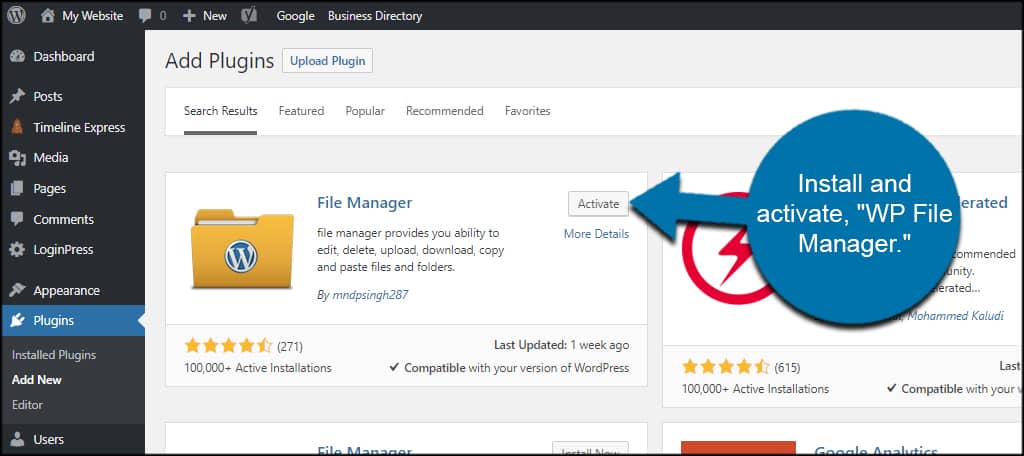
Credit: www.greengeeks.com
Accessing Theme Files
An FTP client is a tool to access your website’s files. It helps you download and upload files. Install an FTP client like FileZilla. Connect it to your website. Use your login details. Navigate to the wp-content/themes directory. Find the theme folder you want. Download it to your computer. Keep it safe for future use. You can now upload it to another site.
The WordPress dashboard is user-friendly. It lets you see installed themes. Click on Appearance, then Themes. You’ll find your active theme. Click on the theme to view details. You can’t download themes from here. Use it to check theme info. Get the theme from the FTP client instead. This method ensures you have all files. It’s a simple way to manage your themes.
Copying Theme Files
Use an FTP client like FileZilla. Connect to your website’s server. Navigate to the wp-content/themes directory. Locate the theme folder you want. Right-click and choose Download. Save it on your computer.
Open your WordPress dashboard. Go to Tools, then Export. Choose Theme Settings. Click the Export button. This creates an XML file. Save it on your computer. This file has your theme settings.
Transferring Theme To New Site
First, open the file manager on your computer. Locate the theme files in your WordPress folder. These files are usually in the “wp-content/themes” directory. Copy all files you want to transfer. Then, log into the new site’s hosting panel. Find the file manager and navigate to the same directory. Paste the copied files into the new site’s theme folder. Now, the theme files are on the new website.
Log into your old WordPress site. Go to the theme settings page. Look for an option to export settings. Download the settings file to your computer. Next, log into the new WordPress site. Go to the theme settings page there. Look for an option to import settings. Upload the file you downloaded. This will copy the theme settings to the new site.
Activating And Testing Theme
Copying an installed WordPress theme for another website involves exporting the theme files and importing them to the new site. Ensure all theme settings and customizations are retained by using a backup plugin. Test the theme on the new site to confirm it looks and functions correctly.
Activate Theme On New Site
First, go to the WordPress dashboard on the new site. Click on Appearance and then Themes. Find the theme you want to use. Click Activate to set it live. The theme will now be active on your new site.
Check For Errors And Compatibility
Visit the main pages of your new site. Look for any errors or display issues. Check if the theme works well with your plugins. Test links and buttons. Make sure everything looks right. If there are problems, consider seeking help. Some themes need extra settings to work well. Check for updates or support documents if needed.
Handling Customizations
Copying custom CSS is simple. Go to your WordPress dashboard. Click on Appearance and then Customize. Find the Additional CSS section. Highlight and copy all the CSS code. Open the new site and go to the same section. Paste your copied CSS code. Now the new site looks just like the old one. This keeps your styles the same.
Widgets and menus need special care. Take note of each widget used. Write down the settings for each one. Do the same for menus. Check the menu items and their order. On the new site, go to Appearance and then Widgets. Add each widget with the same settings. Go to Menus and recreate the same menu structure. This helps in keeping both sites aligned.
Troubleshooting Common Issues
Copying a WordPress theme involves exporting theme files and importing them to another site. Start by accessing the theme directory via FTP. Then, download the theme files and upload them to the new website. Ensure compatibility by verifying plugin requirements.
Resolving Missing Files
Sometimes files are not copied correctly. This can cause issues. Check if all theme files are in the new site. Use a FTP client to compare files. If files are missing, copy them manually. Verify permissions and paths. Ensure they match the original site. Files should have the same names and extensions. This will help the theme work well.
Fixing Styling Discrepancies
Styles may look different after copying a theme. This can happen due to CSS differences. Check if CSS files are missing or different. Use tools to compare CSS on both sites. Correct any differences you find. Sometimes, browser cache causes issues. Clear it to see changes. Styles should now match the original site.
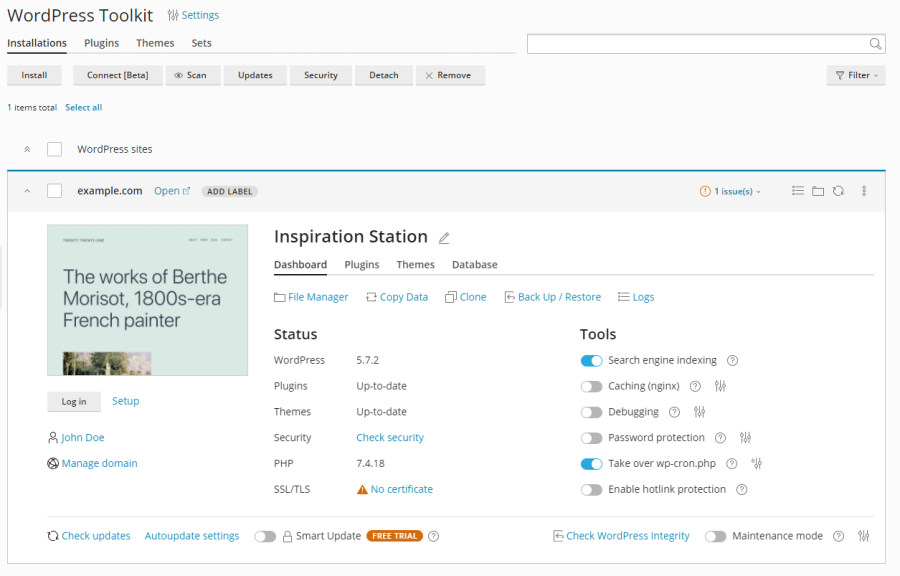
Credit: docs.plesk.com
Final Checks And Optimization
Ensure your theme is fully optimized before copying it to another WordPress site. Check for any missing files or updates. Verify settings and customizations for seamless integration and performance.
Optimize For Speed
Make your website fast by reducing image sizes. Use tools to compress them. Clear your cache often. Use plugins like WP Super Cache. These help pages load quicker. A fast site makes visitors happy.
Ensure Mobile Responsiveness
Check your site on different devices. It must look good on phones and tablets. Use a responsive theme. Adjust fonts and buttons. They should be easy to tap. Test often to ensure everything works well.

Credit: wpfactory.com
Frequently Asked Questions
How Do I Copy A WordPress Theme?
To copy a WordPress theme, access your website’s file manager or use an FTP client. Download the theme folder from the `wp-content/themes` directory. Upload it to the new website’s `wp-content/themes` directory. Activate the theme from the WordPress dashboard.
Can I Duplicate A Theme Settings?
Yes, you can duplicate theme settings using the WordPress Customizer export/import feature. Some themes offer built-in options for this. Additionally, plugins like “Customizer Export/Import” can help you export settings from one site and import them to another.
Is It Legal To Copy Themes?
It’s legal to copy themes you own or have obtained with the creator’s permission. For purchased themes, check the licensing agreement. Ensure you respect intellectual property rights and avoid using themes without proper authorization.
What Tools Help In Theme Copying?
Tools like FTP clients (FileZilla), WordPress Customizer export/import plugins, and backup plugins (UpdraftPlus) assist in theme copying. These tools facilitate theme file transfer and settings duplication, ensuring a seamless process for moving themes between sites.
Conclusion
Copying a WordPress theme is simple and effective. Follow the steps carefully. Ensure compatibility with both websites. Backup your data before starting. Always test the theme on a staging site first. This avoids surprises. Your site should look consistent and professional.
Keep design elements intact. Check plugins for smooth functionality. This ensures a seamless transition. Your audience appreciates a familiar look. Consistency builds trust and engagement. With this guide, you manage themes effortlessly. Enjoy a cohesive web experience. Your website deserves a stylish, unified appearance.
Make it happen with ease.


