
Are you looking to streamline your website-building process with the Avada WordPress theme? If so, you’re in the right place.
Cloning pages in Avada can save you time and effort, allowing you to maintain design consistency across your site. Imagine effortlessly duplicating your best-performing pages, ensuring a seamless user experience without starting from scratch each time. In this guide, we’ll walk you through the step-by-step process to clone pages in the Avada WordPress theme.
By the end of this article, you’ll have a powerful tool in your web design arsenal, enabling you to create stunning pages with ease and efficiency. Ready to enhance your website-building skills? Let’s dive in!
Prerequisites
Start with a fresh WordPress installation. Check if it’s working well. Use the latest version for the best results. A stable internet connection is needed. This helps in downloading necessary files. Having a basic understanding of WordPress is helpful. Explore the dashboard and settings. Install required plugins if needed.
The Avada theme should be installed first. Purchase it from a trusted source. Download the theme package. Upload the theme to WordPress. Use the theme installer for this. Activate the theme once uploaded. Ensure all essential plugins are installed. Use the Avada setup wizard to guide you. Customize settings as per your need.
Accessing Avada Options
Open the WordPress dashboard first. This is your main control area. You can find the dashboard on the left side. Look for Avada in the menu. It is usually near the bottom. Click on it to open more options. The dashboard is like a map. It helps you go to different places.
After clicking Avada, find the settings. These settings control your theme. They change how your site looks. You might see options like colors and layouts. You can change these anytime. Look for the page options. This helps you clone pages easily. Cloning makes copies of your pages. It saves time and effort.
Using The Fusion Builder
Open your WordPress dashboard. Click on Pages and then Add New. Find the option to Launch the Fusion Builder. This tool helps in building pages. It has a simple interface. Anyone can use it with ease. It is best for making beautiful pages. It offers many options. You can add text, images, and buttons. Try exploring these options.
Start by clicking on Container. This holds your content. Add Elements to the container. These can be text blocks or images. Drag and drop to arrange them. Adjust the settings to fit your style. Save your layout often. Preview to see how it looks. This helps in making changes. Keep it simple and neat. Use different styles for creativity.

Credit: www.youtube.com
Cloning Existing Pages
Copying a page in Avada is easy. First, open the page you want. Then, locate the Duplicate This button. Click it to make a copy. The new page will have all the same content. This includes text, images, and widgets. Use this feature to save time. No need to build from scratch.
After duplicating, adjust the page settings. Change the page name to avoid confusion. Update the URL if needed. Check the SEO settings for the new page. Make sure they match your goals. Look at the layout and design. Adjust them to fit your needs. Then, save your changes. The page is now ready to use.
Customizing Cloned Pages
Editing page elements is easy. Click on any element. Choose options from the menu. Change text, colors, or size. Save changes quickly. Cloning pages saves time. It keeps the same layout. You just need to tweak elements.
Incorporating new features makes pages fresh. Add buttons, images, or videos. Use the Avada library for more options. Place new features anywhere. Experiment with different designs. Test features for best results. Customize your page to fit your needs.
Saving And Publishing
Reviewing Page Layout is important before saving. Look at the design. Check if everything looks good. Ensure all images are in place. Make sure text is clear. Fix any errors you find. This step helps avoid mistakes later.
Publishing the Cloned Page is easy. Go to the top of the page. Click the “Publish” button. Wait a few seconds. Your page is now live. People can see it. Always preview the page first. This checks if it looks right.
Troubleshooting Common Issues
Cloning pages in the Avada WordPress theme can sometimes lead to issues. Ensure your theme and plugins are up-to-date. Disable unnecessary plugins to solve conflicts and use Avada’s built-in features for page duplication.
Resolving Layout Discrepancies
Sometimes, the layout doesn’t look right. Check your theme settings. Make sure the page template matches. Look at the Avada settings in the dashboard. Compare with the original page. Ensure all elements are aligned. Verify margins and padding are set correctly. Fix any missing modules or widgets. Try refreshing the page.
Fixing Page Load Errors
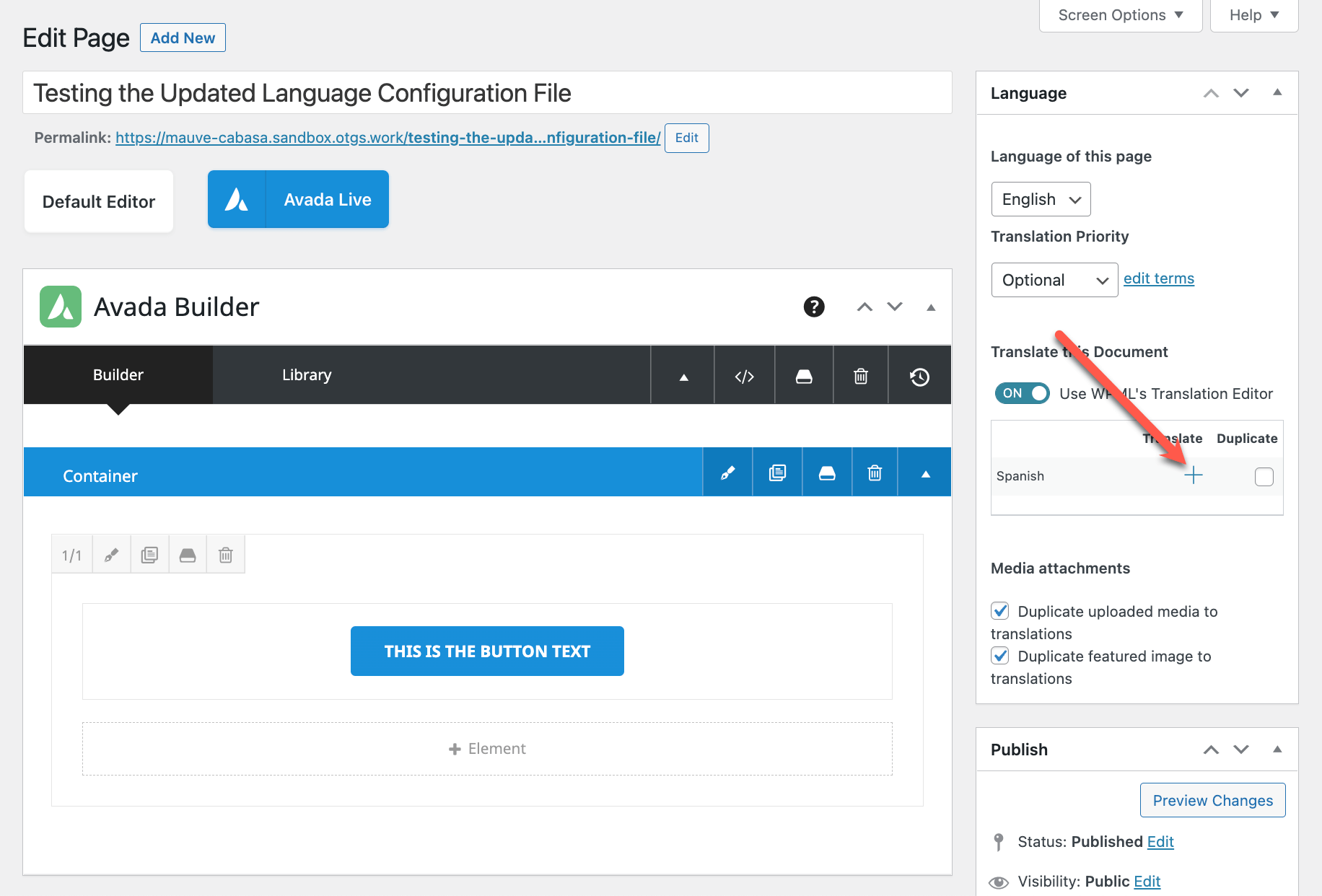
Pages might not load sometimes. First, check the internet connection. Ensure the WordPress and Avada theme are updated. Clear the browser cache. Check for any plugin conflicts. Disable unnecessary plugins temporarily. Look at the error logs for clues. Contact support if the problem persists.
Credit: wpml.org
Tips For Efficient Page Cloning
Efficiently clone pages in Avada WordPress Theme by using the built-in Fusion Builder. Duplicate existing layouts effortlessly. Adjust sections and elements to match your design needs, ensuring a seamless user experience.
Utilizing Templates
Templates make cloning easy. They save time. Templates provide a consistent look. You can use them again and again. This helps keep your website uniform. Change the text and images. The layout stays the same. It’s quick and simple. Templates prevent errors. They ensure everything fits well. Using templates is smart. It helps manage your site better.
Optimizing Page Performance
Fast pages keep visitors happy. Reduce image sizes. This speeds up loading. Use caching tools. They make pages load quicker. Remove unnecessary plugins. They slow down sites. Check your page speed often. Use tools like Google PageSpeed Insights. Improve performance if scores are low. Fast pages rank better in search engines. They increase traffic and engagement. A speedy site is a successful site.
Credit: colorlib.com
Frequently Asked Questions
How To Clone Avada Theme Pages Easily?
Cloning pages in Avada is simple with the Fusion Builder. Open the page you want to duplicate, select ‘Save as Template,’ and apply the template to a new page. This method ensures design consistency and saves time when creating similar pages.
Can I Duplicate Avada Pages Without Plugins?
Yes, Avada allows page duplication without additional plugins. Utilize the built-in Fusion Builder to save page templates. Then, apply these templates to new pages, ensuring efficient replication of content and design.
What Are The Benefits Of Cloning Avada Pages?
Cloning pages saves time and maintains design consistency across your site. It allows you to replicate successful layouts, streamline workflow, and ensure brand uniformity. This process is especially useful for creating multiple pages with similar content structures.
Is Cloning Avada Pages Seo-friendly?
Yes, cloning can be SEO-friendly if done correctly. Ensure each cloned page has unique content and metadata. Avoid duplicate content issues by customizing titles, descriptions, and keywords for each page, enhancing your site’s SEO performance.
Conclusion
Cloning pages in Avada is easy with these simple steps. Follow the guide, and you’ll save time on your projects. Remember to keep your designs consistent for a professional look. Practice makes perfect, so try cloning different elements. This method helps streamline your workflow.
Customize cloned pages to fit your needs. Keep experimenting to discover new possibilities. Your WordPress skills will grow with each clone. Enjoy creating stunning websites with Avada. Happy designing!


