
Have you ever felt that your WordPress theme’s name doesn’t quite represent your brand or vision? You’re not alone.
Many WordPress users want a personal touch that extends even to the name of their theme. Changing a theme name might sound complicated, but it can be simple with the right guidance. Imagine the satisfaction of seeing your website’s theme name perfectly aligned with your brand identity.
This not only enhances your site’s uniqueness but also gives you a sense of ownership and pride. You’ll discover the straightforward steps to change your WordPress theme name effortlessly. Get ready to take control and make your website truly yours!

Credit: www.youtube.com
Preparation Steps
Always backup your website before making changes. This keeps your data safe. Use plugins like UpdraftPlus or BackWPup for easy backups. Download a copy to your computer. Store it safely. This way, you can restore your site if anything goes wrong. Backups are important. They protect your hard work.
A child theme helps you keep custom changes safe. Create a folder for your child theme. Name it after your theme, with “-child” at the end. Add a style.css file inside. Write a few lines of code to connect it to the main theme. This way, updates won’t delete your changes. Your site stays unique and secure.
Locate Theme Files
First, you need to log in to your hosting account. Find the File Manager in your cPanel. It helps you access files. Look for the folder named ‘public_html’. This folder holds your WordPress files. You may see other folders too. Ignore them for now.
Inside ‘public_html’, find the wp-content folder. Open it. Now, look for the themes folder. This folder contains all your themes. Look for your theme’s folder name. It should match your theme name. Open this folder. You will find files related to your theme. Make sure you do not delete any files. Be careful while making changes.
Modify Theme Name
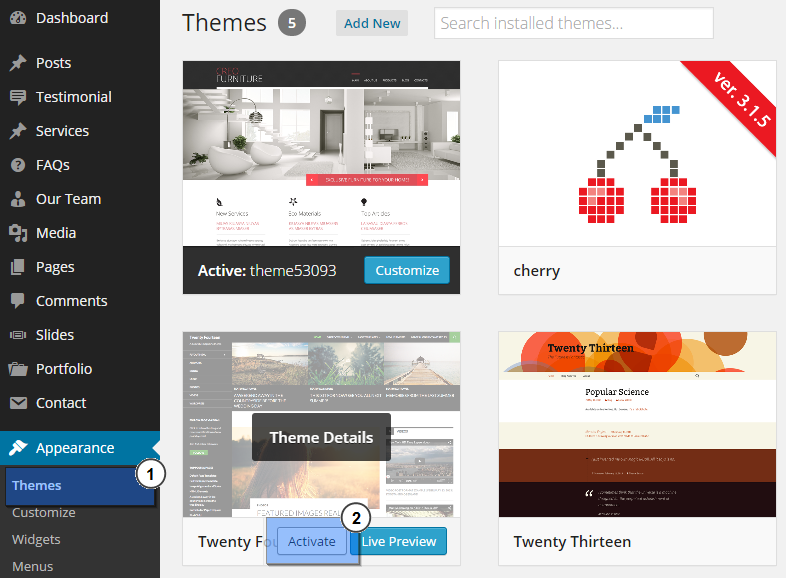
Open the WordPress dashboard and go to Appearance. Click on Theme Editor. You will see a list of files. Find and click on the file named style.css. The file will open in a text editor.
At the top of this file, there is a section with theme details. Look for the line that says Theme Name. Change this to your desired name. Make sure to keep the formatting the same. Save your changes. Your theme name is now updated.
Credit: www.templatemonster.com
Adjust Functions File
First, find the functions.php file in your theme folder. Open the WordPress admin panel. Go to Appearance and then Theme Editor. On the right side, look for functions.php. This file holds important functions for your theme.
Make sure to backup the file first. This keeps your site safe. You can copy and paste it to another location. Now, you are ready to edit.
Open the functions.php file in a text editor. Search for the current theme name. Replace it with the new theme name. Do this for all instances. Be careful, as this affects your site.
Save the changes after editing. Go back to your site and check if everything works. If there are errors, review your changes. You may need to restore the backup.
Database Update
First, open your hosting control panel. Look for the database section. It is usually called “phpMyAdmin”. Click on it. This opens the tool to view your databases.
Find your WordPress database. It might be named after your site. Click on it to open. Here, you can see many tables with data.
To change the theme name, a simple SQL query is needed. Click on the “SQL” tab. This lets you type your query. Enter the query to find the theme name. It looks like:
UPDATE wp_options SET option_value = 'New_Theme_Name' WHERE option_name = 'stylesheet' OR option_name = 'template';
Replace ‘New_Theme_Name’ with your desired name. Click “Go” to run the query. Your theme name is now changed.
Check For Broken Links
Always test your website’s functionality after changing the theme name. Click on each link to ensure they work. Broken links can confuse visitors. They might leave your site. This is not good for your website.
Verify all links and assets like images and scripts. Ensure everything loads correctly. If something is missing, fix it. A well-maintained site keeps users happy. It also boosts your site’s credibility.
Clear Cache
Changing a theme name in WordPress might not show up immediately. This happens because of the cached data. A caching plugin can help clear this data. Go to your WordPress dashboard. Find the caching plugin you use. Click on it. Look for the option to clear the cache. Click that option. This will refresh the stored data.
After clearing the plugin cache, the browser cache might still show old data. Refreshing it is simple. Press Ctrl + F5 on Windows. For Mac, use Cmd + Shift + R. This forces the browser to load the latest data. If these steps don’t work, try clearing the entire browser cache. This ensures all files are updated.
Verify Changes
Check the WordPress dashboard for theme changes. Go to the Appearance section. Look for your theme’s new name. Ensure it appears correctly. If not, there might be a mistake. Double-check your steps.
Click on Customize to see more. The theme should work as before. No errors should show up. Everything should look the same. If changes are visible, something went wrong. Fix it quickly.
Test the theme’s functionality. Visit your website. Make sure pages load well. Check menus and links. They should work as usual. If something is broken, you need to fix it. The theme must be smooth.
Try different devices. See how the site appears. It should look good everywhere. If it doesn’t, adjust settings. Your theme should be user-friendly. Make sure visitors have a good experience.

Credit: www.youtube.com
Frequently Asked Questions
How Do I Safely Change A Theme Name In WordPress?
To safely change a theme name, access your WordPress files via FTP. Locate the theme folder and rename it. Update the style. css file within the theme folder to reflect the new name. Ensure no customizations or settings are lost during this process.
Will Changing A Theme Name Affect Seo?
Changing a theme name won’t directly impact SEO. However, ensure that all theme settings and customizations remain intact. This will maintain your site’s performance and user experience, which indirectly affects SEO. Always back up your site before making changes.
Can I Change A Theme Name Without Coding?
Yes, you can change a theme name without coding. Use an FTP client to access your WordPress files. Simply rename the theme folder and update the style. css file. Ensure all settings remain unchanged to maintain your site’s functionality.
Why Should I Change A WordPress Theme Name?
Changing a theme name can help with customization and branding. It prevents theme updates from overwriting changes. It also offers a unique identity to your theme, distinguishing it from others. Always back up your site before making any changes.
Conclusion
Changing a WordPress theme name is simple. Follow the steps carefully. First, access your theme files. Use the right tools. Next, update the style. css file. Make sure to save your changes. Check your site for errors. Troubleshooting helps fix issues.
Remember to backup your site. It keeps your data safe. Enjoy your new theme name. It reflects your site’s identity. Share your updated site with friends. They will love the fresh look. Keep learning more WordPress tricks. It boosts your skills.
Happy blogging!


