
Are you ready to transform your WordPress site but feel stuck on how to completely change your theme and all its elements? You’re not alone.
Many find themselves in this position, yearning for a fresh look but unsure of where to begin. This guide is designed just for you. Imagine your website as a blank canvas, waiting for your creative touch to bring it to life.
By the end of this article, you’ll have the confidence and know-how to give your site a stunning makeover. Discover how easy it can be to revamp your online presence and keep your audience engaged. Read on to unlock the secrets of mastering your WordPress theme transformation.
Choosing The Right Theme
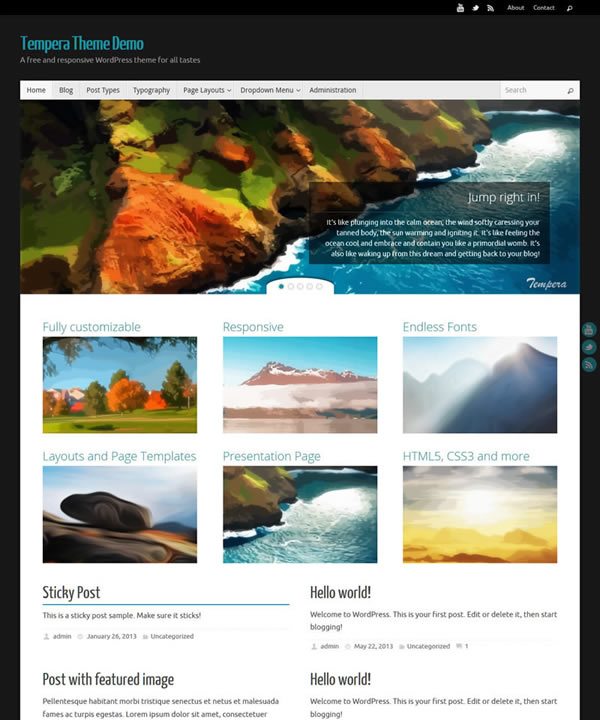
Free themes are cost-effective and good for beginners. They offer basic features, which can be enough for many sites. Premium themes offer advanced features and support. They cost money but often come with updates. Decide based on your budget and needs.
A responsive design makes your site look good on all devices. Phones, tablets, and computers. Many users browse on mobile devices now. A theme that is not responsive can turn visitors away. Choose themes that adapt to screen sizes.
Themes should have customization options. Check for colors, fonts, and layout changes. Look for SEO-friendly features. This helps in search engines. Consider themes with fast loading times. Users do not like to wait long. Also, check for plugin compatibility. Some themes work better with popular plugins.
Credit: www.cryoutcreations.eu
Installing Your Theme
The WordPress Theme Directory is easy to use. First, go to your dashboard. Click on “Appearance” then “Themes”. Here, you can see many themes. Use the search bar to find themes. Choose one you like. Click “Install” to add the theme. Next, click “Activate” to use it. Themes change how your site looks. Pick one that fits your style. It’s simple and fast. You don’t need to be an expert. WordPress makes it easy for everyone. Just follow these steps. Enjoy your new site look!
Have a theme on your computer? You can upload it. First, go to your dashboard. Click “Appearance”, then “Themes”. Find “Upload Theme” at the top. Click it. You will see a button named “Choose File”. Click this and find your theme file. Make sure the file is a .zip. Select it and click “Install Now”. Wait for the upload. Once done, click “Activate”. Your theme is ready. Now your site has a new look. It’s easy to upload themes. Just follow these steps.
Customizing Theme Settings
The WordPress Customizer lets you change your site easily. You can see changes live. Click on “Customize” in your dashboard. Choose what you want to change. Make your site look as you wish. It’s fun and simple. Explore options and adjust settings. Your site will look great.
Change your site name and tagline. Make your site unique. Pick colors that match your style. Use the color picker tool. Find a color that fits your brand. Colors make your site alive. Try different shades and combinations. Your site will be colorful.
Widgets add features to your site. Drag and drop them where needed. Add a calendar, search bar, or recent posts. Menus guide visitors. Help them find pages easily. Arrange menu items in order. Make sure everything is easy to find. Widgets and menus make browsing easy.

Credit: blogvault.net
Enhancing With Plugins
Plugins add more power to your WordPress site. Contact Form 7 helps visitors reach you. WooCommerce is great for online stores. Use Yoast SEO for better search engine results. Jetpack adds extra features, like stats and security. Choose plugins that match your site’s needs.
Good SEO brings more visitors. Use Yoast SEO to make content better. Google XML Sitemaps helps search engines find your pages. All in One SEO is another good choice. These plugins help your site show up in searches.
Keep your site fast and safe. WP Super Cache makes pages load faster. Wordfence Security protects against hackers. UpdraftPlus lets you backup your site. Check plugins often to keep them updated and secure.
Testing Your Theme
Testing your WordPress theme involves checking its functionality and appearance thoroughly. Ensure each feature works seamlessly and visually aligns with your brand. Regular updates and feedback help maintain optimal performance.
Cross-browser Compatibility Checks
Every browser is different. Each one shows your theme in its own way. Ensure your theme works on Chrome, Firefox, and Safari. Check on Edge too. Open your website on each browser. See if everything looks right. Fix any problems you find. Make sure links and buttons work. Test images and videos. Keep your theme looking good everywhere. This helps users enjoy your site.
Mobile Responsiveness Testing
Many users browse on phones. Your theme must look good on mobile. Use tools to test mobile views. Google’s Mobile-Friendly Test is helpful. Adjust your theme if needed. Ensure text is easy to read. Buttons should be big enough to tap. Images should fit the screen. Check everything works without zooming. A mobile-friendly theme keeps visitors happy. It helps your site rank better.
Launching Your WordPress Site
Check every page on your site. Look for any mistakes or errors. Make sure all links work. Test on different devices. Check on both phones and computers. Fix anything that looks wrong. Use simple colors and fonts. Check your content for spelling mistakes. Ensure images are clear and load fast. Don’t forget to check for speed. Fast sites are good for users. Use tools to help with this.
Share your site with friends. Ask them to visit and share. Use social media to spread the word. Post about your site on Facebook or Instagram. Write about your site in online groups. Join forums and talk about your site. Tell people why your site is helpful. Give them reasons to visit. Use keywords that match your site. This helps others find you online. Stay active and keep sharing.
Maintaining Your Theme
Updating your WordPress theme ensures a fresh and secure website. Regularly check for theme updates in your dashboard. Customize your theme settings to align with your brand.
Regular Updates And Backups
Updating your WordPress theme is very important. It helps keep your website safe. New updates fix bugs and add new features. Always check for theme updates weekly. Backup your site before updating. Backups save you from losing data. Use plugins to help with backups.
Monitoring Performance And Security
Your website should load fast. Slow websites lose visitors. Use tools to check speed. Optimize images and clean up unused plugins. Security is also key. Use strong passwords for your admin. Install security plugins to stop hackers. Regular checks keep your site safe and fast.
Credit: wedevs.com
Frequently Asked Questions
How Do I Delete A WordPress Theme?
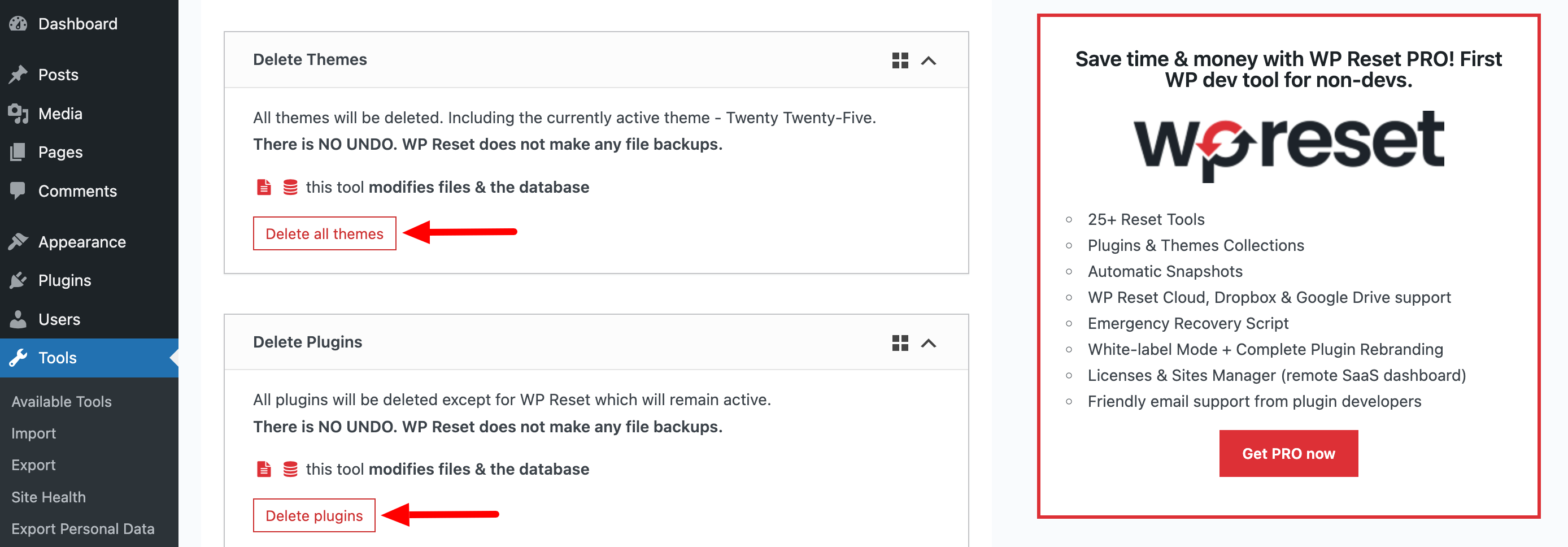
To delete a WordPress theme, navigate to your dashboard. Go to “Appearance” then “Themes. ” Click on the theme you wish to delete. Select “Delete” at the bottom right corner. Confirm your decision to remove the theme completely. Always ensure you have a backup before deletion.
Can I Remove All Theme Files At Once?
Yes, you can remove all theme files at once. Use an FTP client to access your WordPress files. Navigate to the “wp-content/themes” directory. Delete the entire theme folder to remove all associated files. Ensure you have backups before proceeding with deletion.
What Happens After Deleting A Theme?
After deleting a theme, your site defaults to another active theme. You lose any customizations made to the deleted theme. Ensure you switch to a new theme before deletion. Backup your settings and customizations to avoid losing important data. Regularly update your themes and plugins.
Is It Safe To Delete Inactive Themes?
Yes, it’s safe to delete inactive themes. Removing unused themes helps reduce security risks. It also cleans up your WordPress installation. Inactive themes can contain vulnerabilities if not updated. Regularly review and delete themes you no longer use. Always keep backups for safety.
Conclusion
Completing a WordPress theme doesn’t have to be complex. Start with clear goals. Choose a theme that fits your needs. Customize it to match your brand. Use plugins wisely to add features. Always test your site on different devices. Ensure it loads quickly.
Keep your site updated for security and performance. Engage with your audience through content. Seek feedback for improvements. With these steps, your WordPress site will be effective. Enjoy the process and watch your site grow. Remember, practice makes perfect. Each step brings you closer to your ideal website.


