
Are you ready to give your website a fresh new look? Changing the theme on your GoDaddy Managed WordPress site can be the perfect way to revitalize your online presence.
Whether you’re looking to enhance user experience, improve functionality, or just want a visual update, switching themes can make a significant impact. Imagine captivating your audience with a sleek, modern design that aligns perfectly with your brand’s identity. But where do you start?
You might wonder if it’s complicated or if it will disrupt your current setup. Don’t worry—you’re in the right place. In this guide, we’ll walk you through each step of the process, ensuring a smooth transition without the stress. Stay with us, and soon, you’ll be able to showcase your website’s stunning new look effortlessly. Let’s dive in and unlock the potential of your website’s design together!

Credit: www.godaddy.com
Accessing Your Godaddy Account
First, open the Godaddy website in your browser. Enter your username and password to log in. Once logged in, find the My Products section. This shows your purchased products. Look for Managed WordPress. Click on Manage next to it. This will open your WordPress dashboard. In the dashboard, find the Appearance tab. This is where you can change themes.
Make sure to select the correct website if you have many. Click on the Theme option under Appearance. You will see many themes. Choose a theme you like. Click Activate to apply it. Your site now has a new look. Enjoy your new theme!
Navigating To WordPress Dashboard
Accessing the WordPress Dashboard is simple. First, log into your GoDaddy account. Then, locate your WordPress site under the “My Products” section. Click on “Manage” to open the WordPress Dashboard. Here, you will find many options to change your site.
Look for the Appearance tab on the left menu. This tab helps you find and change themes. Click on it to see all available themes. You can preview themes before installing them. Choose a theme that fits your site style.
After selecting a theme, click “Activate”. This changes your site’s look immediately. Make sure to check your site after activation. It should appear exactly how you want. Repeat the steps if you need a different theme.
Exploring Theme Options
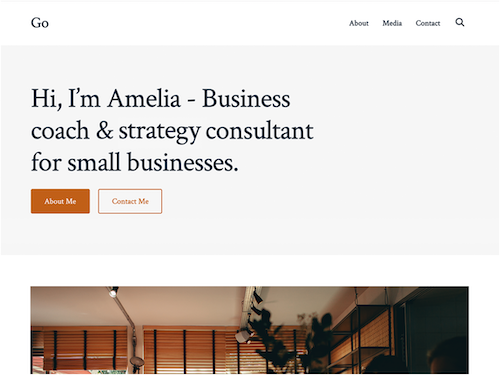
Start by logging into your GoDaddy WordPress account. Look for the Appearance section in the menu. Click on it to see the Themes option. Here, you will find many themes to choose from. Each theme comes with a preview option. This helps you see how it looks on your site. Find a theme that matches your style. Click on the Details & Preview button for more information.
After choosing a theme, click the Install button. The theme will start downloading to your site. Once the download is complete, hit the Activate button. This will make the theme live on your site. Some themes may need extra settings or plugins. Follow the on-screen instructions for the best results.
Credit: www.godaddy.com
Activating A New Theme
Start by going to your WordPress dashboard. Click on the Appearance tab. Then select Themes. You will see different themes here. Choose a theme you like. Click on the Preview button. This will show how your site looks. If you like it, you can apply it. If not, choose another theme to preview.
Once you find a theme you like, click on Activate. This will set the theme for your site. Your website will now have a new look. Check your website to see the changes. Make sure everything looks good. If you want to change back, repeat the steps. Select a different theme and activate it.
Customizing The Theme
Godaddy Managed WordPress offers a simple way to change themes. The customizer tool helps adjust the theme easily. Open the customizer from the dashboard. Use it to see changes instantly. Choose the layout that fits your style. It’s simple to swap colors too. Pick colors that match your brand. Save changes when happy.
The layout sets the site’s look. Choose a layout that suits your needs. Different layouts give different vibes. Color choice is key for a good look. Bright colors can attract attention. Soft colors can soothe viewers. Mix and match to find the best combination. Remember to save changes often.
Ensuring Theme Compatibility
Themes and plugins must work well together. Always check if your theme supports all important plugins. Some plugins might not work with new themes. This can cause issues on your site. Try to use popular themes. These often have better support for plugins. Remember to test plugins after changing themes. This helps find any problems early.
A responsive theme looks good on all devices. It should work on phones, tablets, and computers. Test your theme on different screen sizes. See how it looks and feels. Check if all elements are visible and easy to use. A good theme adjusts itself for the best view. This is important for a user-friendly website. It keeps visitors happy and engaged.
Backing Up Your Site
Changing themes on GoDaddy Managed WordPress is simple. First, log into your account and navigate to your dashboard. Then, select ‘Appearance’ and ‘Themes’ to browse available options. After finding a theme you like, click ‘Activate’ to apply it to your site instantly.
Using Godaddy Backup Tools
Godaddy offers a simple way to backup your site. The tool is easy to find in your control panel. Just click on the backup option. Next, choose the backup frequency. Daily or weekly backups are common choices. Then, press the backup now button. This saves your website data safely. You can also schedule backups. This ensures your data stays current. Always check your backup files. Make sure they are complete. If anything is missing, contact support.
Manual Backup Methods
Sometimes, manual backups are helpful. You will need an FTP client. Connect it to your website server. Then, download all site files to your computer. Don’t forget the database. Use phpMyAdmin to export it. Save these files in a safe place. Update your backups regularly. This keeps your site secure. Backup files are like a safety net. They protect your work from loss. Always keep them updated.
Troubleshooting Common Issues
Changing themes on GoDaddy Managed WordPress can sometimes lead to issues. Ensure compatibility with plugins and check for updates. Review theme settings for a seamless transition.
Resolving Theme Conflicts
Theme conflicts can make your website look strange. They often happen when two themes don’t get along. To solve this, switch to a default theme. Check if the problem goes away. If it does, your original theme has a conflict. Contact the theme maker for help. They might have a fix ready.
Fixing Display Errors
Display errors can mess up how your site looks. First, clear your browser cache. Sometimes old data causes display issues. Next, check if your plugins are causing the problem. Deactivate them one by one. See if the issue disappears. If it does, the last plugin is the problem. Update or replace it. Always keep your themes and plugins updated.

Credit: www.elegantthemes.com
Frequently Asked Questions
How Do I Change A Theme On Godaddy?
To change a theme on GoDaddy Managed WordPress, log into your WordPress dashboard. Navigate to “Appearance” and click “Themes. ” Browse available themes or upload your own. Click “Activate” to apply your chosen theme. Always preview and customize your theme to ensure it meets your site’s needs.
Can I Preview A Theme Before Activating?
Yes, you can preview a theme before activating it. In your WordPress dashboard, navigate to “Appearance” and click “Themes. ” Hover over a theme and click “Live Preview. ” This allows you to see how the theme will look on your site without making it public.
Is It Safe To Change My WordPress Theme?
Changing your WordPress theme is generally safe. However, always back up your site before making changes. Some features or settings might not transfer seamlessly. After switching themes, review your site to ensure all functions and visuals appear as intended.
Will Changing Themes Affect My Seo?
Changing themes can affect your SEO if not done carefully. Ensure your new theme is SEO-friendly and mobile-responsive. Check that your site’s structure, metadata, and content remain intact. Monitor your site’s performance post-change and make necessary adjustments to maintain SEO rankings.
Conclusion
Changing themes on GoDaddy Managed WordPress is straightforward. A few clicks and you’re done. Choose a theme that fits your style. Ensure it supports your site’s goals. Keep your audience in mind. Test your new theme thoroughly. Check for mobile responsiveness and loading speed.
A well-chosen theme enhances user experience. Follow these steps for a smooth transition. Your WordPress site will look fresh and inviting. Enjoy customizing your site with ease. Now, explore and create the website you envision. Happy blogging!


