
Have you ever felt that your WordPress theme just doesn’t quite capture the essence of your brand? Maybe those default colors aren’t quite right, or they don’t complement your content as well as they could.
You’re not alone. Many WordPress users wish they could personalize their site to make it truly unique. The good news? Changing your WordPress theme’s default colors is easier than you might think. In this guide, we’ll walk you through the simple steps to transform your website’s appearance and make it more aligned with your vision.
Get ready to captivate your audience with a site that reflects your personality and brand identity. Keep reading to discover how a splash of color can make all the difference!
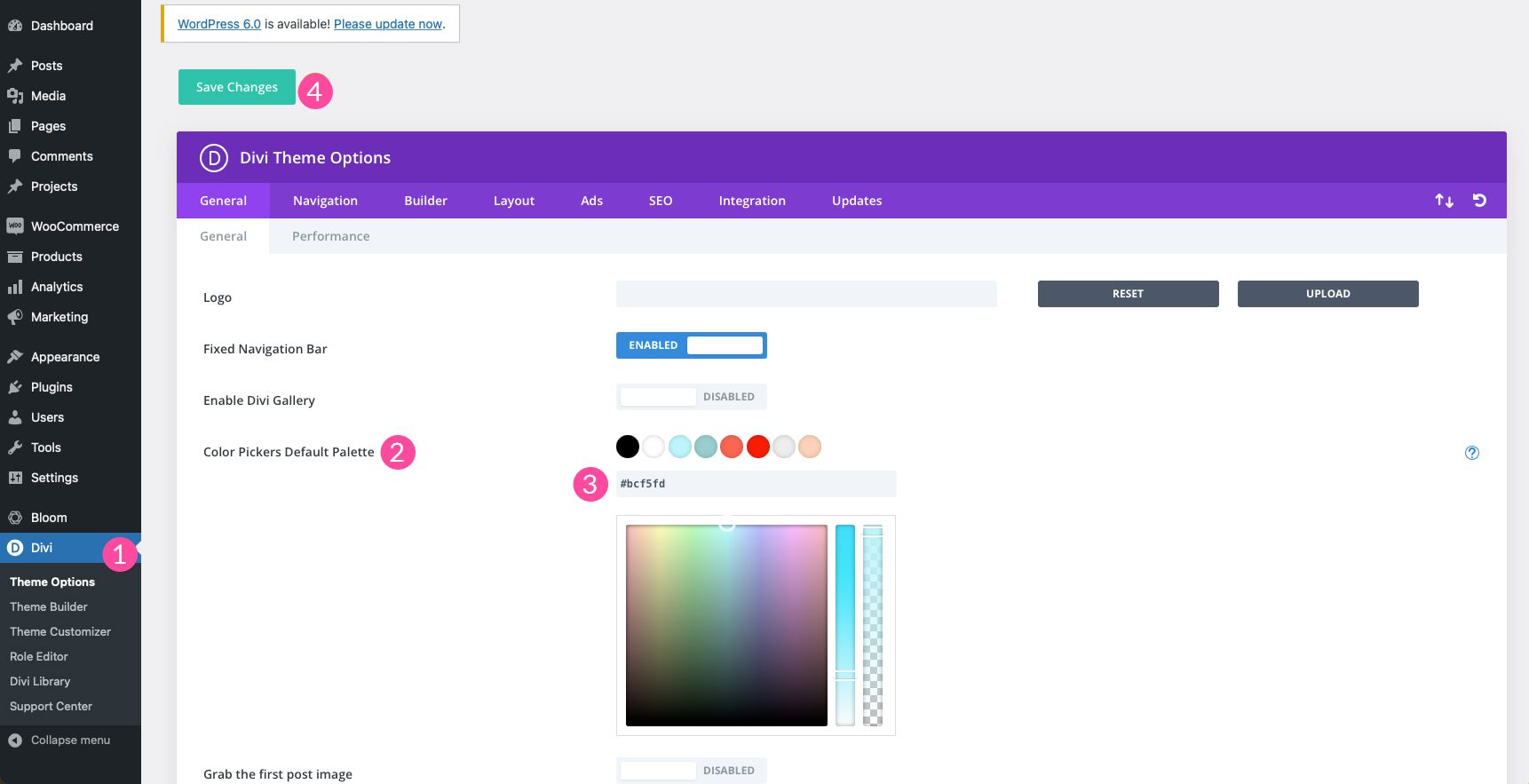
Credit: www.elegantthemes.com
Why Change Default Colors?
Default colors can feel plain. They might not match your brand. Changing them can make your site stand out. It helps in creating a unique look. A unique look attracts more visitors. Visitors remember unique sites. This can increase visits over time.
Colors can affect emotions. Bright colors feel cheerful. Dark colors can be serious. Choosing the right colors is important. It sets the mood of your site. A warm color palette can feel inviting. Cool colors might feel relaxing. Match your colors with your content.
Consistent colors create harmony. They make your site look professional. Consistency is key to good design. It makes navigation easy. Visitors like easy-to-use websites.
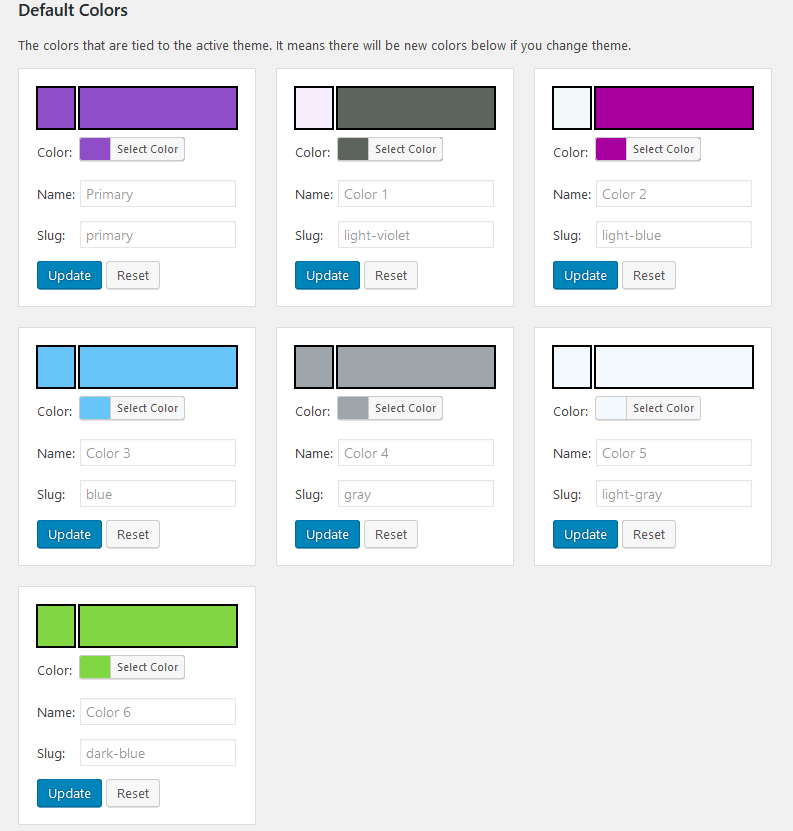
Credit: motopress.com
Choosing The Right Color Scheme
Picking colors is fun. Colors talk. They show your mood. Bright colors make your site lively. Soft colors give a calm feel. Think about your site’s topic. Match the colors with your brand. Colors help your site’s look. They make it unique.
Look at popular sites. See their color choices. Do you like them? Think about your audience. What colors do they like? Test different colors. Check how they look together. Change colors if you need.
Use color tools online. They help find colors. Color palettes are handy. They show colors that go well together. Try a few before you decide. Choose colors that make your site shine.
Accessing Theme Customizer
Start by logging into your WordPress dashboard. Locate the Appearance tab on the left side. Click on it. A menu will drop down. Select Customize. This opens the Theme Customizer. It is a powerful tool.
Look for the Colors option. Click on it. A color picker will appear. You can change the theme’s default colors here. Choose colors that you like. They should fit your brand.
Don’t forget to save your changes. Click on the Publish button. This will apply the new colors to your site. Your website will look fresh and unique.

Credit: fullsiteediting.com
Using WordPress Customizer
First, go to your WordPress dashboard. Click on Appearance from the menu. Then choose Customize. This opens the WordPress Customizer. You will see many options here. Look for the Colors section. Click on it to open the color settings.
Find the option for Primary Color. Click on the color box next to it. A color picker will pop up. Choose your favorite color. This changes the main color of your theme. Remember to click Publish to save changes.
Scroll down to find Background Color. Click the box beside it. Select a color you like from the color picker. This will change your site’s background color. Make sure to click Publish to keep the changes.
Using Css For Customization
You can change colors using custom CSS. First, find the element you want to change. Use the browser’s inspect tool to see the element’s class. Copy the class name. Then, go to your WordPress dashboard. Click on Appearance and then on Customize.
Look for the Additional CSS option. Paste the class name there. Add curly braces {}. Inside, write the CSS code to change the color. For example, color: blue; or background-color: yellow;. These codes will change the text and background colors. This method helps you target specific elements easily.
To target elements, use their unique class or ID. Classes start with a dot .. IDs start with a hash #. Use these in your CSS code. For instance, .menu { color: red; } changes the menu text to red. Changing colors this way is simple and fun.
Using Plugins For Color Changes
Change WordPress theme colors effortlessly with plugins. These tools offer easy customization of default hues. Enhance your website’s look by selecting shades that match your brand.
Installing A Color Plugin
Choosing the right plugin can be easy. Visit the plugin store in WordPress. Look for a color-changing plugin. Some popular options are Colorful or Theme Tweaker. Click on the install button. After installation, activate the plugin. Now, you are ready to change colors.
Configuring Plugin Settings
Open the plugin settings page. You will see many options. Look for color settings. Here, you can change your theme’s default colors. Select a color you like from the palette. You can change text, background, and link colors. Always save your changes. Check your site to see the new look. Adjust the settings if needed. This makes your website unique.
Testing And Previewing Changes
Always check your theme on phones, tablets, and computers. This helps to see how colors look everywhere. Use WordPress Customizer to preview your changes. Click the device icons to switch views. Make sure text and buttons are clear to see. Try changing colors if needed. It’s important for users to see and read everything.
Make sure all pages have the same color style. Keep the header, footer, and links the same color everywhere. This helps users feel comfortable on your site. Check every page after changing colors. Look for any color mistakes. Fix them to keep your website looking good.
Troubleshooting Common Issues
Sometimes themes don’t allow easy changes. Default colors might not revert. Check your theme settings first. Look for a “reset” button. Not all themes have this button. If missing, use the WordPress customizer. This tool helps change colors. Find it under “Appearance” in your dashboard. Select “Customize.” You can adjust colors here. Save your changes. Refresh your website to see if it worked. If the issue persists, consider reinstalling the theme. Backup your site before doing this. Reinstalling can fix stubborn problems.
CSS conflicts change your theme’s look. They affect colors too. To fix this, check your custom CSS. Look for any new codes. Sometimes plugins add CSS. These can cause conflicts. Disable recent plugins one by one. Check if the problem resolves. Use browser developer tools. Inspect your site’s elements. This helps find conflicting styles. Change or remove conflicting codes. Save your changes to see the effect. Always backup files before changes.
Frequently Asked Questions
How Can I Change Theme Colors In WordPress?
To change theme colors in WordPress, navigate to the Appearance > Customize section. From there, look for the ‘Colors’ option. Use the color pickers to adjust your theme’s default colors. Save your changes to see them live on your site.
Can I Use A Plugin To Change Theme Colors?
Yes, you can use plugins to change theme colors. Plugins like ‘CSS Hero’ and ‘YellowPencil’ offer user-friendly interfaces for color customization. They allow you to modify your theme’s design without altering code, making color changes straightforward and efficient.
Why Are My Theme Color Changes Not Showing?
If changes aren’t showing, try clearing your browser cache. Sometimes, caching plugins need to be cleared too. Ensure your WordPress, theme, and plugins are updated. Check if your theme has specific color settings overriding your changes.
Are Color Changes Reversible In WordPress?
Yes, you can revert color changes in WordPress. Simply revisit the Customizer and reset colors to default. Alternatively, you can use the ‘Undo’ option if available. Always back up your site before making significant changes for easy restoration.
Conclusion
Changing WordPress theme colors is easy and rewarding. It enhances your site’s look and feel. You connect more with your audience. It’s a simple way to personalize your website. Experiment with different shades and styles. Find the perfect match for your brand.
Remember to preview changes before saving. This ensures your site looks consistent. Have fun exploring color options! A vibrant theme attracts visitors. It makes your site stand out. Keep your design fresh and appealing. Your journey with WordPress colors begins now.
Enjoy the creative process. Make your site uniquely yours!


