
Have you ever felt frustrated trying to set up the perfect homepage for your WordPress site? You’re not alone.
Your homepage is the virtual front door to your business, blog, or portfolio, and getting it just right is crucial. Imagine walking into a store and being greeted by a cluttered and confusing layout. You’d probably turn around and leave, right?
The same goes for websites. In this guide, you’ll discover simple steps to assign a WordPress theme homepage that not only looks fantastic but also keeps visitors engaged. By the end of this article, you’ll have the tools to create a welcoming and organized digital space that reflects your brand and keeps visitors coming back for more. So, are you ready to transform your homepage into a powerful first impression? Let’s dive in!
Credit: wordpress.org
Choosing The Right Theme
Theme features are very important. They help your site look good. Some themes have special tools. These tools make your site better. You should check the features. See if they match your needs.
User experience matters a lot. Visitors should find your site easy to use. Good themes make navigation smooth. Menus should be easy to find. Content should be clear. A happy user stays longer.
Mobile responsiveness is crucial. Many people use phones to visit sites. Your theme should look nice on small screens. If a site works well on mobile, users will visit again.
Installing A WordPress Theme
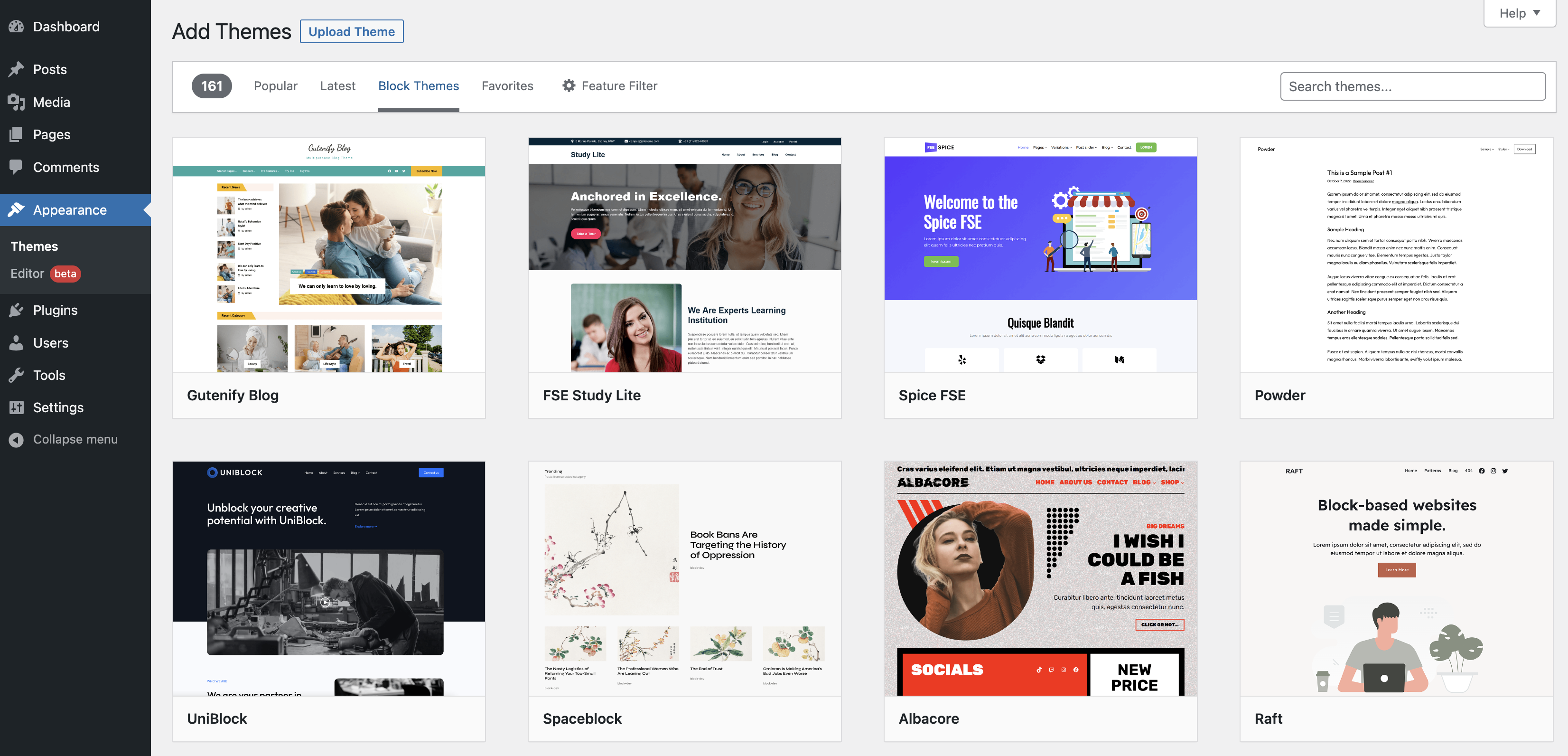
Find the Theme Directory in your WordPress dashboard. Click on Appearance in the sidebar. You will see a list of themes. This is where your themes are stored.
Click on the Add New button at the top. You can search for free themes here. To upload a theme, click on Upload Theme. Choose your theme file and click Install Now.
After installation, you need to activate the theme. Go back to the Theme Directory. Find your new theme and click Activate. Your new theme is now live.
Customizing Theme Settings
Setting up your WordPress theme homepage involves selecting the desired page under ‘Homepage Settings. ‘ Navigate to ‘Appearance’ and ‘Customize’ to access theme settings. Choose ‘Static Page’ and assign your preferred page to appear as the homepage.
Navigating The Customizer
The WordPress Customizer lets you change your site easily. First, find the Customizer in the dashboard. It’s under the “Appearance” menu. Click on it. Now, you see options to change your site. The Customizer is very helpful. It shows changes live. You can see how your site looks before saving.
Adjusting Layout Options
Layout is how your site looks. Choose a layout that fits your needs. Some themes have many layouts. You can pick one in the Customizer. Check the “Layout” section. Try different styles. See which one you like best. Always save your changes. This keeps your layout just right.
Setting Colors And Fonts
Colors make your site pretty. Fonts help with reading. Both are important. In the Customizer, find the “Colors” section. Pick colors that match your brand. Next, go to the “Fonts” section. Choose easy-to-read fonts. Test them out. Small changes can make a big difference.

Credit: docs.themeisle.com
Setting A Static Homepage
To set a static homepage, go to your WordPress dashboard. Find and click Settings in the left menu. After that, select Reading. This will open the reading settings page. Here, you can choose your homepage display options. It’s easy to find and use.
In the reading settings, look for Your homepage displays. Choose A static page. From the dropdown menu, select the page you want as the homepage. Make sure you have already created this page. If not, create it first. Then return to this step.
After selecting the homepage, scroll down. Click the Save Changes button. This will apply your settings. Now, visit your site to see the new homepage. It should display the page you chose. If not, check your settings again.
Creating A Homepage Template
Template files are the building blocks of a WordPress theme. Each file controls a different page layout. The homepage template usually includes the main elements of your site. It may have headers, footers, and sidebars. You can find these files in the theme folder. They have extensions like .php or .html. The main file for the homepage is often named home.php.
To change the homepage, open the template file. You need to have some basic coding skills. Add or remove sections as needed. Use simple HTML tags like or . Always make a backup before changing anything. This way, you can restore if something goes wrong.
After editing, test your homepage. Look for errors or misplaced elements. Open your site in a browser. Check the layout and functionality. Ensure all links work correctly. Ask a friend to view it too. They might see issues you missed. If everything looks good, your homepage is ready!
Utilizing Page Builders
Choosing a Page Builder Plugin is very important. Find a plugin that suits your needs. Many plugins are available like Elementor or Beaver Builder. They help to create beautiful pages. Each plugin offers different tools. Some are free, others are paid. Look at the features before picking one. You may want to read reviews too. This helps in making a good choice.
Designing with Drag and Drop is fun and easy. Page builders let you move elements around. You can create unique designs. Use your mouse to drag items. Place them where you want. No coding needed! Add text, images, and buttons. Arrange them in the order you like. This helps to create a custom homepage.
Saving and Previewing Changes is important. Always save your work often. After making changes, view them. This shows how the page looks live. Use the preview button to see changes. If you like it, then publish it. If not, make more changes. This keeps your homepage looking great!
Optimizing Homepage Performance
Fast websites make users happy. Slow sites lose visitors. Images should be small and clear. Use tools to compress them. Plugins can slow down your site. Remove unused ones. Reduce JavaScript and CSS files. These steps help your site load fast.
SEO helps your site get seen. Keywords are important. Choose them wisely. Use alt text for images. This helps search engines understand. Write clear and short titles. They should have keywords. Links to your site improve rankings. Good SEO brings more visitors.
Websites must work on all browsers. Test your site on Chrome, Firefox, and Safari. Use browser tools for testing. Fix any errors quickly. Make sure layouts look good everywhere. This keeps users happy and returning.
Troubleshooting Common Issues
Assigning a WordPress theme homepage often involves navigating to the Settings menu. Select ‘Reading’ and choose your desired page as the homepage. Make sure to save the changes for them to take effect.
Resolving Theme Conflicts
Conflicts can occur between themes and plugins. This may cause issues with your WordPress site. Deactivating all plugins is a good first step. Reactivating them one by one helps find the problem. Switching to a default theme can also help. This checks if the theme is the cause. Updating your theme and plugins is important. It can solve many conflicts. Theme documentation may offer specific solutions. Always back up your site before making changes.
Fixing Display Errors
Display errors can be frustrating. Clearing your browser cache might help. Checking the theme settings can fix the layout. Sometimes, adjusting the settings resolves display issues. Inspecting the code using developer tools can find errors. Updating your browser can solve display problems. Make sure your theme supports your version of WordPress. This can prevent display errors.
Seeking Support And Resources
Support is helpful when issues arise. Theme forums can provide answers. Contacting theme developers directly is an option. Reading the theme documentation helps understand features. WordPress support forums are a valuable resource. Watching tutorials can also assist in solving problems. Many free tutorials are available online. Joining WordPress groups can offer community support.
Credit: docs.presscustomizr.com
Frequently Asked Questions
How Do I Set My Homepage In WordPress?
To set your homepage, go to your WordPress dashboard. Navigate to Settings > Reading. Select “A static page” and choose your desired homepage from the dropdown list. Save changes to apply the new homepage setting.
Can I Use Any Theme For My Homepage?
Yes, you can use any theme compatible with WordPress. Ensure the theme supports your site’s design and functionality needs. Customize the theme as required to match your homepage preferences.
What Is A Static Homepage In WordPress?
A static homepage displays fixed content rather than recent posts. It provides a consistent user experience. To set a static homepage, adjust settings in the Reading section of your WordPress dashboard.
Why Is My WordPress Homepage Not Updating?
If your homepage isn’t updating, check your theme settings and caching plugins. Clear cache and ensure settings are correctly applied. Sometimes, theme conflicts or plugin issues cause update problems.
Conclusion
Assigning a WordPress theme homepage is simple with the right steps. Follow the guide above to ensure your homepage is set correctly. A well-assigned homepage enhances your site’s look and feel. Visitors will appreciate a clear and attractive first impression.
Consistency in design strengthens your brand image. Keep your theme updated for the best performance. Regular updates help maintain security and functionality. With a few tweaks, your homepage can truly reflect your site’s purpose. So, take the time to perfect it.
Your site deserves the best presentation possible. Happy building!


