
Have you ever landed on a website and felt immediately captivated by its clean, beautiful typography? Fonts do more than just display text; they set the tone for your entire website.
If you’re using WordPress, you might wonder how to change fonts on your theme to make your site stand out or better align with your brand identity. The good news is, with just a few simple steps, you can transform the look and feel of your WordPress site.
Imagine the impact of a well-chosen font on your readers, making your content not only readable but memorable. In this guide, I’ll show you how to effortlessly change fonts on your WordPress theme, so you can give your website the visual appeal it deserves. Ready to elevate your site’s typography game? Let’s dive in!
Credit: www.elegantthemes.com
Why Change Fonts On WordPress
Changing fonts can make your site look new and fresh. Fonts affect how people feel when they visit. A good font is like wearing nice clothes. It makes a good first impression. Some fonts are easy to read. Others are fun and playful. Pick one that fits your site. You can make text bold or italic. This helps important words stand out. Clear fonts help people read more easily. Happy readers stay longer on your site. They might even come back. So, choose your fonts wisely. It’s a simple way to improve your website.
Choosing The Right Font
Fonts play a big role in your website’s look. They tell people about your brand. Think about what your brand stands for. Is it fun, serious, or modern? Pick a font that matches this vibe. For example, a playful brand might use a rounded font. A serious brand might use a clean, straight font.
Your brand should be clear from the start. Make sure your font speaks your brand’s language. This helps people remember your site. Choose a font that fits with your logo and colors. This creates a strong identity.
Readers need to understand your text easily. Use simple fonts that are easy to read. Avoid fancy fonts that are hard to read. Make sure your font size is big enough. This helps everyone, even people with bad eyesight. Check how your font looks on different screens. It should be clear on phones and computers.
Using WordPress Customizer
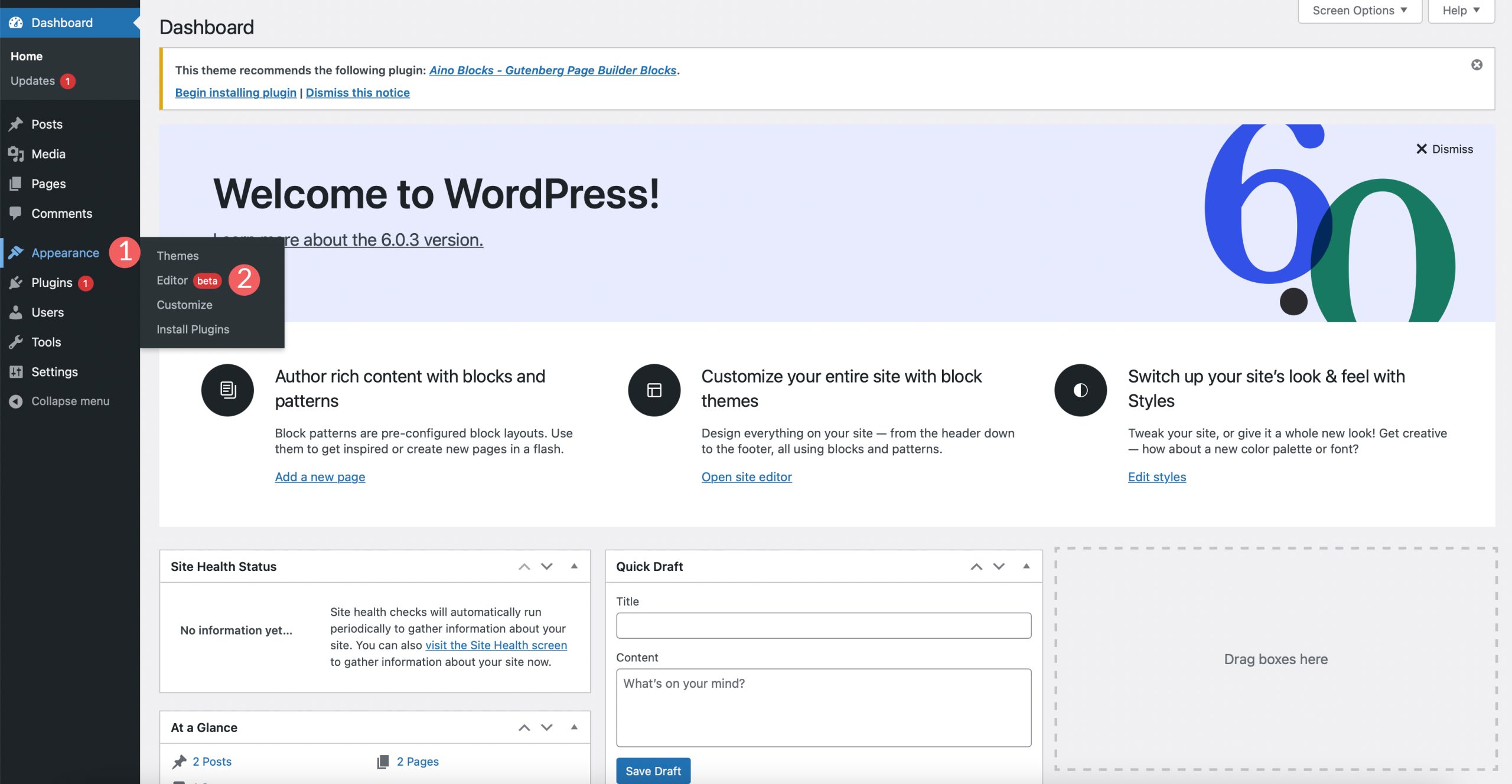
First, log into your WordPress dashboard. Find the “Appearance” option on the left side. Click it. Choose “Customize” from the menu. This opens the WordPress Customizer. Here, you can change many things. Fonts, colors, and more.
Look for “Typography” in the Customizer. Some themes might call it “Fonts”. Click on it. You will see different options. These options let you change fonts. You can change font size and font style. Make your text look the way you like. Experiment with different settings. See what works best for your site.
Credit: www.inmotionhosting.com
Installing A Font Plugin
Finding the right font plugin is simple. There are many options available. Some popular ones are Google Fonts Typography, Easy Google Fonts, and Use Any Font. Each has unique features. Google Fonts Typography offers a vast library. Easy Google Fonts is user-friendly. Use Any Font supports custom fonts. Choose one that fits your needs. Check reviews and ratings before installing.
First, go to your WordPress dashboard. Click on the Plugins tab. Then, click on Add New. In the search bar, type the plugin name. Click Install Now next to the plugin. Wait for it to install. After installation, click Activate. Your plugin is now active. You can start using it right away. Customize your fonts as you wish.
Editing Theme Css
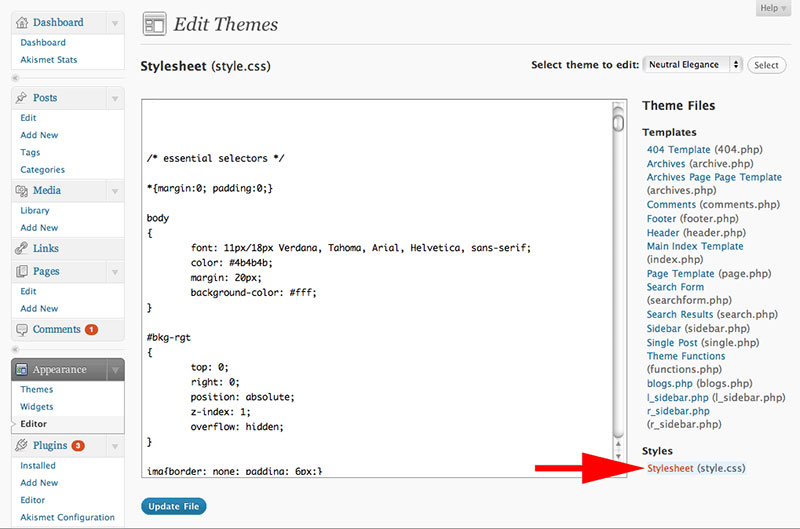
Changing fonts on a WordPress theme involves editing the CSS. Access the theme’s stylesheet through the WordPress dashboard. Locate the font-family property and replace it with your desired font. Save changes and refresh your website to see the new font in action.
Finding The Css Editor
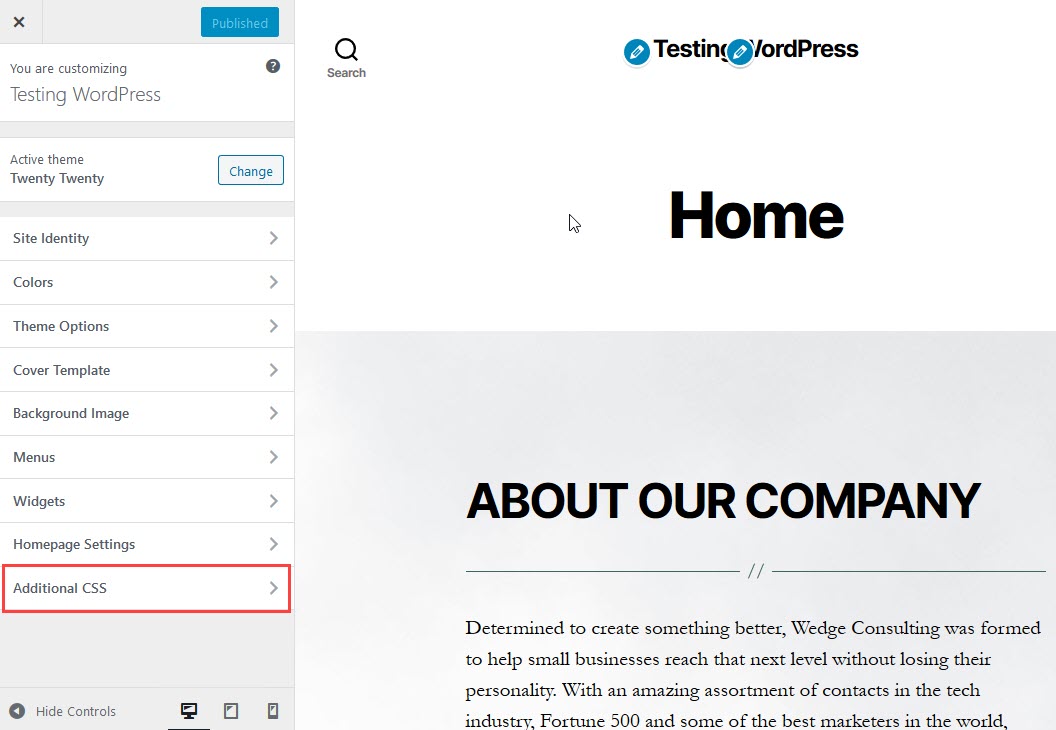
To change fonts, find the CSS editor in WordPress. Go to your dashboard. Click on Appearance. Then select Customize. You’ll see an option called Additional CSS. This is where you can make changes. It allows you to add custom styles. You will see a box to enter code. This is the CSS editor.
Adding Custom Font Code
Once in the CSS editor, you can add custom font code. First, find the font you like. Use Google Fonts or another site. Copy the font link they give. Paste it into the header section of your site. Next, write CSS code to use the new font. Use the font-family property. Apply it to your text elements. Save changes when done. You will see your new font.
Using Google Fonts
Google Fonts offer a wide range of choices for your website. First, visit the Google Fonts website. You will see many font options. Choose a font you like. Click on the font name to view more details. You can test how the font looks.
Selecting Fonts From Google Fonts
Once you choose a font, click on the ‘Select this style’ button. This adds the font to your collection. Look at the right side of the screen. You will see a panel with your selected fonts. Copy the code provided in the panel. This code is needed to use the font on your WordPress site.
Embedding Google Fonts In Your Theme
Go to your WordPress dashboard. Click on ‘Appearance’ and then ‘Editor’. Find the ‘header.php’ file. Paste the code you copied earlier into this file. Save your changes. Now, the font should be available for use on your site. Check your theme settings. You can apply the new font to different parts of your site.
Troubleshooting Font Issues
Fonts can sometimes look strange. They might not display correctly. Common issues include missing fonts and incorrect sizes. Changes might not appear. This can be frustrating. Ensuring compatibility is key. Check for updates regularly. Some themes have limited options. Explore settings in the theme. This helps find solutions. Plugins can also cause problems. Disable them to test. This may fix font issues. Always backup before making changes.
Clearing cache helps see font updates. Browsers store old data. This can prevent new changes. Steps to clear cache: Open browser settings. Find the cache option. Select clear or delete. Repeat these steps for all browsers. This ensures changes appear. Cache can be stubborn. Clearing it often helps. Check your website after clearing. Fonts should update as expected.
Credit: wpdatatables.com
Checking Mobile Responsiveness
Testing fonts on different devices is important. Different screens show fonts differently. Use a phone, tablet, and computer to check. Make sure your font looks clear on all screens. Adjust settings if it looks fuzzy or too small.
Testing On Different Devices
Try different devices to test your theme. Check the font size, style, and color. Is it easy to read? Ask a friend to check too. They might see something you missed. Always use more than one device for testing.
Adjusting Font Sizes For Mobile
Mobile screens are small. Fonts need adjusting for mobile. Use larger fonts for small screens. Test the font size on your phone. Make sure it’s not too small or too big. Balance is key. Find the right size for reading.
Frequently Asked Questions
How Do I Change Font In WordPress Theme?
To change the font in WordPress, access your theme’s customizer. Navigate to “Appearance” > “Customize” and look for “Typography” or “Fonts” options. Here, you can select a new font. Some themes may require additional CSS or a plugin like “Easy Google Fonts” for more customization.
Can I Use Google Fonts In WordPress?
Yes, Google Fonts can be used in WordPress. Install a plugin like “Easy Google Fonts” or “WP Google Fonts. ” These plugins allow you to integrate and manage Google Fonts easily. After installation, you can choose from a wide range of fonts and customize them through the WordPress customizer.
Why Is My WordPress Font Not Changing?
Your WordPress font might not change due to caching issues. Clear your website and browser cache to see changes. Another reason could be conflicting CSS rules. Check your theme’s CSS and ensure no overrides exist. If using a plugin, ensure it’s configured correctly and activated.
Do All Themes Support Font Changes?
Not all WordPress themes support font changes through the customizer. Some themes have limited customization options. For more flexibility, consider using plugins like “Elementor” or “WPBakery. ” Alternatively, custom CSS can be added to modify fonts manually, but this requires some coding knowledge.
Conclusion
Changing fonts on your WordPress theme can enhance your site’s look. It’s a simple process that can make your content more readable. Start by choosing a font that matches your brand. Use the WordPress Customizer or a plugin for easy changes.
Remember, consistency is key. Stick to two or three font styles to keep it clean. Test different fonts and see what works best for your audience. Happy customizing! Your site will look fresh and professional in no time. Make your content stand out with the right font choice.


