
Are you tired of making changes to your WordPress theme only to find that they don’t show up on your site? You’re not alone.
Many WordPress users face this frustrating issue, and the culprit is often the theme cache. But don’t worry, clearing your theme cache is easier than you might think. In this guide, you’ll discover simple, step-by-step instructions to refresh your website and ensure your changes appear instantly.
Imagine how satisfying it will be to finally see your updates live, enhancing your site’s performance and user experience. Ready to unlock the full potential of your WordPress theme? Let’s dive in and tackle this issue together.
What Is Theme Cache?
Theme cache helps WordPress run fast. It stores parts of your site. This makes pages load quicker. Speed is important for visitors. Slow sites frustrate users. With a cache, visitors see a stored version of your site. It reduces the time needed to fetch data.
Sometimes, caches hold old data. This might cause problems. Changes may not appear on your site. Clearing the cache can help. You get the latest content displayed. It ensures users see the updates.
Reasons To Clear Theme Cache
Theme cache helps websites load faster. But sometimes, it can cause problems. If the theme cache gets too old, it may slow down your site. Clearing it can fix these issues. It helps make sure new changes show up. Without clearing the cache, updates might not appear. This can confuse visitors who expect new content. Also, theme cache can cause bugs. Clearing it often helps solve them.
Another reason is to improve site performance. Old cache can make your site lag. Clearing it can speed things up. This helps keep users happy. No one likes a slow website. Clearing cache is a simple task. But it can make a big difference. It ensures your site runs smoothly. Don’t forget to clear the cache regularly.
Identifying Cache Issues
Websites can run slow due to cache problems. Cache stores old data to make sites load faster. But sometimes it causes issues. Theme cache is one of these. It can make your site show outdated info. This confuses visitors and frustrates you. To spot cache issues, look for slow loading pages. Also, check if changes don’t show up. Another sign is seeing old content. All these mean it’s time to clear the cache.
Understanding the problem helps in fixing it. It’s important to know what to look for. Once you do, clearing the theme cache becomes easier. This improves site performance. Also, it ensures users see updated content.

Credit: totalwptheme.com
Manual Cache Clearing
Start by logging into your WordPress dashboard. Find the Appearance section. Click on Theme Editor. You’ll see a list of theme files. These files contain your theme’s code. Be careful while browsing. Changes here affect your site.
Go to your WordPress hosting panel. Open the File Manager. Look for the wp-content/cache folder. Delete files inside this folder. This action clears the cache. Make sure not to delete other files. Only the cache folder is safe to clear.
Using Caching Plugins
Caching plugins help make WordPress faster. Some plugins are very popular. They are easy to use and set up. WP Super Cache is one such plugin. It speeds up websites by storing static files. W3 Total Cache is another choice. It improves site performance by caching pages and posts. LiteSpeed Cache is great for faster load times. Each plugin offers unique features. Choose one that fits your needs.
Settings in caching plugins are important. They help the plugin work well. Enable caching first to start storing data. Set cache expiration to clear old files. This keeps the site fresh. Optimize database to remove junk data. Minify CSS and JavaScript for faster loading. These settings make websites faster and more efficient. Follow the steps and check results. Adjust settings if needed.
Credit: www.ionos.com
Clearing Browser Cache
Browser cache saves website data on your computer. This helps pages load faster. To clear it, open your browser settings. Find the option for clearing cache. Choose the time range you want. It’s best to select “all time” for a full clear. Make sure to check the box for cache. Then, click the clear button. This will delete stored data. Refresh your website to see changes. Clearing cache can fix many display issues. It also frees up space on your device. Remember to clear cache regularly for the best experience. This ensures you see the most updated version of websites.
Server-side Cache Management
Many hosting providers offer cache management tools. These tools are easy to use and make clearing cache simple. Log in to your hosting account. Look for a cache management section. This section might be in the control panel. Find the option to clear cache. Click on it. This action will clear your server-side cache. Clearing cache can speed up your site. It can also fix display issues. Some hosting providers have automatic caching. Be sure to check if your host has this feature.
Restarting your server can also clear cache. First, log in to your hosting account. Find the server management section. Look for a restart option. Click to restart your server. This process is usually quick. Restarting can solve many temporary issues. It helps in clearing cache and refreshing your site. Always ensure you save any work before restarting.
Common Errors And Fixes
Clearing theme cache can fix many problems. Page not updating is a common error. This happens when old cache is in use. Broken layout is another issue. Cached files might be outdated. Sometimes, changes do not show up. Cache might be the reason. Slow website speed can also be due to cache. Regular clearing helps.
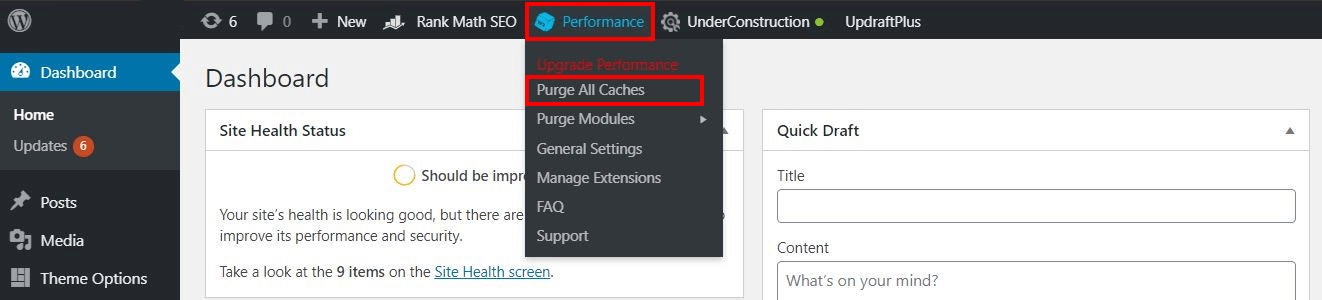
Fixing these errors is simple. First, go to the WordPress dashboard. Find the “Performance” tab if using a caching plugin. Click on “Clear Cache”. This removes old files. Manual clearing is also possible. Use an FTP client. Delete files from the wp-content/cache folder. Be careful with this method.
Check your site after clearing cache. Make sure errors are gone. If not, try again. Sometimes, plugins need updates. Always keep plugins current. This prevents many problems.
Best Practices For Cache Management
Clearing theme cache keeps your site fast. This helps users visit more pages. It improves site performance. A clean cache means fewer errors. Visitors have a better experience. Faster sites rank better on search engines. Speed matters for SEO. Regular cache clearing is important.
Start with the WordPress dashboard. Find the cache plugin. Click on clear cache button. Wait for the process to complete. Refresh your site to see changes. Check your site speed. Repeat these steps regularly.
Choose a good cache plugin. Popular ones are WP Super Cache and W3 Total Cache. Install the plugin. Set it up for your needs. Use plugin settings to clear cache. Update plugins often. Keep your site running smoothly.

Credit: cyberchimps.com
Frequently Asked Questions
How Do I Clear Theme Cache In WordPress?
Clearing theme cache in WordPress involves accessing your caching plugin. Navigate to the plugin settings and find the cache clearing option. Click to clear the cache, ensuring your site reflects the latest changes. If you don’t use a caching plugin, consider installing one for better performance management.
Why Should I Clear Theme Cache Regularly?
Regularly clearing theme cache ensures your site displays the most recent changes. It helps improve loading times and prevents conflicts with outdated cached data. Maintaining up-to-date caches can enhance user experience and site functionality, particularly after making significant design or content updates.
Can Theme Cache Affect WordPress Performance?
Yes, theme cache can impact WordPress performance. A full or outdated cache might slow down your site, causing loading delays. By clearing the cache, you ensure optimal speed and responsiveness, which enhances user experience and can positively affect your site’s search engine ranking.
Is It Safe To Clear Theme Cache?
Clearing theme cache is safe and beneficial for site performance. It removes outdated files and ensures your site runs smoothly with the latest updates. Regular cache clearing prevents potential issues like loading errors or conflicts, helping maintain a stable and efficient WordPress environment.
Conclusion
Clearing theme cache in WordPress is easy and beneficial. It boosts site speed and improves user experience. Regular cache clearing helps prevent issues. Follow the outlined steps to ensure smooth performance. A faster site keeps visitors happy and engaged. Quick loading pages enhance SEO rankings.
Consistent maintenance is key. Don’t forget to clear cache after updates. This simple task contributes to an efficient site. Keep your WordPress site running optimally. Enjoy a streamlined browsing experience. Your audience will thank you. Embrace these tips for better site management.


