
Are you tired of the same old look of your WordPress site? Want to give it a fresh, new vibe with just a few tweaks?
Changing your WordPress theme heading style can make a world of difference. It’s like giving your website a mini-makeover without the hassle of a complete overhaul. Imagine your site grabbing attention, engaging visitors, and reflecting your personal or brand identity with just the right font and style.
Don’t worry if you’re not a tech wizard – you don’t need to be! This guide will walk you through the process step-by-step, making it easy for you to enhance your site’s visual appeal. Dive in to discover how you can effortlessly transform your WordPress site and make a lasting impression on your visitors.
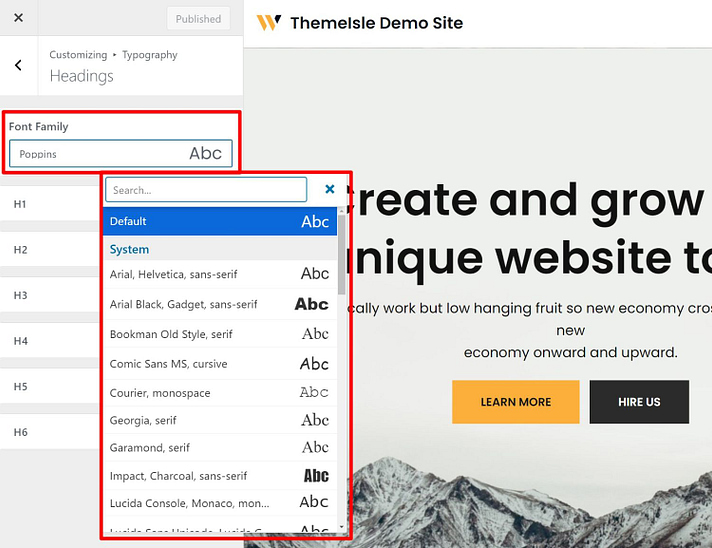
Credit: thimpress.com
Choosing The Right Theme
Think about what you want. Do you need a simple or a fancy theme? Make a list of must-have features. This will help you decide. Consider the look and feel you want. Colors and fonts matter. Choose what fits your style. Remember, your theme should work for you, not against you.
There are many themes. Some are free, others cost money. Visit the WordPress theme store. Look at the popular choices. Read the reviews. Check out the ratings. This can give you an idea of what works well. Find a theme that matches your list of needs.
Your theme must work with your WordPress version. Always check for updates. A good theme should work on phones and computers. This is called responsive design. It helps your site look good everywhere. Make sure it supports the plugins you use. This will save you trouble later.
Customizing Theme Header
First, go to the WordPress dashboard. Click on Appearance in the menu. Find and click Theme Editor. This will open your theme files. You will see a list of files on the right side. Look for the file that mentions header. This is where you will make changes.
In the header file, find the style section. Here, you can edit the header fonts and colors. Use simple codes to change styles. You can add or remove elements. Make sure to check changes in the preview. Small changes can make a big difference.
After editing, click Update File to save. This stores your changes. Go back to your site. Check if the header looks right. If not, return to the editor. Adjust until satisfied.
Using Page Builders
Page builders make website design easy. They are like magic tools. Drag and drop to change your site. No coding needed. Page builders help you build unique pages. They offer many templates and styles. You can change colors, fonts, and images. Many people use them to create nice websites. With page builders, your site can look great.
Creating a custom header is easy. Page builders help with this. Choose a header style you like. Add your logo or text. Change colors to match your brand. Make your site header stand out. Headers help visitors know your site. They are important for a good website.
Page builders work with many themes. Choose a theme that fits your style. Themes and page builders together make design simple. They help change your site look. You can mix and match features. Integration makes your site unique. It keeps your site fresh and interesting.

Credit: clarkwp.wordpress.com
Applying Custom Css
Open your WordPress dashboard. Go to Appearance and select Customize. Look for the Additional CSS option. This is where you will add your custom CSS. Scroll to find your theme’s header section. You might see codes like h1, h2, or header. These codes control the header style. Make sure you find the right codes. This is important for making changes.
Now, copy the code you found. Paste it in the Additional CSS box. Make changes to the properties. For example, change the font-size or color. Use simple numbers and color names. This makes changes easy to see. Always check your changes. Keep them small and simple.
After editing, preview your changes. Click the Preview button to see them. Check how the header looks. Make sure it matches your plan. If not, go back and edit more. Testing is important. It helps you find mistakes. Keep testing until you are happy with the look.
Utilizing Plugins
Plugins can change your theme’s header easily. Many plugins offer great features. Some popular ones are Elementor, Header Footer Builder, and WP Customizer. These plugins help design unique headers.
Visit the plugin section in WordPress. Search for the plugin name. Click on install, then activate. Your plugin is ready to use.
Go to plugin settings. Adjust header styles. Choose colors and fonts. Set logo and menu positions. Save changes. Your header is now customized.

Credit: elementor.com
Responsive Design Considerations
Websites must look good on all devices. This is called responsive design. A theme should adapt to different screen sizes. This means it should change layout for phones, tablets, and computers. You need to ensure each part of the site is easy to see and use. Use tools that show how your site looks on different devices. Make adjustments as needed.
Mobile compatibility is very important. Many people use phones to browse. A site that works well on phones can keep visitors happy. This means easy navigation, readable text, and fast loading. Check your theme settings to make sure they support mobile features. If not, consider using plugins to help.
Always test on different devices. Not all phones and tablets are the same. Try your site on different brands and screen sizes. Look for problems like cut-off text or buttons that don’t work. Fix them quickly to ensure a good user experience.
Frequently Asked Questions
How Do I Change WordPress Theme Headings?
To change WordPress theme headings, go to the WordPress dashboard. Navigate to Appearance, then Customize. In the customizer, find the Typography section. Adjust the heading styles by selecting the desired font, size, and color. Save changes to apply the new styles to your theme headings.
Can I Customize Heading Styles Without Coding?
Yes, you can customize heading styles without coding by using the WordPress Customizer. Many themes offer options to change fonts, sizes, and colors directly through the Customizer. Alternatively, you can use plugins like Elementor or Beaver Builder to visually edit heading styles without touching any code.
What Plugins Help With Heading Style Changes?
Plugins like Elementor, Beaver Builder, and WPBakery Page Builder can help change heading styles. These plugins provide drag-and-drop interfaces for styling headings visually. They offer various customization options, including font, size, color, and layout adjustments, allowing you to design unique and attractive headings easily.
Why Should I Change My Theme’s Heading Styles?
Changing heading styles enhances your website’s visual appeal and branding. Customized headings improve readability and help your content stand out. Unique styles can attract visitors and create a memorable impression, ultimately improving user experience and engagement on your site. Consistent branding with headings also boosts professionalism.
Conclusion
Changing your WordPress theme heading style is easy. Follow the steps carefully. Customize your site to match your vision. Ensure your headings are clear and attractive. This improves user experience and engagement. Use the theme options to adjust styles. Experiment with different fonts and sizes.
Check your changes on various devices. Keep your design simple and consistent. Now, your WordPress site looks professional and inviting. Engage your visitors and make your content memorable. Regularly update your design for a fresh look. Happy styling!


