
Have you ever felt like your WordPress blog needs a fresh look? You’re not alone.
Many bloggers crave a change in design to keep their site engaging and up-to-date. The good news is, swapping themes on WordPress is easier than you might think. In this guide, you will discover simple steps to transform your blog’s appearance and boost your readers’ experience.
Imagine the excitement of unveiling a new look that truly reflects your vision and style! Don’t miss out on this opportunity to captivate your audience and breathe new life into your content. Ready to dive in and learn how to change your WordPress theme effectively? Let’s get started!
Credit: www.ryrob.com
Choosing The Right Theme
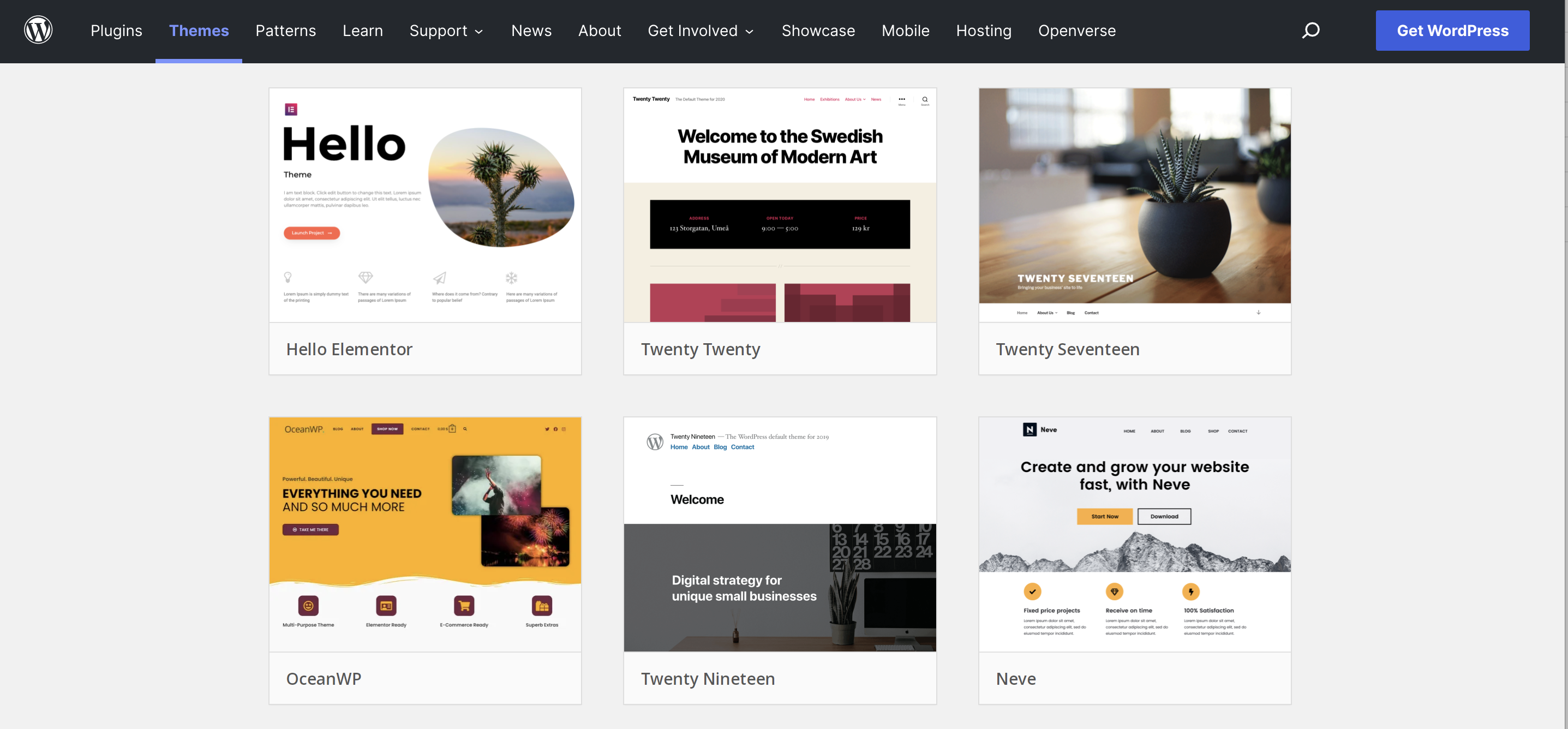
Your blog’s purpose is important. Is it for sharing stories? Or maybe for selling things? Knowing the purpose helps you pick the best theme. A theme can make your blog look right. It can also help people understand what your blog is about.
Every theme has different features. Some have cool colors. Others let you add big pictures. Think about what features are important. Do you need a slideshow? Or maybe a contact form? Check if the theme has what you need. Don’t pick a theme without the right features.
Many people use phones to read blogs. A good theme works well on phones. This is called mobile responsiveness. Make sure the theme looks good on small screens. This way, everyone can read your blog easily.
Credit: jetpack.com
Locating Themes In WordPress Dashboard
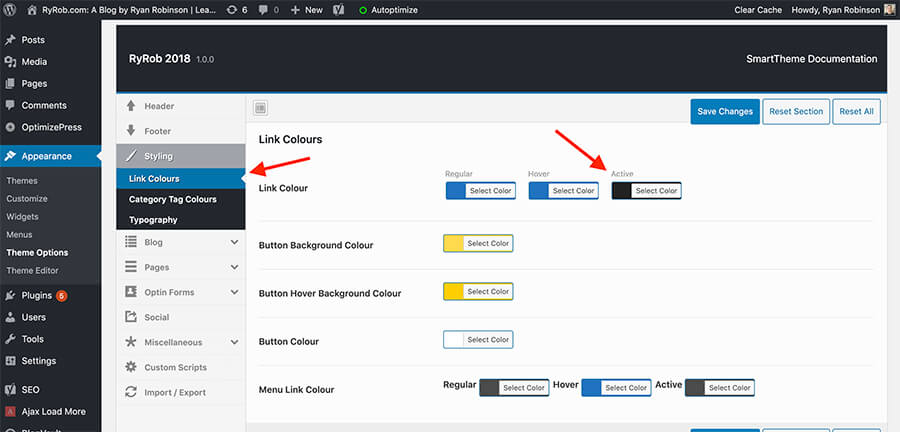
Find the Appearance menu in the WordPress dashboard. It is on the left side. Click on it. A drop-down menu will appear. Select Themes from the list. This opens the theme section. Here, you can see your active theme. You can also find other available themes. It’s easy to browse through them. Change themes with a simple click.
In the theme section, locate the Add New button. Click on it to explore the theme directory. The directory shows many themes. Some are free, and some are paid. Use the search bar to find themes. You can filter them by features. Choose a theme that fits your blog. Preview the theme before activating. Make sure it looks good.
Installing A New Theme
To find a new theme, start at your WordPress dashboard. Click on “Appearance” and then “Themes”. Look for the “Add New” button. Use the search bar to find themes. Type a keyword or theme name. Look at the previews and ratings. Choose one you like. Click “Install” to add it. Press “Activate” to use it. Your blog will now have a new look.
First, download a theme file. It must be in .zip format. Go to your WordPress dashboard. Click on “Appearance” and then “Themes”. Look for the “Add New” button. Click “Upload Theme” at the top. Choose the .zip file from your computer. Click “Install Now”. Once installed, click “Activate”. Your theme is now live.
Activating The Selected Theme
Activating the selected theme on your WordPress blog takes just a few clicks. Navigate to the “Appearance” tab, then select “Themes. ” After choosing your preferred theme, click “Activate” to apply it instantly. Your blog’s look will update with the new design, enhancing its appearance.
Previewing Before Activation
Always preview the new theme before activating it. Go to your WordPress dashboard. Click on Appearance and then Themes. Hover over your chosen theme. Click Live Preview. Check how your blog looks with the new theme. Make sure everything is in place. Ensure the colors and fonts are right. Ensure the layout suits your content. This helps avoid surprises after activation.
Finalizing Theme Activation
Once satisfied with the preview, activate the theme. Go back to the Themes section. Hover over the chosen theme again. Click on Activate. The new theme is now live on your blog. Remember to check your blog again. Ensure everything works well. Fix any issues if needed. Enjoy your new look!
Customizing Your Theme
The Customizer Tool in WordPress helps change your theme. It is easy to use. Open the tool from your dashboard. You will see many options. Each option can change a part of your theme. Click and explore. Changes show instantly. Save when you like the new look.
Layout and colors make your blog look unique. Choose a layout that fits your style. Pick colors that match your brand. Use simple and bright colors. They catch the eye. Try different combinations. Make sure it is easy to read. Keep it neat and clean.
Widgets and menus organize your blog. Widgets add extra features. Like a search bar or recent posts. Find them in the widget area. Drag and drop to add or remove. Menus guide visitors. Create clear paths. Arrange menu items carefully. Make navigation smooth. Save your settings. Enjoy your new theme.
Testing Your New Theme
Checking for Compatibility Issues can save a lot of trouble. Look for broken links or missing images. Test all plugins to ensure they work well. Some themes might not support every plugin.
Ensuring Mobile Friendliness is crucial. Open your blog on a phone and a tablet. Check if everything looks good. Buttons should be easy to click. Text should be clear and readable.
Verifying Load Speed is important. A fast site keeps visitors happy. Use online tools to test speed. If it’s slow, try reducing image sizes. Remove any unnecessary plugins. Speed affects user experience greatly.
Troubleshooting Common Issues
Easily change your WordPress blog theme by navigating to your dashboard, selecting “Appearance,” then “Themes. ” Troubleshoot common issues by ensuring your theme is compatible with your WordPress version and plugins. Always back up your site before making changes to avoid data loss.
Resolving Display Problems
Sometimes, themes don’t display right. Check your theme settings. Ensure all images are the correct size. Clear your browser cache. This helps load the new theme properly. If issues persist, try switching back to the default theme. This can help identify the problem.
Fixing Broken Links
Broken links can be a headache. Use a plugin to find these links. Fix them by updating the URLs. Check your navigation menu. Ensure all links work. If a page is missing, create a redirect. This helps visitors find the right content.
Addressing Plugin Conflicts
Plugins can conflict with new themes. Deactivate all plugins first. Then, activate them one by one. This will show which plugin causes problems. Update the plugin if needed. Sometimes, switching to a different plugin can help. Always backup your site before making changes.

Credit: cyberchimps.com
Frequently Asked Questions
How Can I Change My WordPress Theme?
To change your WordPress theme, go to your dashboard. Click on ‘Appearance’, then ‘Themes’. Choose a new theme and click ‘Activate’. You can preview it before activating. Ensure your content is compatible with the new design to maintain your site’s functionality.
Is Changing A WordPress Theme Easy?
Yes, changing a WordPress theme is easy. Navigate to ‘Appearance’ in your dashboard, select ‘Themes’, and click ‘Activate’ on your preferred theme. Follow any instructions provided by the theme developer for a smooth transition. Always check your site’s functionality after changing themes.
Will Changing Themes Affect My Site’s Seo?
Changing themes can affect SEO if it alters your site’s structure or content. Ensure the new theme is SEO-friendly and retains your current SEO settings. Test your site after activation for any broken links or missing metadata. Regular updates and reviews keep your SEO intact.
Can I Preview A Theme Before Activating It?
Yes, you can preview a theme before activating it. In your WordPress dashboard, go to ‘Appearance’, then ‘Themes’. Hover over your chosen theme and click ‘Live Preview’. This lets you see how your site will look without making permanent changes.
Conclusion
Changing your WordPress theme is simple and impactful. Select a theme that fits your blog’s style and needs. Follow the steps carefully to ensure a smooth transition. A fresh theme can enhance your site’s appearance and functionality. Remember, themes should complement your content and engage your audience.
Test your new theme thoroughly to fix any issues. Keep exploring different themes to keep your blog updated. Your blog’s look matters, so choose wisely. With these tips, you can easily change your WordPress theme. Enjoy your blog’s new look and feel!


