
Are you ready to give your online store a fresh, new look? Changing your ecommerce theme in WordPress can transform your site’s appearance and enhance the shopping experience for your customers.
But, you might be wondering, how do you actually go about it without disrupting your current setup? In this guide, we’ll take you through the process step-by-step, ensuring a smooth transition and helping you avoid common pitfalls. We’ll share insights that can make your store not only more visually appealing but also more efficient and user-friendly.
Discover how a simple theme change can elevate your brand and captivate your audience. Dive in, and let’s unlock the potential of your ecommerce site!
Choosing The Right Theme
Your theme should match your brand. Think about your colors and style. A good theme shows who you are. Keep it simple. People like simple sites. They can find things fast.
Look at the features. Does it have what you need? Some themes have cool tools. Others are more basic. Make a list of the tools you want. Check if the theme has them. Features matter.
Fast themes are best. Slow sites make people leave. Test the theme speed. See if it works on phones. Many people use phones to shop. A good theme works on all devices.
Preparing For Theme Change
Always keep a copy of your website. A backup saves your data. Use plugins like UpdraftPlus or BackupBuddy. These tools help store your files safely. Save backups regularly. This protects your site from problems.
A child theme keeps changes safe. It lets you update the parent theme easily. First, make a new folder in the themes directory. Then, create a style.css file. Link it to the parent theme. This keeps your customizations safe.
A staging site is a test area. It shows how new themes look. Use plugins like WP Staging or Duplicator. They make test sites easily. Test themes before going live. This helps spot errors early.
Installing A New Theme
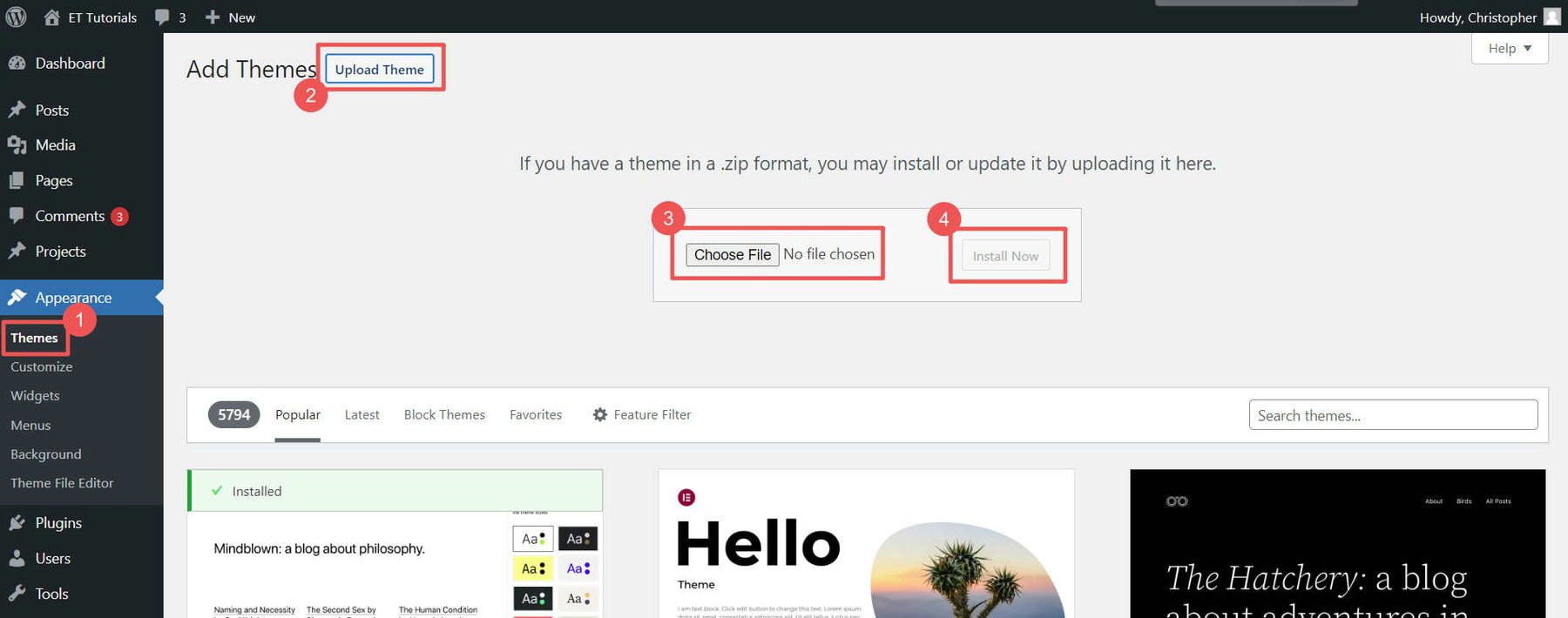
First, log in to your WordPress account. Find the Dashboard. Look for the menu on the left side. Click on Appearance. Then select Themes. You can see many theme options here. Choose wisely.
Got a theme file? Click on Add New. Find the Upload Theme button. Click it. Browse your computer for the file. Select the ZIP file format. Click Install Now. Wait a few seconds. The theme will upload.
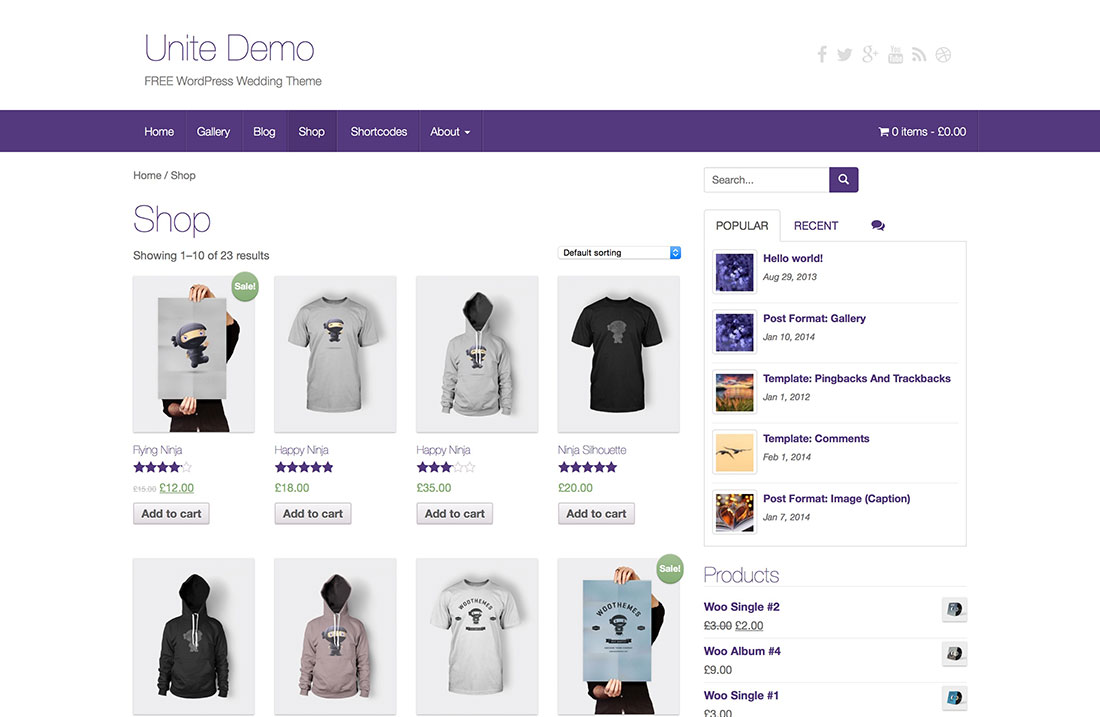
The theme is uploaded. Time to activate it. Click on Activate. You will find this button next to the theme. Your site looks new now. Check your website. See the changes. Enjoy your fresh look!
Credit: colorlib.com
Customizing The New Theme
Adjusting Theme Settings is simple. Open the WordPress dashboard. Click on “Appearance.” Then, select “Customize.” Here, you can change colors and fonts. Pick what looks best for your store. Save the changes.
Configuring Widgets and Menus is next. Go to the “Widgets” section. Drag and drop the widgets you want. Add them to your sidebar or footer. For menus, click on “Menus.” Choose the pages to display. Organize them in a simple order.
Personalizing the Design is fun. Use the theme options to add your logo. Change the header image if needed. Upload new background images. Make sure your design is clean and neat. It should be easy for visitors to navigate.
Ensuring Compatibility
Switching WordPress ecommerce themes requires ensuring compatibility with existing plugins and settings. Backup your site before making changes. Check theme documentation for guidance to maintain a seamless transition.
Checking Plugin Compatibility
Plugins help your site work better. Before changing themes, check your plugins. Make sure they will still work. Some themes and plugins do not get along. This can cause problems. Visit the plugin’s page. Look for notes about theme support. Update plugins to their latest version. This helps prevent issues.
Resolving Theme Conflicts
Themes might not always play nice. Conflicts can break your site. Test your new theme first. Use a staging site for testing. This protects your live site. Look for broken images or links. Check that everything works as it should. If problems arise, contact theme support. They can help fix the issues. Remember, testing is key to a smooth transition.
Testing The New Theme
Make sure all buttons work. Click on each link. Every page should open. Ensure forms submit properly. Check the shopping cart. Items must add and remove smoothly. Visit the checkout page. Ensure payments go through. Test the search bar. Results should show fast. Make sure login and signup work. All features need testing.
Open the site on a phone. Check how it looks. Everything should fit the screen. Text must be readable. Images need to load quickly. Buttons should be easy to click. Try different devices. Ensure the layout stays the same. Navigation should be simple. Make sure it’s easy to use. Test scrolling. It should be smooth and fast.
Pages must load quickly. Use tools to check speed. Make sure images are optimized. Compress any large files. Reduce any extra code. Check the server response time. It should be fast. Monitor the site for errors. Fix any that appear. Ensure everything runs smoothly. Performance impacts user experience. Happy users return often.
Launching The Updated Site
Discover the streamlined process for changing ecommerce themes in WordPress, enhancing your site’s design seamlessly. Step-by-step guidance simplifies theme customization, ensuring your online store maintains its visual appeal and functionality effortlessly.
Finalizing Adjustments
Check all elements on the site. Ensure links work properly. Test on different devices. Look for any layout issues. Fix these issues before going live. Double-check font sizes and colors. Ensure images load quickly. Review each page’s text for errors. Make sure the checkout process is smooth. These steps help your site run well.
Publishing The New Theme
Back up your site first. This saves old data. Then activate the new theme. Go to your WordPress dashboard. Select the theme and click “Activate.” Your site now has a new look. Review it once more. Ensure everything displays well. If issues arise, consult support.
Announcing The Change
Inform your users about the new theme. Use email newsletters. Post on social media. Explain how this improves their experience. Highlight better navigation. Mention faster load times. Encourage feedback from visitors. This helps improve future updates. Keep your audience informed and engaged.
Credit: www.elegantthemes.com
.__large_preview.jpg)
Credit: themeforest.net
Frequently Asked Questions
How Do I Change My WordPress Ecommerce Theme?
To change your WordPress ecommerce theme, navigate to the WordPress dashboard. Click on “Appearance,” then “Themes. ” Choose a theme from the available options or upload a new one. Activate your desired theme to apply it to your ecommerce site.
Always check compatibility with your plugins and ensure it meets your design needs.
Can I Customize My Chosen Ecommerce Theme?
Yes, you can customize your chosen ecommerce theme. Use the WordPress Customizer by clicking “Customize” under “Appearance. ” Adjust colors, fonts, and layout according to your preferences. Many themes also offer specific settings for ecommerce features. If needed, use custom CSS for more detailed adjustments to your theme.
What Should I Consider When Selecting A Theme?
When selecting a theme, consider design, responsiveness, and compatibility. Ensure it suits your brand and offers a user-friendly layout. Check if it’s mobile responsive and SEO optimized. Verify compatibility with your plugins, especially ecommerce ones. Look at reviews and ratings for user satisfaction and support availability.
Is It Possible To Revert Theme Changes?
Yes, you can revert theme changes in WordPress. Simply go to “Appearance,” then “Themes” in your dashboard. Activate the previous theme you were using. It will restore your website’s appearance. Always back up your website before making significant changes to prevent data loss or design issues.
Conclusion
Changing ecommerce themes in WordPress is simple and rewarding. First, explore different themes. Consider your brand and audience. Download the theme you like. Install it with a few clicks. Activate and customize it to suit your needs. Check your site’s functionality.
Make sure everything works smoothly. Your site now looks fresh and inviting. Theme change can improve user experience. Attract more visitors and boost sales. Regular updates keep your site appealing. Enjoy the new look and feel of your WordPress store.
Keep experimenting with themes. Find what works best for you.


