
Imagine giving your website visitors an immersive experience where they can enjoy your favorite playlists or podcasts as they browse through your content. Adding Spotify to your WordPress theme is not just a trendy move; it’s a game changer.
It elevates your site’s ambiance and keeps your audience engaged longer. Whether you’re a blogger, a business owner, or a creative, integrating Spotify can make your website a place where users want to linger. But how do you do it without getting tangled in tech jargon?
Don’t worry; this guide is crafted just for you. By the end of this article, you’ll have the know-how to seamlessly add Spotify to your WordPress theme, creating a richer, more dynamic experience for your visitors. Ready to transform your website? Let’s dive in!
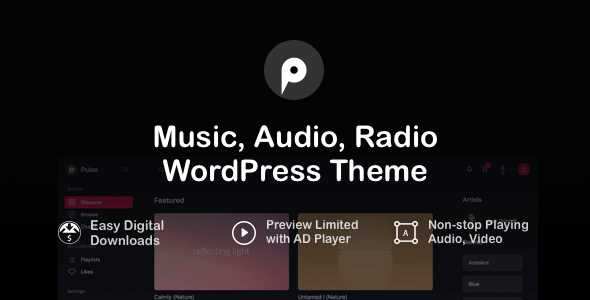
Credit: themeforest.net
Benefits Of Integrating Spotify
Adding Spotify to your WordPress theme can make your site more engaging. Visitors can listen to music while browsing. This keeps them on your page longer. Longer visits can improve your site metrics. Music can create a mood. It can make your content more memorable. Your site becomes more interactive. This can attract more visitors.
Spotify has a huge library of songs. You can share playlists with your audience. This helps in building a community. People love to find new music. Sharing music can make your site unique. It adds value to your content. This can encourage return visits.
Spotify Plugin Options
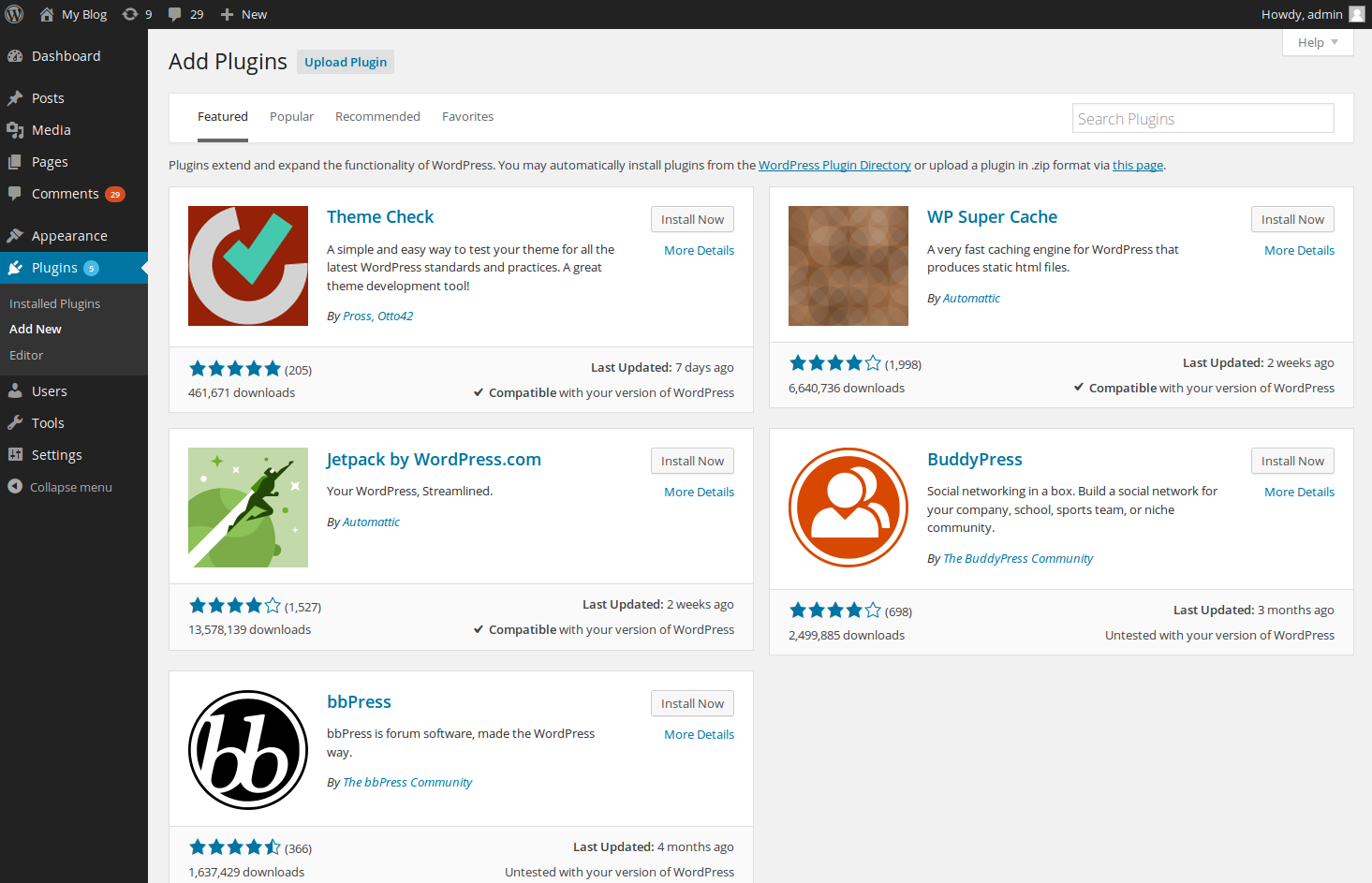
Many free Spotify plugins are available for WordPress. These plugins help you add music easily. They are simple to use and install. Most free plugins offer basic features. You can embed playlists and albums on your site. Free plugins are good for small websites. They are often updated and improved. Users rate them well.
Premium Spotify plugins offer more features. They are best for large websites. They allow custom design and advanced settings. Premium plugins can improve user experience. You can filter songs and create unique playlists. Support is often better with premium plugins. They may cost money but offer great value.
Manual Embedding Methods
Copy the Spotify embed code from your Spotify app. Go to the Spotify song or playlist. Click on the three dots. Choose “Share” and then “Embed Code”. Copy the code that appears. Open your WordPress editor. Paste the code where you want the Spotify player. Save your changes. Now, the Spotify player will show on your site.
Open your WordPress dashboard. Go to “Appearance” and then “Widgets”. Choose the “Custom HTML” widget. Drag it to your desired widget area. Paste the Spotify embed code in the widget. Click “Save” to keep the changes. Your Spotify player is now added to the widget area.

Credit: www.flawlessthemes.com
Customizing Spotify Appearance
Color and size changes can make your Spotify widget look unique. You can adjust these settings easily. Choose colors that match your website. This helps in creating a consistent look. The size should fit well within your theme. Ensure the widget is not too big or small. Always check how it looks on different screens.
Responsive design is key for a good user experience. The Spotify widget should work on phones, tablets, and desktops. Use responsive code in your theme. This will help the widget adjust automatically. Test it on multiple devices to ensure it looks good everywhere.
Troubleshooting Common Issues
Adding Spotify to your WordPress theme can be tricky. Ensure your theme supports custom HTML or widgets. Use Spotify’s embed code for seamless integration.
Player Not Displaying
Spotify player might not show up. Check plugin installation first. Ensure it’s correctly activated. Verify theme compatibility. Some themes block Spotify. Switch themes if necessary. Clear browser cache often. This solves display issues. Update your WordPress regularly. New versions fix bugs.
Playback Problems
Music might not play. Volume settings could be wrong. Check the device volume. Ensure internet connection is stable. Poor connection hinders playback. Spotify account must be active. Verify login credentials. Outdated plugins cause playback issues. Update plugins frequently. Check browser updates too. A newer browser improves performance.
Credit: www.inmotionhosting.com
Enhancing User Experience
Curate playlists to match your site’s mood. Think about your audience. Choose songs they like. Mix genres to keep it fresh. Update playlists often. This keeps listeners engaged. Add songs that fit your theme. Use catchy titles for playlists.
Encourage users to share playlists. Ask for song requests. This builds a community. Share new playlists on social media. Invite guests to create playlists. This adds variety. Use polls to find out what users like. Include a comment section for feedback.
Frequently Asked Questions
How Do I Integrate Spotify With WordPress?
To integrate Spotify with WordPress, use a Spotify embed code. First, copy the embed code from Spotify. Then, paste it into your WordPress post or page using the HTML editor. This will display a Spotify player for your chosen playlist, album, or track.
Can I Add Spotify Playlists To My Theme?
Yes, you can add Spotify playlists to your WordPress theme. Use the Spotify embed code for your playlist. Copy the code and paste it into your WordPress page or post. This allows visitors to play your Spotify playlist directly from your site.
Is There A Plugin For Spotify On WordPress?
Yes, there are plugins available for Spotify on WordPress. Plugins like “Spotify Embed” or “Spotify Play Button” make integration easy. They provide options to display Spotify tracks, playlists, or albums. Install and activate the plugin, then follow its instructions to add Spotify content.
Does Spotify Affect My Site’s Performance?
Spotify embeds typically have minimal impact on site performance. They load asynchronously, meaning your page loads first. However, excessive embeds can slow down your site. Optimize by limiting the number of Spotify players per page. Regularly monitor your site’s performance using tools like Google PageSpeed Insights.
Conclusion
Adding Spotify to your WordPress theme enhances user experience. Music can make your site engaging. Follow the steps carefully. Choose a plugin that fits your needs. Customize it to match your theme. Ensure it works well on mobile. Test it for smooth performance.
Music adds a lively touch. It keeps visitors longer. They may explore more pages. Regular updates keep the plugin running smoothly. Don’t forget to check compatibility. Your site will stand out with music. Enjoy sharing your favorite tunes! Your site now has a personal touch.


