
Have you ever felt that your WordPress theme just doesn’t reflect your brand’s personality? Sometimes, a simple change in font color can make all the difference.
It can breathe new life into your website, making it more appealing and engaging for your visitors. Imagine your website capturing attention instantly, with colors that align perfectly with your brand identity. In this guide, you’ll discover how to easily change the font color of your WordPress theme.
It’s simpler than you think, and you don’t need to be a tech wizard to do it. Ready to transform your site’s look and feel with just a few clicks? Let’s dive in and unlock the potential of your WordPress theme together!
Accessing WordPress Dashboard
First, open your web browser. Type your website’s URL in the address bar. Add /wp-admin at the end. Press Enter. This will take you to the login page. Enter your username and password. Click the Login button.
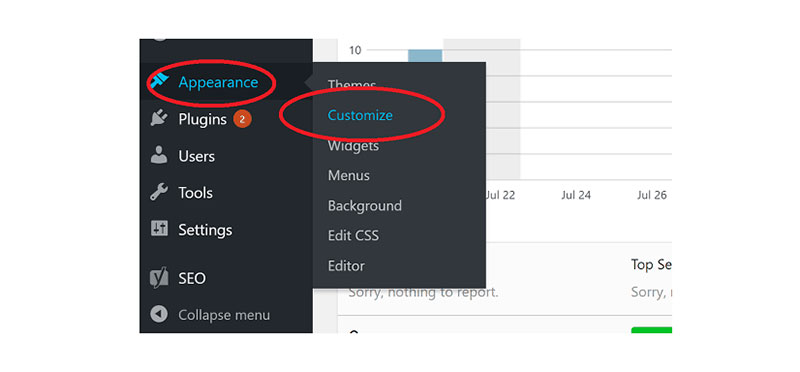
Now you are inside the WordPress Dashboard. This is where you control your website. On the left side, see the menu. This menu helps you find different sections. Look for the Appearance option. Click on it. Then click on Customize. You are ready to change the theme’s font color.

Credit: wcanvas.com
Using Theme Customizer
Find the Appearance menu in your WordPress dashboard. Click on it. Then select Customize. This opens the Theme Customizer. The Customizer lets you change colors.
Look for the Colors section on the left panel. Click to open it. You can see options for changing font colors. Choose the color you like. Preview the changes instantly. Save your changes when happy. Your website will now use new font colors.
Changing Font Color Via Css
CSS helps change your website’s look. Font color is one feature you can control. You use CSS rules to change colors. This makes your text more attractive. CSS uses selectors to pick which text to change. A selector can be a tag or class. You then add your color choice. Like red, blue, or any color you like. CSS is simple once you understand its basics.
To change font color, you need custom CSS. Open your WordPress dashboard. Go to Appearance, then Customize. Find Additional CSS. Click it. Here, you can type your CSS code. Use the correct selector for the text. Type `color: red;` to make text red. Save changes. Your text will now show the new color. This is how you add custom CSS.
Font Color Plugins
Many plugins help change font colors in WordPress. Colorlib and TinyMCE Advanced are well-known. They are easy to use and offer many options. Colorlib provides a wide range of color choices. TinyMCE Advanced offers more than just colors. It also helps with fonts and sizes. Both plugins make your site look better.
Search for the plugin in the WordPress dashboard. Click Install Now next to the plugin name. After installation, press Activate. Now, the plugin is ready to use. It is simple and takes only a few steps.
Go to the plugin settings in the dashboard. Choose the font color option. Pick the color you like from the palette. Save your settings to apply changes. You can also preview before saving. This helps you see how your site looks. Experiment with different colors to find the best fit.
Theme-specific Options
Customizing font color in WordPress themes is straightforward. Access theme-specific options in the WordPress dashboard. Navigate to Appearance, then Customize, and select Typography. Here, you can adjust the font color to match your design preferences effortlessly.
Exploring Theme Settings
Each WordPress theme has its own settings. These settings let you change the font color. First, find the appearance tab. It is usually on the left side. Click on it. Then, look for the theme settings. There might be a section called customize. This section helps you change colors. Explore different options available. You may find color schemes. Some themes allow changing font color directly. Others might have limited choices. Always save your changes. This ensures the new colors appear on your site.
Utilizing Built-in Color Options
Some themes have built-in color options. These options make changes easy. Look for a color picker tool. This tool helps select specific colors. Choose a color you like. Avoid very bright colors. Bright colors can hurt eyes. Check the preview. Make sure the text is easy to read. Adjust if needed. Remember, good colors make your site pretty. They also make it easier to read.
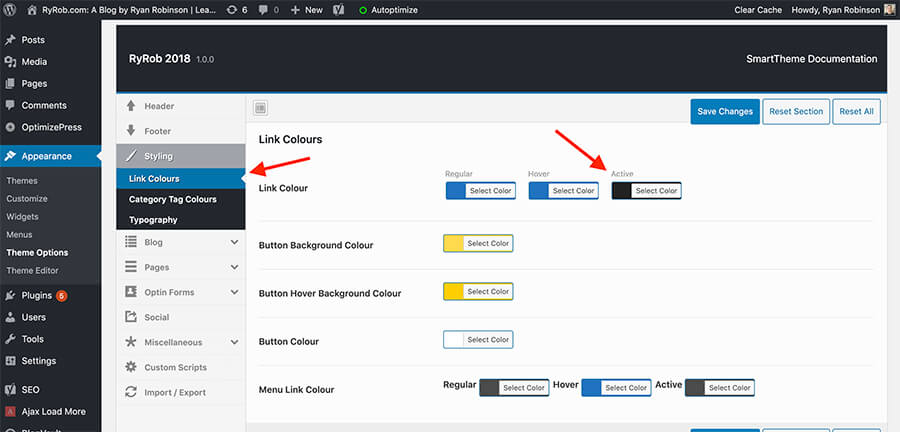
Credit: www.ryrob.com
Testing Changes
Previewing Changes is very important. It helps you see how the new colors look. Click the “Preview” button after making changes. This shows your site with the new font colors. You can decide if you like it. If not, change it again. Testing helps find the right look. It saves time later. Testing is fun. You get to try new things.
Ensuring Compatibility is also key. Make sure your changes work on all devices. Check your site on a phone, tablet, and computer. Some colors might look different on each. Use colors that are easy to read. Test your site on different web browsers too. This ensures everyone sees it well. Testing makes sure everything works for all.
Troubleshooting Issues
Changing the font color in a WordPress theme involves accessing the theme customizer. Use the “Additional CSS” option for specific adjustments. Ensure your changes enhance readability and aesthetic appeal.
Common Problems
Changing font color can be tricky. The theme settings might not work as expected. Sometimes, custom CSS doesn’t apply changes. Cascading style sheets can clash with other settings. Theme updates may reset changes. This can be frustrating. Plugin conflicts are common too. They interfere with color settings. Browser cache might need clearing. It sometimes shows old styles. Always check WordPress version compatibility. Some themes need updates.
Seeking Help
Help is available online. WordPress forums offer solutions. Many users share experiences. Theme developers provide support. They often fix bugs. YouTube tutorials guide step-by-step. Watching them can be helpful. Professional services are also available. They offer expert advice. Online guides explain CSS codes. They can teach you new tricks. Community support is valuable. Many users face similar issues. Ask questions and learn. It helps solve problems.
Credit: wpdatatables.com
Frequently Asked Questions
How Can I Change Font Color In WordPress?
To change font color in WordPress, access the Theme Customizer. Navigate to ‘Typography’ or ‘Colors’ section. Adjust the font color settings as desired. Use custom CSS for more flexibility. Remember to preview changes before saving to ensure compatibility with your theme.
What Plugins Help Change Font Color?
Plugins like ‘YellowPencil’ and ‘WP Customizer’ allow font color changes. They offer easy customization without coding. Install, activate, and follow the intuitive interface to change font colors. Always check compatibility with your current theme to avoid conflicts.
Can I Use Custom Css For Font Color?
Yes, custom CSS can change font color in WordPress. Go to ‘Appearance’ > ‘Customize’ > ‘Additional CSS’. Add CSS rules for specific elements or classes. Save changes and preview to ensure the desired effect. Custom CSS offers greater control over design elements.
Is Font Color Change Mobile-friendly?
Changing font color is mobile-friendly if done correctly. Ensure your theme supports responsive design. Test changes on mobile devices to confirm readability and aesthetics. Use contrasting colors for better visibility on smaller screens. Always prioritize user experience.
Conclusion
Changing font color in WordPress themes is straightforward. Start by accessing theme settings. Look for the typography section. Choose your preferred color. Preview changes before saving. Test on different devices. Ensure readability and visual appeal. Customizing font colors enhances your site’s uniqueness.
It reflects brand identity. Experiment with different shades. Find what suits your style. Make it consistent across pages. A unified look improves user experience. Remember, simplicity often works best. Avoid overwhelming color combinations. Keep it clean and professional. Happy designing your WordPress site!


