
Are you tired of the same old look on your WordPress website? Do you feel like your content deserves a fresh, new appearance to captivate your audience?
Changing the template within your WordPress theme could be the perfect solution. Imagine the excitement of your visitors as they explore a site that feels brand new, with a layout that enhances their experience and keeps them coming back for more.
You might think it’s a daunting task, but with the right guidance, it can be a breeze. You’ll discover simple, step-by-step instructions to effortlessly change your WordPress theme template. Get ready to unlock your website’s full potential and make a lasting impression on every visitor. Keep reading to learn how you can transform your site today!
Choosing The Right Template
Picking the correct template is very important. It changes the look of your site. Different templates offer unique designs and layouts. Each template has its own style and features. Some are simple, others are more detailed. Consider the purpose of your website. A business site needs a professional look. A personal blog might be more casual. Check if the template is easy to use. User-friendly templates save time. They make updating content easier. Look for templates that are responsive. They look good on phones and computers. Make sure the template supports all needed functions. This might include menus or galleries. Read reviews from other users. They share useful experiences. Reviews help in making a choice.
Accessing The WordPress Dashboard
First, log into your WordPress account. You need your username and password. After login, you see the dashboard. This is your control panel. It helps manage your site. Find the Appearance tab on the left. Click it to see options. Here, you can change themes and templates. Choose the Theme Editor for more changes.
Be careful when editing. Changes affect your site look. Always save your work. You do not want to lose it. Use the Preview button to see changes first. This helps avoid mistakes. If unsure, ask for help. There are guides online. Follow instructions step by step. This makes tasks easier.
Navigating To Theme Options
To change the template, start by logging into your WordPress dashboard. Find the sidebar on the left. Look for the “Appearance” option. Click on it. A menu will appear. Select “Themes” from this menu. This is where you can manage your themes.
Once in the Themes section, find the “Customize” button. It’s usually under the theme thumbnail. Click it to enter the theme customizer. You can now see the theme options available. These options let you adjust the look of your site. Explore these settings to find the template change options.
Remember to save changes after editing. Always preview before making changes live. This ensures everything looks right.

Credit: www.templatemonster.com
Exploring Template Options
WordPress themes come with different template options. Each template serves a unique purpose. For example, some templates are for blog posts. Others are for pages or archives. It is important to know which templates are available. This helps in choosing the right one. Go to your WordPress dashboard. Click on “Themes” and then “Editor”. Here, you can see all available templates.
Before making changes, preview the template styles. This gives an idea of how they look. You can do this in the WordPress editor. Click on a template to see its style. Check if the layout meets your needs. Look at the font and colors too. Make sure everything fits your website’s theme.
Activating A New Template
Choose a new template for your site. Start by going to the WordPress dashboard. Click on Appearance and then Templates. Look at the options available. Each template has different designs and features. Take your time to explore.
Selecting The Desired Template
Select the template you like best. Click on the template to see more details. You can view a preview of the template. This helps you decide if it fits your needs. Make sure the template is compatible with your theme.
Saving And Applying Changes
Once you’ve chosen, click the Activate button. This will make the template active on your site. Don’t forget to save your changes. You can find the save button at the top or bottom of the page. Your site will now have a fresh look.
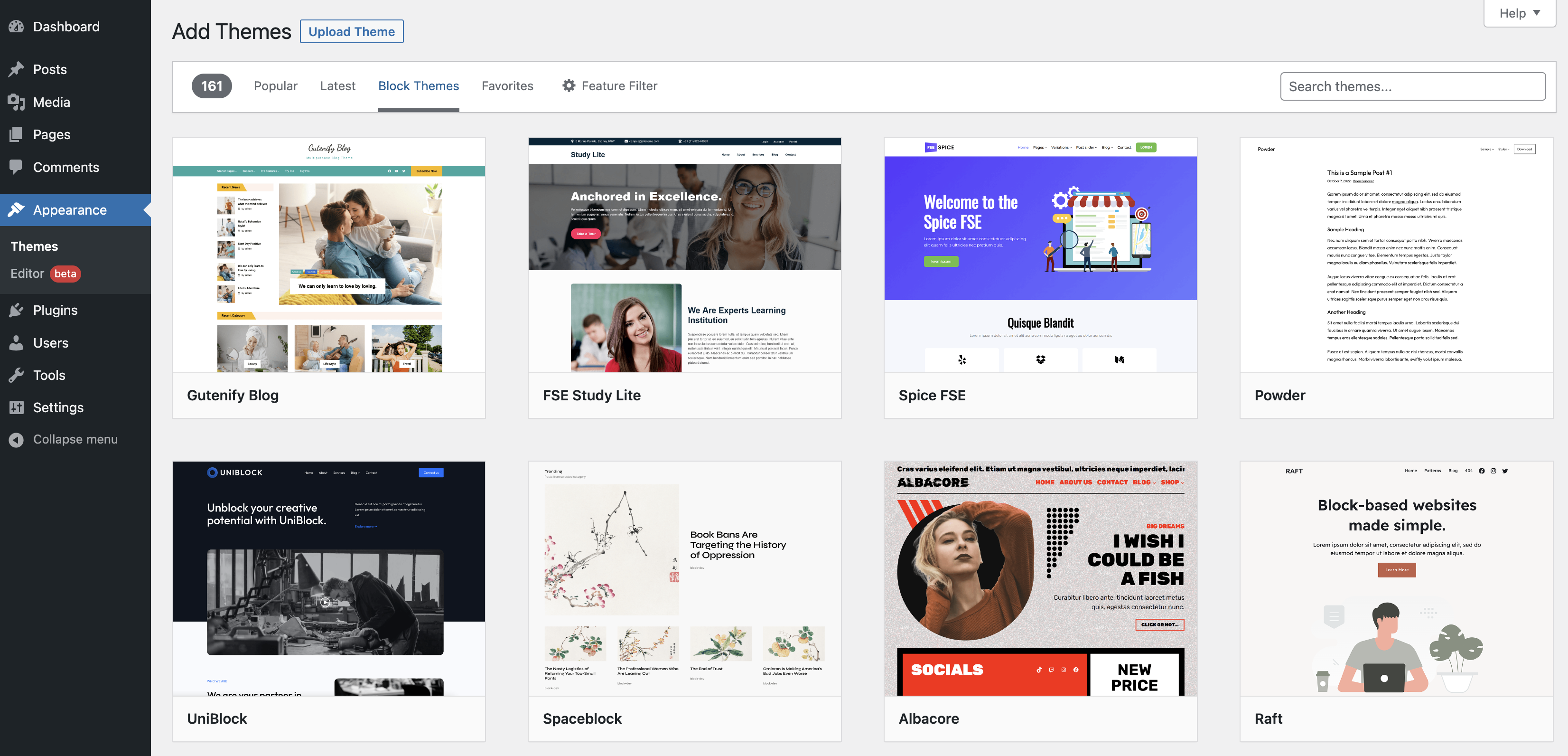
Credit: wordpress.org
Customizing The New Template
Start by opening your WordPress dashboard. Find the Appearance tab, then click on Customize. Here, you can see many settings. Choose the Layout option. It lets you change how your page looks. You can make it wider or narrower. Try different settings. See which one you like best. Remember, you can always go back. Don’t worry about mistakes.
Go back to the WordPress dashboard. Find the Widgets section. Click on it to open the widget area. You can add or remove widgets here. Widgets are small boxes. They show content on your site. Move them around to change their place. Try adding a new widget. Update your content to match the new template. Always save changes when done. This keeps your work safe.
Testing The New Template
Reviewing Site Appearance is fun and easy. Begin by viewing your site. Check for any changes in colors, fonts, and layout. Make sure all parts look good. A clean look helps readers. It makes your site more appealing. A nice design also makes reading easy.
Ensuring Functionality is very important. Check all links and buttons. Do they work? Click on them to see. Make sure the menus open. Ensure that forms can be filled out. If something is broken, fix it fast. A working site keeps visitors happy. They will stay longer. This means more people will see your content.
Troubleshooting Common Issues
Resolving display errors can be tricky. Themes might not show content well. Check if the template fits your theme. If elements overlap or disappear, this may be the cause. Try switching to a default template. This helps find if the error is in the custom template.
Restoring the previous template is simple. Go to your theme settings. Find the template section. Click on the previous template option. This restores the old design. If you can’t find it, check your backups. Regular backups save your work. They can help bring back old templates safely. Always make sure to backup before making changes.
Best Practices For Template Changes
Changing templates in a WordPress theme involves selecting a new layout that suits your site’s needs. Start by accessing the WordPress dashboard, navigate to Appearance, and choose Themes. Ensure your new template is compatible and preview changes before activating it for a seamless transition.
Backing Up Your Site
Backing up your site is very important. It keeps your data safe. Use a plugin to make backups easy. You can use plugins like UpdraftPlus. Save backups on the cloud for extra safety. Check your backups regularly to ensure they work. This way, you won’t lose any work if something goes wrong.
Regularly Updating Templates
Updating your templates keeps your site fresh. Use the latest templates for better features. They often have improved security. Always check for updates in your WordPress dashboard. Update plugins and themes at the same time. This helps prevent problems. Test your site after updates to ensure everything works.

Credit: wordpress.com
Frequently Asked Questions
How To Change WordPress Theme Template?
To change a template within a WordPress theme, access the WordPress dashboard. Navigate to Appearance > Editor. Select the desired template file from the list. Edit the code as necessary and save changes. Ensure to back up your site before making any modifications to avoid data loss.
Can I Customize WordPress Theme Templates?
Yes, you can customize WordPress theme templates. Use the WordPress Customizer for simple changes. For advanced edits, access Appearance > Editor. Modify template files using HTML, CSS, or PHP. Always back up your website before making changes to avoid any potential issues.
Are WordPress Theme Templates Interchangeable?
WordPress theme templates are not interchangeable across different themes. Each theme has its own unique templates. Switching themes may require customizing new templates to match your previous design. Always check theme documentation for compatibility and customization options.
What Tools Help In Editing Theme Templates?
Tools like WordPress Customizer, Appearance Editor, and plugin builders assist in editing templates. For advanced edits, use code editors like Atom or Visual Studio Code. Ensure you have backups before editing to prevent data loss and maintain site integrity.
Conclusion
Changing templates in WordPress themes is straightforward. Start by accessing your WordPress dashboard. Navigate to the Appearance section. Choose the Theme Editor option. Select the template you wish to change. Always save your changes. Preview your website to ensure it looks right.
Templates offer flexibility. You can adjust design without coding. Keep experimenting with different layouts. Find what suits your website best. Always remember to backup your site. Avoid losing data during changes. Regular updates maintain site security. Happy customizing!


