
Are you eager to customize your WordPress site and make it truly your own? Changing the footer credits in the Hestia WordPress theme is a simple yet powerful way to do just that.
Imagine a website that reflects your brand identity, without the generic footer credits that every other site has. In this guide, you’ll discover how to effortlessly tweak those footer credits to better suit your style and purpose. This isn’t just about aesthetics; it’s about making a statement.
By the end of this article, you’ll have the tools and confidence to make your website stand out. Ready to take control and add a personal touch to your site? Let’s dive in!
Credit: www.seedprod.com
Understanding Hestia Theme Structure
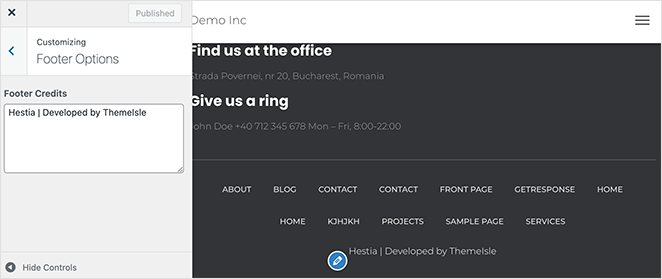
The Hestia theme has a unique design. It uses a flexible layout and is easy to modify. The footer is part of this layout. You can change the footer credits. This requires a few steps. Start by accessing the WordPress Dashboard. Go to Appearance and select Customize. Here, you can see different sections.
The footer section is at the bottom. Click on it to edit. Look for the footer credits option. You can type your own text here. After editing, click Save & Publish. This updates the footer on your site. It’s an easy way to personalize your theme. With these changes, your website looks unique.
Locating Footer Credits
Finding footer credits is easy. Start by accessing the WordPress dashboard. Look for the Appearance tab. Click on it. Then select Customize. This opens the theme options. Locate the Footer section. Footer credits are here. Some themes hide credits in code. Check the Additional CSS section. Sometimes, you may need to use Theme Editor. This requires caution. Editing code can break your site. Always backup before editing.
Using Theme Customizer
Start by logging into your WordPress dashboard. Find the Appearance option in the menu. Click on it. You will see the Customize option. Click on Customize. The theme customizer will open. It lets you make changes to your site.
In the customizer, look for Footer Settings. It may be under different menus. Sometimes, it is under Layout or General. Click on the footer settings. You can now change the footer text.
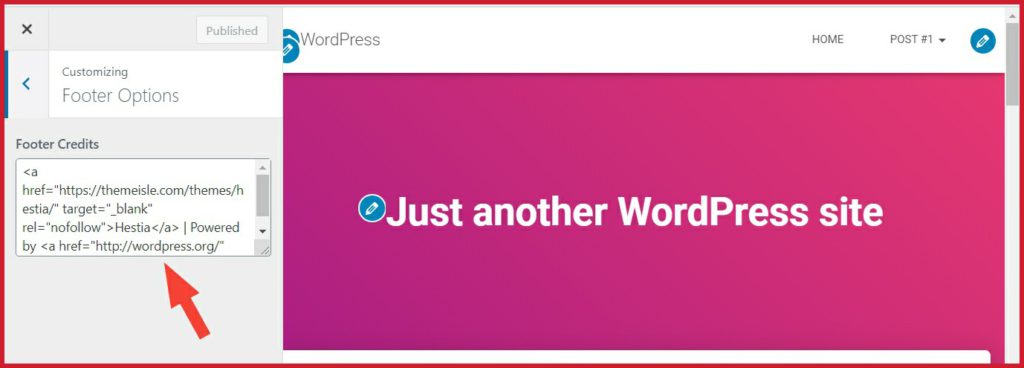
Find the option to edit footer text. It may be labeled as Footer Credits or Footer Content. Click on it. Type your new footer credits. Make sure they are correct. Save your changes. Your new footer text will appear on the site.
Editing Footer Via Theme Files
Easily change footer credits in the Hestia WordPress theme by editing the theme files. Locate the footer. php file in your theme’s directory. Make your desired changes, then save and upload the file to see your updates live.
Accessing Theme Editor
Open your WordPress dashboard. Find the Appearance tab. Click on Theme Editor. A new page will open. Here, you can see many theme files. Be careful while editing. Mistakes can break your site.
Identifying Footer File
Look for footer.php in the theme files. It’s usually on the right side. Click to open it. This file controls the footer area. Find the part that mentions credits. It might include text like “Powered by WordPress”.
Modifying Footer Credits Code
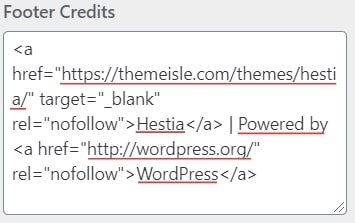
Locate the footer credits in the code. Remove the existing text. Add your own words. Keep it short and simple. After editing, click Update File. Check your site. Make sure the changes are correct. Errors can cause problems.
Using Child Theme For Customization
Create a child theme to modify footer credits in the Hestia WordPress theme. This keeps your changes safe during updates. Customizing the footer becomes easy and hassle-free with this method.
Creating A Child Theme
A child theme lets you change the parent theme without losing updates. Make a new folder in the themes directory. Add a style.css file and a functions.php file. In style.css, write the theme name and template details. Include the parent theme’s styles in functions.php.
Overriding Footer File
Copy the footer.php from the parent theme to the child theme. This allows you to change the footer credits. Edit the copied footer.php file to add your own text. Save your changes.
Ensuring Changes Are Update-proof
Updates can overwrite changes. Using a child theme protects your modifications. Always test your site after updates. Check if the footer text remains unchanged. If not, reapply your changes.
Credit: webplover.com
Employing Plugins For Footer Customization
Choosing the right plugin is important. Search for plugins that help change footers. Many plugins are free. Some popular ones are “Customizer” and “Footer Putter”. Read reviews before downloading. Always check the compatibility with the Hestia theme.
After installing the plugin, configure the settings. Open the plugin dashboard. Follow the simple steps. Look for a section named “Footer Settings”. You can see options to edit the footer credits. It’s easy to make changes. Save your settings after editing.
Next, update the footer credits. Navigate to the footer section. You will find text boxes to enter new credits. Remove the old credits. Type your new footer message. Ensure it looks good on your website. Revisit the site to verify the changes.
Best Practices For Footer Customization
SEO is very important in footer changes. Use relevant keywords in the footer. This helps in better search rankings. Keep the footer simple and clean for easy navigation. Avoid stuffing too many links or text. It can confuse visitors and affect SEO.
Design consistency is key. Match the footer with your site’s style. Use the same colors and fonts. This keeps the site looking neat. Visitors feel more at ease when everything matches well.
Regular updates are a must for themes. Themes get updates for better features. Make sure to update the Hestia theme often. This keeps your site secure and smooth. Updated themes also improve site speed.
Credit: webplover.com
Frequently Asked Questions
How To Access Hestia Footer Settings?
To access Hestia footer settings, go to your WordPress dashboard, then navigate to Appearance > Customize. From there, select the Footer section to edit credits. This section allows you to change text, add widgets, or customize styles. Ensure your changes are saved before exiting the customization menu.
Can I Use Custom Code In Hestia Footer?
Yes, you can use custom code in Hestia footer. Access the WordPress dashboard, navigate to Appearance > Theme Editor, and locate the footer. php file. Insert your custom code carefully. Always back up your theme files before making modifications to prevent errors or data loss.
How To Remove Footer Credits In Hestia?
To remove footer credits in Hestia, go to Appearance > Customize in your WordPress dashboard. Find the Footer section and delete or modify the existing credits text. Alternatively, use custom CSS to hide credits if the option is unavailable. Save changes once you’re satisfied with the edits.
Is A Child Theme Necessary For Footer Changes?
Creating a child theme is advisable for footer changes. It prevents loss of modifications during theme updates. You can create a child theme manually or use plugins like Child Theme Configurator. Once set up, make changes in the child theme’s footer.
php file to ensure customizations are preserved.
Conclusion
Changing footer credits in Hestia is simple and effective. Follow the steps provided above carefully. Customize your website to reflect your brand. Make sure to save your changes. Your website will now have a personalized touch. Remember, small tweaks can enhance your site’s appearance.
Consistent branding builds trust with your audience. Explore more customization options for your theme. Regular updates keep your site fresh and engaging. Keep learning to improve your WordPress skills. Happy customizing!


