
Have you ever felt that your website needs a fresh look but you’re not sure where to start? If you’re using the Aadya WordPress theme, you’re in luck.
Changing the design in Aadya is easier than you might think, and it can breathe new life into your website, attracting more visitors and keeping them engaged. Imagine the excitement of your audience when they land on a beautifully designed page that reflects your brand perfectly.
In this guide, you’ll discover step-by-step instructions to transform your site’s design effortlessly. Get ready to captivate your audience and enhance your online presence with just a few clicks. Stay with us, and let’s unlock the potential of your website together.
Getting Started With Aadya Theme
Begin by installing the Aadya Theme on your WordPress site. It’s user-friendly. Access the dashboard easily. Find the ‘Appearance’ tab. Click it. Then select ‘Themes’. You will see many options. Choose Aadya. Click ‘Activate’. Your website now uses Aadya.
Explore customization options. Select ‘Customize’ under ‘Appearance’. Change colors and fonts here. Adjust the layout. Make it your own. Save changes often. Check your site. See new designs instantly.
Use widgets for extra features. Add them from the ‘Widgets’ section. Drag and drop where needed. Enhance your site’s look. Let Aadya theme make your website pretty and neat.
Customizing Theme Settings
To change the design, first go to the WordPress Dashboard. Find the “Appearance” tab. Click on it. Then, select “Customize”. This opens the Customizer. Here, you can change theme settings. The Customizer is easy to use. It shows changes in real-time. You can see how your site looks before saving.
In the Customizer, explore General Appearance Options. You can change colors. Choose new fonts. Adjust the layout. Make your site look unique. Change header images. Use background images. All changes are simple. Just click and select. Save changes when you are happy. Your site will look fresh and new.
Modifying Header Design
Easily change the header design in Aadya WordPress Theme with user-friendly tools. Customize colors, fonts, and layout to create a unique look. Enhance your site’s appearance with just a few clicks.
Logo And Title Adjustments
Start by selecting your logo file. Make sure it looks clear. Upload your chosen logo into the theme’s settings. Then, type your site title in the text box. Adjust the size if needed. Keep the title simple and easy to read. Choose a color that matches the logo. You want everything to look nice together. Make sure it all fits well in the header space.
Navigation Menu Styling
Pick a color for your menu that stands out. Users should see it easily. Choose a font that is clear. Try Arial or Verdana. The font size should be big enough to read. Not too big, though. Add space between the menu items for clarity. Ensure the menu links work well. Test them to be sure. This helps visitors find what they need quickly.
Adjusting Footer Layout
The footer area can have different designs. You can add or remove widgets. Widgets are small boxes that show information. They can be a search box, recent posts, or calendar. Go to the WordPress dashboard. Click on Appearance, then Widgets. Choose the widget you like. Drag it to the footer area. Arrange them as you want.
Footer text gives important details. It can include contact info or copyright text. Go to Appearance and click Customize. Find Footer Settings. Edit the text you want. Add links to social media too. Make sure links work well. Save your changes. The footer should look neat and useful.
Changing Color Schemes
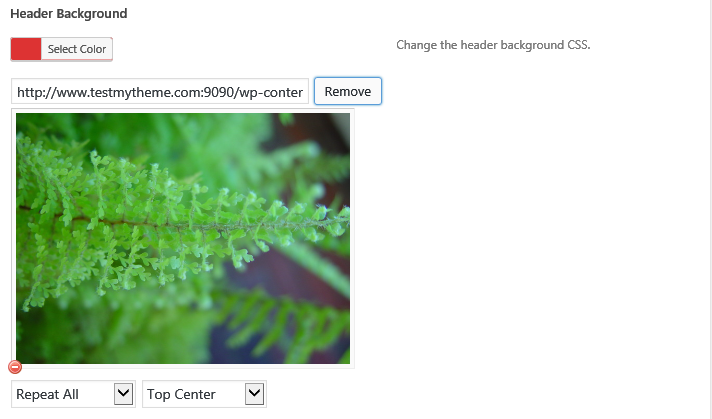
Colors make your site look nice. Use the Aadya Theme to pick colors. Start by going to the theme settings. Find the Color Palette section. Click to see color options. Choose colors you like. Play with different options. See how they look on your site. Bright colors make it pop. Soft colors feel calm. Pick colors that match your style.
You can change each part of your site. Change the header color. Change the footer color. Go to the Custom Color Settings. Click the part you want to change. Pick a new color. Watch it change on your site. Make sure all colors look good together. Check the text color too. It should be easy to read. Have fun making your site look great!
Credit: www.opencodez.com
Typography Customization
Choose a font that fits your style. Aadya theme offers many options. Select from serif, sans-serif, or cursive fonts. Each font gives a different feel. Serif fonts are great for formal sites. Sans-serif fonts look clean and modern. Cursive fonts bring a creative touch.
Adjust text size for easy reading. Smaller sizes fit detailed info. Larger sizes catch attention. Bold text can highlight important words. Use italic style for special emphasis. Change line spacing for better readability. Keep text simple and clear. Your design will look professional and tidy.
Page Layout Options
Choosing between full-width and boxed layouts can change the look of your site. Full-width spreads content across the entire screen. Boxed layout keeps content centered with margins. Full-width is good for modern and clean designs. Boxed layout is great for organized and classic looks. Both options affect the feel of your website. Decide based on what suits your content best. Consider space and design style.
Sidebars can be placed on the left or right side of the page. Left-side is traditional and easy for reading. Right-side is modern and offers a fresh look. Sidebars hold important links and info. They help users navigate your site. Choose a position that fits your design. Think about user experience and ease of use. Remember, sidebars are key in guiding visitors.
Credit: wjpitch.com
Incorporating Custom Css
Easily update your Aadya WordPress Theme’s look by adding custom CSS. This allows for unique style adjustments. Customize fonts, colors, and layouts to match your vision.
Accessing The Css Editor
You can find the CSS Editor in the WordPress dashboard. Navigate to the Appearance section. Select the Customize option. Click on Additional CSS. This opens the CSS Editor. Here, you can add your own styles. Make changes to how your site looks. Remember to save your changes.
Best Practices For Css Modifications
Before changing anything, make sure to back up your current styles. This helps in case something goes wrong. Use clear and simple CSS rules. This makes your code easy to understand. Test your changes on different devices. Ensure your site looks good everywhere. Use comments to explain your code. This helps others understand your work. Keep learning about new CSS techniques. Stay updated with trends. Make your site look fresh and modern.
Using Theme Widgets
Widgets make your site look better. They add features easily. Go to the WordPress Dashboard. Find the Appearance section. Click on Widgets. To add a widget, drag it to the Sidebar area. To remove, drag it back. Simple and quick!
Change how widgets look in the Customize section. Click on Appearance, then Customize. Look for the Widget options. Here, change colors, fonts, and sizes. Make your site unique. Keep it fun and easy to read.
Implementing Advanced Features
Plugins make WordPress exciting. They add features to your site. Many plugins work with Aadya theme. Choosing the right plugin matters. Select ones that match your design goals. Compatibility is key. Check if the plugin works with your theme. Some plugins improve site speed. Others add new tools. Always update plugins. Keep them fresh and secure.
Dynamic content makes your site lively. Changes happen fast. Use widgets for dynamic sections. They let you add fun parts like slideshows. Widgets are easy to manage. Drag and drop them. Dynamic options can include rotating banners. These keep visitors engaged. Choose vibrant images. Fresh content attracts more views. Plan content updates often. Keep your site vibrant and interesting.

Credit: southjewellery.com
Frequently Asked Questions
How Do I Change The Design In Aadya Theme?
To change the design, navigate to Appearance > Customize in your WordPress dashboard. Use the built-in theme options to adjust colors, fonts, and layout. You can also use custom CSS for more advanced tweaks. Always preview changes before publishing to ensure compatibility.
Can I Customize Aadya Theme Without Coding?
Yes, Aadya theme offers user-friendly customization tools. Use the WordPress Customizer to change colors, fonts, and layouts. The theme options panel provides easy-to-use settings. For more complex changes, consider using plugins that offer additional customization features without coding.
What Are The Design Options In Aadya Theme?
Aadya theme provides various design options including color schemes, font styles, and layout choices. You can customize the header, footer, and sidebar. Use the Customizer to preview changes live. The theme supports responsive design, ensuring your site looks great on all devices.
Is Aadya Theme Responsive?
Yes, Aadya theme is designed to be fully responsive. It adjusts seamlessly across different devices and screen sizes. This ensures optimal user experience on desktops, tablets, and smartphones. Always test your design changes on multiple devices to maintain responsiveness.
Conclusion
Changing design in the Aadya theme is simple. Start with the customizer. Explore color options. Adjust fonts to match your style. Use widgets for functionality. Add images for visual appeal. Preview changes before saving. This theme offers flexibility. Make your website unique.
Keep experimenting with features. You’ll soon master the basics. Don’t hesitate to try new designs. Practice makes perfect. Your creativity will shine. Watch your website transform. Enjoy the process. Share your results with others. Your vision will inspire. Happy designing with Aadya!


