
Are you struggling to read the menu on your website because the font size is just too small? Or maybe you’re looking to give your site a fresh look with a larger, bolder menu font?
Whatever the reason, changing the menu font size in the Vantage WordPress Theme is easier than you might think. You don’t need to be a tech guru to make this simple yet impactful change. In this guide, you’ll discover straightforward steps to adjust the menu font size to suit your needs perfectly.
By the end of this article, you’ll not only enhance your website’s readability but also elevate your visitor’s experience. Ready to make your menu pop and keep your audience engaged? Let’s dive in and transform your website together!
Accessing WordPress Dashboard
First, log in to your WordPress account. Use your username and password. Then, find the Dashboard on the left side. Click on it. The dashboard is your control center. You see many options here.
Look for Appearance in the menu. Click on it. A dropdown will appear. Choose Customize. This is where you can change settings. Next, go to Menus or Typography.
Find font size settings here. Adjust the size as you like. Make sure to click Save when done. Your menu font size is now changed.
Navigating To Theme Customizer
Start by opening your WordPress dashboard. Find the Appearance option on the left menu. Click on it to see more choices. Select Customizer from the list. The Theme Customizer will open on your screen. Look for the Typography tab. It might be under “Theme Settings.” Click on Typography to make changes.
Spot the Menu Font option. This is where you change the font size. Adjust the font size by using the slider. Try different sizes to see what looks best. Watch how your menu changes as you adjust. Don’t forget to click Save or Publish once done. This keeps your changes.
Locating The Additional Css Section
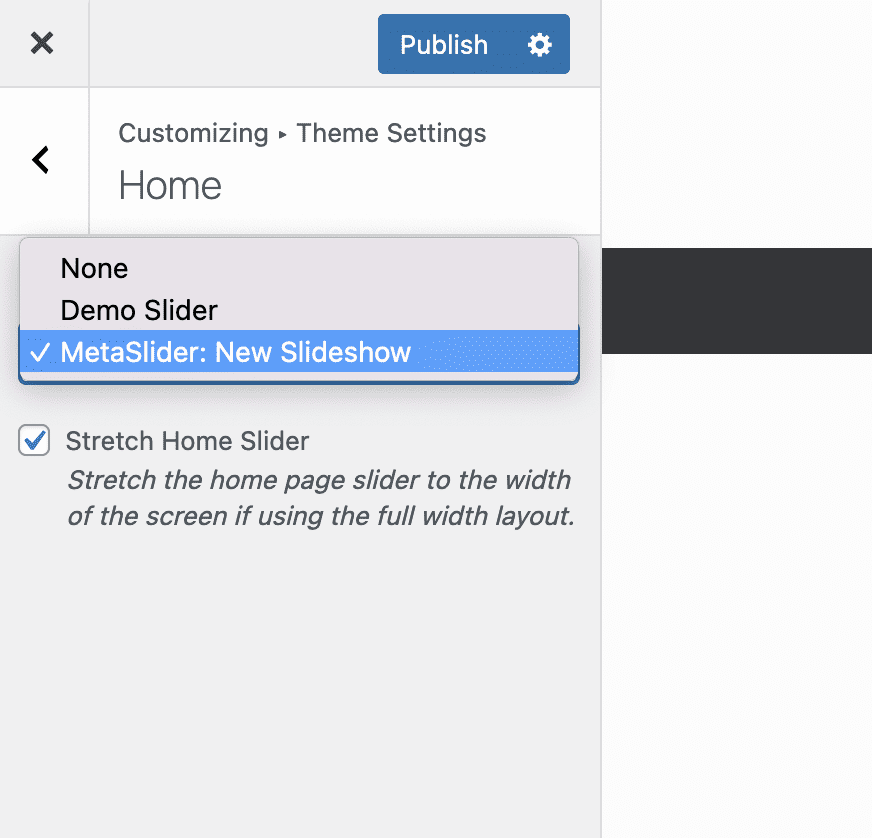
First, open your WordPress dashboard. Find the Appearance option on the left. Click it. Next, select the Customize option. This opens the theme customizer. Look for the Additional CSS section. It might be at the bottom. Click it to open the CSS editor.
In this space, you can type your own CSS code. To change the menu font size, you need to add some code here. Be careful. Type the code exactly. Mistakes can cause problems. This step is important. It gives you control over your menu’s look.
Credit: www.metaslider.com
Identifying The Menu Font Css
Changing the menu font size starts with finding the right CSS. CSS controls how the menu looks. To find it, open your WordPress dashboard. Go to Appearance and then Customize. There, you will see Additional CSS. Click on it. Here is where you will add your custom CSS.
Look for the menu class in the theme. It might be called something like .main-navigation. Use Inspect Element in your browser. Right-click on the menu and choose Inspect. The browser will show the CSS class. This helps you know which CSS to change.
Once you have the right class, you can change the font size. Add font-size property. Use pixels (px) to set the size. This will make your menu text larger or smaller. Save your changes and check your site. The menu should look different now.
Modifying Font Size Code
Changing the font size in Vantage theme is easy. First, find the right size. A font size that is too big or too small can look bad. A good size helps readers see the menu clearly. Choose a size that fits your website style. It should be easy to read. Think about how your menu looks on mobile and desktop screens. Different devices need different sizes.
Make changes to the CSS code. CSS helps you control how your menu looks. Find the CSS file in your WordPress dashboard. Look for menu font settings. Change the font size code to your chosen size. Test your website after making changes. See if the menu looks good. Adjust if needed for a better look.
Previewing Changes
Changing the menu font size is easy with the Vantage theme. First, open your WordPress dashboard. Go to Appearance and then click on Customize. In the customize section, find the Typography option. Here, you can adjust the menu font size. Use the slider or enter a number to change it.
After making changes, preview them instantly. Click the Preview button. This will show how your site looks with the new font size. If you like it, click Publish. If not, you can make more changes. Always check your changes before publishing. This helps keep your site looking great.
Remember, a good font size improves readability. It makes navigation easier for everyone. So, take your time and choose the best size for your site.
Publishing Updated Font Settings
Save your changes to the menu font size. Click the publish button. This makes the new font size live on your site. Check if the menu looks good. Sometimes, you may need to adjust more. Look at the menu on different devices. Make sure it is easy to read. If needed, go back and change the settings again.
Visit your website. See the updated menu font. Ask friends to look at it too. Feedback can help improve the design. Always aim for clear and readable fonts. The right size makes the menu user-friendly. Enjoy your new menu look!
Credit: siteorigin.com
Troubleshooting Common Issues
Adjusting the menu font size in the Vantage WordPress theme involves accessing the theme settings. Navigate to Appearance, then Customize, and find the Typography section to modify font size. This allows you to tailor the visual aspect of your site effortlessly.
Changes Not Visible
Sometimes, changes are hard to spot. Clear the browser cache. This helps see updates. Refresh the page. Check if the menu font size is different. Re-save settings in the theme customizer. This can make changes stick. Use another browser to test results. This shows if the issue is browser-based.
Overriding Plugin Conflicts
Plugins can cause conflicts. Deactivate plugins one by one. This helps find the problem plugin. Once identified, check for updates. Update the problematic plugin. This might fix conflicts. If issues continue, seek help. Contact the plugin developer. They may offer solutions. Always back up your site before making changes.
Additional Customization Tips
Explore the appearance settings to adjust the menu font size in the Vantage WordPress theme. Use custom CSS for precise changes, enhancing readability and style. Ensure a consistent look across different devices by checking responsive design options.
Exploring Font Styles
Changing font styles can give a fresh look. Try different font families. Some popular ones are Arial, Verdana, and Times New Roman. Each font style gives a unique feel. Make sure the font is easy to read. Test on different devices. This ensures good visibility everywhere. You can also adjust font weight. This makes the text bold or light. Experiment with italic or underline styles too. These styles can highlight important words. Remember, too many styles might look messy.
Using Child Themes
Child themes help you save changes. They keep your main theme safe. First, create a child theme folder. Add a style.css file inside. This file holds your changes. Use it to adjust font sizes. You can also change other styles here. Child themes stop updates from erasing changes. They are easy to set up. Many guides are available online. Use them to learn more. Make sure your changes are minimal. This ensures a clean and fast site.
Credit: beautifulthemes.com
Frequently Asked Questions
How Do I Access Vantage Theme Settings?
Access Vantage theme settings through WordPress dashboard. Navigate to Appearance > Customize. From there, you can adjust various theme settings including font size, colors, and layout. This area allows you to make visual changes without touching any code.
Can I Change Menu Font Size In Vantage?
Yes, you can change the menu font size in Vantage. Go to Appearance > Customize > Menu. Adjust the font size under Typography settings. This helps customize the look and feel of your site’s navigation menu to suit your preferences.
Where To Find Font Options In Vantage Theme?
Font options in Vantage theme are located under Appearance > Customize > Typography. Here, you can adjust sizes, styles, and other font settings. This section allows you to tailor your website’s text appearance to match your branding requirements.
Is Coding Needed To Change Font Size?
No coding is needed to change font size in Vantage theme. Use the Customize section under Appearance to make changes easily. This user-friendly interface allows adjustments without requiring technical expertise.
Conclusion
Changing the menu font size in Vantage WordPress theme is simple. Follow the steps to ensure your site looks great. Adjusting font size enhances readability and user experience. It’s a small tweak that makes a big impact. Now, your site visitors will find navigation easier.
Customize your website to match your vision. It takes just a few minutes. You don’t need coding skills for this task. Experiment with different sizes for the best fit. Remember to save your changes. Enjoy your updated website design with improved font visibility.
Happy editing!


