
Are you looking to give your WordPress site a fresh new look? Adding theme details to your WordPress can transform your website’s appearance and functionality, making it more appealing to visitors.
But where do you start, and how can you ensure everything goes smoothly? In this guide, you’ll discover simple and effective steps to seamlessly add theme details to your WordPress site. Imagine the satisfaction of seeing your site come to life with just the right touch of style and customization.
You’ll find out how to do it all without any technical hassle. Ready to dive in and create a stunning website that stands out? Keep reading to find out how you can easily enhance your WordPress site today.
Choosing A Theme
Free themes cost nothing. They are great for beginners. But some lack features. Premium themes offer more. They come with better support. They often look more professional. These themes usually get updates. This helps keep your site secure.
Think about your needs. A simple blog may do well with a free theme. A business site might need a premium one. Price can be a big factor. But remember, you get what you pay for. Choose wisely. Consider your budget and site goals.
Theme design is key. It should match your site’s purpose. Check if it’s responsive. This means it looks good on all devices. Speed matters too. A fast theme keeps visitors happy. Also, look at customization options. Can you change colors and fonts?
Check reviews before choosing. Others’ experiences can guide you. Try a demo if possible. See how it feels. Make sure it supports your needed plugins. This will save time later. Your theme should also be SEO-friendly. This helps with search rankings.
Installing A Theme
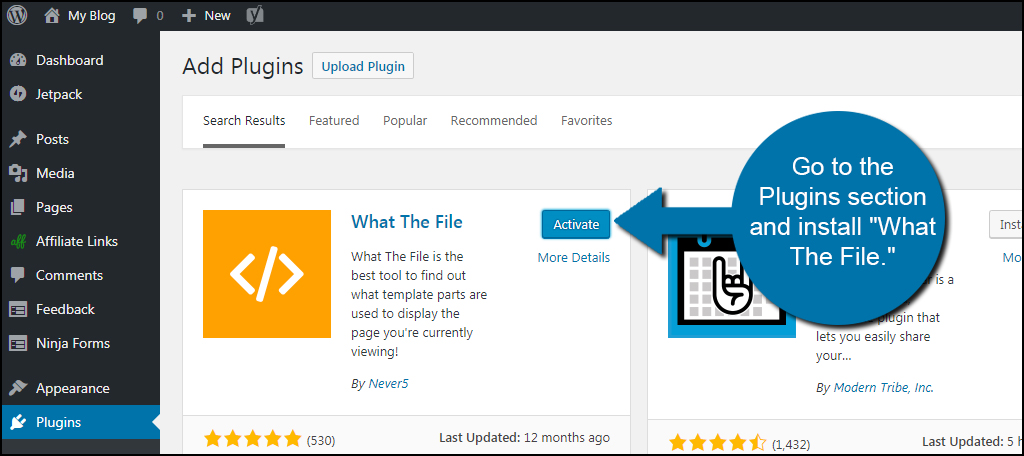
Find the theme you like in the WordPress Repository. Click on “Install” to add it to your site. After installing, press “Activate” to use the theme. Themes from the repository are safe. They get updates regularly. Follow these steps, and your site will look new.
Download the theme file from a trusted source. Go to your WordPress dashboard. Click on “Appearance” and then “Themes”. Choose “Add New” and then “Upload Theme”. Select the theme file from your computer. Click “Install Now”. Once installed, click “Activate” to use it. This way you can add custom themes.
Customizing Your Theme
To make your site unique, visit the Appearance tab in WordPress. This area lets you access the Theme Customizer. It’s a tool for changing your site’s look. You can change colors, fonts, and more. Make sure to save your changes after editing.
Explore various options to change your theme’s style. You can tweak the header and footer. Adjust the layout to fit your needs. Don’t forget to preview changes. This helps you see the effects before making them live. Remember, each theme has different options. Take your time to explore them.
Credit: www.greengeeks.com
Adding Theme Details
The style.css file is important in WordPress themes. It contains theme details. These details help your site recognize the theme. You will see lines with Theme Name, Theme URI, Author, and Version. Each line tells something about the theme.
To change the details, open the style.css file. Find the lines you need. Then, update with new information. Save your changes after editing. This will update your theme details. It is easy to do. Make sure the details are correct.
Theme metadata gives information about the theme. It helps users know who made it. Also, they can see the theme’s version and description. Metadata is usually found at the top of style.css. It starts with comments. Comments start with a slash and an asterisk (/) and end with an asterisk and a slash (/).
You should not remove these comments. They are important for WordPress. Always keep metadata updated. It helps users trust the theme.
Using Child Themes
A child theme is a copy of a parent theme. It lets you make changes without touching the main theme. You need two files to start: style.css and functions.php. The style.css file has theme information. The functions.php file lets you add functions.
Use a text editor to create these files. Put them in a new folder. Name the folder after your child theme. The child theme folder goes into wp-content/themes. Activate the child theme in your WordPress dashboard.
Child themes are very safe for updates. You keep your changes even if the parent theme updates. This means you can update without worry. They also help in learning. You can test small changes and see results. It’s a great way to understand WordPress themes.
Customizing is much easier. You change only what you need. It saves time and effort. Bugs are less likely. If something breaks, only the child theme is affected. You can fix it easily.
Credit: easywpguide.com
Testing Theme Functionality
A theme must look good on all devices. Check your theme on a phone. Then, check it on a tablet. Does it fit well? Text should be clear. Images should not be cut off. Use the browser’s developer tools. They help you see how the site looks on different screens.
Your theme should work on all browsers. Test it on Chrome. Test it on Firefox too. Don’t forget Safari and Edge. Each browser can show your site differently. Make sure all links and buttons work. CSS and JavaScript should look good everywhere. If something breaks, fix it quickly.
Troubleshooting Common Issues
Adding WordPress theme details often leads to confusion. Navigate through the dashboard, select “Appearance,” then “Themes. ” Enter theme details by clicking “Theme Editor. “
Resolving Installation Errors
Installation errors can be frustrating. Ensure the theme file is compatible with your WordPress version. Check if your file is a .zip. Download the theme again if it is not. Verify your server settings. They should allow large files. Sometimes, the issue is a plugin conflict. Deactivate all plugins. Reactivate them one by one. Find the problem plugin. Once identified, look for updates. If issues persist, contact theme support. They can help. Keeping themes and plugins updated prevents issues.
Fixing Display Problems
Display problems can affect your site’s look. First, clear cache. This often resolves display issues. Check your theme’s customization settings. A wrong setting might cause the problem. Ensure your theme is responsive. Mobile users should see the site well. Sometimes, broken display is due to CSS errors. Verify your styles. Use browser developer tools for this. If unsure, consult your theme’s documentation. It often provides solutions. Keep your WordPress and theme up-to-date. Updates fix display issues.

Credit: wpmarmite.com
Frequently Asked Questions
How Do I Find Theme Details In WordPress?
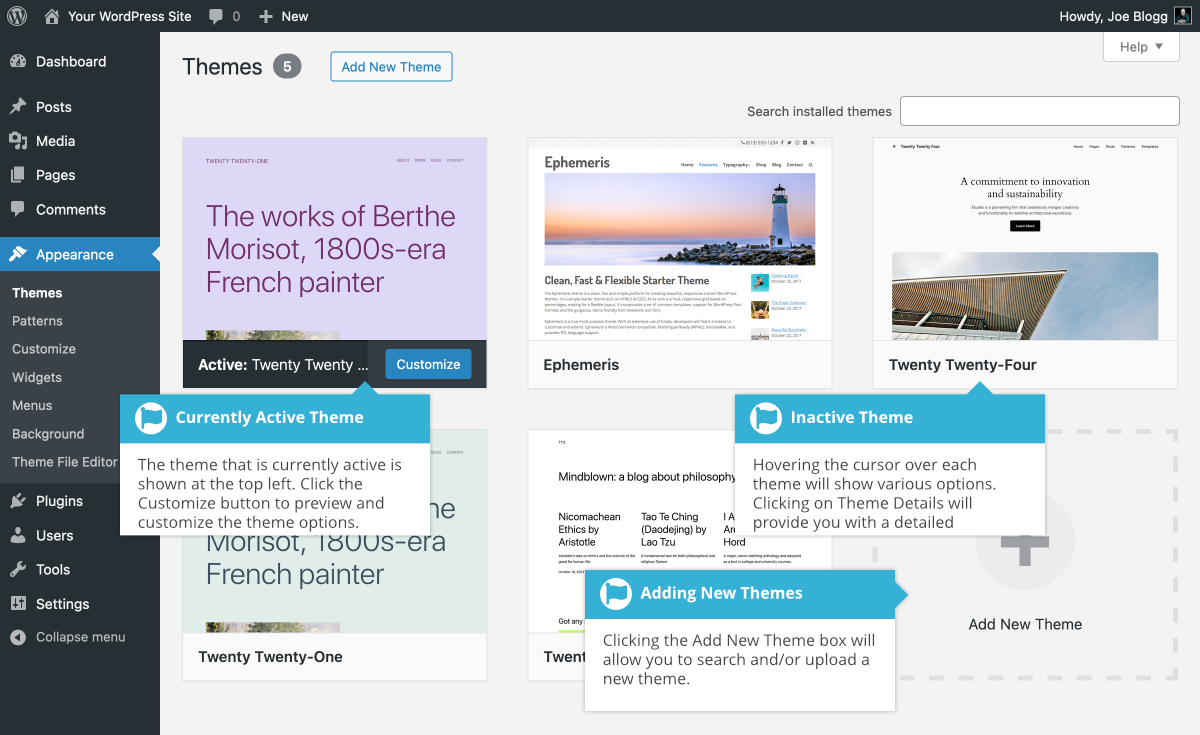
To find theme details, navigate to your WordPress dashboard. Click on ‘Appearance’ and then ‘Themes. ‘ Hover over the active theme and click ‘Theme Details. ‘ You will see information like version, author, and description. This helps you understand the features and compatibility of your theme.
Can I Edit Theme Details In WordPress?
Yes, you can edit theme details by accessing the theme’s files. Navigate to ‘Appearance’ and click ‘Theme Editor. ‘ Find the style. css file. You can modify details like author, version, and description here. Ensure you have a backup before editing to prevent potential issues.
What Are WordPress Theme Details?
WordPress theme details include the theme’s name, version, author, and description. These details help users identify the theme’s features and compatibility. They are located in the style. css file of your theme. Understanding these details ensures you choose a suitable theme for your site.
Why Are Theme Details Important?
Theme details are crucial for understanding a theme’s features and compatibility. They provide information about the developer, updates, and theme functionalities. This helps you make informed decisions when selecting or updating themes, ensuring your site remains functional and secure.
Conclusion
Adding WordPress theme details can enhance your website’s appeal. It’s important to choose a theme that aligns with your brand. Ensure the theme is responsive for all devices. Customize the theme to suit your style. Check if the theme is SEO-friendly to boost visibility.
Regularly update your theme to stay secure and relevant. Always back up your site before making changes. With these steps, your WordPress site will be unique and functional. Enjoy the process and create a site you love.


