
Are you ready to transform your WordPress site into a visually stunning masterpiece? Adding themes to your pages can make all the difference.
Imagine your website standing out, capturing attention with its unique and captivating design. Whether you’re a seasoned WordPress user or just starting out, learning how to add themes is a game-changer. It’s like giving your site a fresh coat of paint, making it more inviting and engaging for your visitors.
In this guide, we’ll walk you through the simple steps to effortlessly install and customize themes on your WordPress pages. Get ready to unleash your creativity and watch your website come to life!
Choosing A WordPress Theme
Choosing the right theme is important. It affects your site’s look. Consider how responsive the theme is. It should work on all devices. Check if the theme is easy to customize. You might want to change colors and fonts. Look at the ratings and reviews. A good theme has many happy users. Make sure the theme gets regular updates. This keeps it safe and fast. Also, check if the theme is SEO-friendly. This helps your site rank better on search engines.
There are many themes to choose from. Astra is fast and simple. It works well with page builders. OceanWP offers many features. It is great for ecommerce sites. Neve is lightweight and loads quickly. It is easy to use with WordPress. Hestia has a modern design. It is suitable for small businesses. GeneratePress is another fast theme. It is known for its simplicity and speed.
Credit: wordpress.org
Installing A Theme From The Dashboard
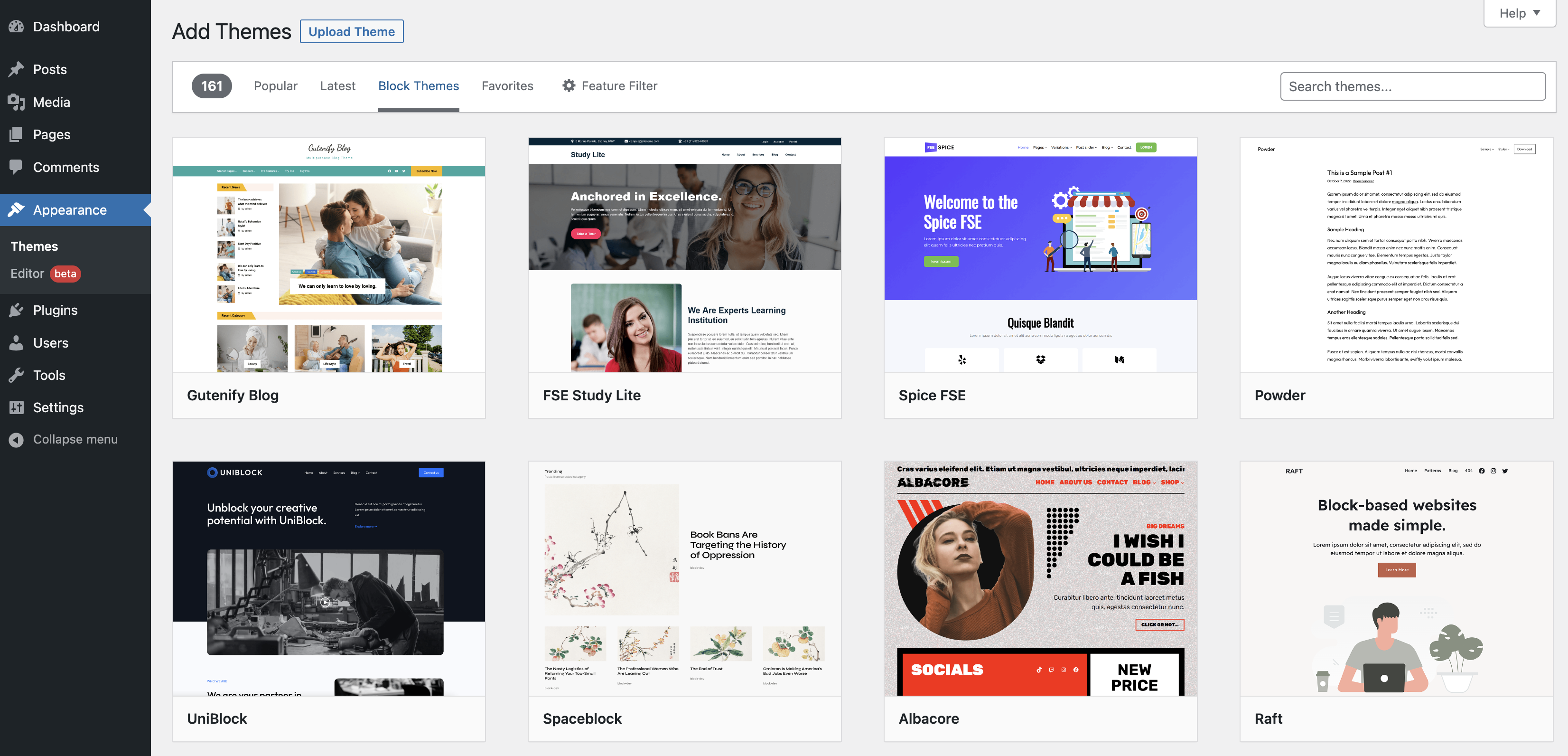
Open your WordPress dashboard. Find the Appearance menu on the left. Click on it. Select Themes. This section lets you browse and change themes. The dashboard is easy to use.
Within the Themes section, look for Add New. Click on it. A variety of themes will appear. You can search by name or filter by features. Choose a theme you like. Use the preview option to see it in action.
After choosing a theme, click Install. Wait for the installation to finish. Once installed, click Activate. Your new theme will now be live. Enjoy your new look!
Uploading A Theme Manually
Installing a theme manually on WordPress lets users personalize their pages easily. Start by downloading your chosen theme file. Upload the file via the WordPress dashboard under “Appearance” and “Themes,” then activate it to transform your site’s design.
Downloading A Theme
Find your desired theme on the internet. Click on the download button. Save the theme file to your computer. Make sure the file is in .zip format. This format is important for upload.
Uploading Via Dashboard
Go to your WordPress dashboard. Select ‘Appearance’ from the menu. Choose ‘Themes’. Click ‘Add New’. Upload your downloaded theme file. Click ‘Install Now’. Wait for the upload to finish.
Activating The Uploaded Theme
Return to the ‘Themes’ section. Locate your uploaded theme. Click ‘Activate’. Your theme is now live. Check your site. Ensure everything looks good.
Credit: www.smashingmagazine.com
Customizing The Theme
The Customizer is a tool in WordPress. It helps you change your theme. You can see changes live. It is very easy to use. First, go to your dashboard. Then, click on Appearance. Next, select Customize. Now, you can edit your theme. Try changing colors and fonts. Make your site look unique.
Do you want a new look for your site? Change the layout and design. Start by choosing a layout. Next, adjust the design elements. You can change the header and footer. Also, change the background. This makes your site look fresh. Explore different designs. Find what you like best.
Widgets add extra features to your site. They can show recent posts. Or add a search bar. Menus help visitors navigate your site. To add widgets, go to the Widgets section. Drag and drop them where you want. To add menus, go to Menus under Appearance. Create a menu and add links. Make your site easy to use.
Utilizing Theme Options
Exploring Built-in Features is easy on WordPress. Many themes come with customization options. These options help change colors, fonts, and layouts. You can find them under the Appearance tab. Look for Theme Customizer. This tool is simple. It lets you make changes without coding. Preview changes before saving them. This way, your pages look nice and neat.
Enhancing with Plugins is another way to add themes. Plugins add more features to your theme. Some plugins offer design templates. Others provide extra widgets. Find plugins in the Plugins section. Search for what you need. Install and activate them. Follow the setup steps. Plugins make pages more fun and useful. They give you more options to play with.

Credit: www.namecheap.com
Troubleshooting Common Issues
Struggling with adding themes to WordPress pages? Ensure compatibility by checking theme settings first. Install your chosen theme via the dashboard. Adjust settings to fit your page’s design seamlessly.
Theme Compatibility Problems
Themes might not work well with all plugins. This can cause trouble. Some features may not show up. Themes could also look different. Check if the theme needs a specific version of WordPress. This is important. Update your WordPress and plugins. This helps avoid problems. Deactivate plugins one by one. See which one causes the trouble. Switch to a basic theme. Test if the problem stays. If it does, the issue is elsewhere.
Fixing Layout Errors
Layout errors can be frustrating. Sometimes, elements appear out of place. Clear your browser cache. This might fix the view. Check your theme settings. They might be wrong. Use the WordPress Customizer. This tool helps adjust layouts. Inspect the page with browser tools. Look for any CSS issues. Make sure your theme is updated. Old themes might not support new features. If nothing works, seek help from the theme developer.
Maintaining Your WordPress Theme
Updating your theme is important. Updates fix bugs and add new features. Always backup your site before updating. This keeps your data safe. Use a plugin for easy backup. Some plugins are free.
Security is key for your site. Strong passwords help keep your site safe. Change them often. Security plugins are helpful too. They protect your site from attacks. Keep your plugins updated. Updates fix security holes. Your site needs protection. Backup your data often. This saves your work if something goes wrong.
Frequently Asked Questions
How Do I Install A Theme On WordPress?
To install a theme, navigate to your WordPress dashboard. Click on “Appearance,” then “Themes. ” Choose “Add New,” browse or upload a theme, and click “Install. ” After installation, activate the theme to apply it to your site. Ensure the theme is compatible with your WordPress version.
Can I Customize WordPress Themes?
Yes, you can customize WordPress themes. Access the WordPress Customizer from the dashboard under “Appearance. ” Modify elements like colors, fonts, and layouts. Some themes offer extensive customization options, while others may require additional plugins or coding knowledge for more advanced changes.
Are WordPress Themes Free?
WordPress offers both free and premium themes. Free themes are available in the WordPress theme directory. Premium themes are sold by third-party developers and marketplaces. Free themes offer basic features, while premium themes often provide advanced customization and support. Choose based on your site’s needs and budget.
What Is A Child Theme In WordPress?
A child theme is a theme that inherits features from a parent theme. It allows you to modify or add to the functionality of the parent theme without altering its code. This ensures your customizations are safe during theme updates.
Use child themes for extensive customization.
Conclusion
Adding themes to WordPress pages enhances your website’s look. It helps create a unique identity. The process is straightforward. Choose a theme that fits your style. Install it with a few clicks. Customize to match your brand. Explore different layouts.
Experiment with colors and fonts. Remember, a well-designed page attracts visitors. It keeps them engaged. Regular updates are important. Always keep your themes fresh. Stay updated with the latest design trends. Your website will stand out. Enjoy creating your personalized WordPress pages.
Make your online presence memorable. Happy designing!


