
Are you using the The7 theme on your WordPress site and want to supercharge your events? Adding an event snippet can be a game-changer.
It makes your events more visible on search engines, potentially drawing more attendees. Imagine your event standing out in search results, grabbing attention instantly. In this guide, you’ll discover how to effortlessly add an event snippet to your The7 theme, boosting your site’s visibility and engagement.
Whether you’re hosting a webinar, concert, or a local meetup, you’ll find these steps easy to follow and incredibly effective. Ready to enhance your WordPress site’s performance? Let’s dive in!
What Is An Event Snippet
An Event Snippet shows details about an event. It appears in search results. People can see the event’s name and date. They can also see the time and location. This helps them know more about the event quickly. It’s very useful for websites. Especially those that list events.
Event Snippets make your events stand out. They help more people find your event. When people search, they get clear info. This makes them interested. Using Event Snippets can bring more visitors to your event. Easy to add on a website. Very helpful for event organizers.
Benefits Of Event Snippets
Event snippets enhance your website’s visibility. They show important details directly on search results. This means more clicks and more visitors. Users find key information quickly. They see dates, times, and locations without clicking. This makes browsing easier and faster. Your website stands out. It attracts attention with rich snippets. Search engines favor sites with event snippets. This boosts your SEO rankings. More traffic means more engagement. This can lead to more sales or sign-ups. Event snippets are easy to integrate. They require minimal coding skills. Many plugins support this feature. They simplify the process. Adding event snippets is a smart move for any website. It keeps users informed and engaged.
Preparing Your WordPress Site
Enhance your The7 theme by adding an event snippet effortlessly. Customize your WordPress site with simple steps. Boost engagement by showcasing upcoming events directly on your webpage.
Backing Up Your Site
Backup your site to keep your data safe. Use a reliable plugin like UpdraftPlus. It helps you save all your files. Store backups on cloud services like Google Drive. This way, you can easily recover if needed. Check your backups regularly. Make sure everything is stored correctly. Double-check your settings. You don’t want to lose any important data. Always keep your backup up-to-date.
Updating Themes And Plugins
Ensure your themes and plugins are updated. This keeps your site running smoothly. Go to the dashboard. Check for any update alerts. Click on the update button. Wait for the process to complete. Refresh your page. Confirm everything works fine. Updated tools can improve your site’s security. They can also fix bugs and add new features. Keeping them current is very important.
Credit: storeagent.ai
Accessing The7 Theme Settings
Easily add an event snippet to your WordPress The7 Theme. Navigate to The7 Theme settings and access the integration options. Insert your event snippet code in the designated area for seamless functionality.
Navigating To The7 Options
Open your WordPress dashboard. Look for The7 options in the menu. Click on it. You will see many choices. Focus on the ones you need. Take your time to explore. It’s easy to find your way around.
Locating The Header And Footer Scripts
Inside The7 options, find Header and Footer Scripts. It is important for adding code. This is where you paste snippets. Make sure you know what each snippet does. Misplacing code can cause issues. Always double-check your entries.
Creating The Event Snippet
Easily add event snippets to your WordPress The7 theme for better engagement. Enhance your website’s functionality by integrating structured data. Follow simple steps to ensure your event details are visible on search engines.
Choosing The Right Event
First, pick an event to showcase. It should be relevant. Important to your audience. Think of concerts, workshops, or webinars. Events that catch attention. Consider the date and time. Ensure they fit your schedule. Also, location matters. People want nearby events.
Using Google’s Structured Data Markup Helper
Google’s tool helps with event snippets. Visit their Structured Data Markup Helper page. Choose “Events” from the list. Follow the steps. Paste your webpage URL. Highlight the event details. Use the tool to mark them. Get the code. Then, add this code to your site. Now, your event is ready. Easy to find and understand.
Credit: fibosearch.com
Adding Event Snippet To The7 Theme
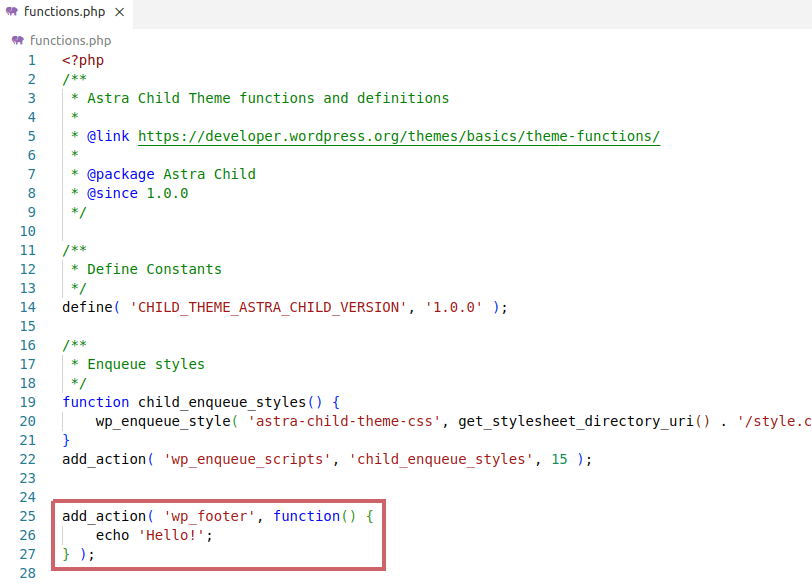
Start by accessing your WordPress dashboard. Navigate to Appearance and then click on Theme Editor. Find the header.php file in the list on the right. This file controls the header of your site. Scroll to the bottom, just before the closing tag. Paste your event snippet code here. Save your changes.
After inserting your code, check if it’s working. Use the Google Structured Data Testing Tool. Enter your website URL and run the test. Look for any errors or warnings. Fix them if necessary. This ensures that your event snippet is correctly implemented.
Testing The Event Snippet
Google’s Rich Results Test helps check if your event snippet works. Type your webpage URL in the search box. Click “Test URL” to start. Wait a few seconds. Results will show if the snippet is correct. Look for green check marks. They mean everything is fine. Red crosses show problems. Fix them quickly.
Checking For Common Errors
Common errors can stop your event snippet from working. Missing fields are a big issue. Check if all required fields are filled. Another mistake is wrong format. Dates should be in the correct format. The location must be clear. Errors make snippets fail. Correct them for better results.
Troubleshooting Common Issues
Struggling to add an event snippet to The7 theme in WordPress? Ensure you have the correct plugin installed. Double-check the event snippet code and paste it into the theme’s footer. Save changes to make sure it works properly.
Resolving Snippet Errors
Facing errors with your snippet can be frustrating. Check if the code is correct. A missing bracket or comma might cause errors. Ensure all tags are properly closed. Sometimes, the snippet might not match your theme. Check the theme’s documentation. It may offer solutions. If errors persist, ask in support forums. Other users might help.
Ensuring Compatibility With Plugins
Plugins may not always work well with snippets. Some might block the code. Check each plugin’s settings. Look for any conflicts. You may need to disable a plugin to test. Update all plugins regularly. This ensures they work with snippets. If a plugin causes issues, contact the plugin developer for help. They might have a fix.
Best Practices For Event Snippets
Always keep your event snippets updated. This helps users find the right information. Make sure dates and times are correct. People rely on this info. Check your snippets often. Update them when details change. This builds trust with your audience. They know your site is accurate.
Use tools to track your event snippet’s performance. This tells you what works well. Look at the number of clicks and views. Are people attending your events? Adjust snippets if needed. Improve parts that don’t work. Testing helps you understand what people like.

Credit: barn2.com
Frequently Asked Questions
How Do I Add An Event Snippet?
To add an event snippet, use a plugin like ‘Schema & Structured Data for WP’. Install it, navigate to its settings, and select ‘Events’. Fill in the details of your event, save changes, and the snippet will be added to your site seamlessly.
What Is The7 Theme In WordPress?
The7 Theme is a versatile and feature-rich WordPress theme. It’s known for its customizable design options and robust functionality. It offers seamless integration with popular plugins, making it ideal for users looking to create a professional-looking website with ease and efficiency.
Can Event Snippets Improve Seo On The7?
Yes, event snippets can enhance SEO by providing structured data. This helps search engines understand your content better, potentially improving your site’s visibility. It can lead to rich snippets in search results, attracting more clicks and boosting your site’s engagement and traffic.
Are Plugins Necessary For Event Snippets?
Using plugins for event snippets is recommended for convenience and accuracy. They simplify the integration process and ensure compliance with structured data guidelines. Plugins automate the snippet creation, reducing errors and saving time, especially for users unfamiliar with coding.
Conclusion
Adding event snippets to your WordPress The7 theme is straightforward. Follow the steps to enhance your site’s features. You’ll engage visitors with more relevant information. This process improves user experience and helps your site stand out. Small changes can make a big difference in visibility.
Keep your content updated for better results. Regular updates ensure your site remains fresh and functional. Your event snippet adds value to your theme. Keep experimenting to find what works best for your site. Practice these techniques to maintain a dynamic online presence.


