
Are you tired of the same old look on your WordPress site? Changing the background color can give your website a fresh, new appearance that captures attention and enhances user experience.
But where do you start? Whether you’re a seasoned WordPress user or just starting, adjusting the background color of your theme might seem daunting. Don’t worry; it’s easier than you think. With just a few simple steps, you can transform the look and feel of your site.
Imagine the impact of a vibrant, inviting background that resonates with your brand’s personality and message. Ready to make your website stand out? Let’s dive into how you can easily change the background color of your WordPress theme and give your site the makeover it deserves.
Credit: themelooks.com
Choosing The Right Theme
WordPress offers many themes. Some are free, others are paid. It’s important to choose a theme that suits your website. Look for themes that are easy to use. Also, ensure they have good reviews. A good theme makes your site look nice. It’s also important to consider mobile-friendliness. Many people use phones to browse. A mobile-friendly theme helps your site look good on all devices.
There are two main types of themes: responsive and static. A responsive theme changes its layout based on the device. This means it works well on phones, tablets, and computers. On the other hand, a static theme looks the same on all devices. Most people prefer responsive themes. This is because they provide a better user experience. Choosing the right theme is a big step. Make sure to pick the one that meets your needs.
Credit: www.wpbeginner.com
Accessing Theme Customizer
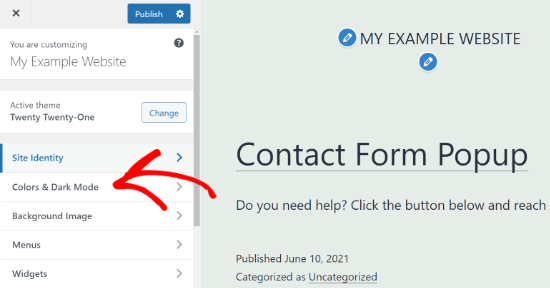
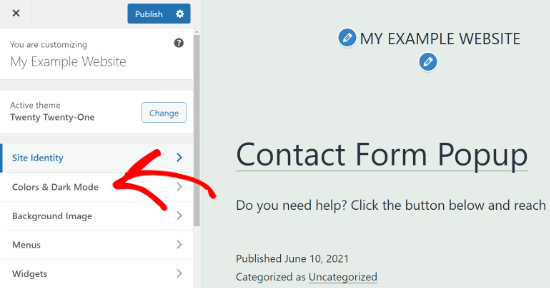
First, find the Appearance menu on the left side. Click it. Next, choose Customize. This opens the theme customizer. It lets you change how your site looks. Look for a section named Colors. Sometimes it’s called Background. Click it. Now, you can change the color.
The theme customizer shows a Live Preview of your site. Changes appear instantly. Try different colors. See what looks best. If you like the color, click Publish. Your site now has the new background color. Remember to save changes. It’s important. If you forget, changes won’t appear.
Editing Background Color
Start by logging into your WordPress dashboard. Go to the Appearance section. Click on Customize. This will open the WordPress Customizer. Look for the Background or Colors section. It might be under General Settings. Each theme can be different. Some themes offer more options. Others might be simple. Find the section that lets you change colors.
Once you find the background section, choose a color palette. Some themes have built-in palettes. Pick colors that match your theme. Use the color picker tool if available. Adjust the hue and saturation. Make sure the colors are easy on the eyes. Bright colors can be hard to read. Soft colors are more soothing. Check how the color looks on different devices. Change the color if needed.
Using Custom Css
Access your WordPress dashboard first. Find the Appearance tab on the left. Click on Customize. This opens the theme customizer. Look for the Additional CSS section. It’s usually at the bottom. Click on it. A box will appear. You can add your CSS code here.
To change the background color, type the code in the box. Use the format: body { background-color: #yourcolor; }. Replace #yourcolor with your desired color code. For example, #ff0000 for red. Click Publish to save changes. Now, your background color should change.
Saving And Publishing Changes
Previewing changes is very important. It helps to see how the new color looks. You can find the preview button easily. Click on it to view the changes. Make sure the new background color fits well. Look for any mismatches. If everything looks good, you can proceed.
Finalizing the update is the last step. Click the save button to keep your changes. After saving, publish the new theme. This makes the changes visible to everyone. You can always go back and edit if needed. Remember to check the website again. Ensure all updates are correct. Your new background color should enhance your site’s look.

Credit: www.youtube.com
Troubleshooting Common Issues
Changing the background color of a WordPress theme can be tricky. Navigate to the theme’s settings in the WordPress dashboard. Look for options under Appearance, and select the desired background color. Save your changes to see the new look.
Color Not Changing
Sometimes, the color won’t change as expected. This can be due to caching problems. Clear your browser cache first. If the issue persists, check your theme settings. Some themes have custom CSS overriding the color settings. Another reason might be plugin conflicts. Deactivate plugins one by one to see if they affect the color.Reverting To Default
Your color may revert to default settings. This can happen after a theme update. Updates can reset custom settings. Always back up your settings before updating. If your colors keep changing back, check for customizer settings. Sometimes, the child theme can also cause this issue. Make sure your child theme has the correct settings. If nothing works, consult the theme’s support forum for help. “`Exploring Plugins For Customization
Many plugins help change your WordPress theme’s background color. Color Widgets is a popular choice. Custom Background is another favorite. These plugins let you pick any color you want.
Installation and Setup Tips are easy. First, go to your WordPress dashboard. Click on Plugins and then Add New. Search for the plugin name. Click Install Now. Once installed, click Activate. Now, go to your theme settings. Find the Background Color option. Choose your favorite color.
Always save your changes. Check your website to see if the new color appears. You can change colors anytime. It makes your site fun and fresh.
Best Practices For Color Selection
Selecting the perfect background color for your WordPress theme enhances user experience. Choose colors that complement your brand and ensure readability. Adjust the theme settings to customize and preview different shades effortlessly.
Understanding Color Psychology
Colors can change moods. Blue can calm us down. Red can make us excited. Green can relax us. Knowing this helps in choosing the right color. Choose colors that fit your message. Warm colors often feel friendly. Cool colors can feel serious. Bright colors grab attention. Soft colors feel gentle. Think about your audience. What mood do you want to create? Use colors to make them feel that way.
Ensuring Readability And Accessibility
Your site should be easy to read. Use colors that contrast well. Light text on a dark background works. Dark text on a light background is good too. Avoid colors that clash. Ensure text is clear and easy to see. Some people can’t see all colors. Use tools to check color contrast. This helps everyone read your site easily. Accessibility is important for all users.
Frequently Asked Questions
How Do I Change My WordPress Theme’s Background Color?
To change your WordPress theme’s background color, navigate to Appearance > Customize. Then, select Colors or Background. Choose your desired color and save your changes. Always preview before finalizing to ensure it matches your theme’s design.
Can I Change Background Color Without Coding?
Yes, you can change the background color without coding. Use the WordPress Customizer under Appearance. Navigate to the Colors or Background section to select your preferred color. It’s simple and user-friendly.
Does Changing Background Color Affect Site Performance?
Changing the background color generally doesn’t affect site performance. It’s a simple style modification. However, ensure you don’t use oversized images as backgrounds, which can slow down load times.
Are There Plugins For Changing Background Color?
Yes, there are plugins available for changing background colors. Plugins like Simple Custom CSS and JS can help. They offer user-friendly interfaces to customize styles without coding.
Conclusion
Changing your WordPress theme’s background color is simple. Follow the steps for a fresh look. Use the WordPress Customizer for quick changes. Choose colors that suit your style. Experiment with different shades and see what works best. Keep your site visually appealing and engaging.
A color change can enhance user experience. It reflects your brand’s personality. Ensure your site’s readability remains strong. Good design keeps visitors coming back. Regular updates maintain interest. Stay creative and keep your site vibrant. Happy designing!


