
Are you looking to refresh the look of your website, but feeling overwhelmed by the technicalities of changing a theme on WordPress and GoDaddy? You’re not alone.
Many website owners want to update their site’s appearance, but worry about navigating the process smoothly. The good news is that changing a theme doesn’t have to be complicated or time-consuming. In fact, with the right guidance, you can have a fresh, modern design in just a few simple steps.
This guide will walk you through each stage, ensuring you have the confidence and know-how to transform your site effortlessly. Stay with us, and you’ll see just how easy it is to give your website the makeover it deserves.
Prerequisites
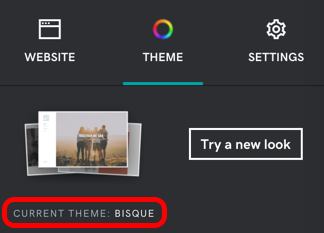
Before changing a theme on WordPress and GoDaddy, some steps are needed. Ensure you have a WordPress login. This is important. Check if you have admin access. Without it, changes can’t be made. Backup your data to avoid losing important information. Use a reliable plugin for this task. A good internet connection is necessary. It helps in downloading and uploading themes easily. Make sure you know the current theme. This helps in case you need to revert back. Have your new theme files ready. They should be compatible with your WordPress version. Finally, ensure your hosting plan allows changes. Some plans have limitations.
Credit: www.godaddy.com
Accessing WordPress Dashboard
First, go to your WordPress login page. Type your username and password. Click the login button. You are now inside the WordPress dashboard. Everything you need is here. Look around and see all the options.
Find the Appearance tab on the left side. Click on it. You will see many choices. Look for Themes. Click on it to see the themes. Choose a theme you like. You can see previews. Once you decide, click Activate. Your theme is now live.
Choosing A New Theme
WordPress has a big theme directory. This is where you can find many free themes. Use the search bar to find themes you like. Themes have different styles. Some look simple. Others are colorful. Look for a theme that fits your website’s style.
Each theme has a preview button. Click it to see how the theme looks. Previewing themes helps you decide if it’s right for you. Try different themes. This will give you more ideas. You can always change it later if needed.

Credit: www.youtube.com
Installing A New Theme
Go to your WordPress dashboard. Find the Appearance tab. Click on Themes. Now, click on Add New. You will see many themes. Use the search bar to find a theme. Click on Install once you choose a theme. Then, click Activate to use the theme. It’s that simple!
First, download the theme file. It should be a .zip file. Go to your WordPress dashboard. Click on Appearance then Themes. Click Add New and then Upload Theme. Choose your .zip file and click Install Now. Wait for it to upload. Finally, click Activate to use your new theme. Easy to do!
Activating The Theme
Start by logging into your WordPress dashboard. Find the Appearance menu on the left. Click on Themes. You will see a list of themes. Choose the one you like. Click on Activate to set it as your theme. This makes your site look different. Check your site to see the changes. If you don’t like it, pick another theme. Repeat the steps to activate it. Always choose a theme that fits your style. Themes can be free or paid. Free themes are a good start. Paid themes offer more features. Always keep your theme updated. This keeps your site safe and fast.
Credit: www.godaddy.com
Customizing The Theme
Changing a theme on WordPress and GoDaddy server is simple. Access the dashboard, navigate to “Appearance,” and select “Themes. ” Choose a new theme and click “Activate. ” This process updates your website’s design effortlessly.
Using The WordPress Customizer
Open the WordPress dashboard. Click on Appearance and then Customize. This tool lets you change the theme. You can adjust colors, fonts, and layouts. Save changes to see them live. It’s easy and fun to use. Experiment with different looks. Make sure your site looks great on all devices.
Customizing Widgets And Menus
Widgets help add features to your site. Go to Appearance and select Widgets. Drag and drop items where you want them. For menus, click on Menus under Appearance. Create or edit navigation paths. Keep them simple and clear. Ensure visitors find what they need quickly. Both widgets and menus help create a user-friendly site. Adjust them until you like the layout.
Changing Theme On Godaddy Server
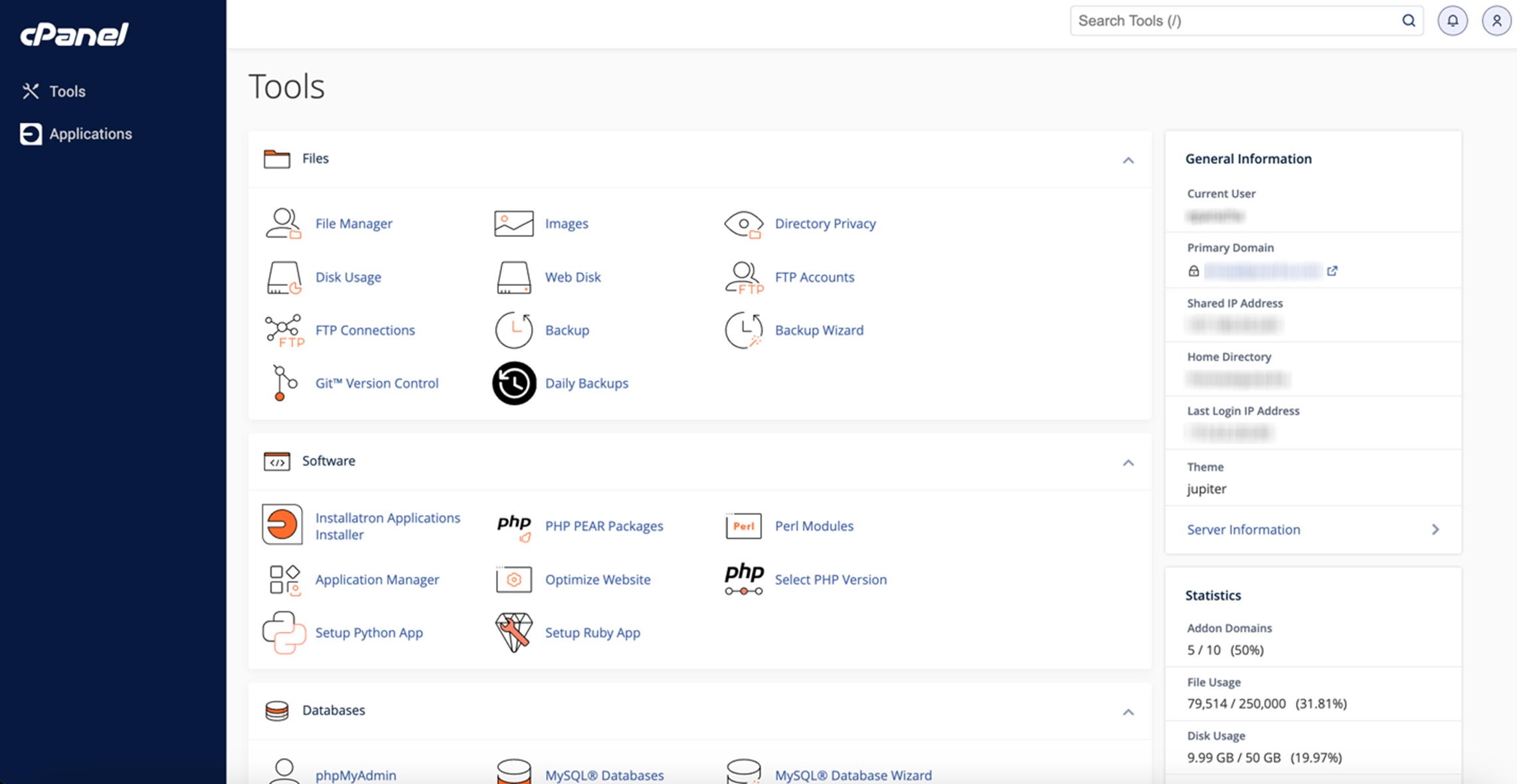
Start by logging into your GoDaddy account. Find the dashboard and look for the section that says My Products. Click on it. You will see your hosting plans listed. Choose the plan connected to your WordPress site. Click on the Manage button. This will take you to your hosting control panel.
In the control panel, look for WordPress options. Click on themes. Browse the list of themes available. Choose the one you like. Click on Activate. The theme will change on your site. Check your site to see the new look. If you want a different theme, repeat these steps.
Troubleshooting Common Issues
Changing a WordPress theme on a GoDaddy server involves accessing the WordPress dashboard. Navigate to ‘Appearance’ then ‘Themes’ to select or upload a new theme. Ensure compatibility and backup your site to prevent data loss during the transition.
Resolving Compatibility Problems
Themes may not work with all plugins. This can cause compatibility issues. Check if your theme supports the plugins you need. Try switching plugins if problems occur. Always update themes and plugins. Updates fix many issues. Back up your site before making changes. This ensures you don’t lose important data. Use a child theme for customizations. It keeps your changes safe during updates.
Fixing Theme Installation Errors
Errors can happen during theme installation. Make sure the theme file is complete. Incomplete files cause errors. Check your server settings. Sometimes settings can block installations. Increase the PHP memory limit if needed. This helps with larger themes. Enable debugging to see error messages. This shows what is wrong. Follow the error instructions to fix the problem.
Frequently Asked Questions
How Do I Change A Theme On WordPress?
To change a theme on WordPress, log in to your dashboard. Navigate to “Appearance” and select “Themes. ” Browse and choose a new theme, then click “Activate. ” Ensure compatibility with plugins and check site design after activating the new theme for optimal appearance.
Can I Use Any Theme On Godaddy?
Yes, you can use any theme on GoDaddy-hosted WordPress sites. Ensure the theme is compatible with the latest WordPress version. You may need to upload the theme manually if it’s not available in the WordPress theme repository. Always check for compatibility and updates.
What Should I Consider Before Changing Themes?
Before changing themes, back up your site to prevent data loss. Check theme compatibility with existing plugins and your WordPress version. Review theme design and functionality to ensure it meets your site’s needs. Test the theme on staging before activating it on your live site.
Is It Safe To Change WordPress Themes?
Yes, it’s safe to change WordPress themes if you follow best practices. Backup your site before changing themes. Ensure the new theme is compatible with your plugins. Test the new theme on a staging site to avoid issues on your live site.
Regular updates ensure security.
Conclusion
Changing a theme on WordPress or GoDaddy is straightforward. First, explore different themes that suit your needs. Next, navigate to the dashboard and access the theme section. Pick your desired theme and activate it. Customizing options are available to tailor the theme to your preference.
Regular updates keep your site secure and functional. Always back up your site before making changes. This ensures safety and peace of mind. With a new theme, your website can look fresh and inviting. Dive in, make the change, and give your site a new look.


