
Have you ever found yourself wanting to tweak the look of your WordPress site but felt lost in a sea of options? If you’re using the Spacious theme and want to change your link colors to better match your brand or style, you’re in the right place.
The right color can make a huge difference—it can catch your audience’s eye, set the mood, and even increase engagement. Imagine your readers being instantly drawn to the links you want them to click, making your content not just seen, but also felt.
In this guide, we’ll walk you through the simple steps to change link colors in the Spacious theme. Get ready to transform your site with just a few clicks!

Credit: docs.themegrill.com
Accessing WordPress Dashboard
Start by logging into your WordPress dashboard. This is where changes happen. Find the login page by adding /wp-admin to your site’s URL. Enter your username and password. Click the login button. Now, you are on the dashboard.
The dashboard is the control center. Here, you can manage your site. Look for the Appearance option on the left menu. Click on it. A dropdown will appear. Find and click Customize. This opens the theme customizer. It’s a tool to change your site’s look.
Inside the customizer, you can see many options. Each changes different things. To change link colors, focus here. This is your starting point.

Credit: wordpress.org
Navigating To Theme Customizer
Locating Appearance Menu: Start by logging into your WordPress dashboard. Look at the left sidebar. Find the Appearance menu. It is usually near the bottom. Click on it to open more options. You will see several choices. One of them is Customize.
Selecting Customize Option: Click on the Customize option. This opens the Theme Customizer. Here, you can change many settings. Look for the Colors option. Click on it to change link colors. You can pick from different colors. Experiment until you find the right one.
Exploring Colors Section
Discover easy steps to change link colors in the WordPress Spacious theme. Navigate to the theme customizer, locate the color settings, and adjust link colors to your preference. Personalize your website effortlessly, enhancing its visual appeal and user experience.
Identifying Link Color Settings
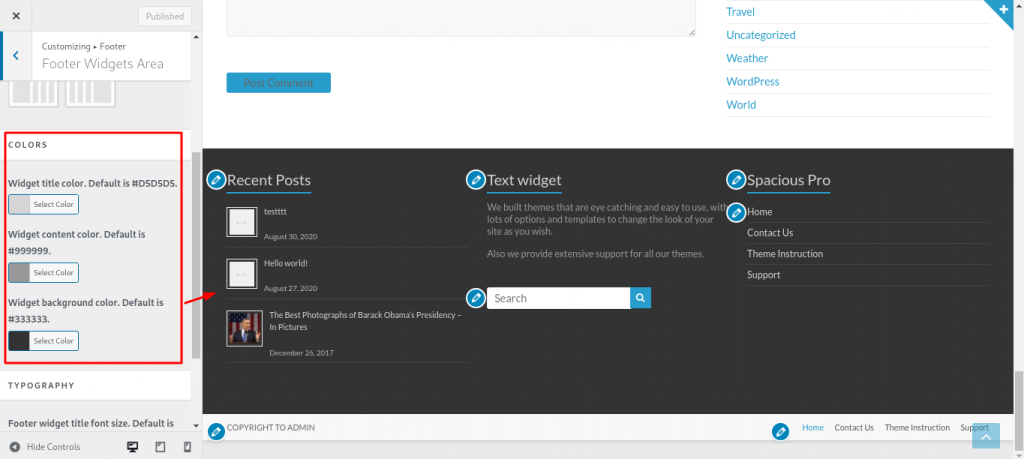
The Spacious theme allows easy color changes. Locate the Colors Section in your WordPress dashboard. Find the area marked Link Color. This is where you can change the color for links. Click the color box. A color picker will appear. Choose any color you like. Save the changes. Your links will show this new color now. The process is simple. But the right color can make your site look better.
Understanding Color Options
Color options are important in designing. They change the look and feel of a site. The Spacious theme gives many choices. You can pick from basic colors or advanced ones. Basic colors are red, blue, and green. Advanced colors have more shades. Try different colors to see what fits best. Test them to find a nice look. Always remember to save changes. Your site will look fresh and stylish.
Customizing Link Colors
Select a color that stands out. This helps readers find links easily. Use the WordPress dashboard. Go to Appearance, then Customize. Find the Colors section. Pick a new color for links. Make sure the color matches your theme. Use contrasting colors for better visibility. Try different shades. Experiment with hues. Your choice should be easy on the eyes.
Always preview before saving. Click on the Preview button. Check if the new color looks good. Ensure links are still readable. Make adjustments if needed. Look at the preview on different devices. This helps check consistency. Save changes only when satisfied. Your website will look fresh and new.
Saving And Publishing Changes
It’s easy to change link colors in the Spacious theme. After making changes, find the “Save” button. Click this button to keep your changes. Don’t forget to click “Publish.” This makes your changes live. Without publishing, changes won’t show on the website. Always check if the colors look good. Ensure they are easy to read.
Confirming Color Adjustments
After saving, visit your site. Check if the new colors appear. Look at different pages. Ensure consistency in color changes. If something is wrong, go back to settings. Adjust the colors again. Save and publish once more. Double-check your work. Make sure everything looks nice.
Applying Changes Live
To see the changes live, refresh your browser. Look for any mistakes. Make sure the colors fit the website style. Visitors notice bright, friendly colors. Make sure links are easy to see. This helps visitors navigate your site. Keep checking your site regularly.
Using Additional Css For Customization
Open your WordPress dashboard. Navigate to Appearance and click on Customize. You will see the Additional CSS option. Click on it. A new editor will appear. This is where you can add your custom CSS code. It is simple and safe. Don’t worry, you won’t break your site.
In the editor, type your new CSS code. For changing link colors, use this code:
            a {
                color: #ff6600; / Change to your desired color /
            }
            a:hover {
                color: #0099cc; / Change to your desired hover color /
            }
Make sure you replace the color codes with your own. After typing, click Publish to save changes. Now, your links will show the new colors on your site.
Troubleshooting Common Issues
Sometimes, link colors may not change as expected. This could be due to conflicting styles. These conflicts often arise from plugins or custom CSS. Inspect your website’s CSS rules. This can help find the issue. Use the browser’s developer tools. They can show which styles are applied. You might need to override some styles. Try adding `!important` to your CSS rules. It can force the color change. Always ensure your theme and plugins are up-to-date.
Different browsers may show colors differently. Test your site on popular browsers. This includes Chrome, Firefox, and Safari. Also check on mobile browsers. Using standard CSS properties helps. Avoid using browser-specific codes. If needed, use prefixes for older browsers. This helps maintain a consistent look. Keep your browser updated. It ensures the best results.
Exploring Third-party Plugins
Plugins help change link colors in WordPress themes. Some plugins are free. Others need payment. Each plugin has its own features. Choose plugins with good reviews. Look for plugins easy to use. Plugins should work with your theme. Check plugin descriptions. Make sure they meet your needs.
Selecting Suitable Plugins
Read user ratings. Check plugin updates. Recent updates are important. Updated plugins work better. They have fewer problems. Old plugins might have bugs. Look at plugin popularity. Popular plugins are safe to use. They have many users. Ask friends for plugin ideas. Trusted suggestions are helpful.
Integrating Plugins With Spacious Theme
Install the plugin on your site. Go to the WordPress dashboard. Find the plugins menu. Click “Add New”. Search for your chosen plugin. Click “Install Now”. Activate it after installation. Go to plugin settings. Change link colors there. Save changes. Check your website. New link colors should show.
Credit: docs.themegrill.com
Frequently Asked Questions
How Do I Change Link Colors In Spacious Theme?
To change link colors in the Spacious theme, navigate to Appearance > Customize. Select Colors and find the option for Link Color. Choose your desired color, save, and publish changes. This will update link colors site-wide, enhancing your website’s visual appeal and ensuring consistency across all pages.
Can I Customize Link Colors For Specific Pages?
Yes, you can customize link colors for specific pages using custom CSS. Access Appearance > Customize, then Additional CSS. Add CSS code targeting specific page IDs or classes to change link colors. This allows for tailored visual styles, providing unique link colors for different sections of your website.
Are Link Color Changes Responsive?
Link color changes in Spacious theme are generally responsive. They adapt to different screen sizes and devices automatically. Ensure your color choices have sufficient contrast for readability on mobile devices. Test your website on various devices to ensure the link colors remain clear and accessible.
Do Link Color Changes Affect Seo?
Changing link colors doesn’t directly affect SEO, but improves user experience. Clear, readable links enhance navigation, potentially increasing engagement and reducing bounce rates. Ensure your link colors contrast well with the background, making them easy to identify for users, which indirectly supports SEO efforts.
Conclusion
Changing link colors in the Spacious theme is simple. Follow the steps outlined above. Customize your site’s appearance quickly. Experiment with different colors to find the perfect match. Colors can enhance user experience and engagement. Always preview changes before making them live.
Consistency in design keeps your site looking professional. Remember to check for accessibility. Ensure text is readable for all visitors. Enjoy the creative process of designing your site. Your unique style will shine through. Keep exploring and learning new customization techniques.
This will help your WordPress site stand out.


