
Are you looking to enhance your WordPress site’s functionality without getting lost in complex coding? Creating a simple WordPress theme options page might just be the solution you need.
Imagine having the power to customize your website’s appearance and settings at your fingertips, all within your WordPress dashboard. This guide will walk you through the straightforward process of setting up a theme options page, allowing you to tailor your site to your exact preferences.
With clear instructions and practical tips, you’ll gain the confidence to make your site truly unique. Ready to simplify your WordPress customization journey? Keep reading to unlock the secrets to building your very own theme options page.
Benefits Of Custom Theme Options
Custom theme options offer flexible design choices. Users can change colors and fonts easily. This helps in creating a unique look. No coding skills are needed. Options make it easy to adjust the theme. This is great for beginners.
Users can customize layouts. This improves the user experience. Pages load faster with optimized settings. Visitors enjoy a smooth browsing experience. Easy navigation keeps users engaged. Happy users return more often.
Theme options allow for easy updates. No need to edit code directly. This saves time and effort. Developers can add new features. Users get the latest updates quickly. Keeping the site fresh is simple.
Credit: www.advancedcustomfields.com
Setting Up Your Development Environment
Start with a code editor. Choose one like Visual Studio Code. It helps you write and edit code easily. You need a local server too. Try using XAMPP. It lets you test your code on your computer.
A web browser is important. Most people use Google Chrome. It helps you see your changes. Don’t forget to install WordPress. Get the latest version from its official site.
Download WordPress from their site. Save the zip file. Extract it to your local server’s folder. Open your browser. Type localhost in the address bar. Follow the setup steps. Set your site name and password. Now, WordPress is ready to use.
Creating A Basic Theme Structure
A WordPress theme needs some basic files. The most important is the style.css. This file controls how your theme looks. It tells WordPress the theme’s name and details.
Another key file is index.php. This file is the main template. It shows your content on the website. The functions.php file is also important. It lets you add new features to your theme.
Together, these files create a simple structure. This structure helps your theme work. Use these files as a starting point. Build your theme with them.
Style and layout make a theme unique. Choose colors that fit your brand. Use fonts that are easy to read. Keep the layout simple. Users like a clean look.
Test your theme on different devices. Make sure it looks good on phones and tablets. Responsive design is important. Your theme should work well everywhere.

Credit: onextrapixel.com
Adding Theme Options Page
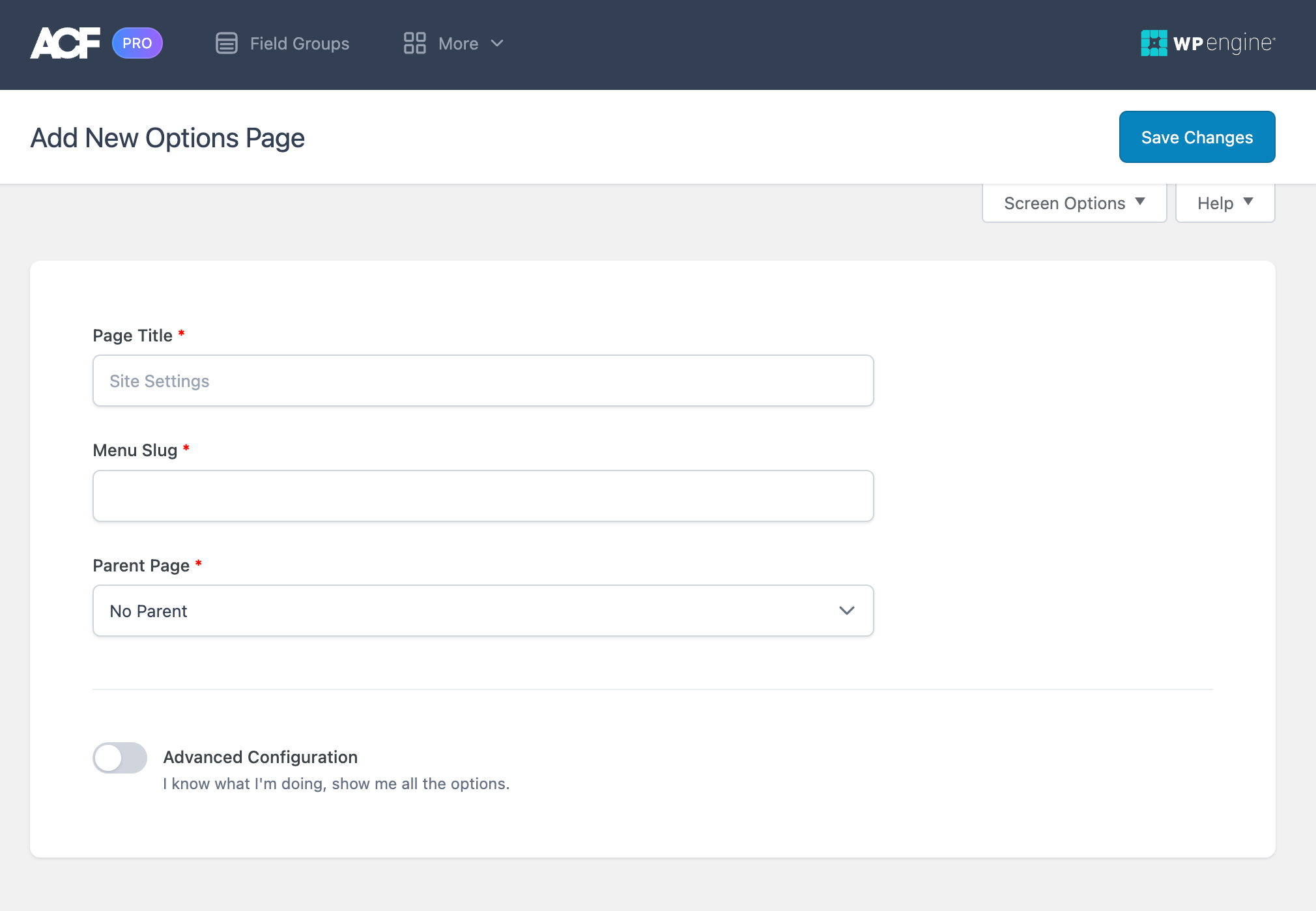
The add_menu_page function helps create a new menu item. This item shows up in the WordPress admin area. It is easy to use and very helpful. You need to specify some details. These details include page title, menu title, and capability. Also, provide a menu slug and callback function. The callback function displays the content of your page. This is an essential step in building custom options.
A custom admin page allows you to add unique settings. These settings help users control theme features. Start by writing a function for your page’s content. Then, use add_menu_page to link it with WordPress. Ensure the page is easy to understand. Use simple options and clear labels. This helps users change settings with ease. Properly organized options make a big difference.
Building Options Form
Start with an HTML form. Each field should have a label. Labels help users understand the purpose. Use text fields for simple input. Checkboxes for true or false choices. Radio buttons for selecting one option. Add a submit button to save changes. Ensure fields are inside the form. This keeps them organized.
After submitting, inputs go to the database. Store them safely. Use PHP to handle data. PHP reads the input. Then it saves the data. Use validation to check inputs. This prevents errors. Ensure data is clean. Clean data is safe data. Always test your form. Testing helps find mistakes. Fix them before sharing.
Credit: www.advancedcustomfields.com
Integrating Options With Theme
Theme options help users change the look of their site. It is important to make these options easy to find. Add a new menu under the WordPress admin panel. This menu will show all the theme settings. Use the add_menu_page() function. This adds a new page in the admin area. Users can change settings from this page. WordPress makes it easy to save these changes. Use the get_option() function. It retrieves the values saved by users. Changes are stored in the database. This allows users to see their updates live.
Accessing Options In Templates
Templates show different parts of a site. Accessing options in templates is simple. Use the get_option() function in template files. This function fetches saved settings. Display them on the site easily. Example: Show a custom logo on the homepage. Use get_option('theme_logo') in the template. This retrieves the logo saved in theme options. Users see their changes right away.
Dynamic Theme Customization
Dynamic customization makes themes flexible. Users change settings and see updates instantly. Use JavaScript and WordPress functions together. JavaScript updates the site without page refresh. Live previews engage users. They see changes as they make them. Use the wp_localize_script() function. This connects JavaScript with WordPress options. Users find it easy to create a unique site.
Testing And Debugging
Common Issues can arise when creating a WordPress theme options page. Themes might not display correctly. Settings may not save. Pages could load slowly. CSS errors often occur. JavaScript may not work. Debugging helps solve these problems. Clear browser cache often. Check error logs regularly. Use the right PHP version. Always update WordPress. Check plugin conflicts. Disable unnecessary plugins. Ensure correct file permissions.
Debugging Tools are essential for fixing errors. Use browser developer tools. Chrome and Firefox have good ones. Inspect elements easily. Look at console logs. Find JavaScript errors fast. Use PHP debugging plugins. Debug Bar is popular. It shows errors clearly. Query Monitor checks database issues. This helps find slow queries. Use WP_DEBUG in wp-config.php. It shows errors on the site. Keep your tools updated. They will work best this way.
Best Practices For Theme Options
Design should be easy for everyone. Use simple words and clear labels. Buttons should be big and noticeable. Make sure users can find what they need quickly. Use icons to help guide users. A good design makes users happy. Keep the layout tidy and organized. Avoid using too many colors. Stick to a few main colors. This helps users focus.
Security is important for any theme. Always update your theme. Use strong passwords for your admin area. Check your code for errors. Errors can cause security issues. Use plugins that are safe and trusted. Backup your theme often. This saves your work if something goes wrong. Limit login attempts to prevent attacks. Make sure only trusted users can access important areas.
Frequently Asked Questions
What Are WordPress Theme Options Pages?
WordPress theme options pages are interfaces within the admin dashboard. They allow users to customize theme settings without coding. Users can change colors, fonts, and layouts easily. These pages enhance user experience by providing accessible customization options. They also support dynamic adjustments to meet specific site requirements.
How Do I Create A Theme Options Page?
Creating a theme options page involves coding in PHP. Start by adding a menu item in the admin panel. Use WordPress functions like `add_theme_page()` to integrate it. Then, design the options form using HTML and CSS. Lastly, save settings using WordPress API functions.
Why Are Theme Options Pages Important?
Theme options pages simplify customization for users. They make it easy to modify themes without coding knowledge. This enhances usability and accessibility for non-developers. They also offer a centralized location for theme adjustments. Overall, they improve user satisfaction and site functionality.
Can I Add Custom Fields To Theme Options?
Yes, you can add custom fields to theme options pages. Use PHP and HTML to create custom input types. Integrate them within the options page form. Save field data using WordPress API functions. Custom fields enable more personalized and tailored theme settings.
Conclusion
Creating a simple WordPress theme options page can be straightforward. Focus on user-friendly design. Keep code clean and organized. Ensure settings are relevant and easy to find. Test your page thoroughly. Make sure options save correctly. This enhances user experience.
Customization becomes simple and efficient. Your theme will be more appealing. Beginners and pros alike will appreciate it. Don’t forget to update regularly. This keeps your theme current and secure. By following these steps, you build a strong foundation. Your WordPress theme will stand out.
Enjoy the process of creating and improving!


