
Imagine visiting a website and being greeted by a captivating slider, showcasing stunning images or key messages that instantly grab your attention. Sounds impressive, right?
That’s the magic of a plugin banner slider in a WordPress theme. It’s not just a visual treat; it’s a powerful tool that can enhance user engagement and convey your brand’s message effectively. If you’ve been wondering how to add this dynamic feature to your WordPress site, you’ve landed in the right place.
Whether you’re a beginner or have some experience, this guide will walk you through the steps to effortlessly integrate a plugin banner slider into your theme. By the end of this post, you’ll not only understand how to add it but also how to leverage it to captivate your audience and elevate your site’s aesthetic appeal. Ready to transform your website’s look and feel? Let’s dive in!

Credit: shapedplugin.com
Choosing The Right Plugin
Plugins can be free or premium. Free plugins are cost-effective. They have basic features. Premium plugins cost money. They offer more features and support. Some sites need premium features. Others do well with free. Choose based on your needs.
Not all plugins fit every theme. Some plugins may break a site. Check if the plugin works with your theme. Read the plugin’s info page. It often states compatibility. Also, test it on a small page first.
Read user reviews before choosing. Reviews show if the plugin is good. Look for plugins with high ratings. They are usually reliable. Avoid plugins with low ratings. They might cause issues. Reviews give useful insights.
Installing A Plugin
Find the plugin menu in your WordPress dashboard. Click on “Add New”. Search for the plugin you need. Use keywords like “banner slider”. The results will show many options. Choose a plugin with good reviews. Make sure it has recent updates. Click “Install Now”. Wait for the installation to finish.
Download the plugin as a .zip file. Go to your WordPress dashboard. Click “Plugins” then “Add New”. Select “Upload Plugin”. Choose the downloaded file. Click “Install Now”. Wait for the upload. The plugin is now ready to activate.
Go to the “Installed Plugins” menu. Find the plugin you just added. Click “Activate” to turn it on. Check your site to see the new slider. Customize the plugin settings. Make sure it works well on your site. Enjoy your new banner slider.
Configuring Slider Settings
Choose the effect for the slide movement. There are many options. Fade makes slides smoothly disappear and appear. Slide pushes the old slide away. Zoom makes the slide grow or shrink. Each effect gives a different feel. Try them to see which one you like.
Set the width and height of your slider. This makes it fit your page. A big slider shows more content. A small one is faster to load. Find the right size for your site. Make sure it looks good on different screens.
Autoplay makes slides change on their own. Loop makes the slides start again after the last one. You can turn these options on or off. Autoplay keeps your site lively. Loop ensures the slides keep showing.
Adding Slides To The Banner
First, choose your images or videos. Click “Upload” on the dashboard. Make sure files are not too big. Big files load slowly. Use images with high quality. Videos should be short. This keeps the site fast.
Arrange slides in the right order. Click and drag slides to move them. Put the most important slide first. This catches attention. Check the order twice. Make sure it looks good.
Add captions below each slide. Use simple words. Keep captions short. Add links to more info. Click “Add Link” to do this. Links can guide visitors to new pages.
Incorporating Slider Into Theme
Shortcodes make adding sliders easy. Copy the shortcode from the plugin. Paste it where you want the slider. This works in posts, pages, and widgets. Shortcodes are simple to use. They save time and effort. No need for coding skills.
Widgets offer another way to add sliders. Go to the widget area in your WordPress dashboard. Drag the slider widget to your sidebar or footer. This gives more control over slider placement. Easy and quick. Everyone can do it.
Page builders help in customizing sliders. Use page builder tools like Elementor or WPBakery. They offer drag-and-drop features. Select slider modules to add them to your design. Customize size, effects, and layout. Builders make sliders unique and fun. Creativity flows with ease.
Optimizing Slider Performance
Adding a plugin banner slider to a WordPress theme enhances visual appeal and site functionality. Optimize slider performance by choosing lightweight plugins, ensuring fast load times. Proper configuration and compression of images improve user experience and search engine rankings.
Reducing Image Sizes
Images slow down loading times. Reduce their size for better speed. Use tools to compress images without losing quality. Smaller images help pages load faster. Faster pages keep visitors happy.
Enabling Lazy Loading
Lazy loading improves performance. Images load only when needed. This saves data. Visitors see content quickly. Enable lazy loading in your settings. Fast loading keeps users engaged.
Testing On Different Devices
Test sliders on phones, tablets, and computers. Different devices show different results. Make sure the slider works everywhere. Check for bugs or display issues. Fix problems for a smooth user experience. Happy users return to your site.
Troubleshooting Common Issues
Adding a plugin banner slider to a WordPress theme can encounter challenges. Ensure compatibility with your theme and check for plugin conflicts. Follow setup instructions carefully to avoid display issues and enhance your site’s visual appeal effectively.
Slider Not Displaying
First, check if the plugin is activated. Sometimes, the slider might not display because it is not active. Ensure the plugin is updated to the latest version. This helps to fix bugs that stop the slider. Also, verify the shortcode. It must be correct and placed in the right spot. A wrong shortcode will stop the slider from showing.
Conflicts With Other Plugins
Plugins might not work well together. This can cause the slider to break. Turn off other plugins one by one. See if the slider works after each one. This helps to find the conflicting plugin. Update both plugins to their latest versions. This can resolve many issues.
Responsive Design Problems
A slider should look good on all devices. Check if the slider is responsive. If not, adjust the settings in the plugin. Some themes might not support responsive design. Try switching to a different theme. Ensure the slider’s images are not too big. Large images can break the design on small screens.

Credit: uk.wordpress.org
Enhancing Slider With Add-ons
Make your slider lively by adding animation effects. These effects make your images move smoothly. Choose from a variety of effects. Such as fade, zoom, or slide. Each effect gives a different feel. Too many effects can be distracting. Keep it simple for best results.
Show your social media posts on the slider. This keeps your content fresh. Connect your accounts easily. Display posts from Facebook, Instagram, or Twitter. Engage visitors with real-time updates. This makes your site interactive and fun.
Connect your slider with your online store. Highlight products or special deals. Include direct links for easy shopping. This can increase your sales. Make sure the slider loads quickly. Slow sliders can lose customers. Keep images clear and appealing.
Credit: wordpress.org
Frequently Asked Questions
How Do I Install A Plugin Banner Slider?
To install a plugin banner slider, navigate to your WordPress dashboard. Click on “Plugins,” then “Add New. ” Search for a banner slider plugin, click “Install Now,” and activate it. Customize the settings as needed to integrate the slider seamlessly into your theme.
Which Plugin Is Best For Banner Sliders?
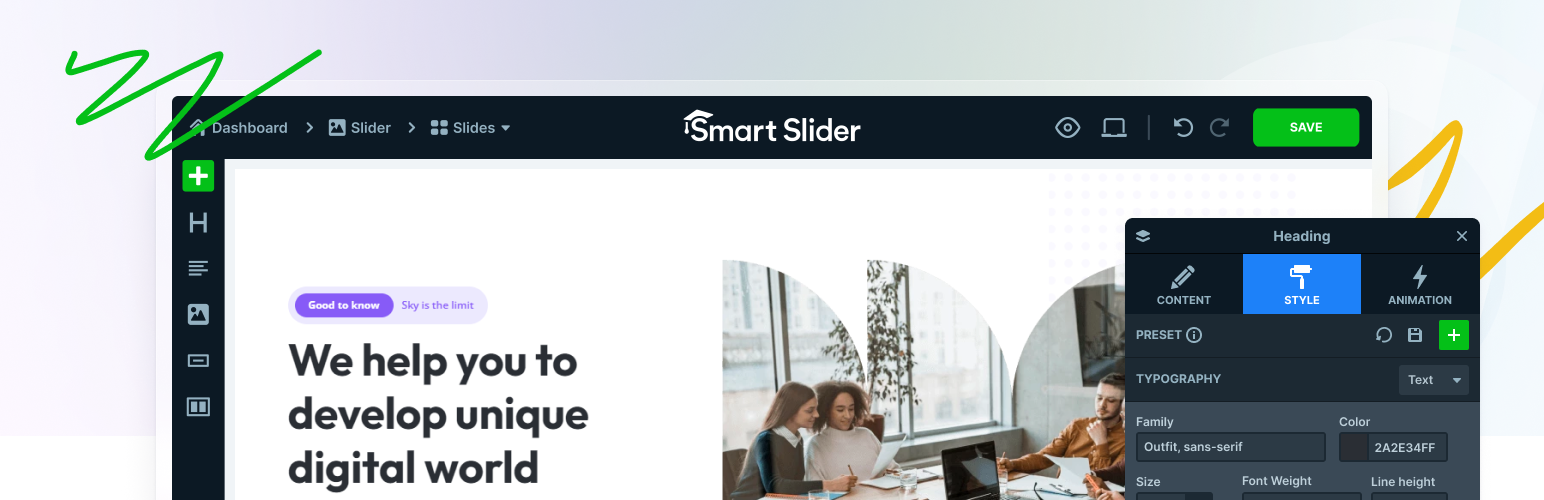
The best plugin depends on your needs. Popular options include MetaSlider, Slider Revolution, and Smart Slider 3. Each offers unique features like responsive design, easy customization, and various transition effects. Consider user reviews and compatibility with your theme before deciding.
Can I Customize My Banner Slider?
Yes, you can customize your banner slider. Most plugins offer options to change slide transitions, timing, and styles. You can also add text overlays, buttons, and links. Check the plugin’s settings or documentation for detailed customization instructions.
Does Adding A Slider Affect Site Speed?
Yes, adding a slider can affect site speed. Large images and heavy scripts may slow down loading times. Optimize images and limit the number of slides. Choose a lightweight plugin to minimize the impact on your website’s performance.
Conclusion
Adding a plugin banner slider to your WordPress theme is simple. It enhances your site’s visual appeal. Follow the steps outlined for smooth integration. Choose a slider that fits your theme’s design. Ensure it works well on mobile devices. Regular updates keep your slider functioning properly.
Always test changes before making them live. This prevents unexpected issues. A well-placed slider attracts visitor attention. It showcases your content effectively. With practice, customization becomes easier. Enjoy the improved look of your site. Your WordPress theme now has an engaging banner slider.
Visitors will notice the difference.


