
Are you tired of the same old look of your WordPress site and eager to give it a fresh makeover? Changing your theme images can breathe new life into your website, capturing your visitors’ attention instantly.
Imagine the impact of vibrant visuals that perfectly align with your brand’s message. This guide will walk you through the easy steps to swap out those theme images, even if you’re not a tech expert. You’ll discover simple techniques that can transform your site’s appearance, making it more engaging and visually appealing.
Keep reading to unlock the secrets of enhancing your WordPress theme and elevating your site’s aesthetic in just a few clicks.

Credit: www.templatemonster.com
Choosing A New Theme Image
Themes have different image types. Header images are large and at the top. Background images fill the screen. Thumbnail images are small and used for previews. Knowing these helps in picking the right one. Good images make the site look better.
Many sites offer free images. Unsplash and Pexels are popular choices. Always check the license first. Some images need credit. This means you say who took the picture. This is important. Free images help save money.
Uploading Images To WordPress
The media library is like a box. You put all your pictures in it. Click on “Add New”. Choose the picture you want. You can see it now. Make sure the picture is clear. People should see it well.
Open the theme customizer. It is in the appearance tab. Find the “Background Image” option. Click on it. Choose a new picture. Press “Upload”. The new picture will show up. This is a quick way to change images.
Customizing Theme Images
Changing images is a fun task. First, go to your WordPress dashboard. Click on “Media” to find your images. Choose an image you want to change. Click “Edit” to open it. You can crop, rotate, or flip the image. Make your image look just right.
Image size matters a lot. Big images can slow your site. Small images may look blurry. Use the “Edit Image” tool to fix this. Adjust the width and height. Keep the resolution high for clear images. Save your changes and see your new look!
Changing Header And Background Images
Start by logging into your WordPress dashboard. Find the Appearance tab on the left. Click it and then select Customize. Look for the Header Image option. Click on it to open the settings. Choose Add New Image to upload your desired image. Ensure your image fits well. Click on Save & Publish to apply changes.
Navigate to the Appearance tab again. Select Customize from the menu. Click on the Background Image option. Click on the Select Image button. Upload your chosen background image. Adjust the settings for size and position. Finally, click on Save & Publish to make it live.
Troubleshooting Image Issues
Images don’t show up sometimes. This can be due to wrong file types. WordPress likes JPEG and PNG formats. If you use GIFs, they may not work. Try converting them.
Another problem is broken links. Check if the image path is correct. If not, fix the URL in your media library.
Slow loading images can be a pain. Large files take time to load. Compress images using online tools. This helps speed up your site.
Check if your theme supports responsive images. This means images adjust to screen size. Use plugins for better compatibility.
Keep image sizes consistent. This prevents layout issues. Set a maximum width and height.
Regularly update your theme. This ensures security and compatibility with new features.
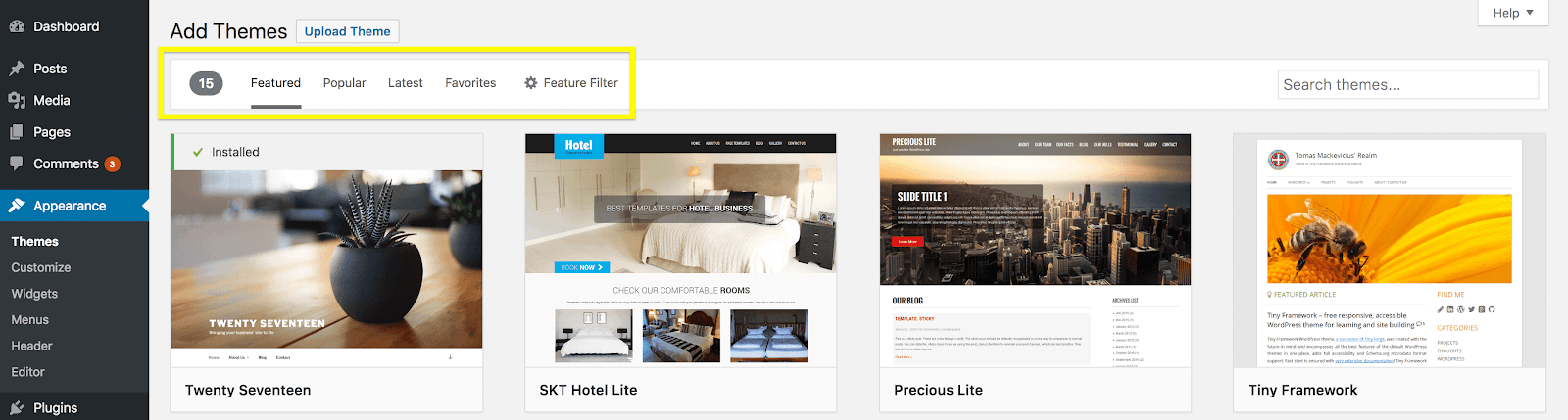
Credit: wpengine.com
Optimizing Images For Performance
Large images can slow down your website. Use image compression tools to make them smaller. These tools keep images clear, but make them load faster. A fast website is good for users.
It is important to keep image quality high. But also, ensure they load quickly. Find a balance between quality and speed. This helps your site look good and work well. Happy visitors will stay longer.
Enhancing Visual Appeal With Plugins
Many plugins help make images look better. Some of the best plugins for image enhancement include WP Smush, Imagify, and Optimole. These tools help compress images without losing quality. They make your site load faster, which is good for users.
WP Smush is easy to use. It works with a few clicks. Imagify offers three levels of compression. You can choose what fits your needs. Optimole helps with image resizing. It uses smart technology to make images look their best.
Plugins need to be added to your theme. First, go to your WordPress dashboard. Find the Plugins section and click on “Add New”. Search for the plugin you want. Once found, click “Install Now”. After installation, click “Activate”. The plugin is now ready to use.
Some plugins might need settings adjustments. Check the plugin settings page. Follow any instructions given. This ensures the plugin works well with your theme. Always update plugins to keep them running smoothly.
Maintaining Image Consistency
Creating a Visual Style Guide helps in keeping your images uniform. This guide shows your brand’s colors and fonts. It tells the story of your brand. Use the same color palette for all images. This creates a strong brand image. Keep the image sizes the same. It makes your site look neat. Use similar filters or editing styles. This gives your images a consistent look. Place images in the same position on different pages. It helps visitors find things easily.
Regularly Updating Theme Images keeps your site fresh. Change images with seasons or events. This makes your site relevant. Use new images to show new products. This attracts visitors. Regular updates show that you care about your site. It shows you are active. Visitors trust sites that update often. It shows you are current.

Credit: jetpack.com
Frequently Asked Questions
How Do I Change WordPress Theme Images?
To change WordPress theme images, navigate to your dashboard. Click on ‘Appearance’ and select ‘Customize’. Find the ‘Header Image’ or ‘Background Image’ options. Upload or select your desired image. Click ‘Save’ to apply changes. Always preview before saving to ensure the image fits well.
Can I Use Custom Images For WordPress Themes?
Yes, you can use custom images for WordPress themes. Simply go to your dashboard, click ‘Appearance’, and then ‘Customize’. Select the option for header or background images. Upload your custom image from your computer. Make sure it’s optimized for web use to prevent slow loading times.
Why Are My WordPress Images Not Changing?
If WordPress images are not changing, it could be a caching issue. Clear your browser cache and try again. Ensure you’re saving changes in the ‘Customize’ section. Check image format compatibility; use standard formats like JPEG or PNG. Verify permissions and settings in your media library.
Is Image Optimization Important For WordPress Themes?
Yes, image optimization is crucial for WordPress themes. Optimized images load faster, improving site speed. They also enhance user experience and SEO rankings. Use plugins like Smush or EWWW Image Optimizer. Compress images without losing quality to balance aesthetics and performance.
Conclusion
Changing theme images on WordPress is simple and straightforward. Follow the steps outlined to easily customize your site. Choose images that reflect your brand. Ensure they are high-quality and relevant. Regular updates keep your site fresh and engaging. Practice makes the process easier over time.
Explore different themes to find the perfect fit. Remember, a visually appealing site attracts more visitors. This boosts engagement and helps grow your audience. Don’t be afraid to experiment with various designs. Enjoy the creative process and make your site stand out!


