
Are you looking to create a WordPress theme without relying on a constant internet connection? Building a WordPress theme offline can be a game-changer, giving you the freedom to work from anywhere and ensuring you have complete control over your design process.
Imagine crafting a unique and personalized theme that perfectly aligns with your vision—without the interruptions of slow internet or connectivity issues. In this guide, you’ll discover step-by-step how to build a WordPress theme offline, even if you’re not a tech wizard.
We’ll simplify the process, breaking down each step so you can confidently create a stunning theme that stands out in the crowded digital space. And don’t worry about getting lost in technical jargon; this article is designed with you in mind, using simple language and clear instructions to make the process as smooth as possible. By the end of this article, you’ll not only have the skills to build a theme offline but also the satisfaction of knowing you’ve mastered a valuable skill that can enhance your online presence. So, let’s dive in and unlock the secrets to designing a WordPress theme that truly reflects your brand and captivates your audience!
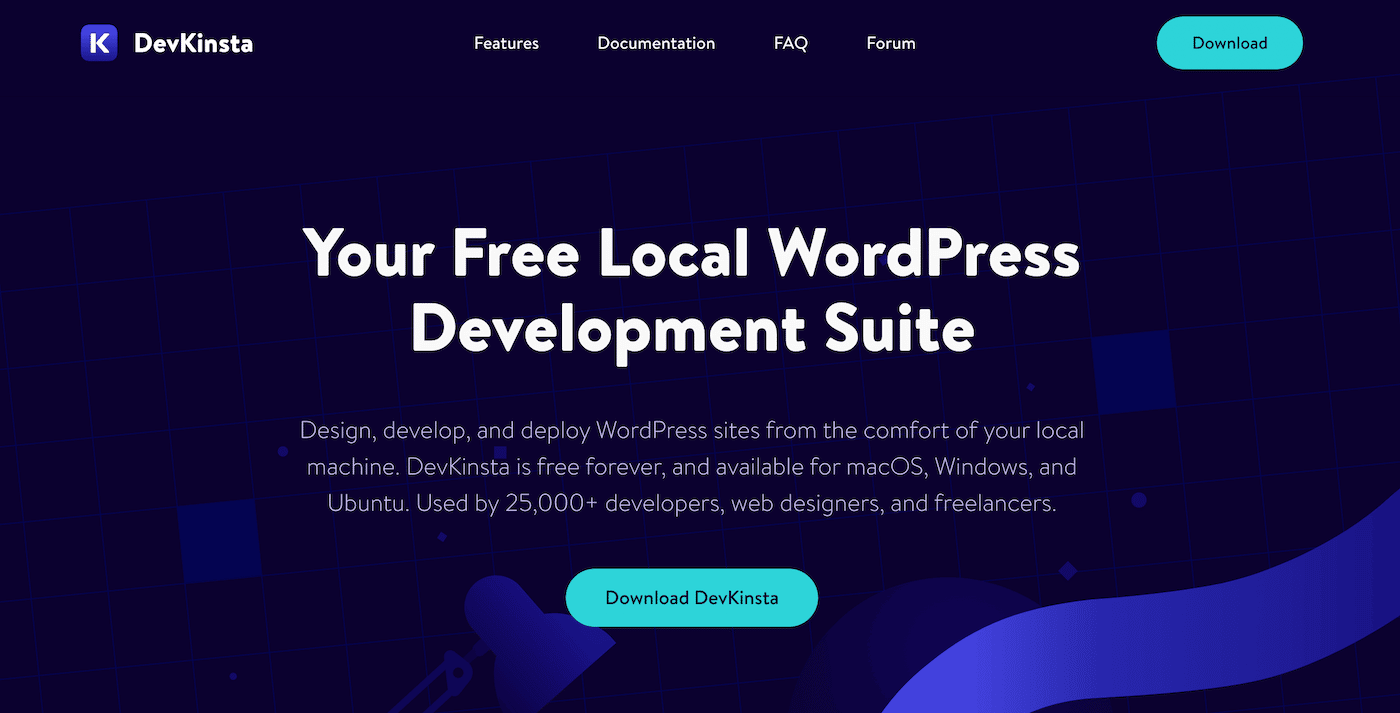
Credit: kinsta.com
Setting Up Your Development Environment
Selecting good software is crucial for building a theme. Text editors like Sublime Text or Visual Studio Code are popular. They are easy to use and help write code. A good editor helps you fix errors fast.
A local server is needed to test your theme. XAMPP or WAMP are great choices. They work on both Windows and Mac. Install them on your computer to start your server. This lets you see changes quickly.
The database stores your theme data. MySQL is often used for this. Create a new database in your local server. Make sure to note the database name and password. This information is important for your theme to work.

Credit: www.youtube.com
Understanding WordPress Theme Structure
Building a WordPress theme offline is fun. Start with the core theme files. These files help your theme work. Begin with index.php. It shows the main content of your site. Next is style.css. This file gives your site its look. Each theme must have it.
Another important file is functions.php. This file adds features to your site. It is like magic. header.php and footer.php are also key. They show the top and bottom parts of your site. Remember, these files must be in your theme folder.
WordPress uses template hierarchy. This means it looks for files in a special order. First, it checks for a single file for each post. If missing, it uses the archive file. This file shows many posts. The hierarchy helps WordPress know which file to use. It keeps your site organized and neat.
Creating A New Theme Folder
Start by creating a new folder for your theme. Give it a unique name. Ensure the name uses only lowercase letters. You can use hyphens to separate words. This makes the name easy to read. Avoid spaces and special characters. This can cause errors later.
Follow WordPress naming conventions for your theme. Use a name that makes sense. It should relate to the theme’s purpose. Keep the name short. Easy names are better for users.
Your theme needs some essential files. Create a file named style.css. This file holds your theme’s styles. Add an index.php file too. It displays your site’s main content.
Another important file is functions.php. It lets you add custom functions to your theme. Create these files in your theme folder.
Credit: www.greengeeks.com
Building The Style Sheet
CSS makes your website look nice. It controls the colors and fonts. CSS also handles the layout of the page. Each part of your site can have its own style. This is called a class or id. You can change the style in one place. The changes will appear everywhere that class or id is used. It’s like magic. This saves time. And it keeps things simple.
The header has important info about your theme. It includes the theme name and author. It also shows the version of your theme. This info is at the top of the style sheet. It helps you and others know what the theme is about. It is like a label for your theme. Make sure to fill it out. It is very important.
Developing The Main Template Files
Every theme needs index.php. It helps show posts. You need it for the theme to work. It is the most important file. It is the first file WordPress looks for. You can add HTML here. You can also add PHP code. Keep it simple. Make sure it displays content well. This file is the backbone. Without it, nothing works. It is the main page. It is where all posts appear.
Every page needs header.php and footer.php. The header is at the top. It can have logos and menus. The footer is at the bottom. It can have links and info. Both are important. They make the page look good. They help users navigate. They are always the same on each page. This keeps the site looking neat. Both files are easy to edit. You can add your own style.
Adding Functionality With Functions.php
Adding styles and scripts is important. Use functions.php for this task. Enqueue styles using wp_enqueue_style(). Enqueue scripts using wp_enqueue_script(). This keeps your theme organized.
Always use absolute URLs for scripts and styles. This avoids issues. Load styles in the header. Load scripts before the closing tag. This makes pages load faster.
You can add custom functions in functions.php. Create functions to add theme support. Use add_theme_support() for features. This can include post thumbnails or custom backgrounds.
Use shortcodes to add extra features. Create shortcodes with add_shortcode(). Shortcodes make it easy to add custom content. Keep functions simple. This makes your theme easy to maintain.
Designing The Front Page
First, create a new file named front-page.php. This file will control the main page. Add HTML code to design the page. Use CSS to style it. Make sure the code is clean and simple. Use div tags to create sections. Each section can hold different content. Add images and text where needed.
Think about the layout of your page. Choose where to place the header and footer. You can add a sidebar for extra links. Make sure the layout is easy to understand. Use different colors to make parts stand out. Consider using a grid system for better organization.
Integrating WordPress Loop
The WordPress Loop is a simple way to show posts. It helps to display dynamic content from your database. This is used in themes to show blog posts.
First, check if there are any posts. Then, use a while loop to get each post. Inside the loop, use the_title() for the post title. Use the_content() for the post content.
Dynamic content changes based on user input. The Loop makes this easy. It helps to show different posts based on categories or tags.
You can also add custom queries to the loop. These queries help to filter posts. This lets users see only the content they want.
Customizing Theme With Widgets And Menus
Widgets make your site look cool. They add fun tools. You can create new widget areas. Use the WordPress Customizer for this. Go to the Widgets section. Add a new widget area. Name it what you like. Place it in the footer or sidebar. Widgets let you show extra content. Like recent posts or a search bar.
Menus help visitors find pages fast. Go to the Menu section in WordPress. Click “Create a New Menu.” Give it a simple name. Add links to pages. Like Home, About, and Contact. Arrange them in order. Save the menu. Assign it to a location. For example, the top bar or sidebar. Custom menus make navigation easy.
Testing Your Theme Offline
Debugging is key in theme development. Start by checking for errors. Use tools like PHP Debug and WP_DEBUG. These tools show errors and warnings. Fix errors one by one. This makes your theme better and faster.
Cross-browser compatibility is important. Test your theme in different browsers. Check how it looks in Chrome, Firefox, and Safari. Each browser can show your theme differently. Adjust styles and scripts for consistency.
Use a tool like BrowserStack or LambdaTest. These tools help test on multiple devices. Ensure your theme works on phones and tablets. Focus on user experience. Happy users will stay longer on your site.
Exporting And Installing Your Theme
Exporting and installing your theme involves saving your WordPress theme files to your computer. Then, upload them to your WordPress site. This process enables you to test and perfect your theme offline before making it live.
Packaging Your Theme
Your WordPress theme needs to be packaged properly. First, compress all theme files into a ZIP folder. This makes it easy to handle. Ensure all necessary files are included. A typical theme includes a style.css file, an index.php file, and a functions.php file. Every file serves a purpose. Missing files can cause errors. Name your ZIP folder clearly. This helps in future searches.
Installation On A Live Server
Transfer the ZIP file to your server. Use an FTP client for this task. Log in to your WordPress dashboard. Navigate to the “Themes” section. Click “Add New” and then “Upload Theme.” Select your ZIP file and click “Install Now.” Wait for the process to finish. Once installed, activate your theme. Check your website to see the changes. Ensure everything works well. Problems might require troubleshooting.
Frequently Asked Questions
Can I Build A WordPress Theme Offline?
Yes, you can build a WordPress theme offline using local development tools. Software like XAMPP or MAMP allows you to create a local server environment. You can develop and test your theme without an internet connection. This offline setup helps in faster development and debugging.
What Tools Do I Need For Offline Theme Development?
For offline WordPress theme development, you’ll need a local server setup like XAMPP or MAMP. These tools create a local environment for testing. You’ll also need a code editor like Visual Studio Code. This combination helps you write, edit, and preview your theme efficiently.
How Do I Test My Theme Offline?
To test your theme offline, set up a local server using XAMPP or MAMP. Install WordPress locally and activate your theme. Customize and preview changes directly in your browser. This method ensures your theme functions correctly before deploying it online.
Can I Use Php For Offline Theme Building?
Yes, PHP is essential for building WordPress themes offline. WordPress is built on PHP, making it crucial for theme development. You can write PHP code using a code editor and test it locally. This ensures your theme integrates smoothly with WordPress’s core functionality.
Conclusion
Creating a WordPress theme offline offers flexibility and control. You craft designs at your own pace. No internet distractions. It’s perfect for learning and experimenting. Start simple. Use tools like Local by Flywheel. Customize themes with HTML, CSS, and PHP.
Debugging becomes easier offline. Test locally before launching. You gain skills and knowledge. Share creations with the WordPress community. Practice makes perfect. Building offline strengthens your development skills. Enjoy the process. Embrace creativity. Designing offline empowers you to innovate. Dive into theme creation.
Make your mark in the WordPress world.


